










Content ITV PRO
This is Itvedant Content department
Integrating Kubernetes with AWS Container Registry (ECR)
Pre-Lab Preparation
Amazon EKS Cluster is running
kubectl is configured
AWS CLI is configured
Docker is installed
EC2 administration server is available
ECR permissions are available
Task 1: Verify AWS and Kubernetes Connectivity
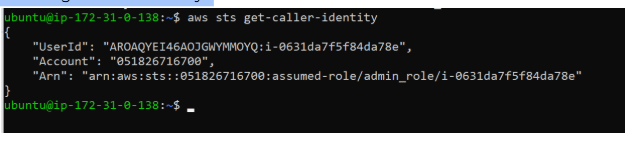
Verify AWS account:
aws sts get-caller-identity
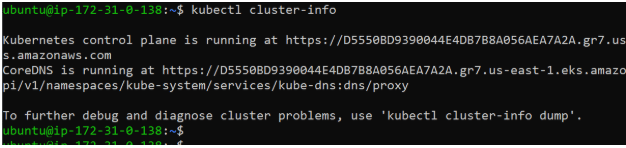
Verify EKS cluster:
kubectl cluster-infoVerify nodes:
kubectl get nodes
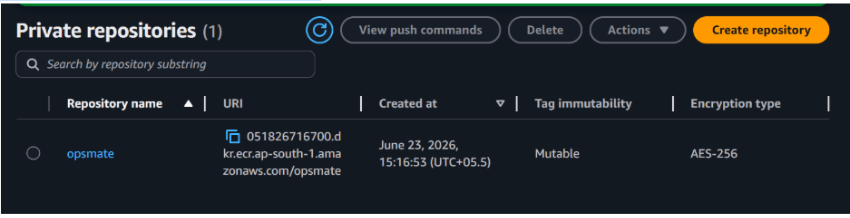
Task 2 : Create Amazon ECR Repository
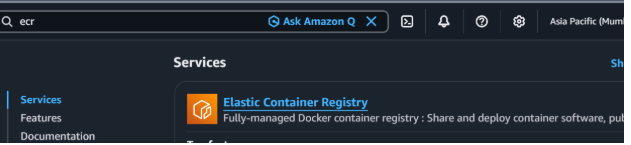
Open AWS Console.
Navigate to: Elastic Container Registry (ECR)
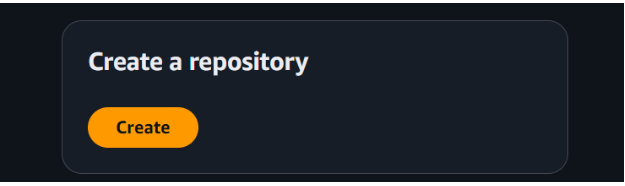
Click: Create Repository
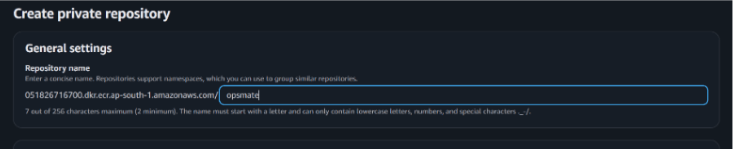
Repository Configuration
Repository Name: opsmate
Click: Create Repository
After creation, copy Repository URI.
Example:123456789012.dkr.ecr.us-east-1.amazonaws.com/opsmate
Keep this value for later steps.
Task 3 : Create Sample OpsMate Application
Create project directory
mkdir opsmate
cd opsmate
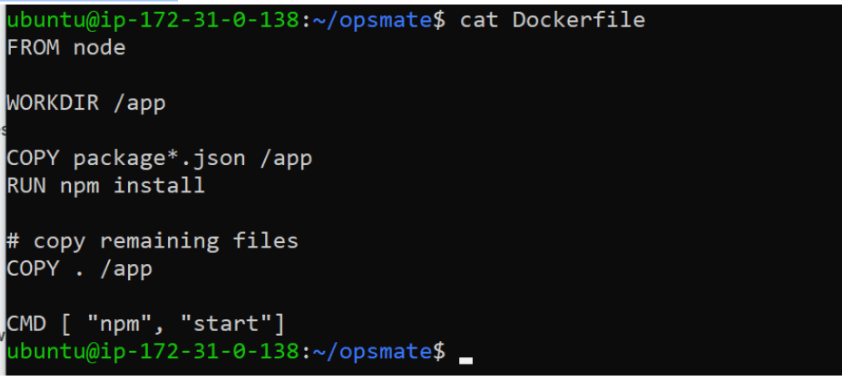
Task 4: Create Dockerfile
Create Dockerfile
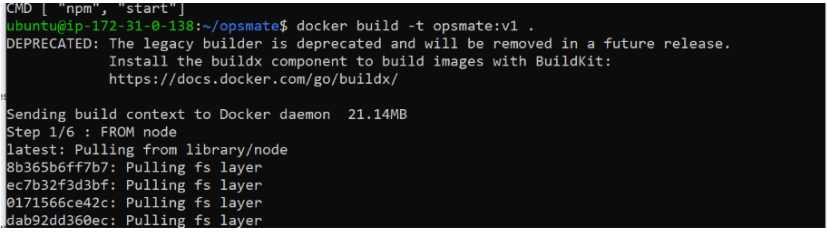
Task 5: Build Docker Image
Build image
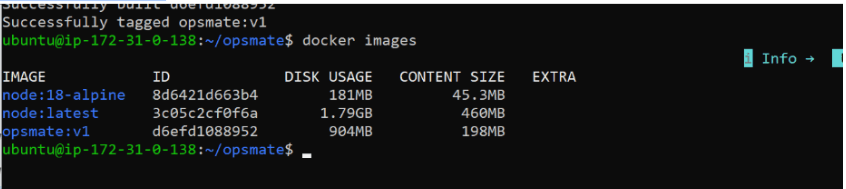
docker build -t opsmate:v1 .Verify image
docker images
Test locally
docker run -d -p 3000:3000 opsmate:v1
Open browser:http://localhost:3000
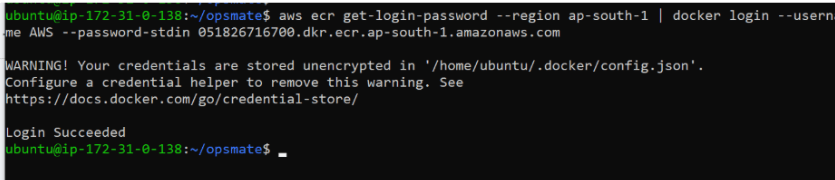
Task 6 : Authenticate Docker with ECR
Login to ECR
aws ecr get-login-password --region ap-south-1 | docker
login --username AWS
 --password-stdin 051826716700.dkr.ecr.ap-south-1.amazonaws.com
Task 7: Tag Docker Image
Tag image with repository URI
docker tag opsmate:v1 051826716700.dkr.ecr.ap-south-1.amazonaws.com/opsmate:v1
Verify
docker imagesTask 8: Push Image to ECR
Push image
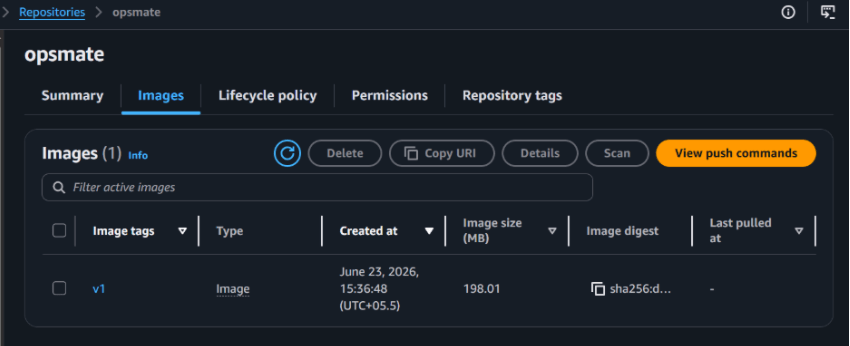
docker push 123456789012.dkr.ecr.us-east-1.amazonaws.com/opsmate:v1Verify image upload: AWS Console →ECR → Repositories → opsmate
Task 9: Create Namespace for OpsMate
Create namespace:
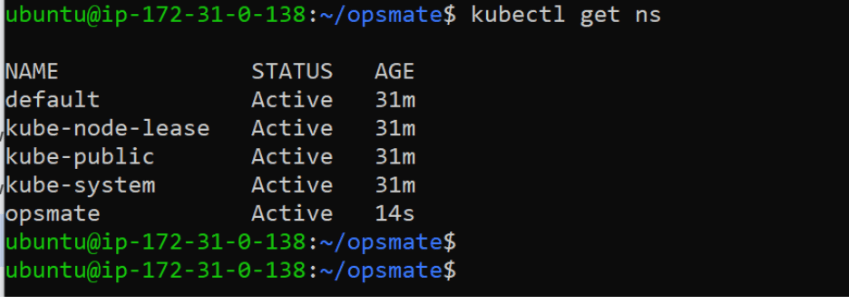
kubectl create namespace opsmateVerify:
kubectl get ns
Set namespace context
kubectl config set-context --current --namespace=opsmate
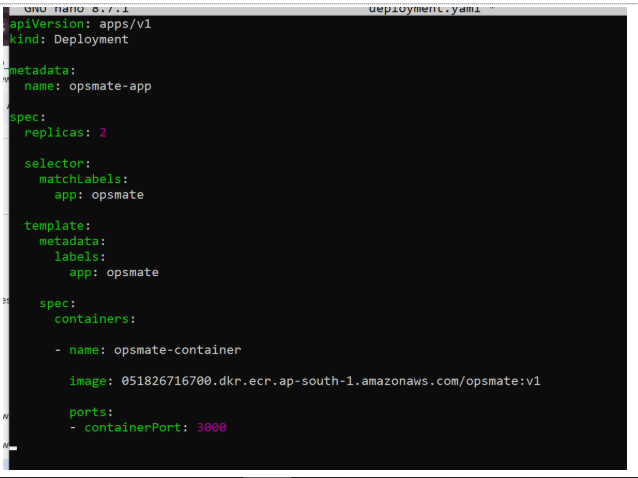
Task 10: Create Kubernetes Deployment
Create deployment file:
nano deployment.yaml
Apply deployment
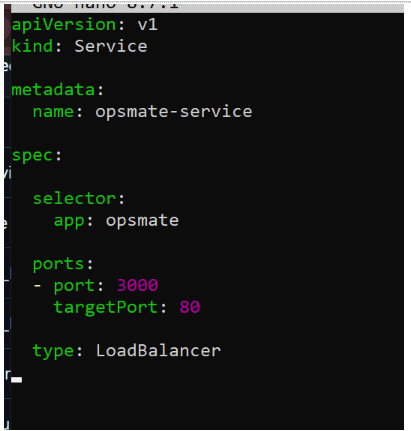
kubectl apply -f deployment.yamlTask 11: Expose Application
Create service
nano service.yaml
Apply service
kubectl apply -f service.yaml
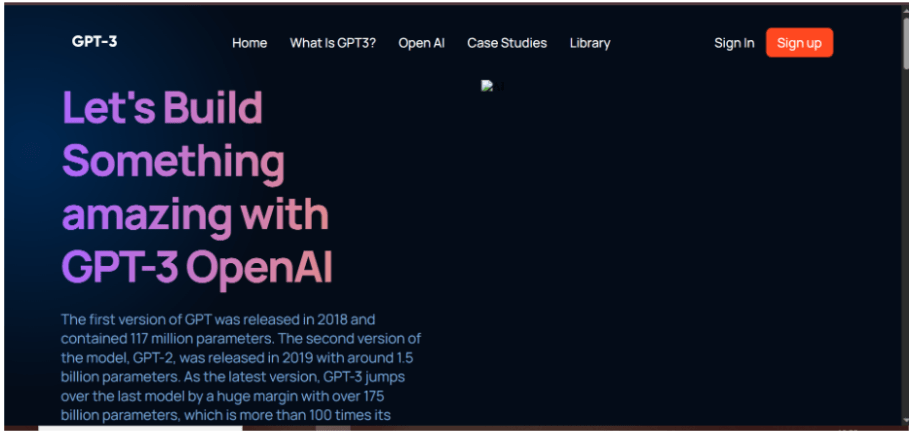
Task 12 : Verify Application Access
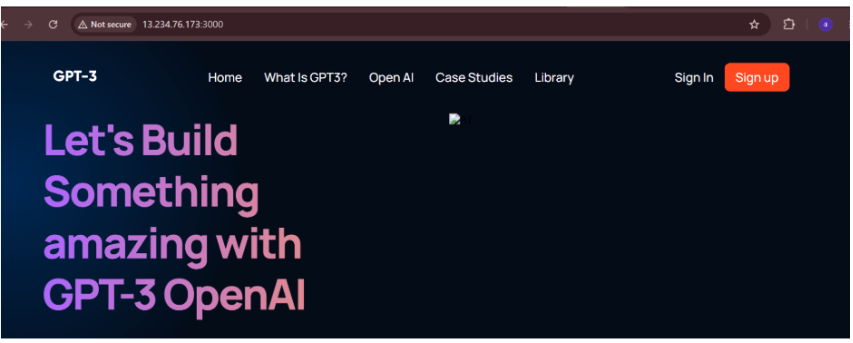
Open browser:
Task 13 : Verify Running Resources
Check Pods
kubectl get pods -o wide
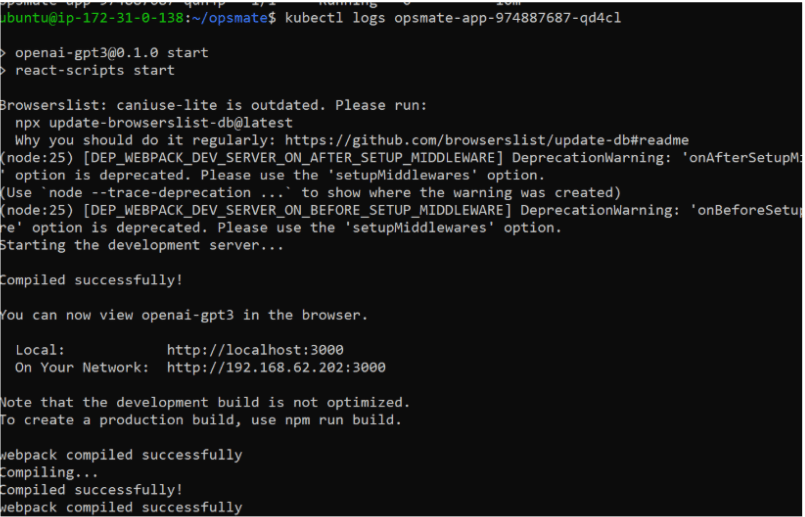
Check Logs
kubectl logs opsmate-app-974887687-qd4cl
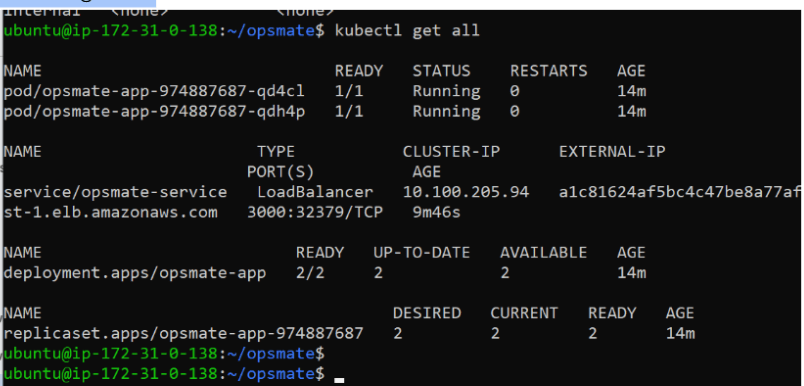
Check all resources
kubectl get all
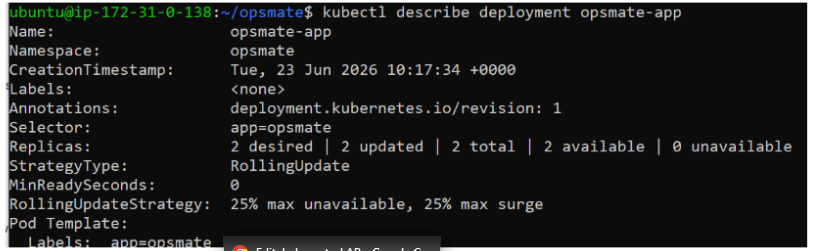
Describe Deployment
kubectl describe deployment opsmate-app
Great job!
Created Amazon ECR repository
Built OpsMate Docker image
Authenticated Docker with ECR
Tagged and pushed images to ECR
Created Kubernetes Deployment using ECR image
Exposed application using LoadBalancer Service
Verified application accessibility
Updated application image and performed deployment update
Checkpoint
By Content ITV