Content ITV PRO
This is Itvedant Content department
Commerce Manager
Business Scenario
After creating and optimizing Meta advertising campaigns, the next step is setting up Commerce Manager and creating a Product Catalogue. A product catalogue allows businesses to organize their products and use them in shopping ads, catalogue ads, and dynamic advertising campaigns. In this activity, you will create a catalogue for Spice Garden Restaurant and add menu items to prepare for future advertising campaigns.
Pre-Lab Preparation
Topic : Inorganic Marketing (Paid Ads)
1) Ad Manager Overview & Ad Objectives
2) Auction & Bidding Strategies
3) Awareness Ad Setup on Meta
4) Traffic Ad Setup on Meta
5) Lead Generation Ad Setup on Meta
6) Engagement Ad Setup on Meta
7) AB Testing on Meta
8) Campaign Budget Optimizatin/ Advantage Campaign Budget
9) Commerce Manager | Catalogue Creation
10) Sales Ad Setup on Meta
11) Payment Setup on Meta and Automation Rules
12) Awarness Ad Setup on LinkedIn
13) Lead Generation Ad Setup on LinkedIn
Task : Meta Commerce Manager
Objective:
To set up Meta Commerce Manager, create a product catalogue, and upload the Spice Garden Restaurant menu items.
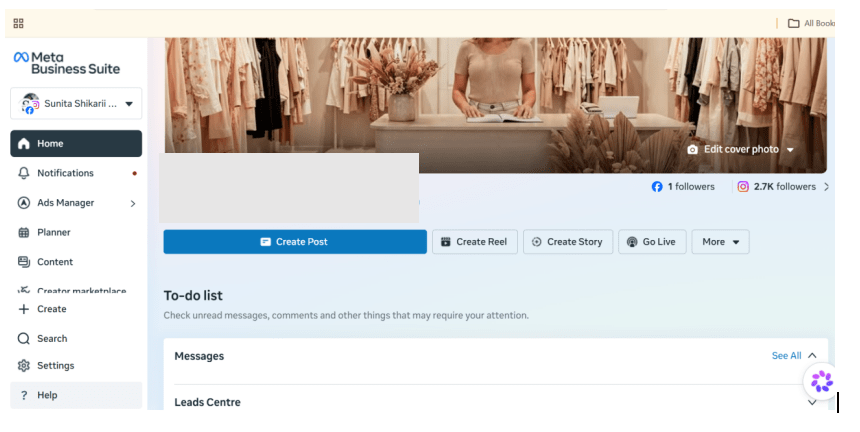
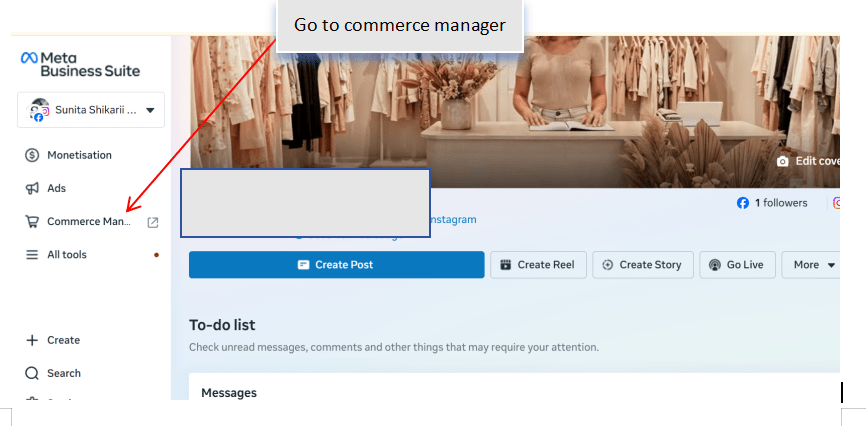
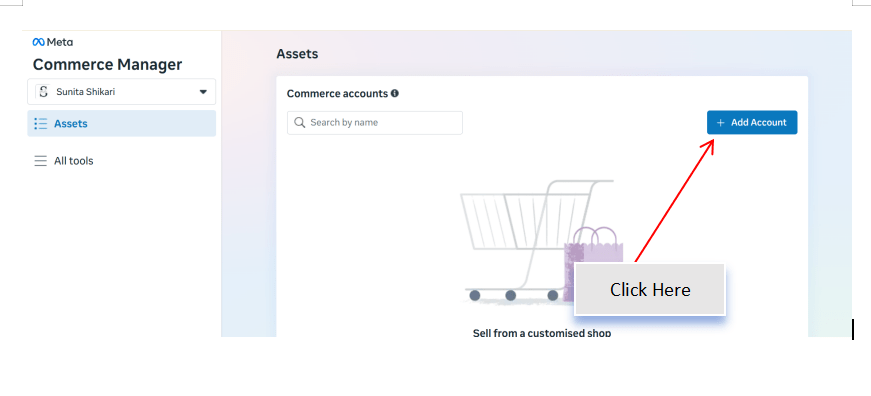
Open Commerce Manager
1
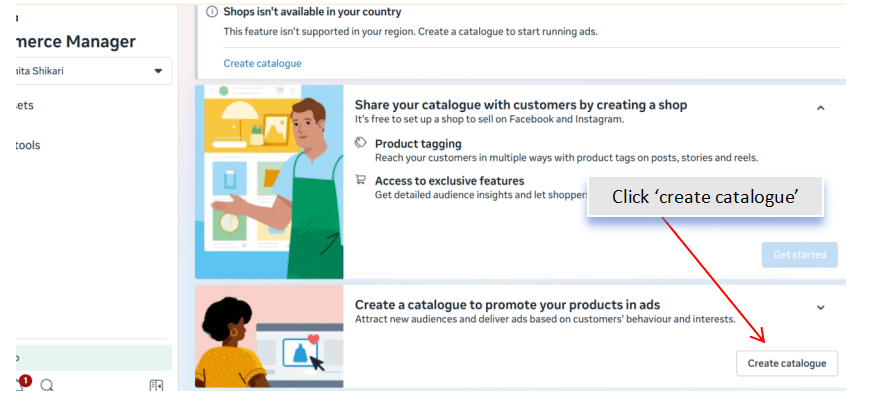
Create a Product Catalogue
2
Configure the catalogue by entering:
Catalogue Name: Spice Garden Menu
Catalogue Type: Products
Associate the catalogue with the correct Business Account.
Save the catalogue settings.
Choose the Product Upload Method
3
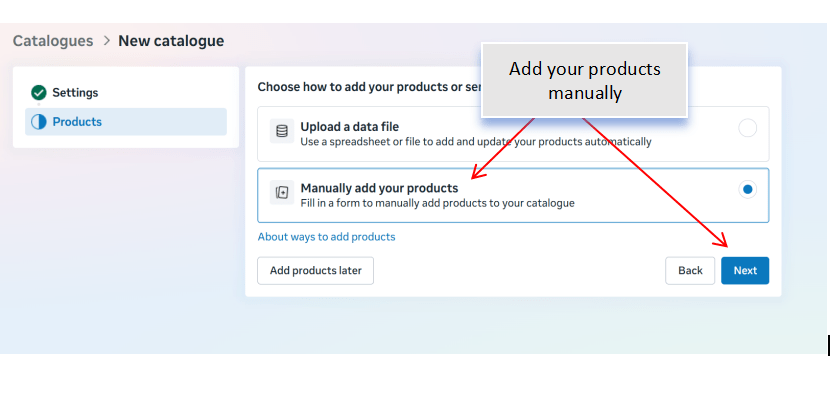
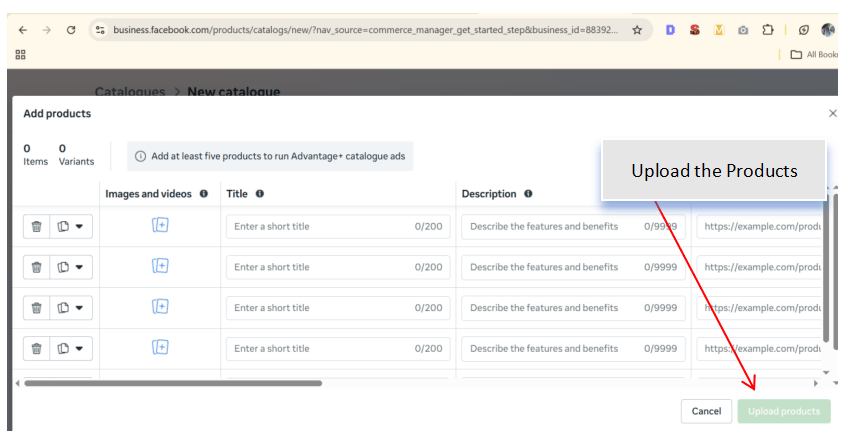
Select a method to add products to the catalogue.
Choose one of the following:
Add Products Manually
Data Feed Upload
Connect with an E-commerce Platform (if applicable)
For this activity, select Add Products Manually.
Add Menu Items to the Catalogue
4
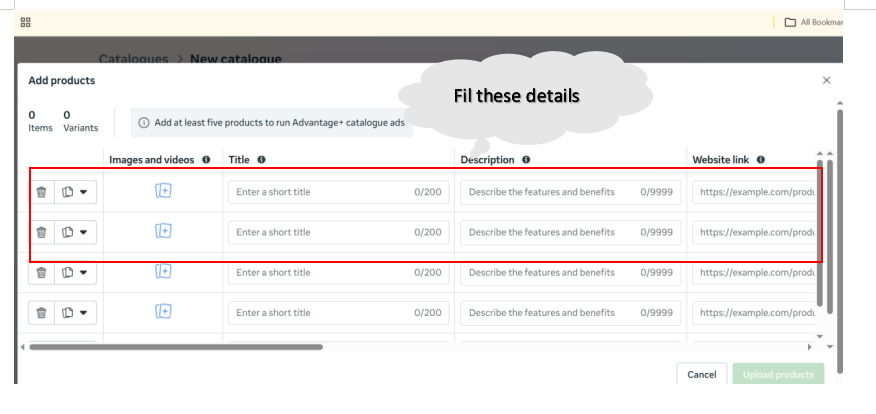
Create product listings for Spice Garden menu items.
For each item, add:
Product Name
Product Description
Product Category
Price
Availability
Product Image
Repeat the process for multiple menu items.
Review Product Information
5
Check each catalogue item and verify:
Product Name
Description
Price
Image
Availability Status
Correct any missing or inaccurate information.
Preview the Product Catalogue
6
Open the catalogue and review:
Product Images
Product Details
Categories
Pricing
Ensure that all products are displayed correctly.
Save and Publish the Catalogue
7
Review the complete catalogue setup.
Verify:
Catalogue Name
Product Listings
Categories
Connected Assets
Save the changes and publish the catalogue.
Activity
Now it's your turn!
Set up Commerce Manager and create a product catalogue for Spice Garden Restaurant.
You need to:
Create a new product catalogue
Add menu items manually
Organize products into categories
Verify product details
Connect the catalogue with Meta assets
Congratulations!
You have successfully completed Commerce Manager LAB for Spice Garden.
In this LAB, you learned how to:
How to access Meta Commerce Manager
How to create a product catalogue
How to add products manually
How to organize products into categories
How to connect a catalogue with Meta Business assets
How to prepare a catalogue for future shopping and catalogue advertising campaigns
Checkpoint
By Content ITV