




Content ITV PRO
This is Itvedant Content department
Configure Users, Roles & Secure Access Control
Business Scenario
After completing monitoring, log analysis, and performance optimization, CartForge is running smoothly in production.
The team is growing.
More developers need server access.
Multiple people now handle deployments and maintenance.
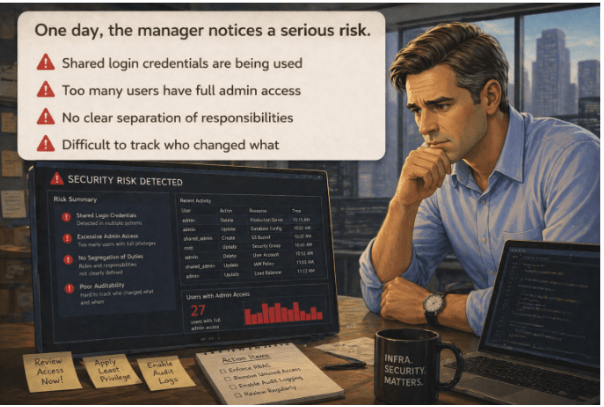
One day, the manager notices a serious risk.
Shared login credentials are being used
Too many users have full admin access
No clear separation of responsibilities
Difficult to track who changed what
The manager calls the Junior DevOps Engineer and explains:
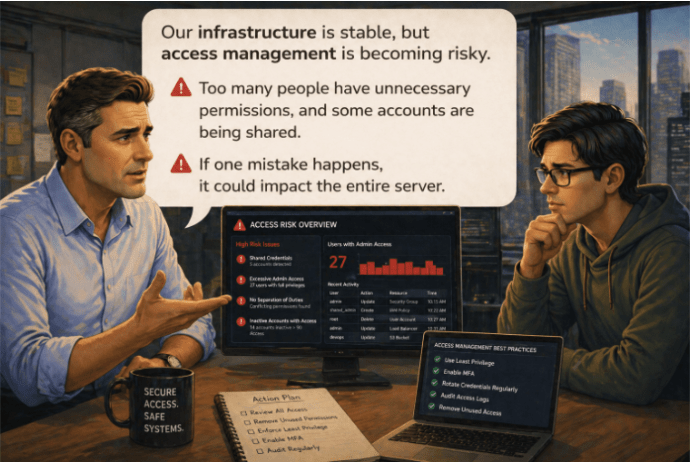
“Our infrastructure is stable, but access management is becoming risky.”
He continues:
“Too many people have unnecessary permissions, and some accounts are being shared.”
“If one mistake happens, it could impact the entire server.”
The Junior DevOps Engineer gathers the team and explains:
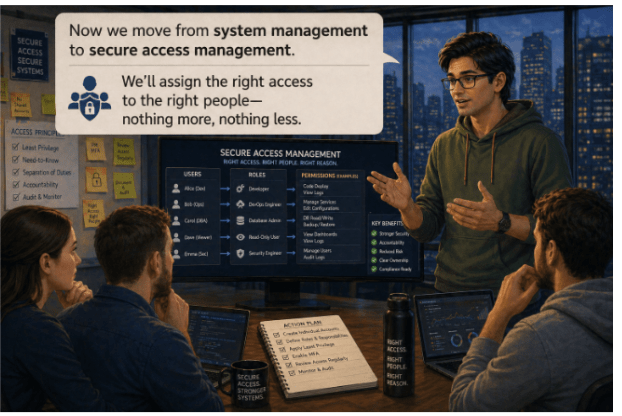
“Now we move from system management to secure access management.”
“We’ll assign the right access to the right people—nothing more, nothing less.”
Pre-Lab Preparation
What is AWS and Why AWS
Cloud Service and Deployment method
What is IAM in AWS
Different between policy and roles
Define user group
Task 1: Create User & Group
1
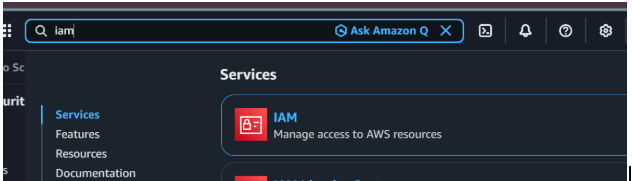
Go to AWS Console(Search: IAM)
2
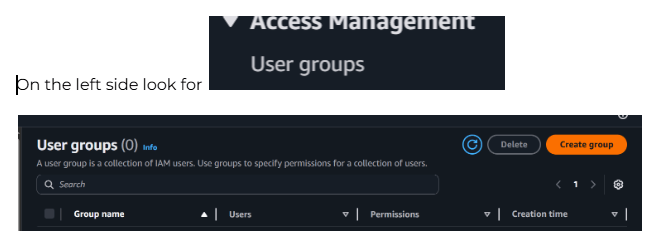
Create Group(Go to: User Groups → Create group)
3
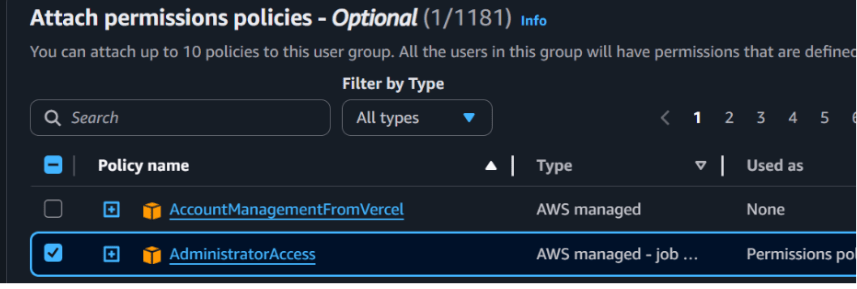
Attach Policies:
Select:
(AdministratorAccess (for learning))
4
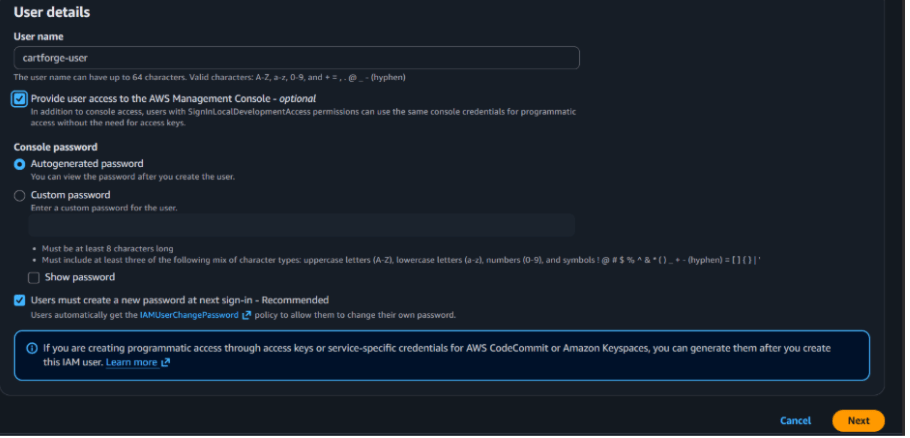
Create User (Go to: Users → Create user)
5
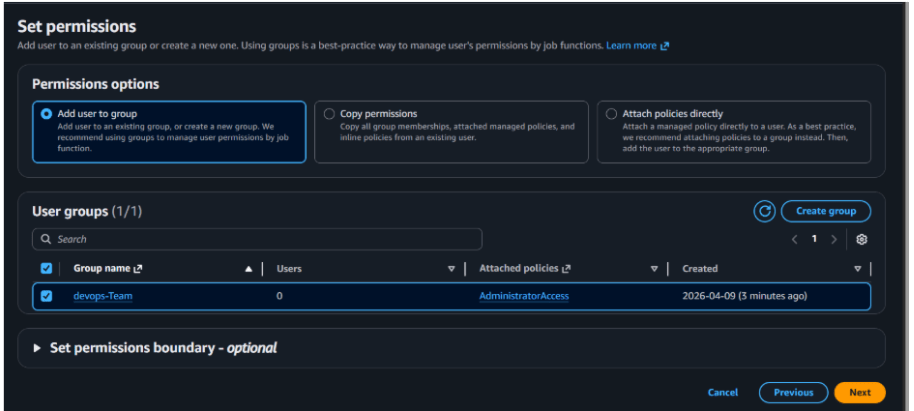
Set Permissions
a
Select:Add user , to groupChoose: DevOps-Tea , Click Next →
6
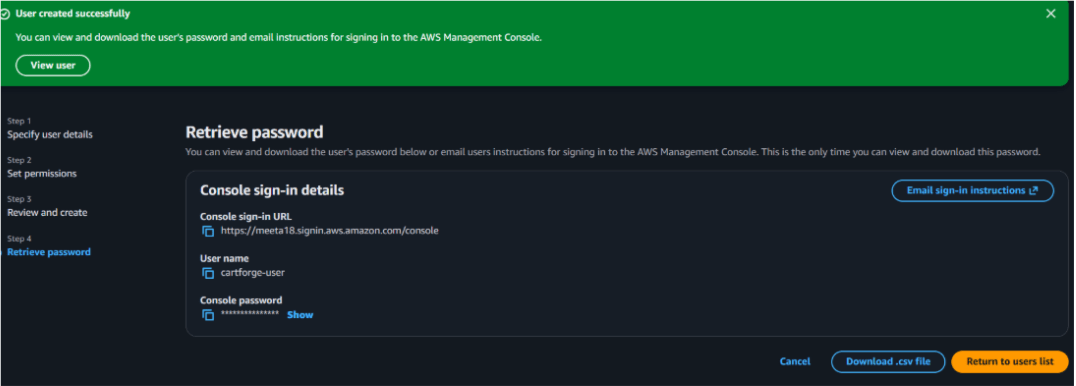
Get Login Access
After creation:
Download credentials
Set password
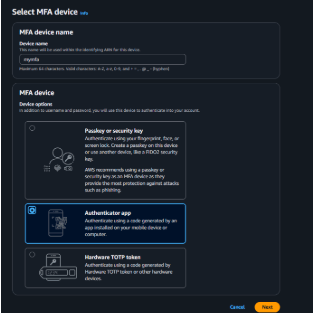
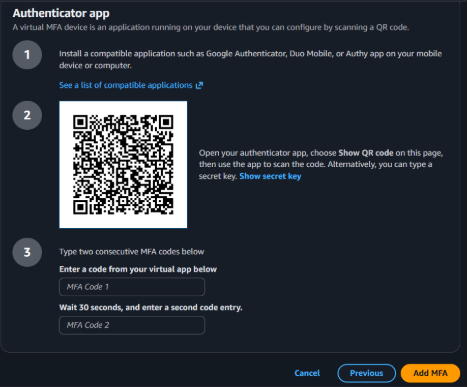
Now lets enable MFA for your cartforget user
7
Go inside your user >>Security Credentials >> click on assi
And here you can see its added
Task 2: Validate Permissions & Configure Secure Access
To validate the permission lets login in to your server
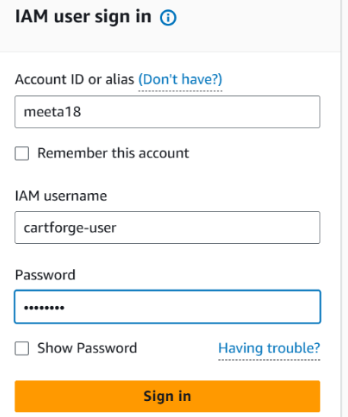
Now try to login in to the user that your created
1
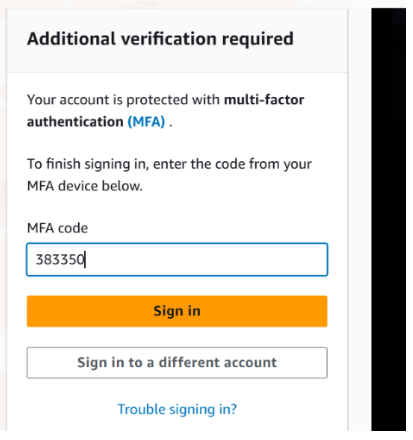
Now its will ask your for one code that is coz of MFA
2
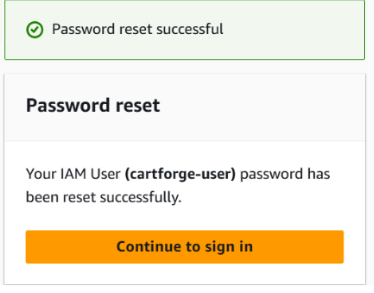
Set the password and continue
3
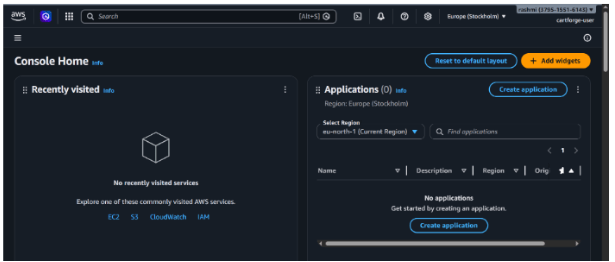
And your are login into your cartforge account
4
5
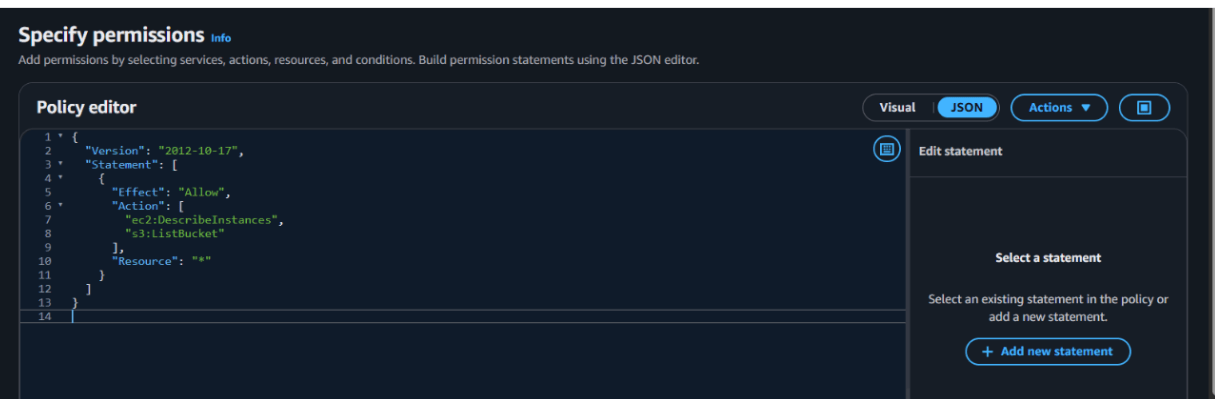
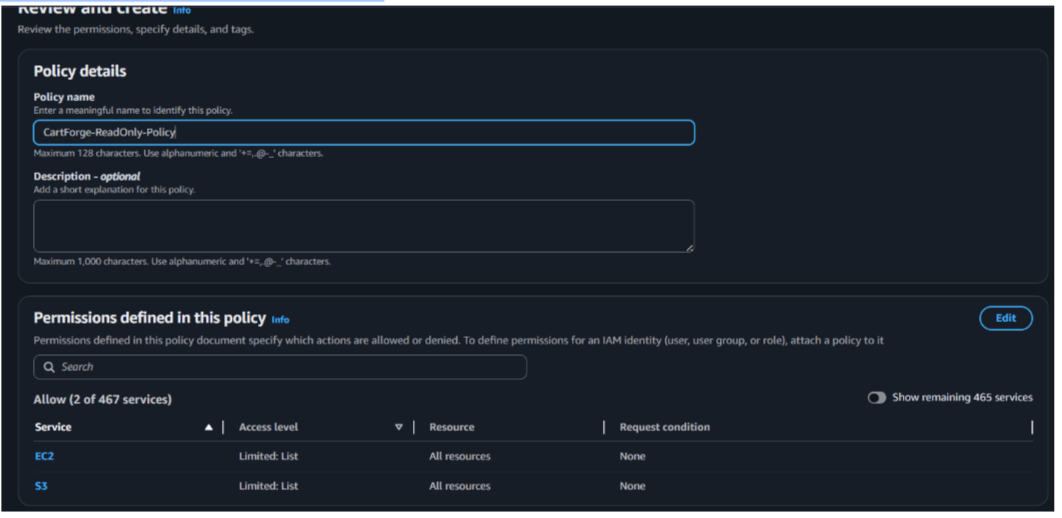
Create Custom Policy
a
Go to AWS ConsoleSearch: IAM
Policies → Create Policy
Use JSON
Click Next
Name:CartForge-ReadOnly-Policy
Create Policy
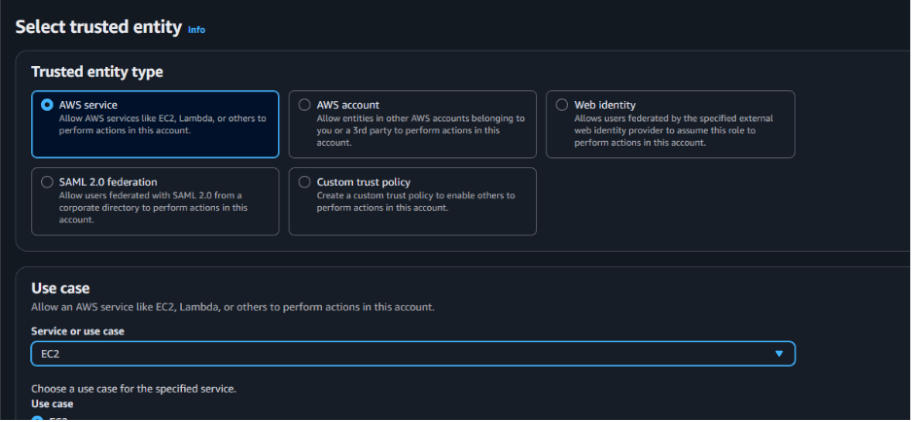
Lets create a role and for our Cartforge server to access the EC2
Go to: Roles → Create Role
Select:
AWS Service
Use case → EC2
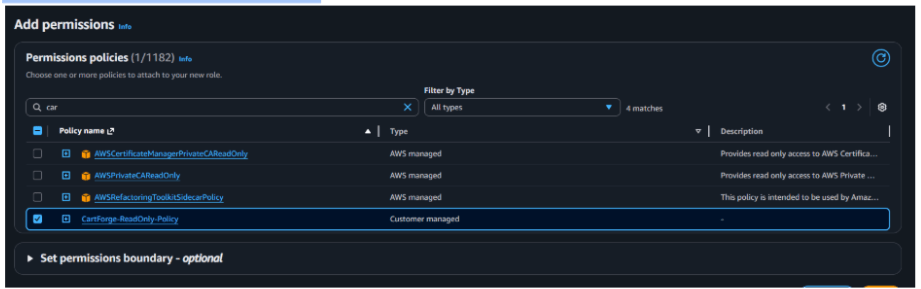
Attach Policy:
Select:CartForge-ReadOnly-Policy
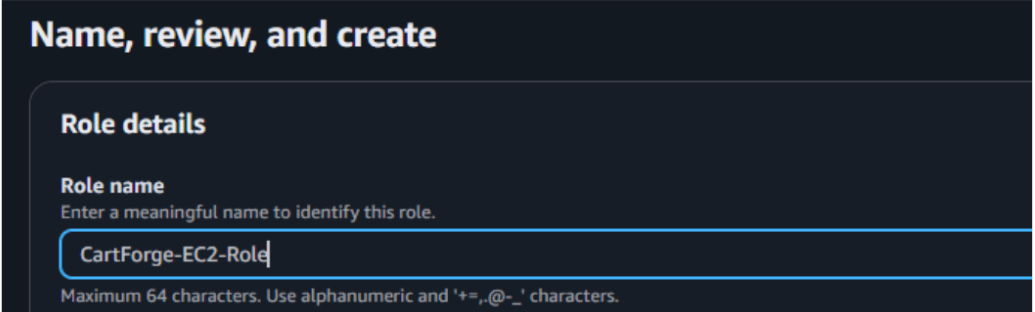
Name:CartForge-EC2-Role
Create Role
Great job!
Checkpoint
Next-Lab Preparation
What is EC2
Components of EC2
What is SSH
Explore the frequently used Port no
What is s3 and its Storage Classes
By Content ITV