
Content ITV PRO
This is Itvedant Content department
CartSure Initiation and SDLC & STLC Understanding
Business Scenario
Welcome!
You are now getting familiar with the CartSure project and your role as a Software Tester.
After setting up Git and GitHub on Day 1,
Your manager introduces you to an important concept today — CartSure Initiation and SDLC & STLC Understanding
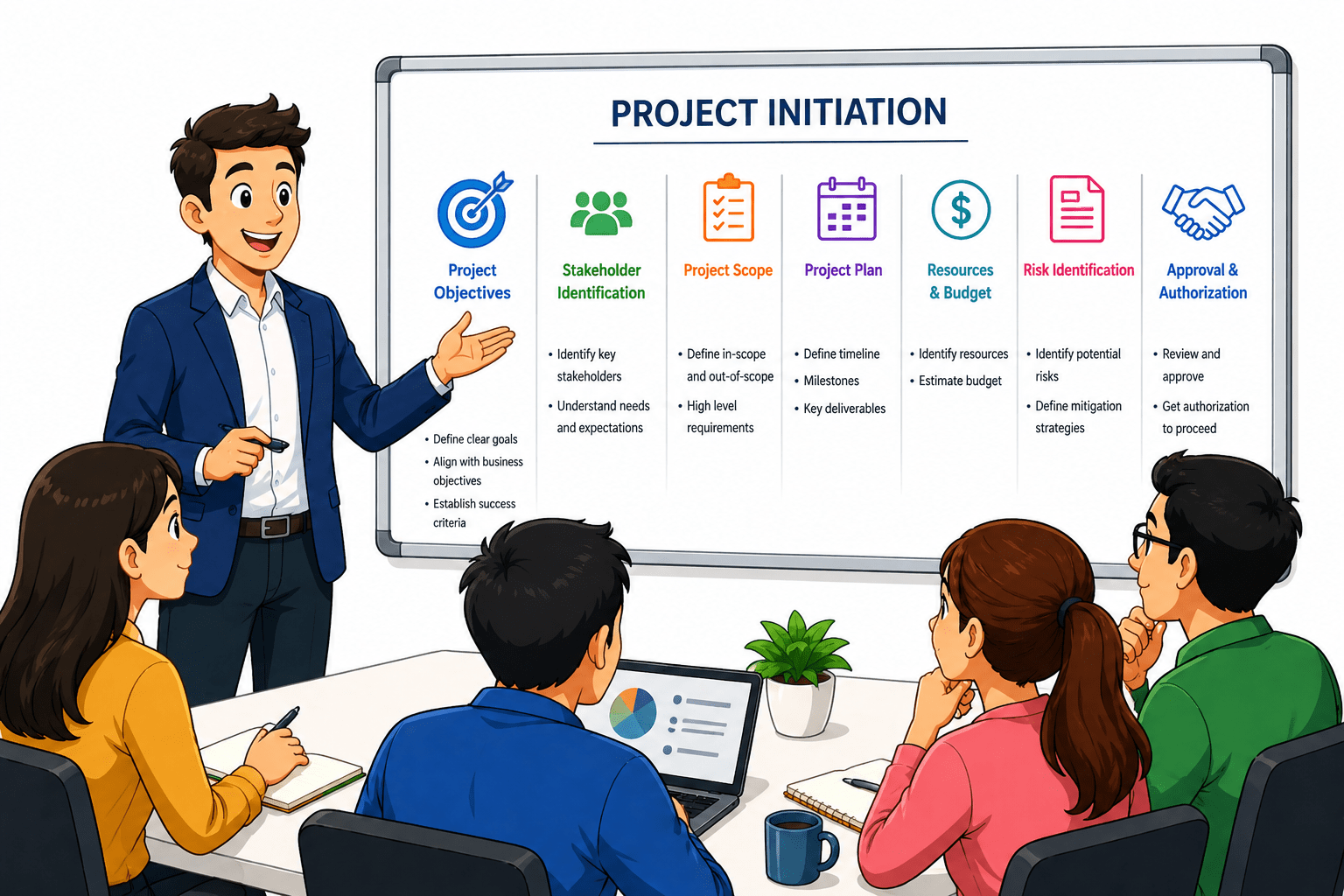
Before testing, it is important to understand how a project starts and progresses. CartSure follows a structured process to ensure quality in every feature.
Project initiation is the phase where requirements, goals, and feasibility are defined. After this, the project moves through the SDLC phases.
As a Software Tester, your role begins in the requirements phase and continues through testing and maintenance.
Topic: Software Testing Basics
1) What is Testing? Importance of Testing.
2)SDLC vs STLC and QA vs QC vs Testing.
Pre-Lab Preparation
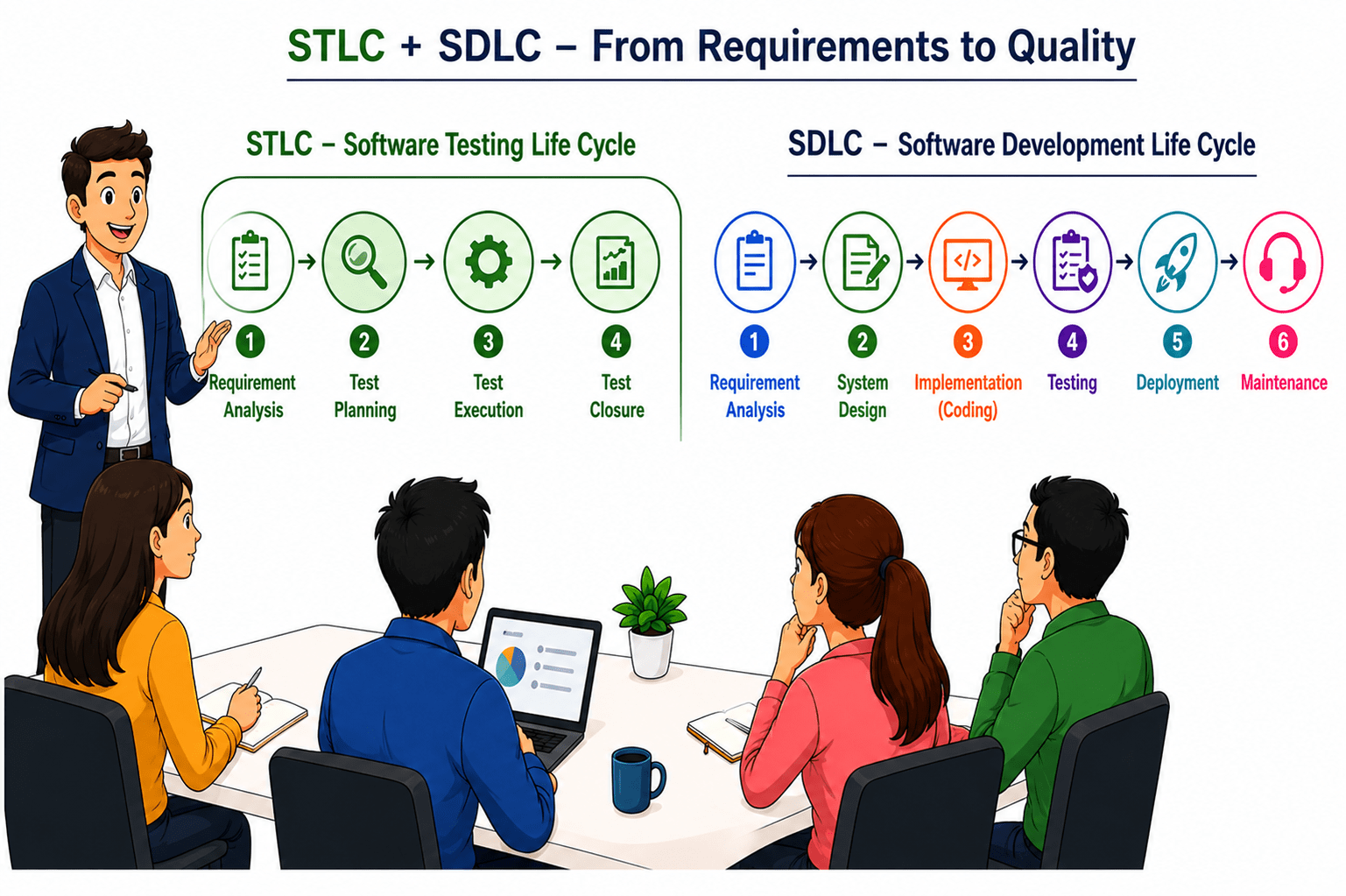
Understanding SDLC together with STLC helps you create better test scenarios, find defects early, and work effectively with the team. So, today you will learn how SDLC and STLC work together and how your role fits into the CartSure project.
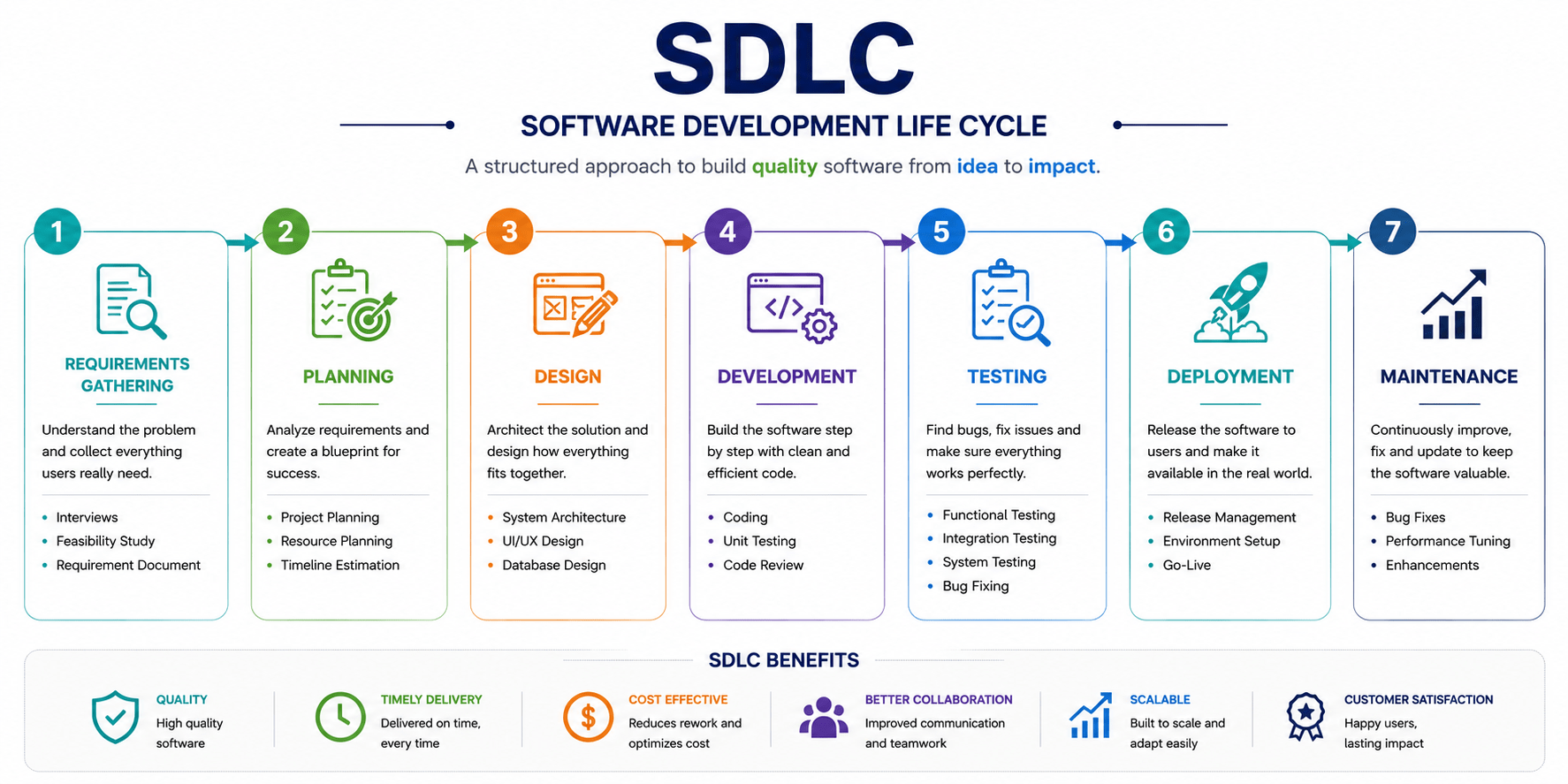
Task 1: Understanding SDLC
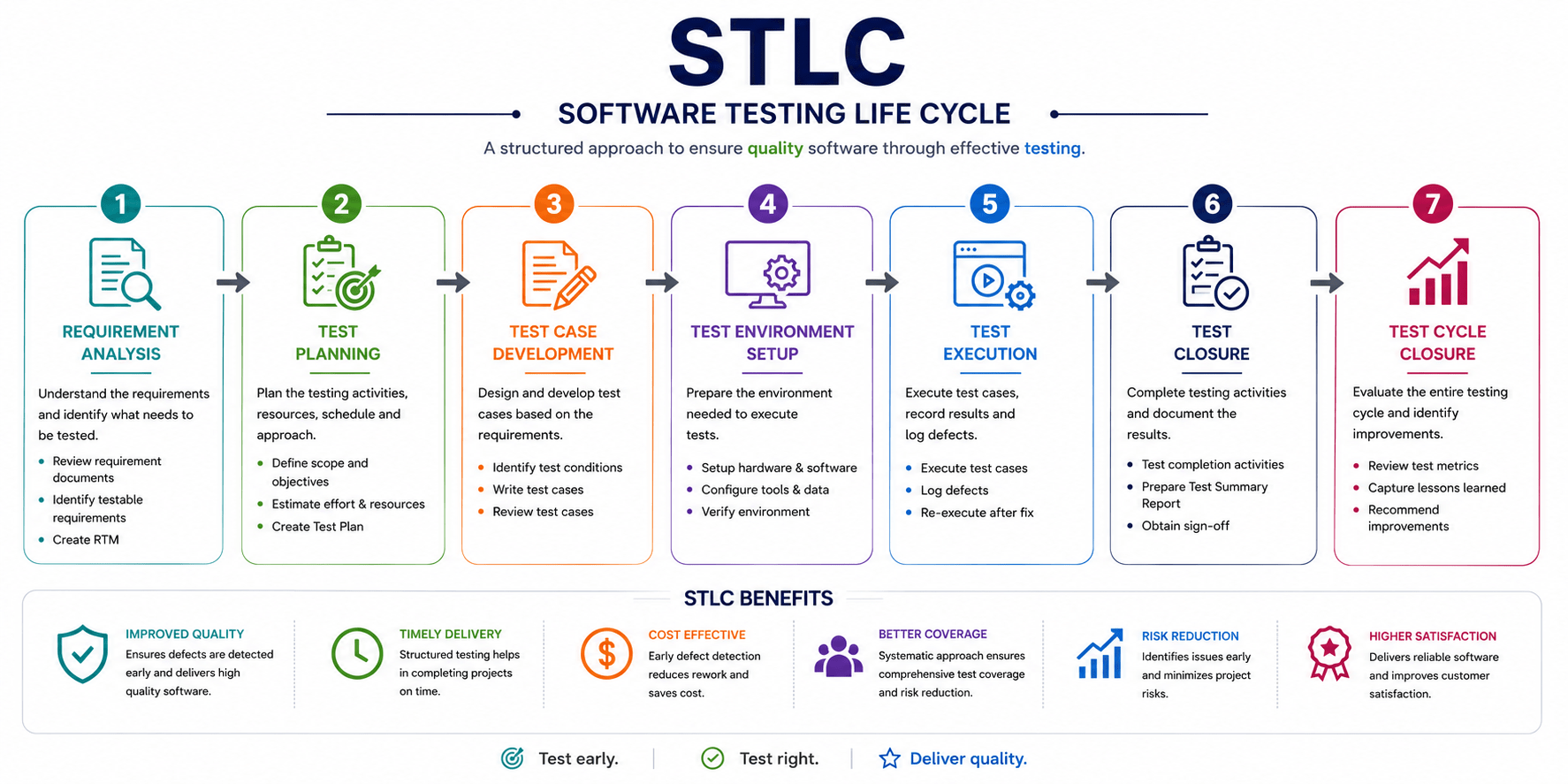
Task 2: Understanding STLC
Task 3: Explore CartSure Modules
Sign-Up Module.
1
Visit CartSure Module by using the following link
a
1
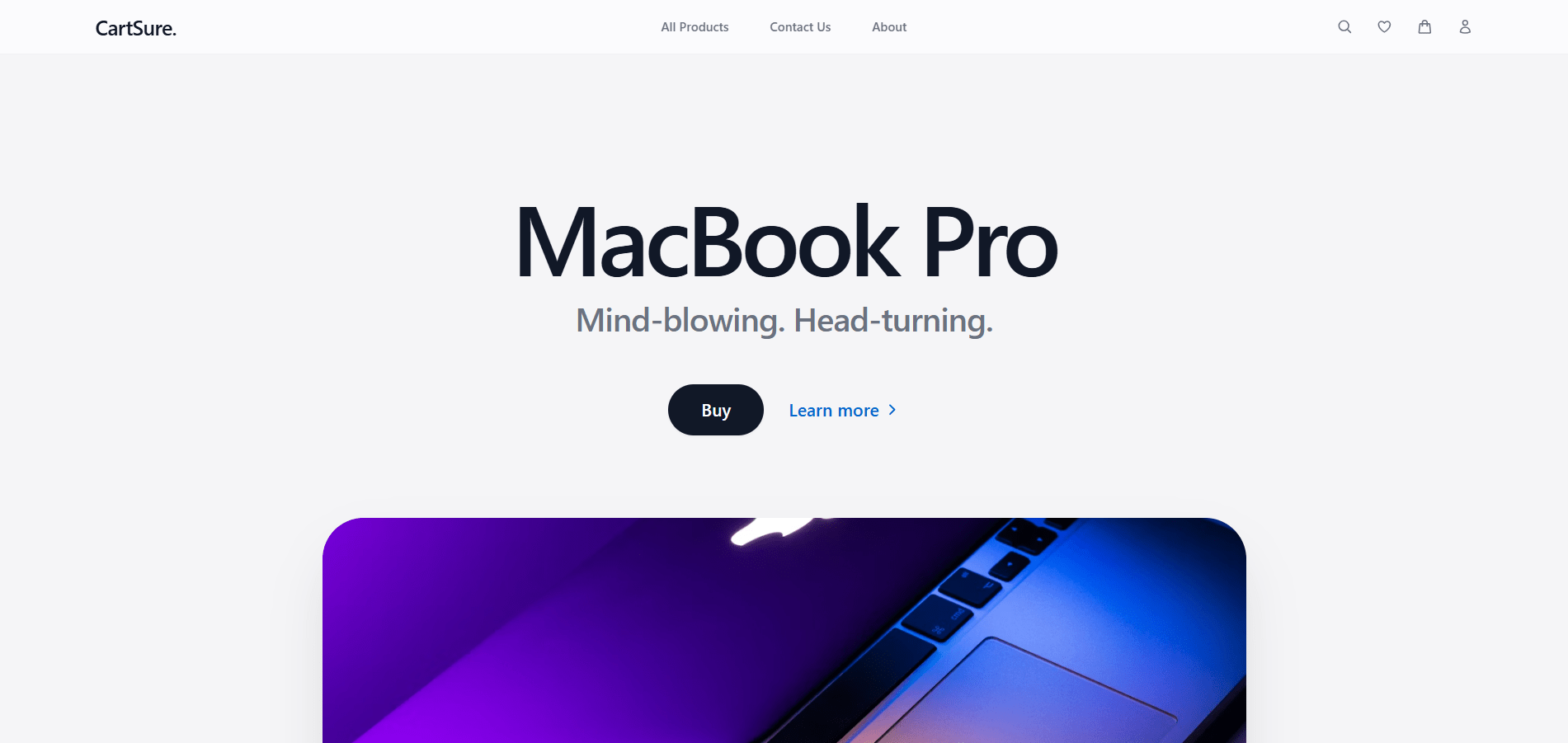
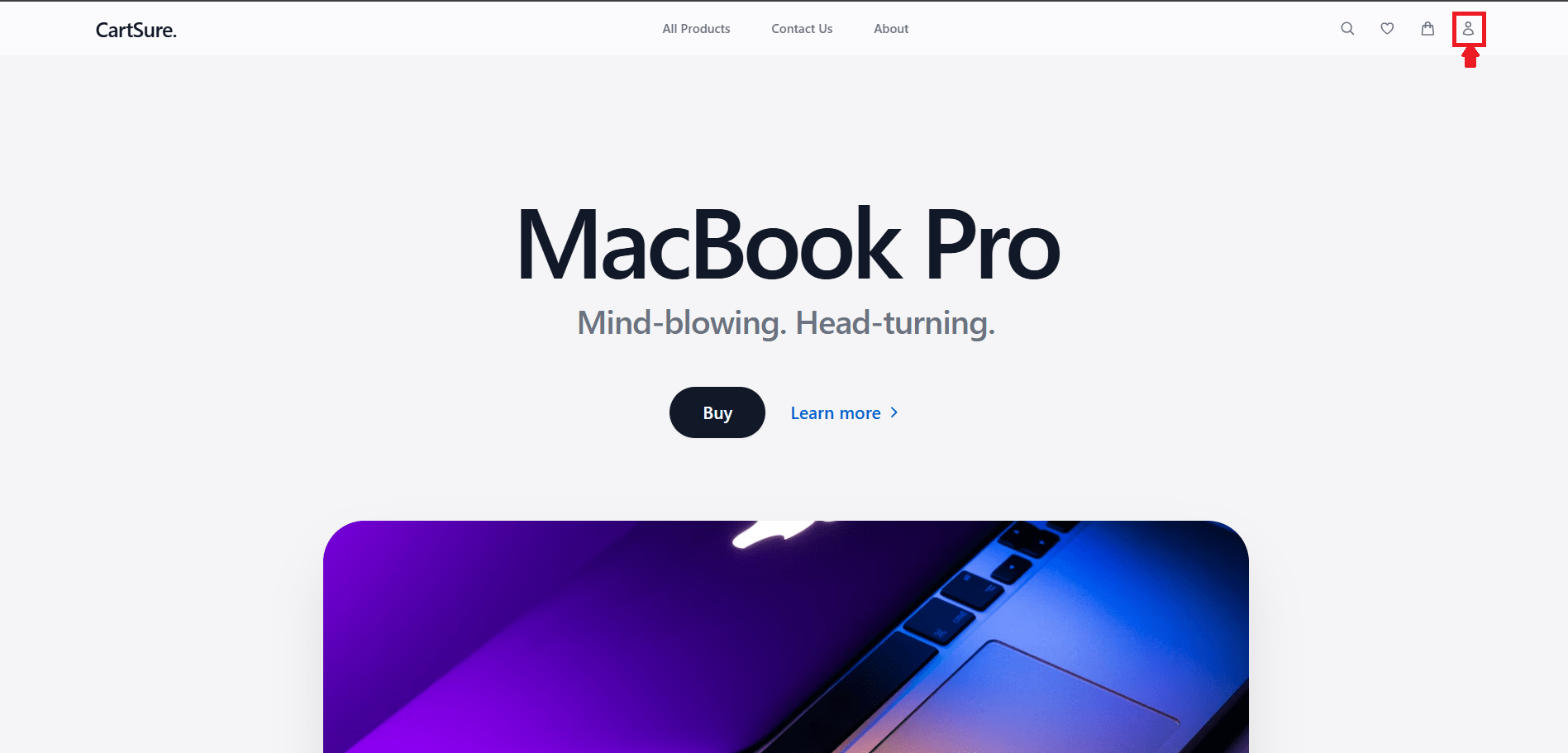
After clicking on the above link, you land on the CartSure home page.
b
Now click on the icon as shown in the image for signup on the CartSure website.
c
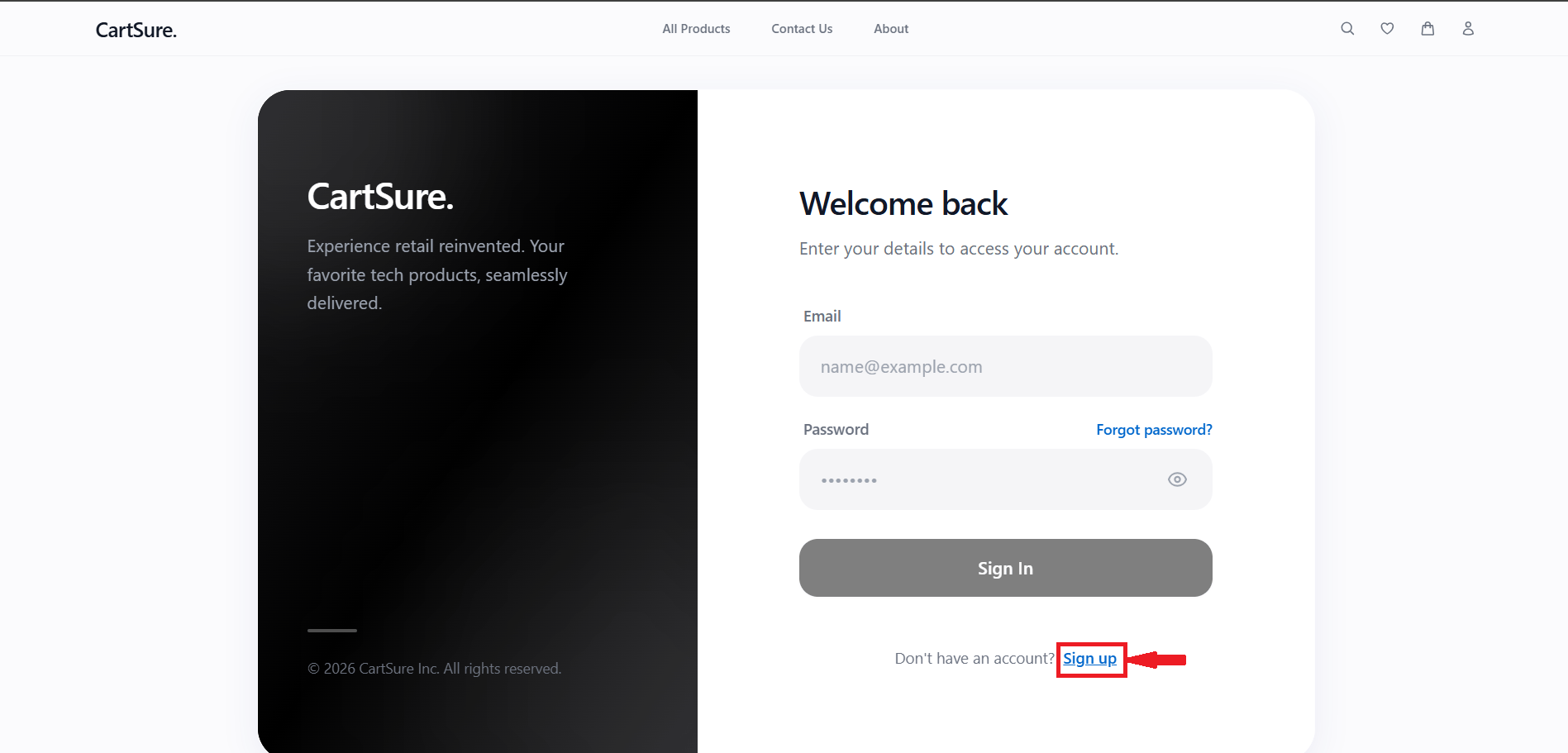
Now click on signup as shown in the image.
d
e
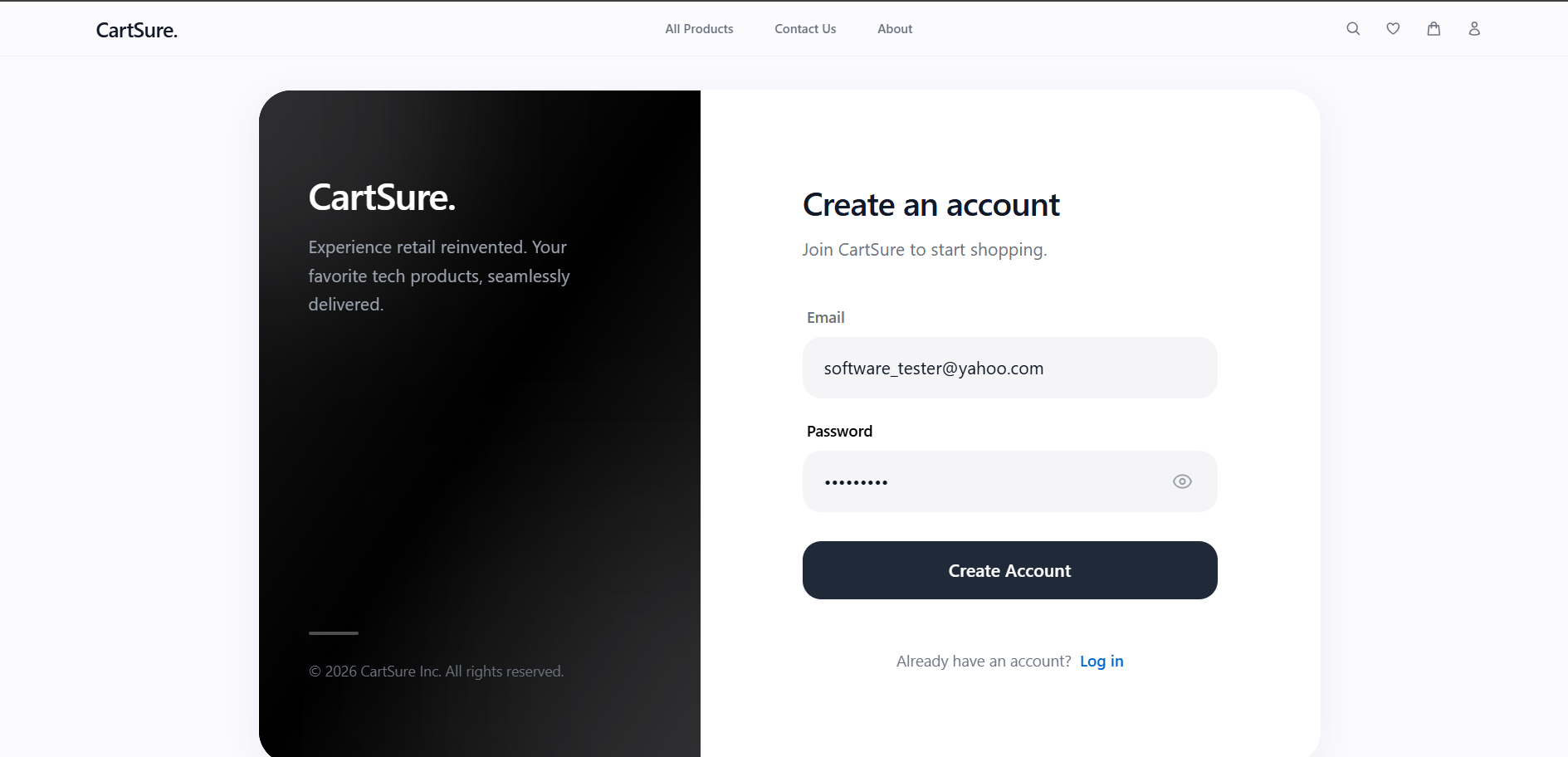
After clicking on “Sign Up,” you will be redirected to the Create Account page, where you need to enter your already created email address and set a new password
b
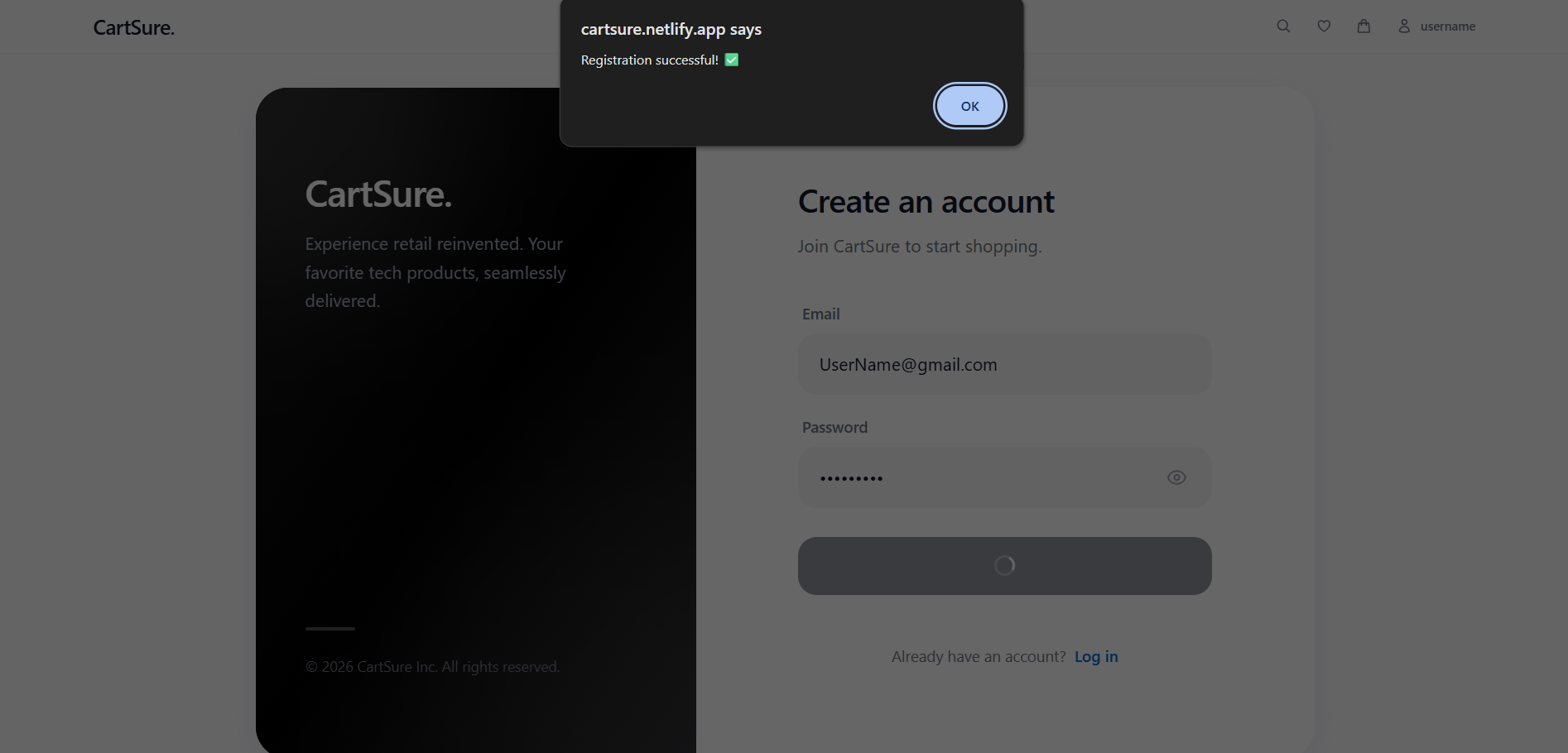
After entering all the required details, click on “Create Account.” A “Registration Successful” message will then be displayed, as shown in the image.
f
Login Module
1
Follow steps a to c of the Sign Up module.
a
2
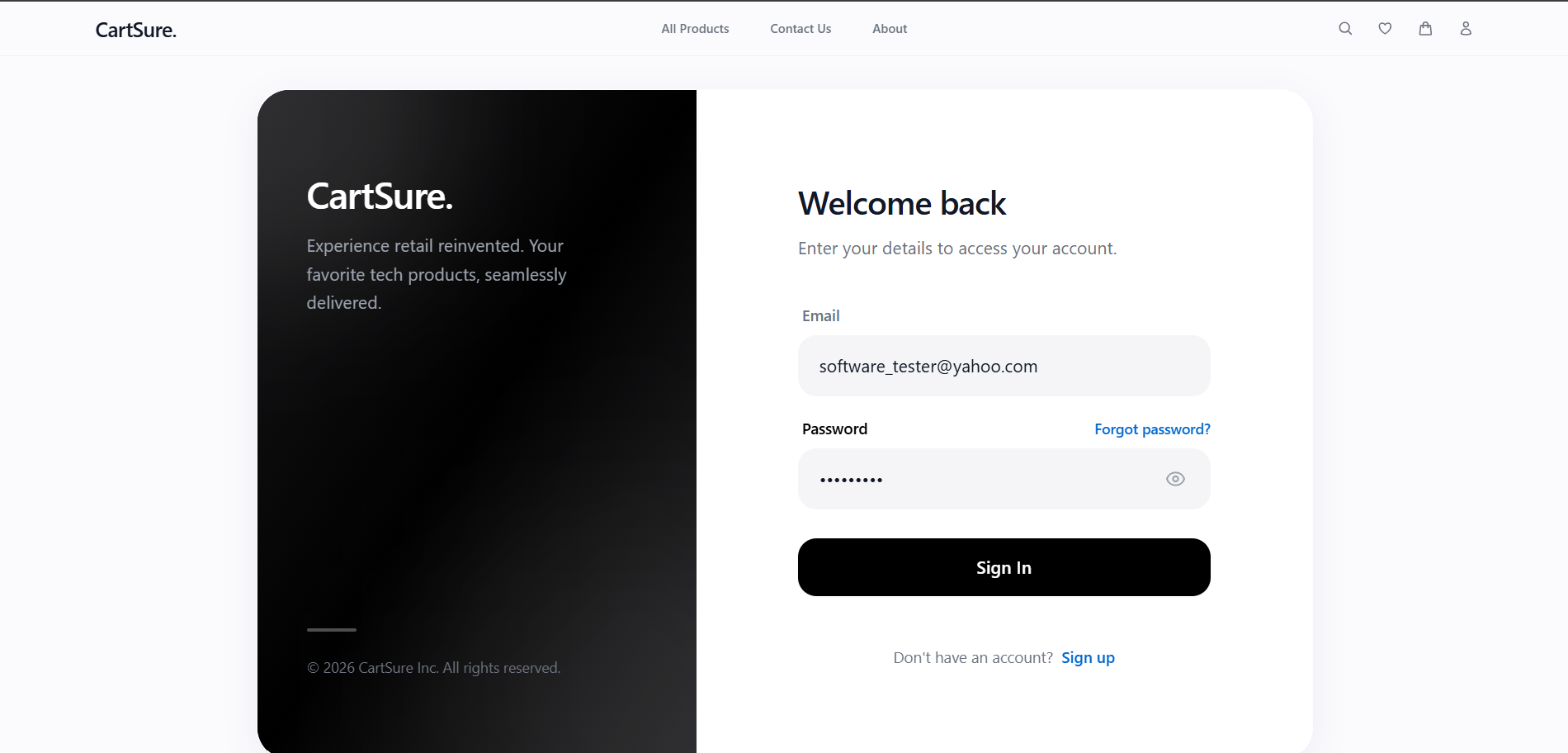
You will now see the Sign In page. Enter your valid username and password, then click on “Sign In,” as shown in the image.
b
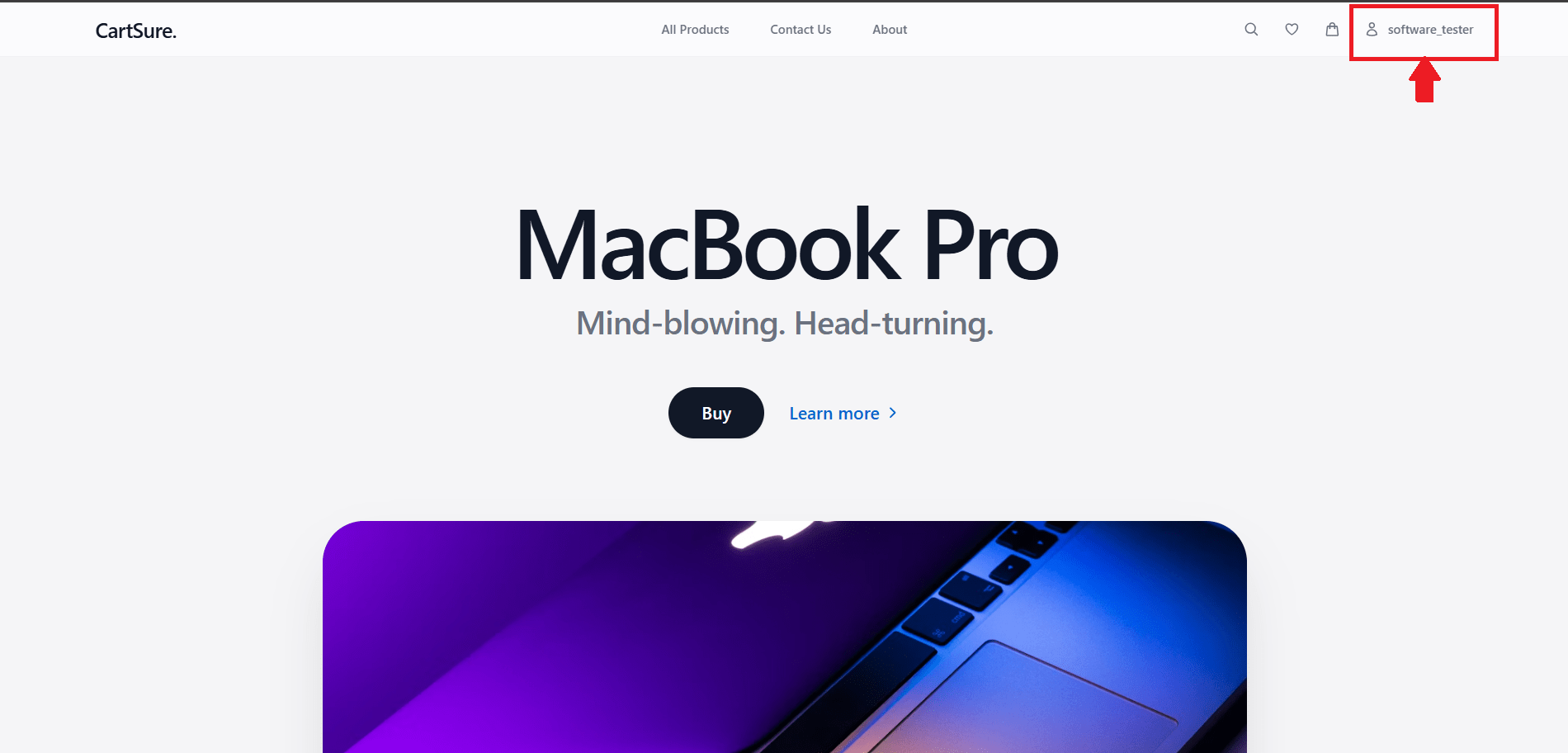
After signing in, you will be redirected to the dashboard, where your username will be displayed, as shown in the image.
c
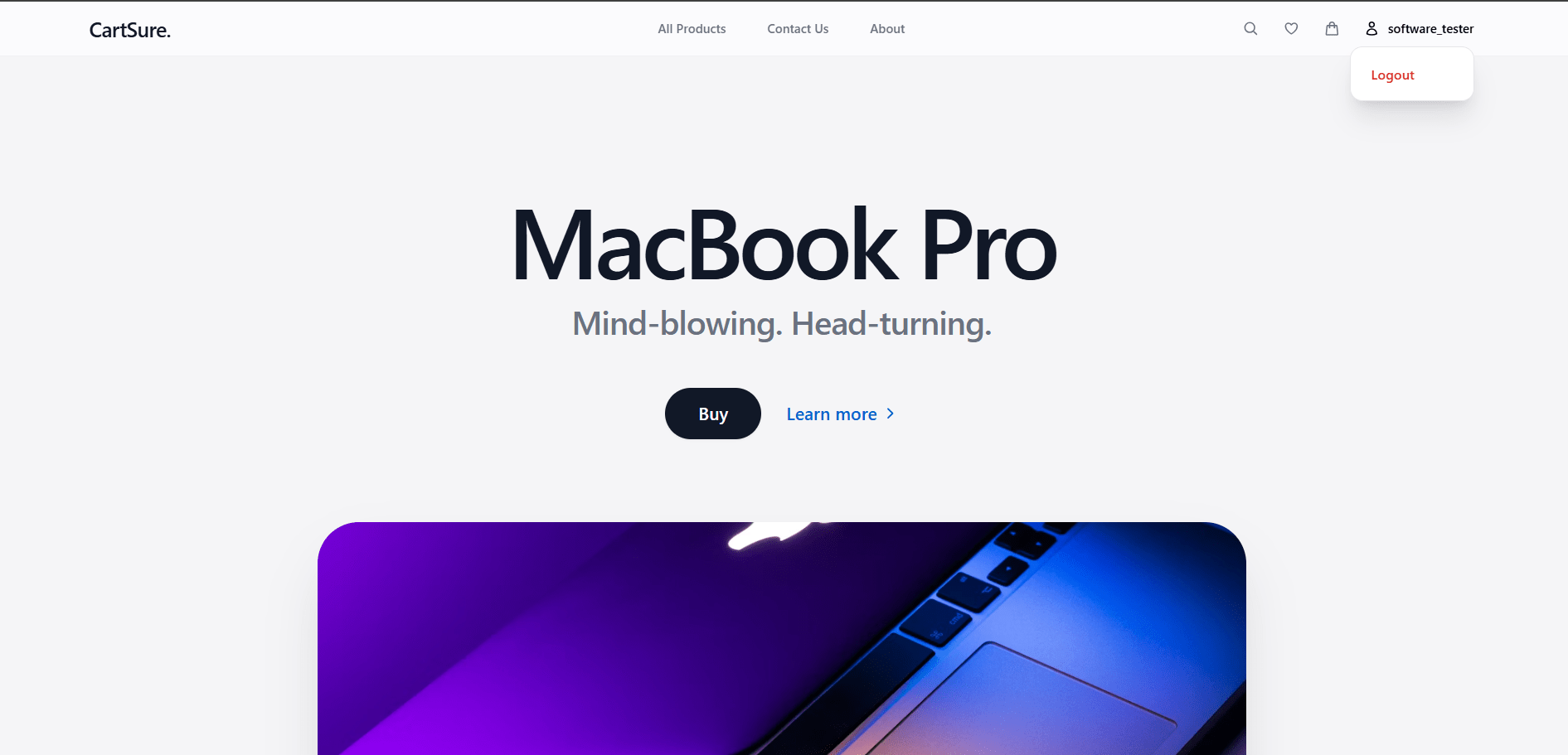
As shown, when you click on the username, you will see the Logout option, which allows you to log out of your account.
d
Product browsing module
1
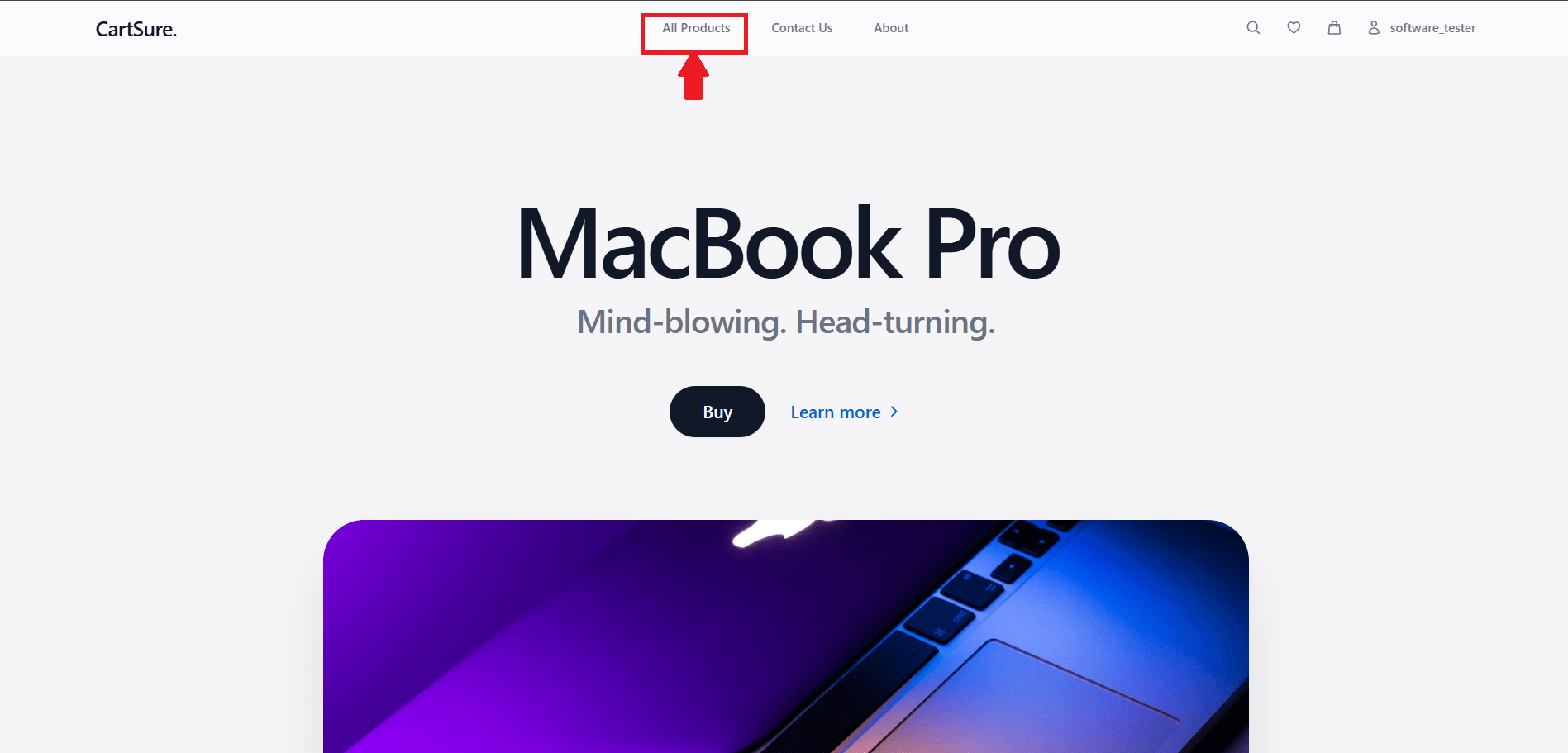
Log in to your CartSure account, then click on “All Products,” as shown in the images, to navigate to the Products section.
a
4
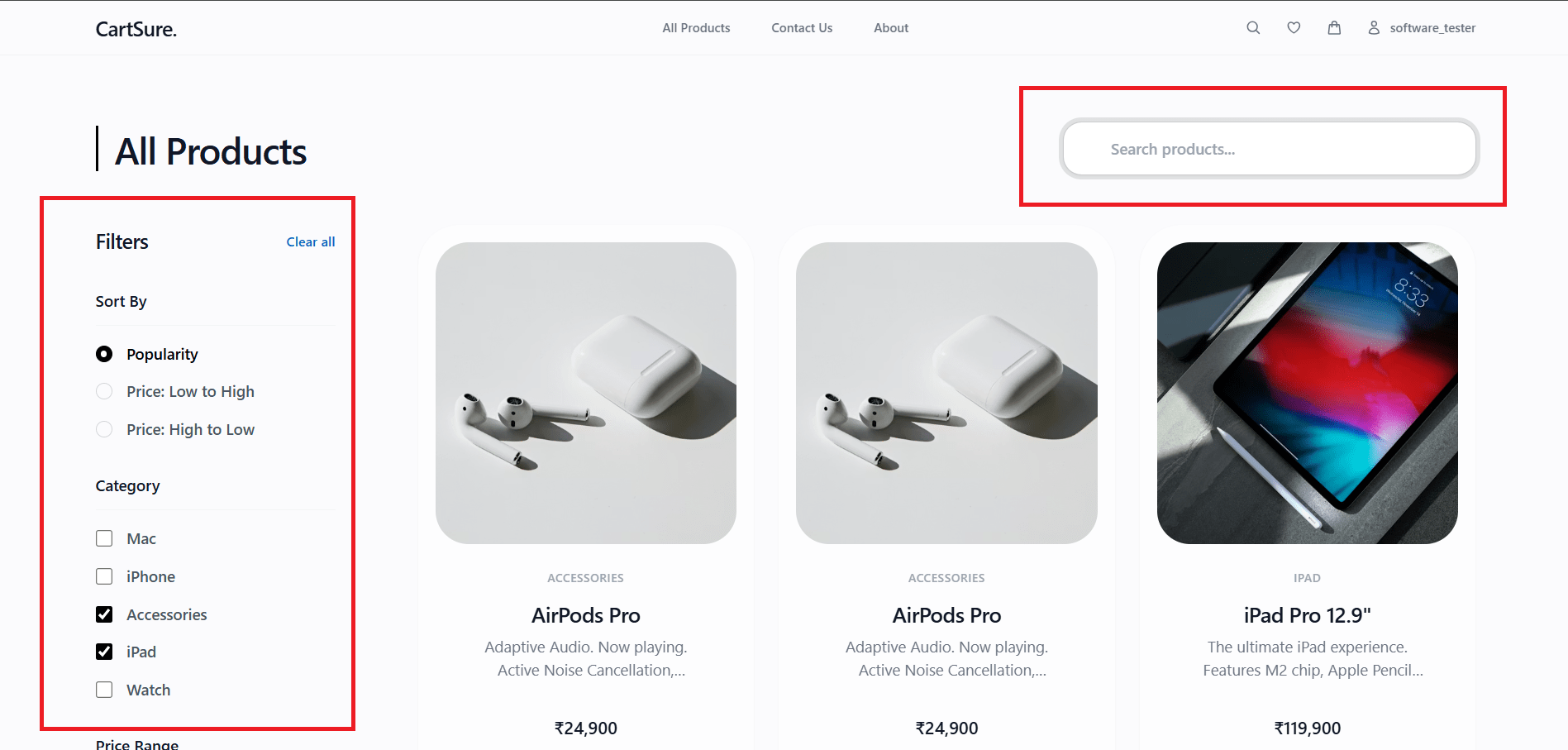
You will now see the Product page, where a search bar is available to enter the product name, along with filter options such as category, popularity, and price to refine the product list, as shown in the image.
b
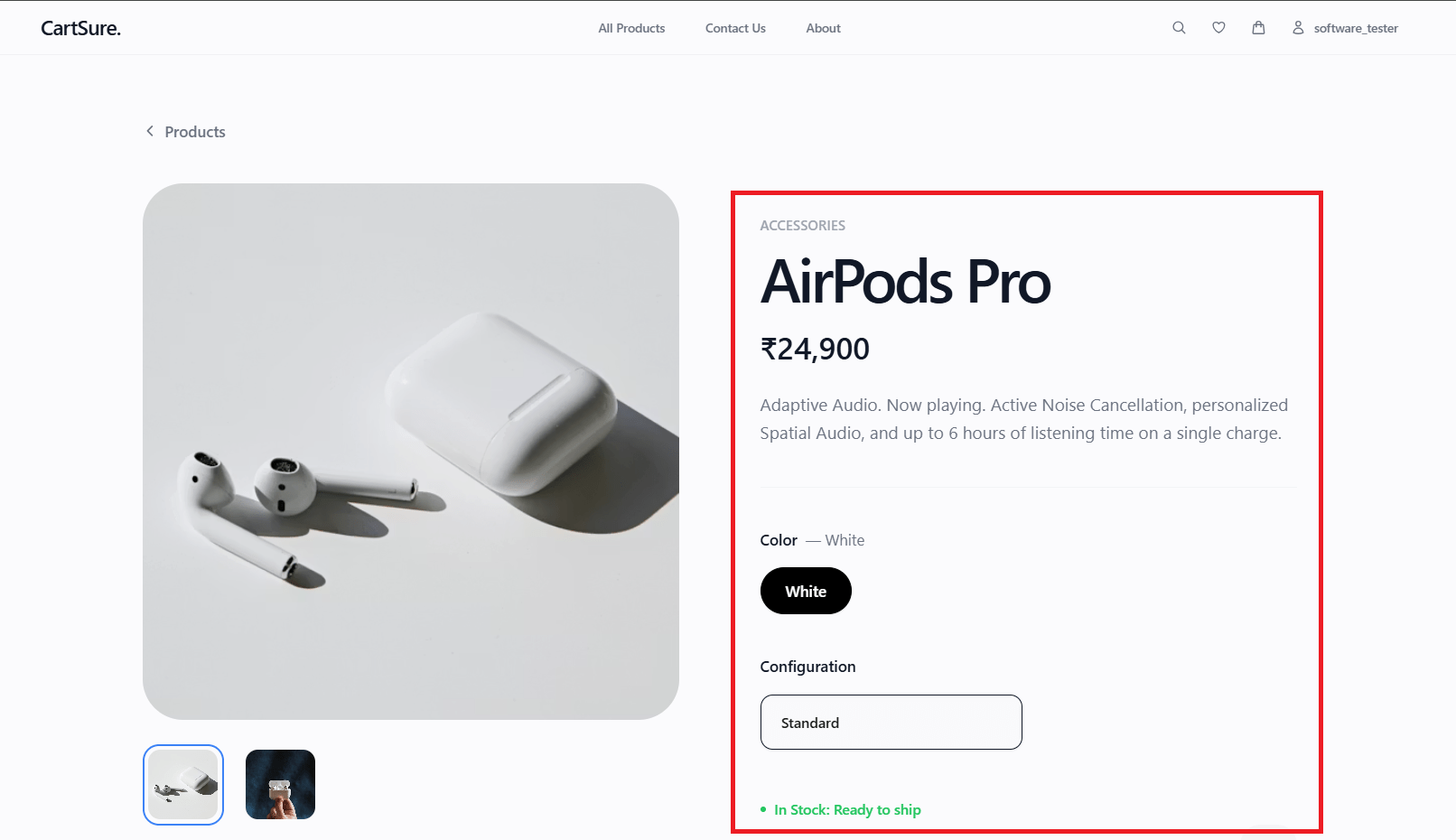
Click on any product from the displayed list to view its details, such as price, configuration, and color options.
c
Cart module
1
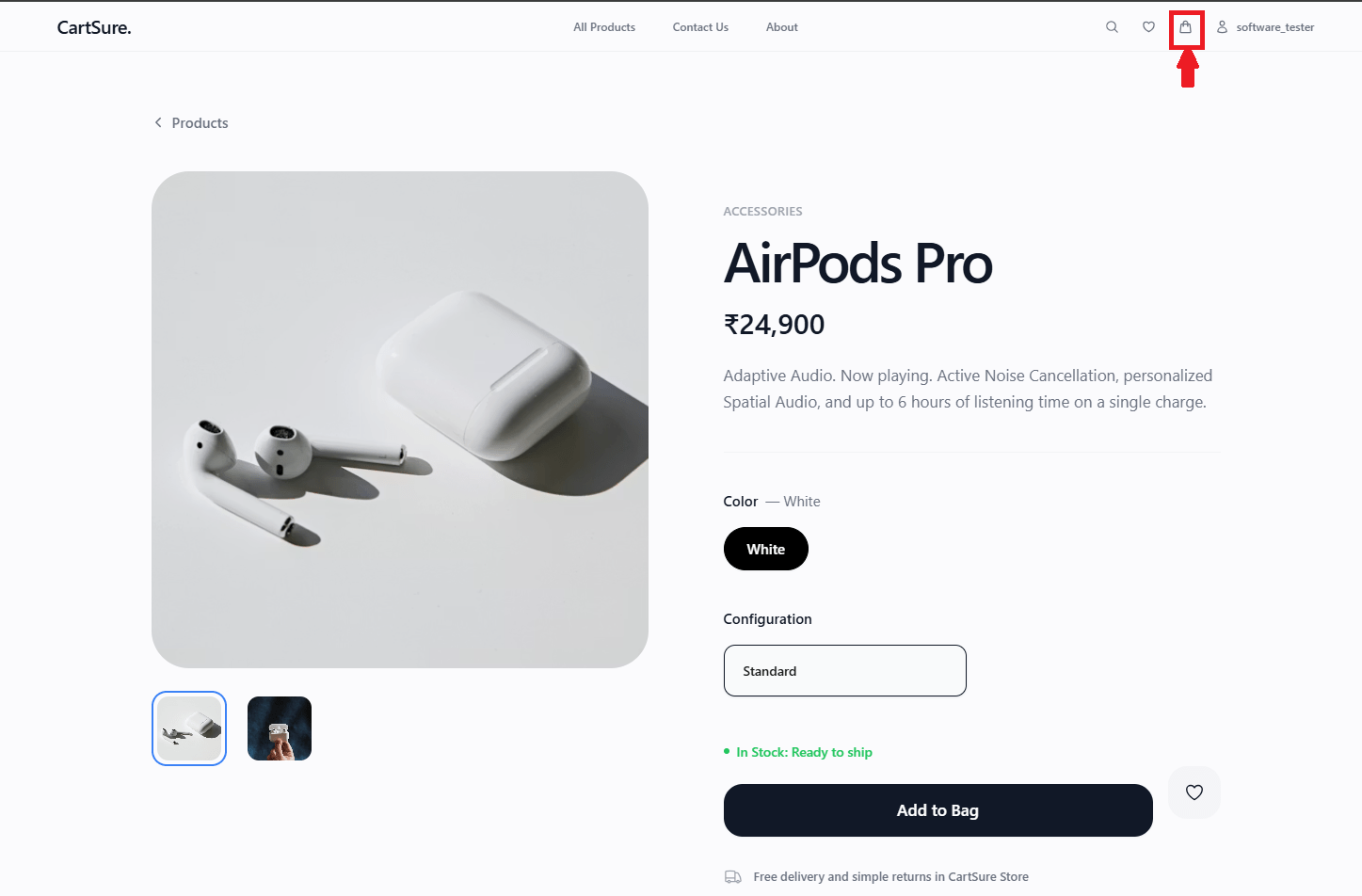
While browsing, select any product you like and click on “Add to Bag.” The selected product will then appear in the bag, as highlighted in the image below.
a
5
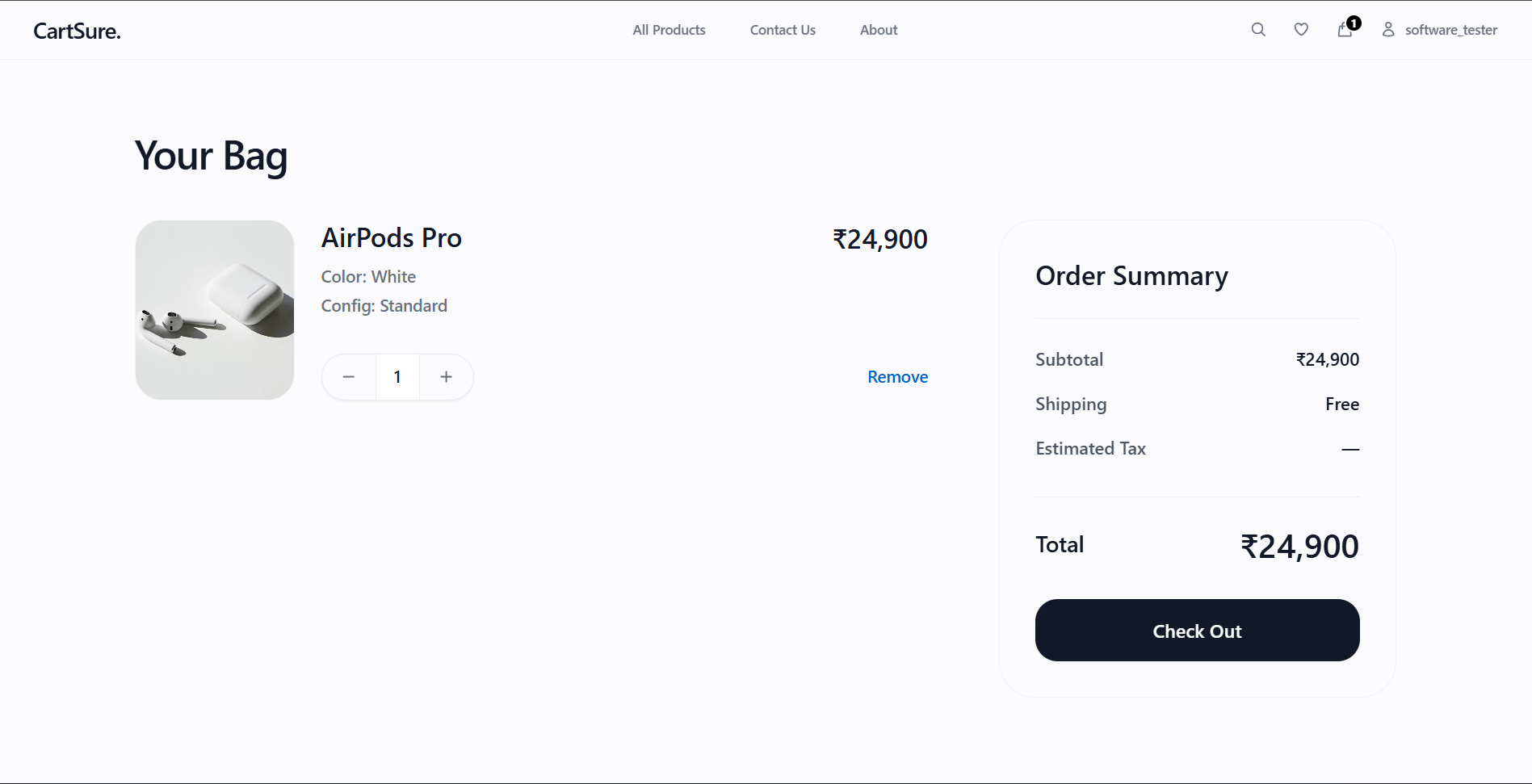
After clicking on the bag, as shown in the above image, you will see that the product has been added to your cart along with the order summary.
b
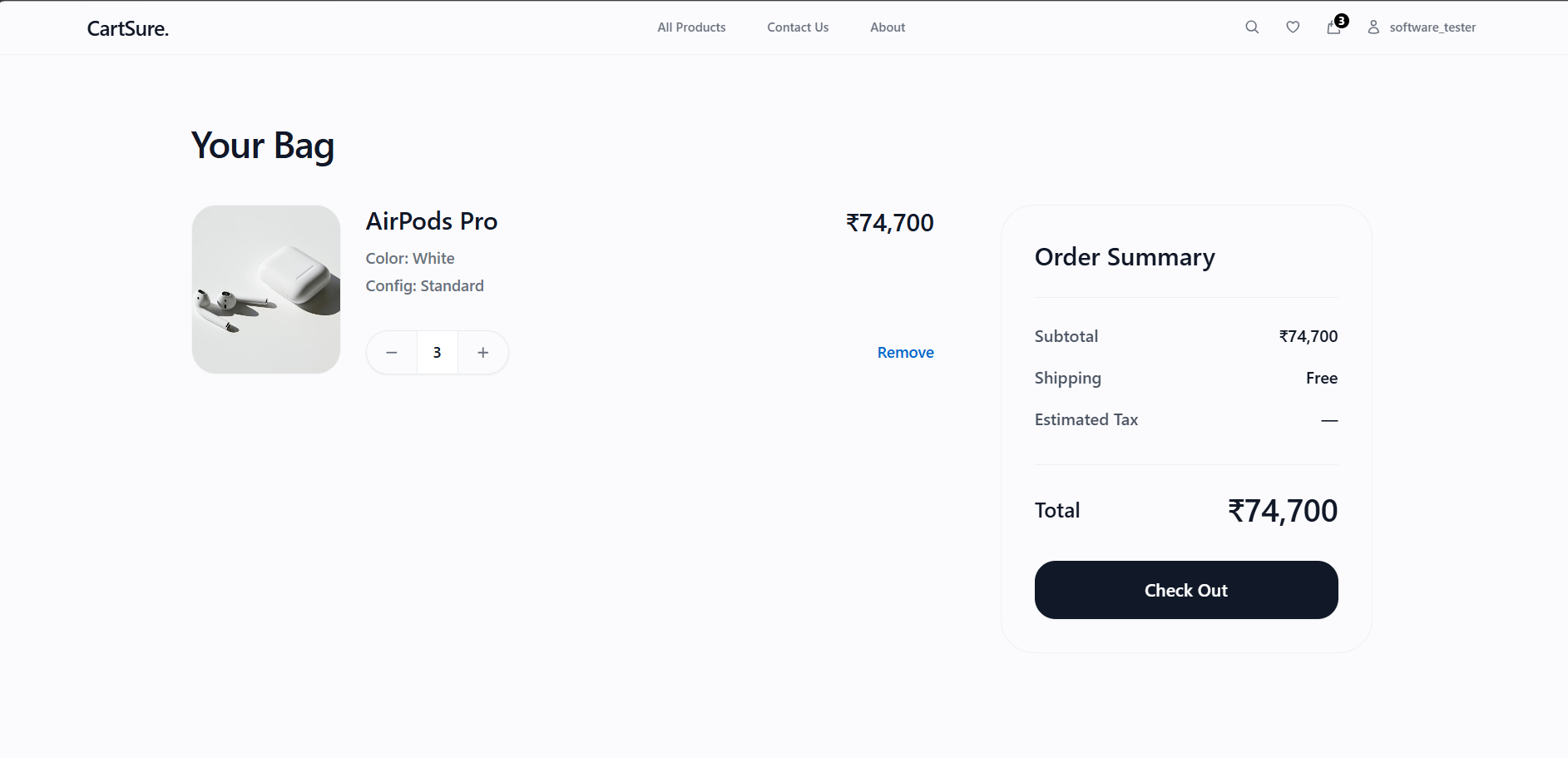
You can increase or decrease the product quantity. In the image below, the quantity has been increased by two, and you can observe the corresponding price change in the order summary.
c
Checkout module
1
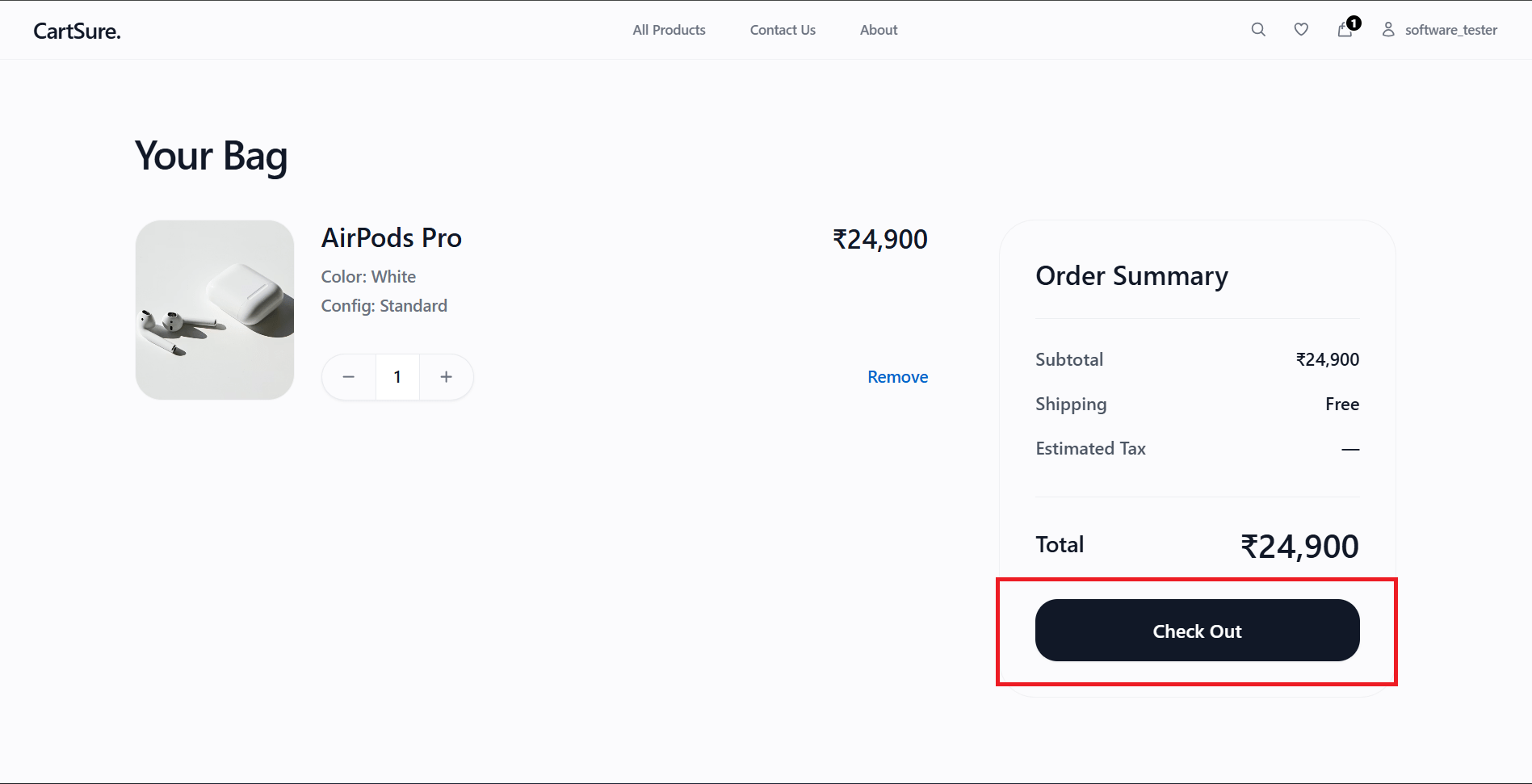
Once you have added the desired product and selected the quantity, click on “Checkout,” as shown in the image.
a
6
After clicking on “Checkout,” the next step is to add the shipping address where you want the order to be delivered, as shown in the image.
b
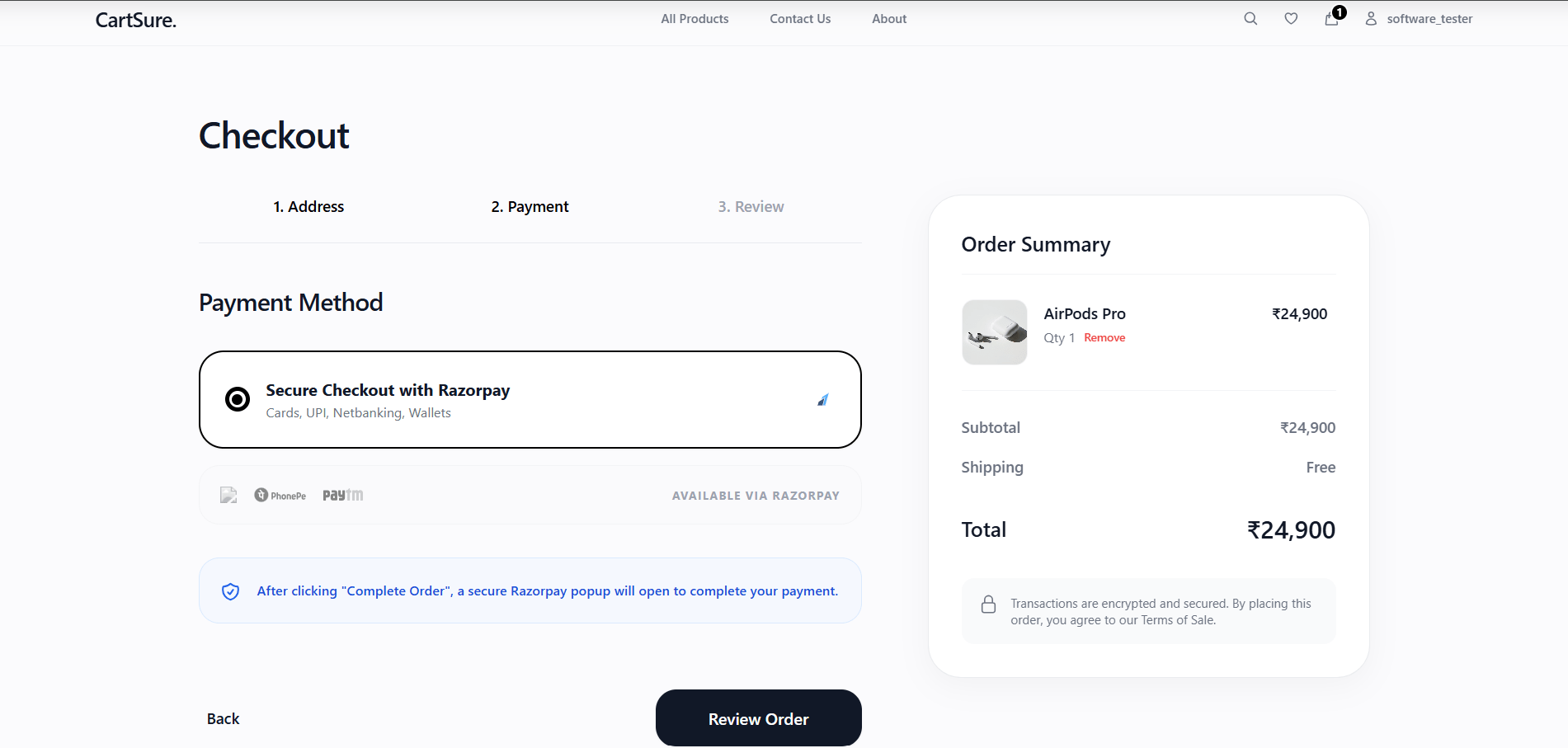
After entering the shipping address, you will be redirected to the payment page, where you can select the appropriate payment option.
c
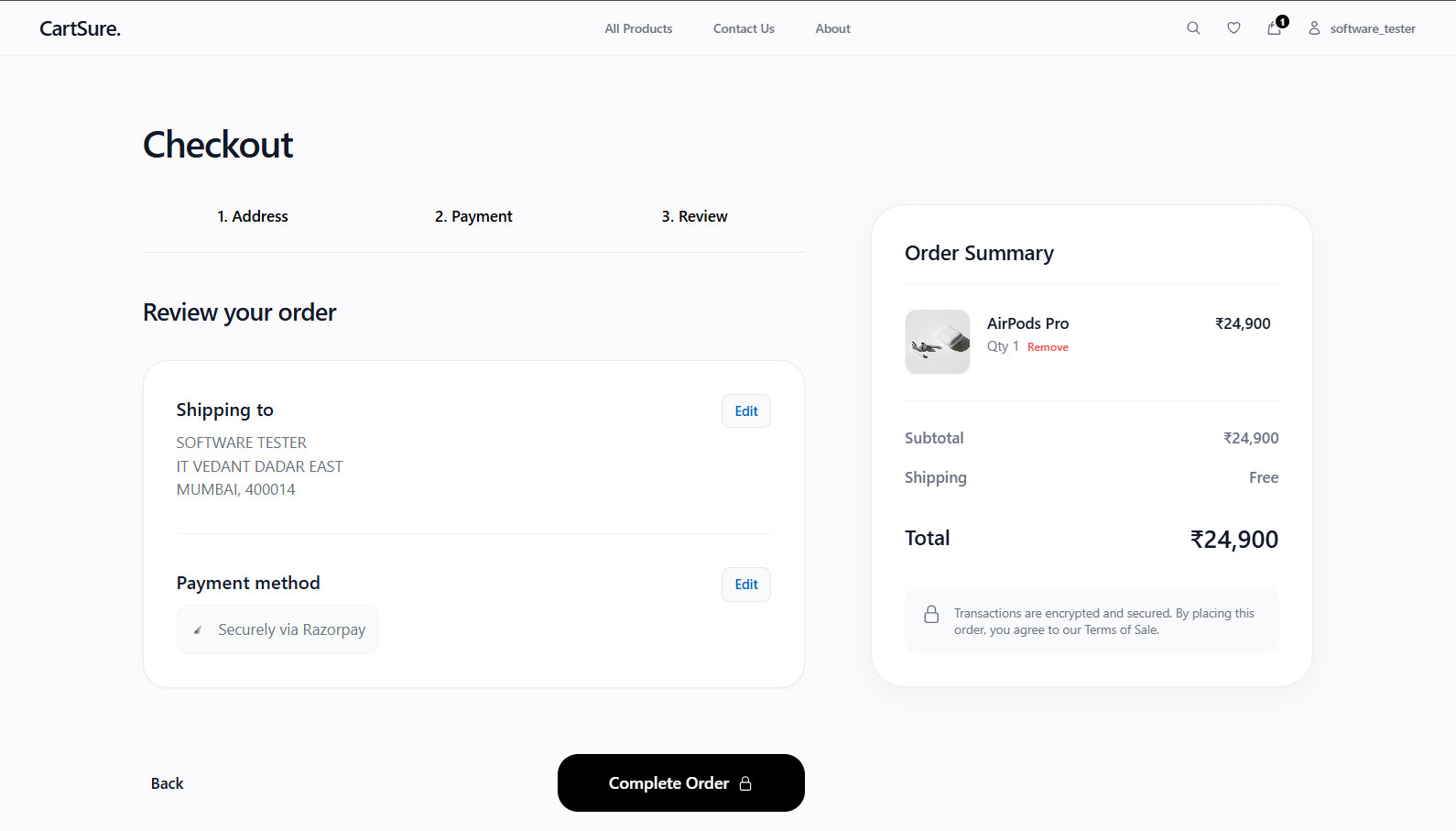
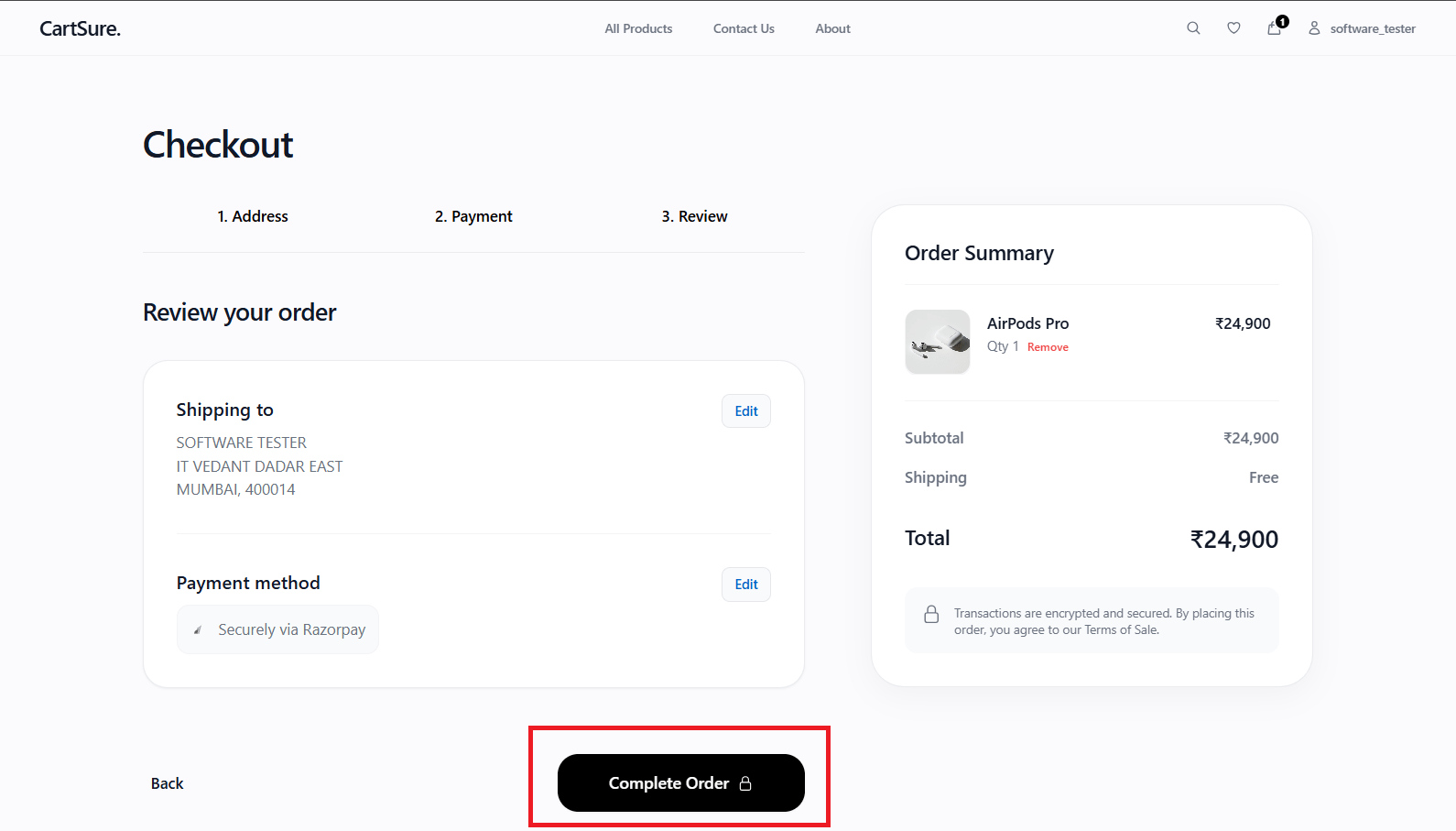
After completing the payment, you will need to review your order and then click on “Complete Order,” as shown in the image.
d
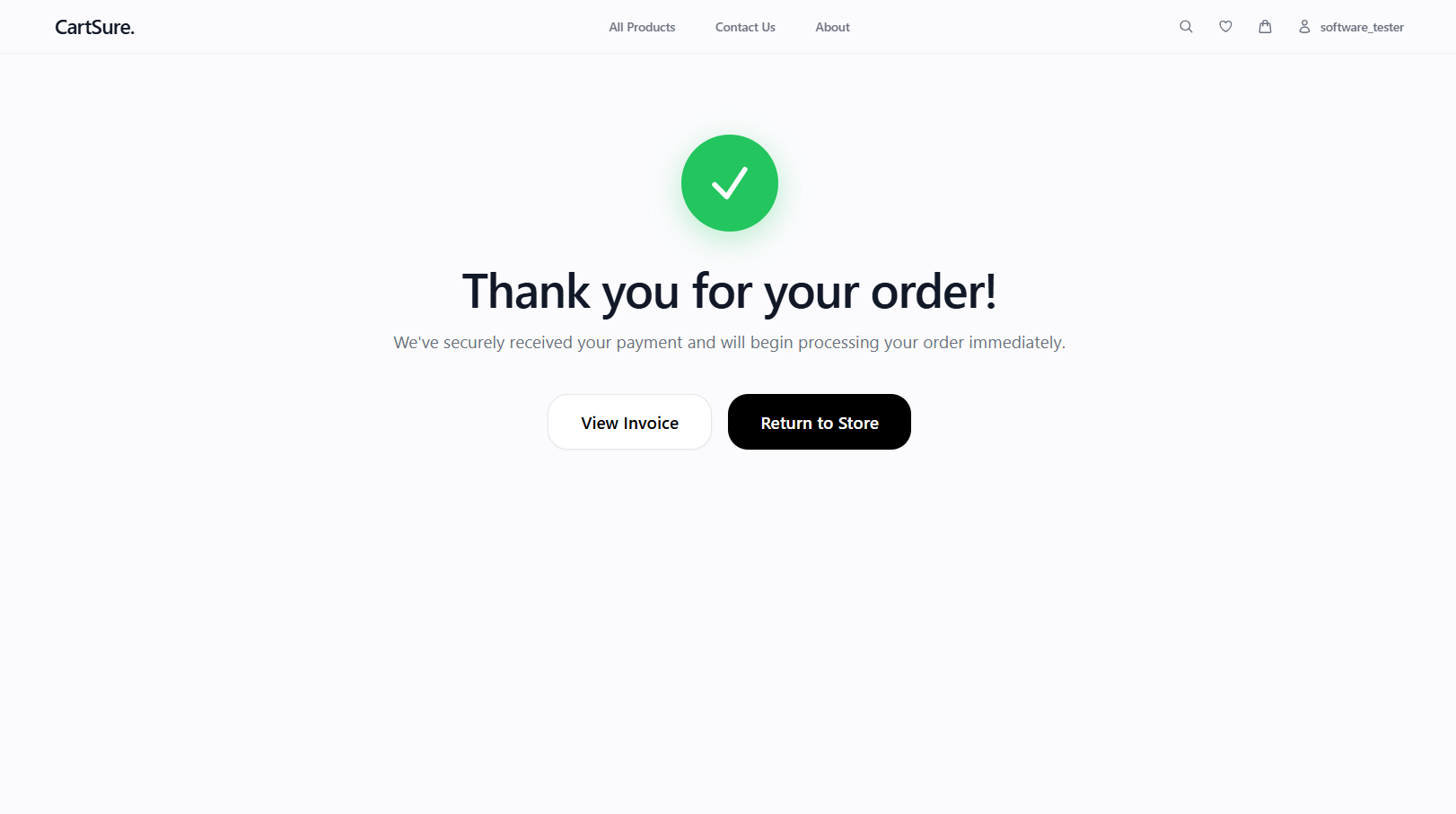
After clicking on “Complete Order,” a confirmation message saying “Thank You for Your Order” will be displayed, indicating that your order has been successfully placed.
e
Task 4: Identify Stakeholders
| Internal Stakeholders | External Stakeholders |
|---|---|
| Admin | Customer |
| Inventory Manager | Seller |
| Customer Support | Vendor |
| Marketing Team | Delivery Partner |
| Finance Team | Payment Gateway |
| Developers | Suppliers |
| QA/Testers |
Stakeholders are individuals, groups, or organisations that interact with the CartSure e-commerce system or are affected by its operations. Identifying stakeholders helps understand business requirements, define user roles, improve communication, and ensure smooth system functionality.
| Internal Stakeholders | Role |
|---|---|
| Admin | Manage overall website operations |
| Inventory Manager | Monitor stock availabilityef |
| Customer Support | Resolve customer issues and returns |
| Marketing Team | Manage offers, campaigns, and promotions |
| Finance Team | Handle payments, invoices, and refunds |
| Developers | Develop and maintain the website |
| QA/Testers | Test website functionality and performance |
Each stakeholder on the CartSure e-commerce website has specific responsibilities that contribute to the system's successful operation and maintenance. Stakeholders are categorised as internal and external based on their involvement with the organisation and the system.
| EXTERNAL STAKEHOLDER | ROLE |
|---|---|
| Customer | Manage overall website operations |
| Seller/Vendor | Monitor stock availability |
| Delivery Partner | Resolve customer issues and returns |
| Payment Gateway | Manage offers, campaigns, and promotions |
| Suppliers | Handle payments, invoices, and refunds |
Great job!
You have successfully completed your CartSure Initiation and SDLC & STLC Understanding session.
You are now ready to move to the next stage of software testing.
Checkpoint
Git Push
git push origin branchNameNext-Lab Preparation
Topic:
1)Functional vs Non-Functional
2)Smoke, Sanity, Regression
3)Alpha, Beta, Acceptance Testing
4)System, Integration Testing
By Content ITV