Content ITV PRO
This is Itvedant Content department
Deploying ContentSphere Infrastructure on AWS
Business Scenario
Manager:
We have successfully provisioned the basic infrastructure for ContentSphere using Terraform. Now, we need to deploy this infrastructure on AWS and verify that all resources are created correctly.
DevOps Engineer:
That's correct. We will use Terraform to apply our infrastructure configuration and automate the deployment of AWS resources.
Manager:
What are the benefits of deploying infrastructure this way?
DevOps Engineer:
It ensures consistency, reduces manual errors, enables faster deployments, and allows us to manage infrastructure through version-controlled code.
Manager:
What is our deployment plan?
DevOps Engineer:
We will initialize Terraform, validate the configuration, review the execution plan, and apply the changes to deploy the ContentSphere infrastructure on AWS.
DevOps Engineer to Team:
Team, we will execute the Terraform workflow, deploy the required AWS resources, verify successful provisioning, and ensure the ContentSphere infrastructure is operational and ready for application deployment.
Team:
Understood. We will deploy the ContentSphere infrastructure on AWS using Terraform and validate that all resources are functioning correctly in the cloud environment.
Pre-Lab Preparation
AWS Account is available.
AWS CLI is installed and configured.
Terraform is installed.
EC2 Key Pair is available.
Basic understanding of Terraform resources.
Basic understanding of AWS VPC, EC2, and S3.
Task 1: Create Terraform Project
1
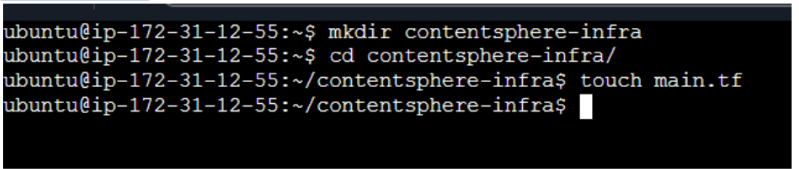
Create a project directory
mkdir contentsphere-infra
cd contentsphere-infra
2
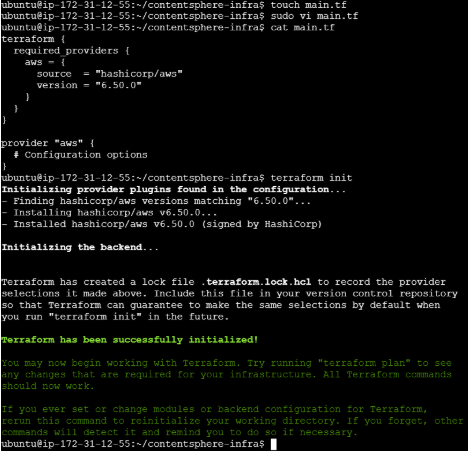
Create a Terraform configuration file
touch main.tf
Task 2:Configure AWS Provider
1
Open the main.tf file
vi main.tf
2
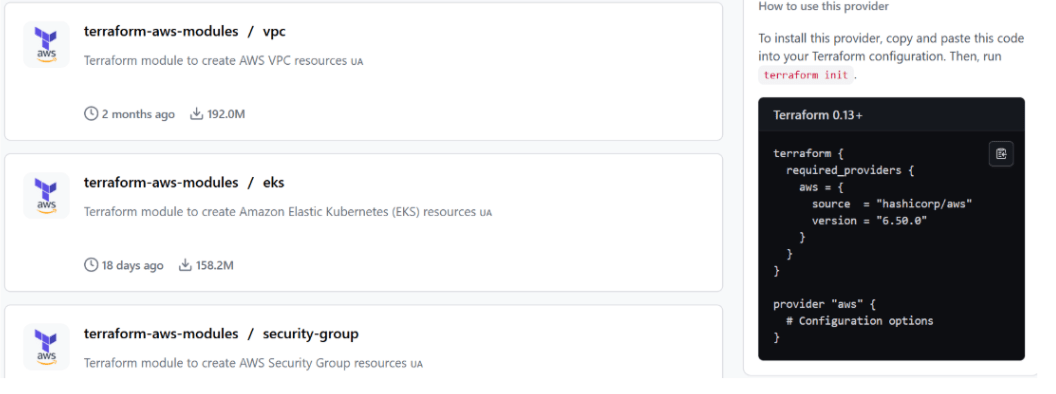
Add the AWS provider configuration
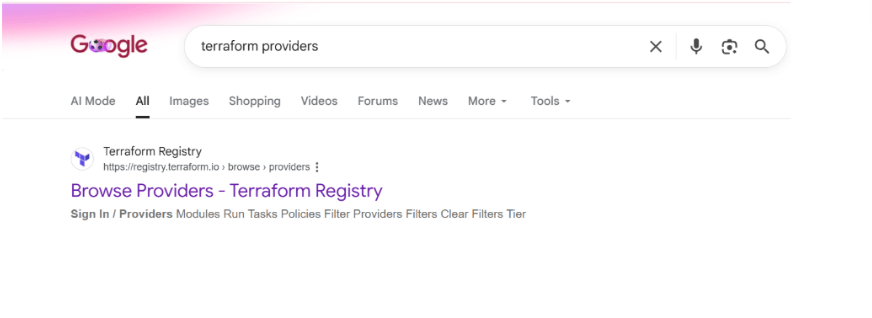
Get The aws provider configuration from official link of terraform
Task 3: Create ContentSphere VPC
1
Add the following VPC resource to the configuration file
resource "aws_vpc" "contentsphere_vpc" {
 cidr_block = "10.0.0.0/16"
 tags = {
   Name = "ContentSphere-VPC"
 }
}
2
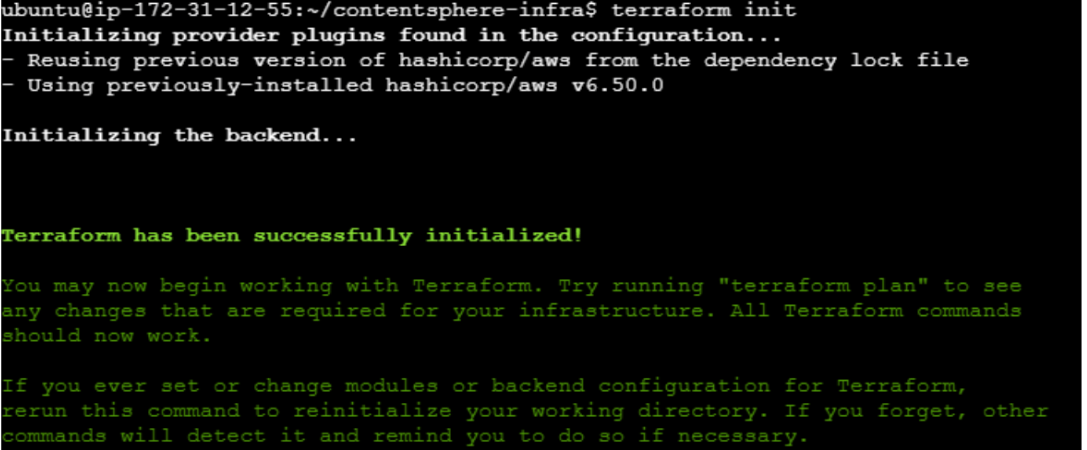
Initialize Terraform
terraform init
3
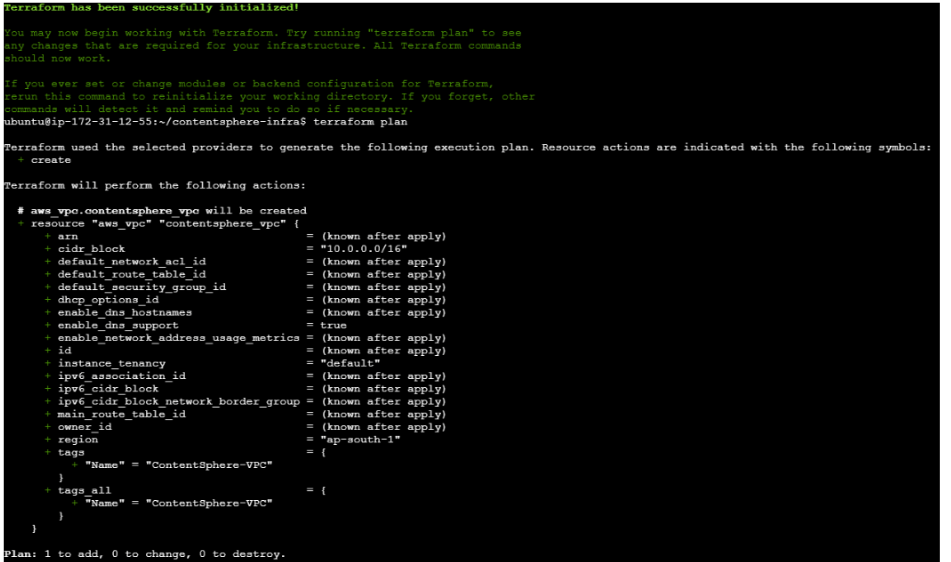
Review the execution plan.
terraform plan
4
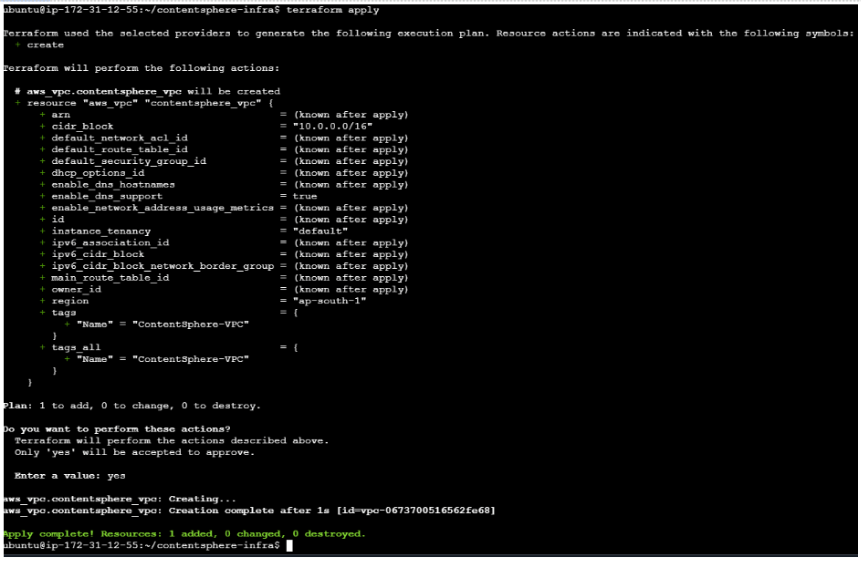
Provision the VPC.
terraform apply
Type: yes
Task 4: Create ContentSphere EC2 Instance
1
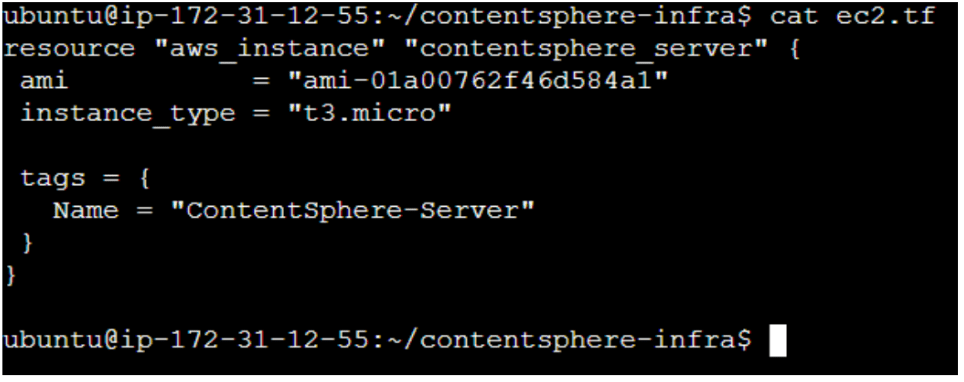
Add the EC2 configuration.
resource "aws_instance" "contentsphere_server" {
 ami           = "ami-xxxxxxxx"
 instance_type = "t3.micro"

 tags = {
   Name = "ContentSphere-Server"
 }
}
2
2
2
2
2
2
2
2
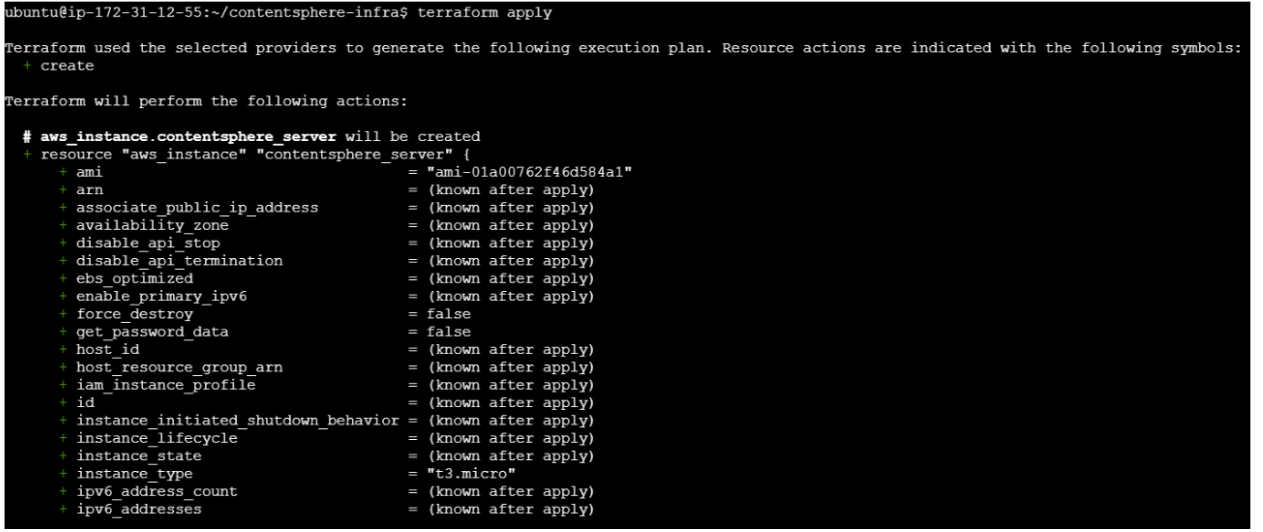
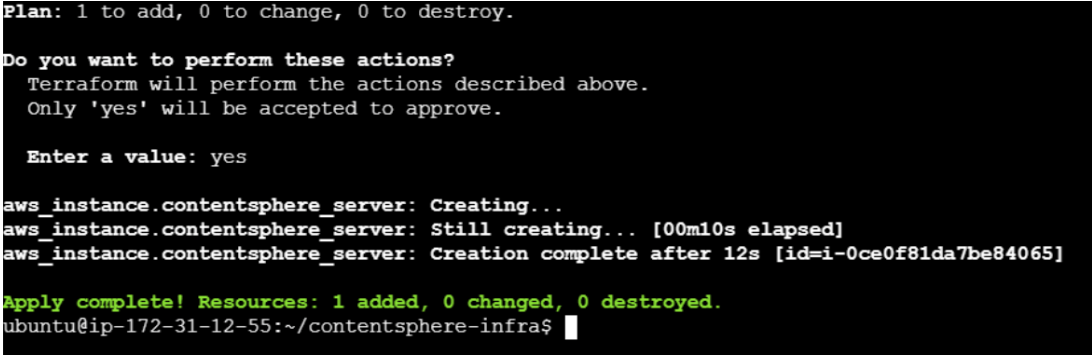
Deploy the EC2 instance
terraform apply3
Verify the EC2 instance from the AWS Console.
Navigate to: EC2 → Instances
Verify the instance state is: Running
Task 5: Create ContentSphere S3 Bucket
1
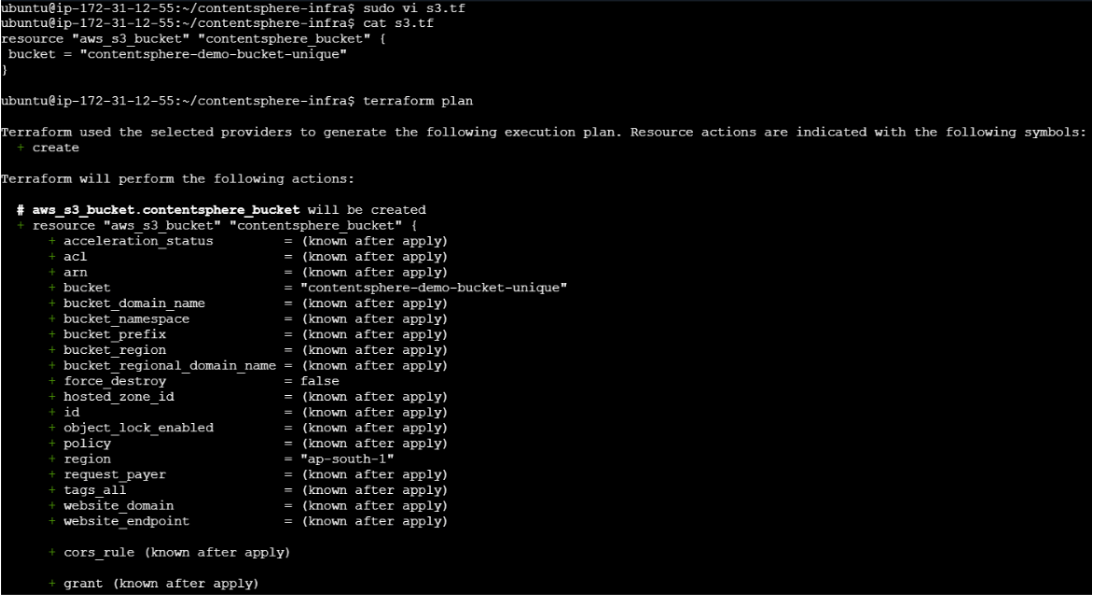
Add the S3 bucket resource.
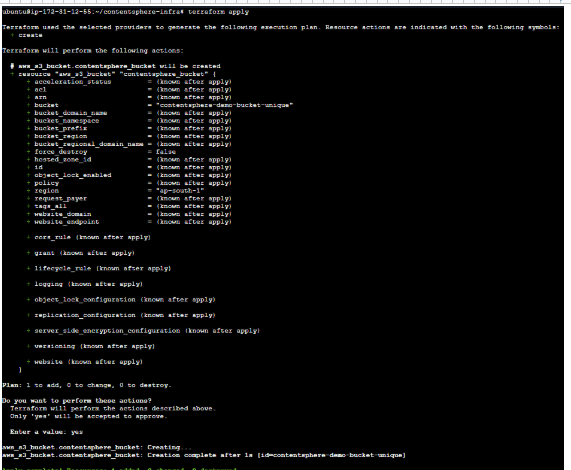
resource "aws_s3_bucket" "contentsphere_bucket" {
 bucket = "contentsphere-demo-bucket-unique"
}
2
Apply the changes.
terraform apply
3
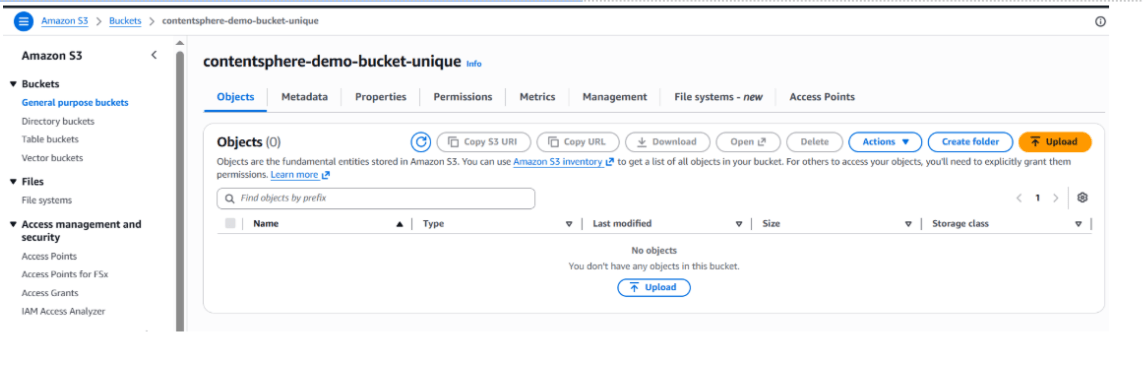
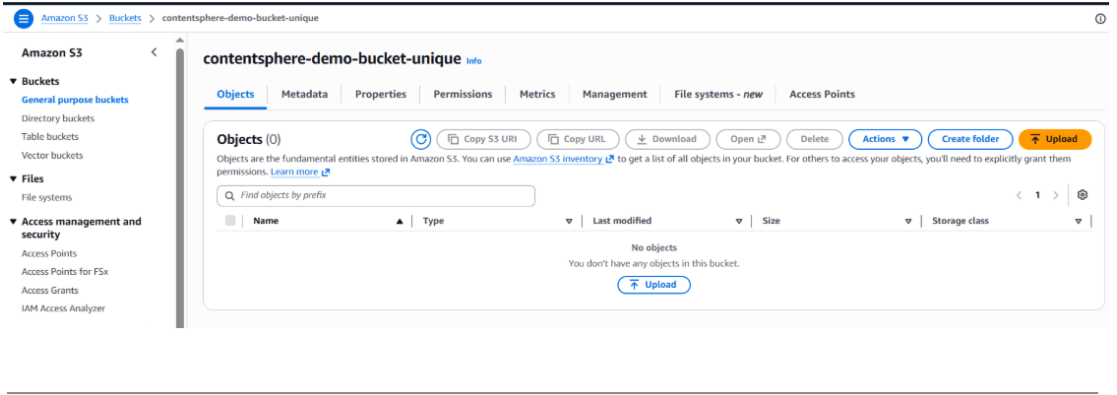
Verify the S3 bucket.
Navigate to: AWS Console → S3
Verify the bucket is created successfully.
Task 6: Verify Infrastructure Deployment
1
List Terraform-managed resources.
terraform state list
Expected Output:
aws_vpc.contentsphere_vpc
aws_instance.contentsphere_server
aws_s3_bucket.contentsphere_bucket
Great job!
Configured Terraform to work with AWS.
Created a VPC for network isolation.
Provisioned an EC2 instance for application hosting.
Created an S3 bucket for content storage.
Verified infrastructure deployment using Terraform and AWS Console.
Checkpoint
Next-Lab Preparation
By Content ITV