

Content ITV PRO
This is Itvedant Content department
Set Up Banking Database & Explore Table Structure
Business Scenario
Welcome!
Today is your first day as a Data Analyst at our digital banking company. We have received a project from a client.
The client wants us to build a Banking Management Database System for a digital bank called BankingDB.
In this system, bank staff should be able to:
Pre-Lab Preparation
Store customer information
Manage bank account details
Record transactions and payments
View available databases and tables
Explore table structures using SQL commands
Identify rows and columns in banking tables
Maintain organized and secure banking records
Topic: SQL Launchpad
1) Exploring the Data Universe
2) SQL Setup and Basics
3) Juggling Data Types
Your task is to set up the banking database environment and understand the structure of the database before performing further operations.
git pull origin branchNameTask 1: Installing MySQL
Before working with SQL databases, we first need to install MySQL on our system.
Follow the steps given below to install MySQL:
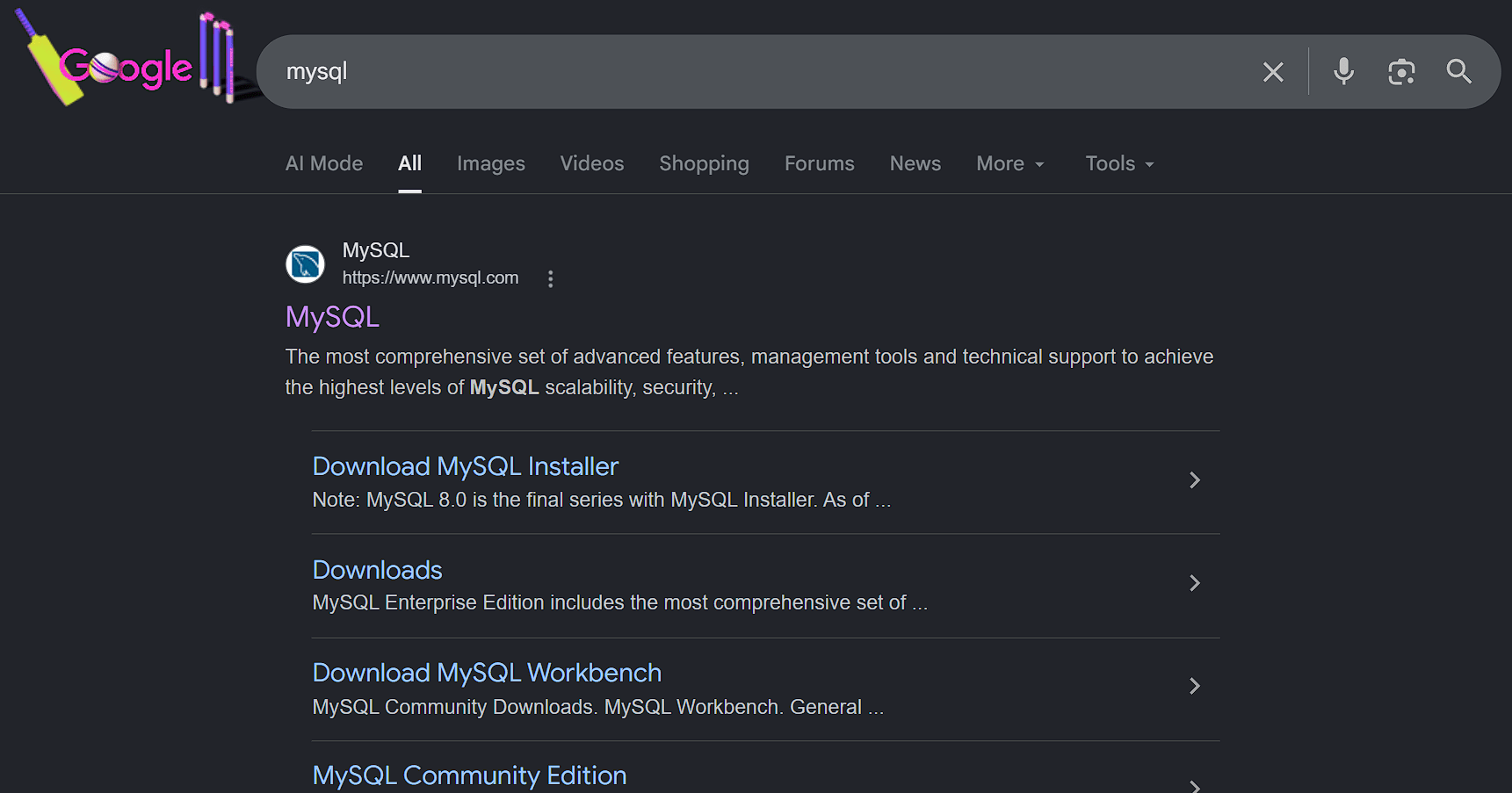
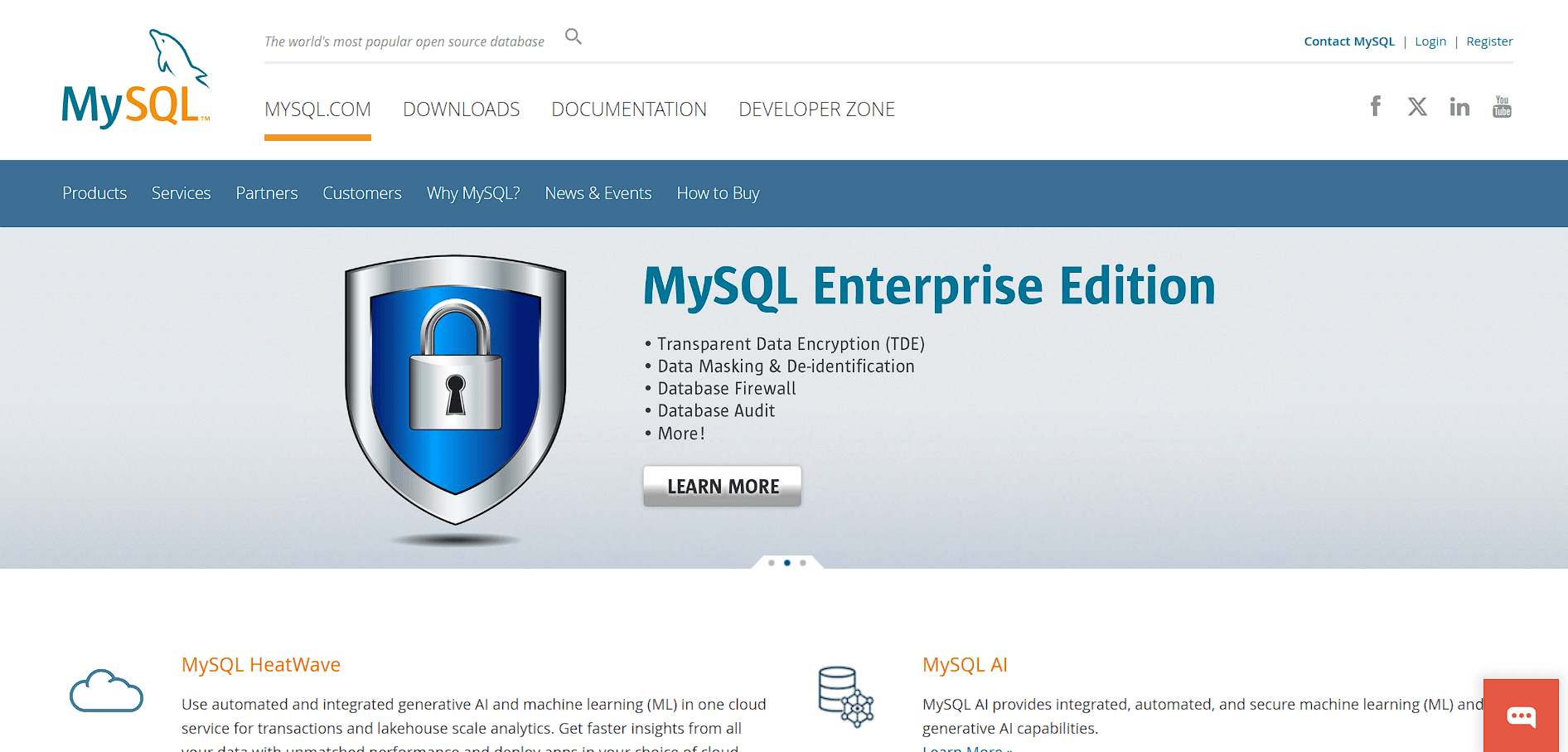
Open your browse and go to the official website of MySQL
1
Git Pull
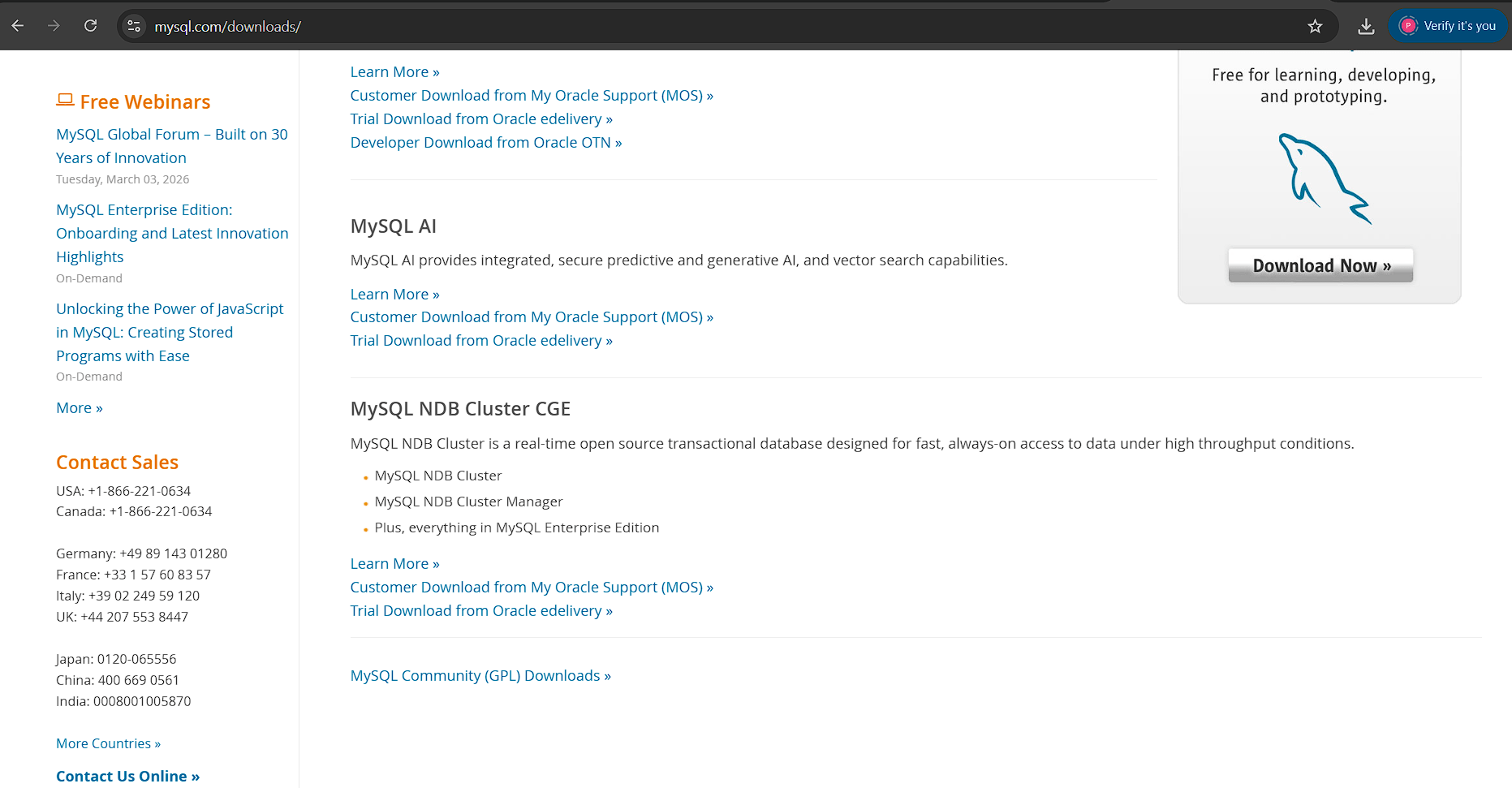
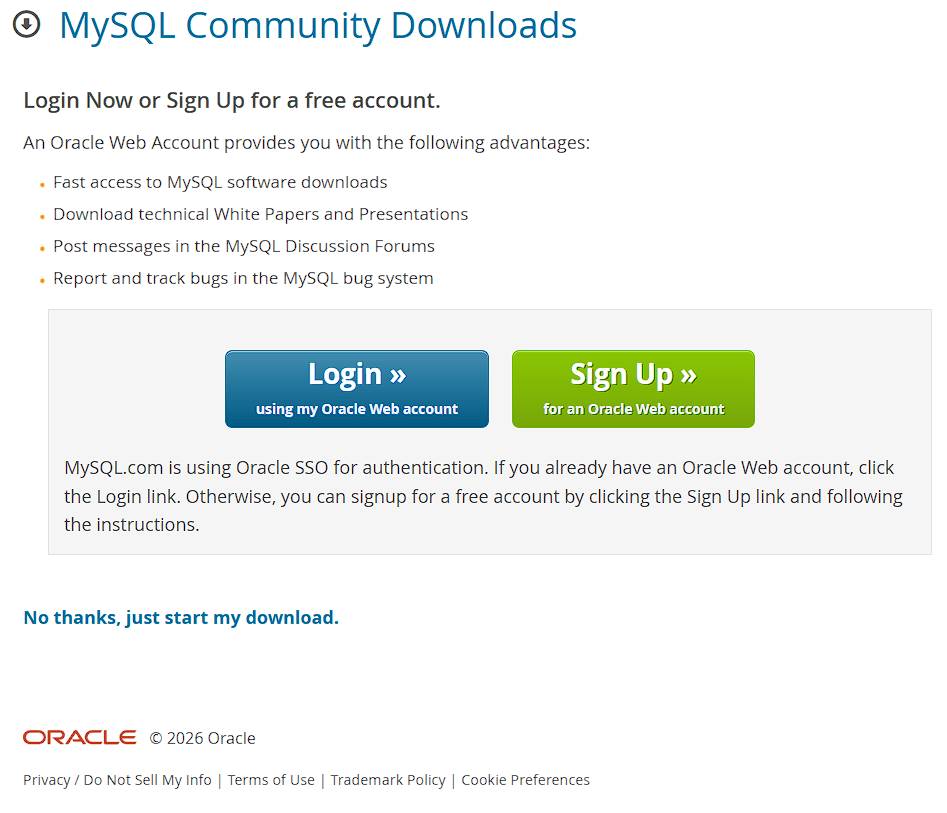
In Downloads Section click on MySQL Community (GPL) Downloads
3
Go to the Downloads Section
2
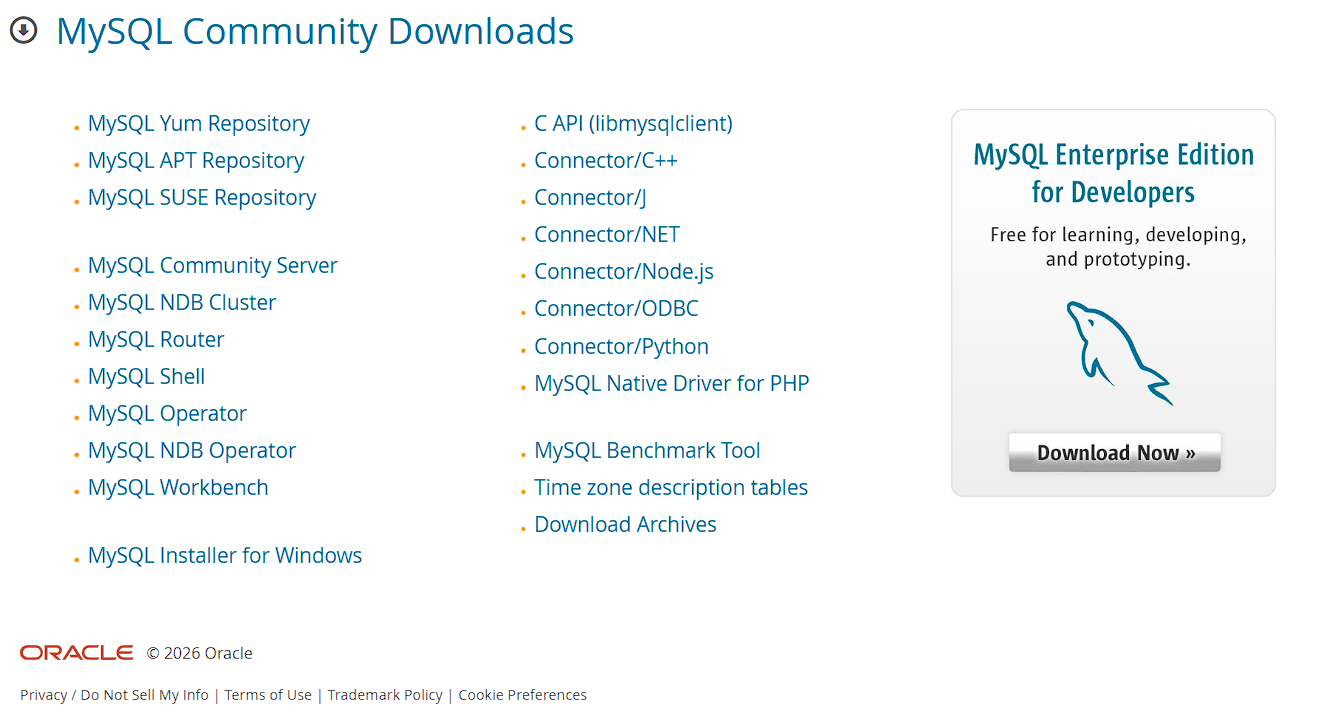
Select MySQL Installer for Windows
4
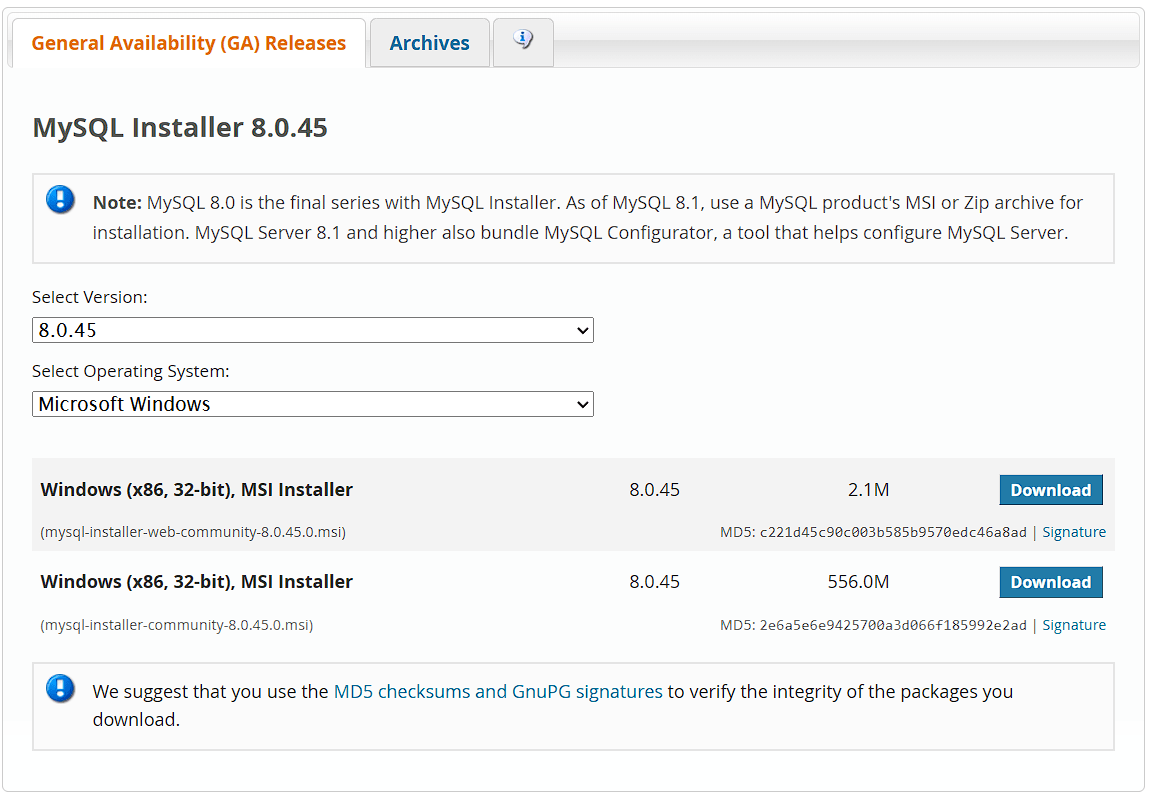
Choose Installer Type, Run the Installer
5
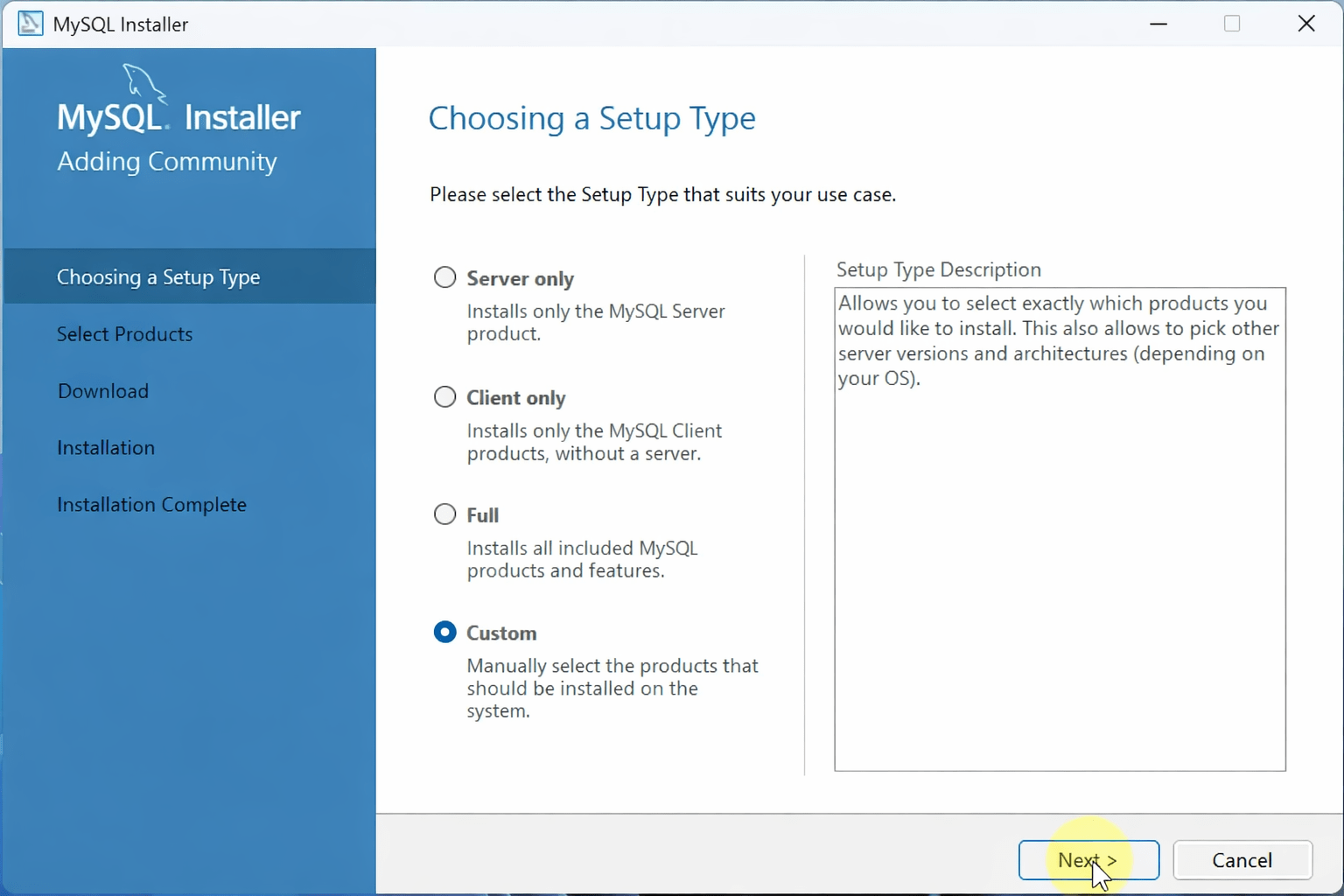
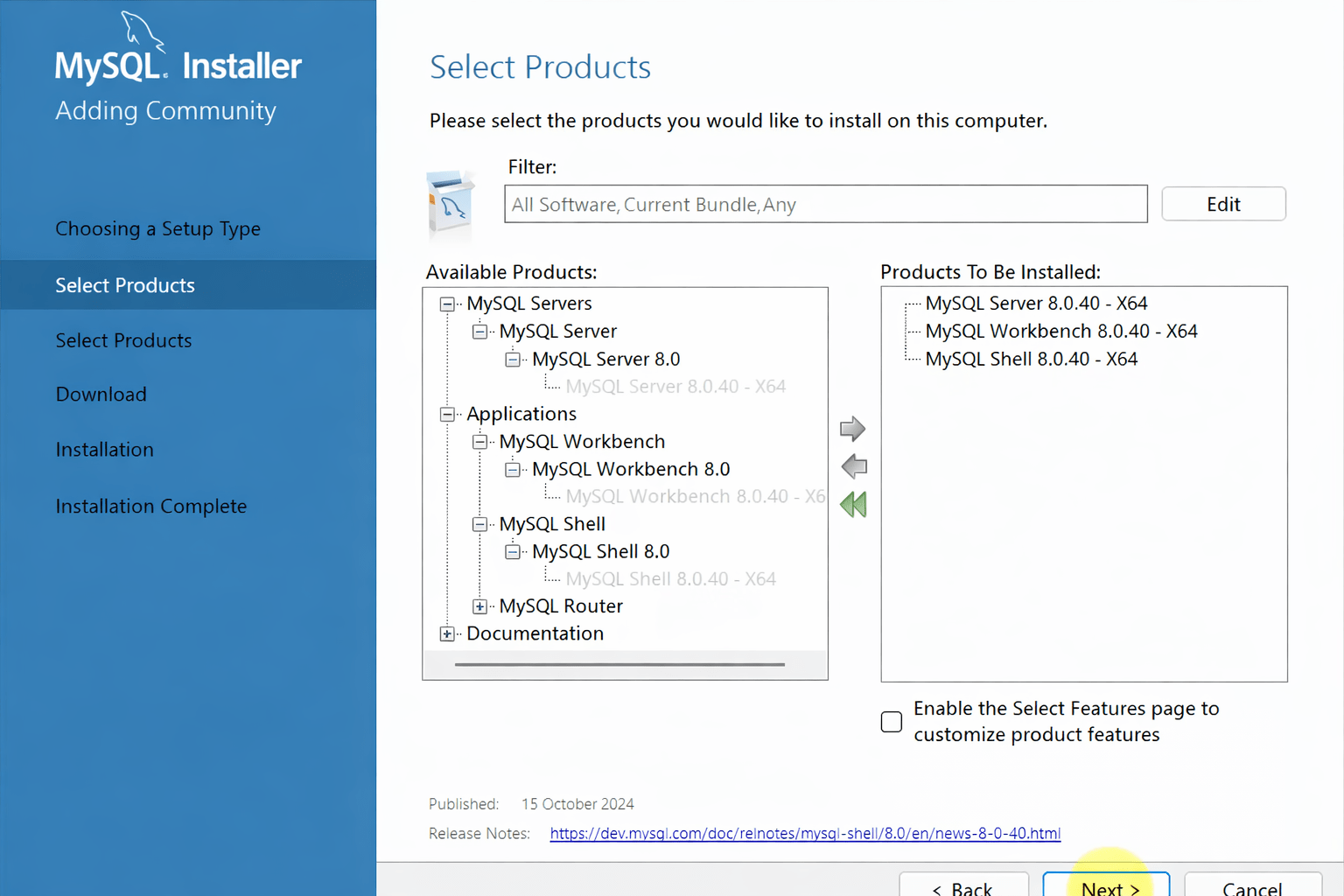
Choose Setup Type, Products, and rest of the settings
6
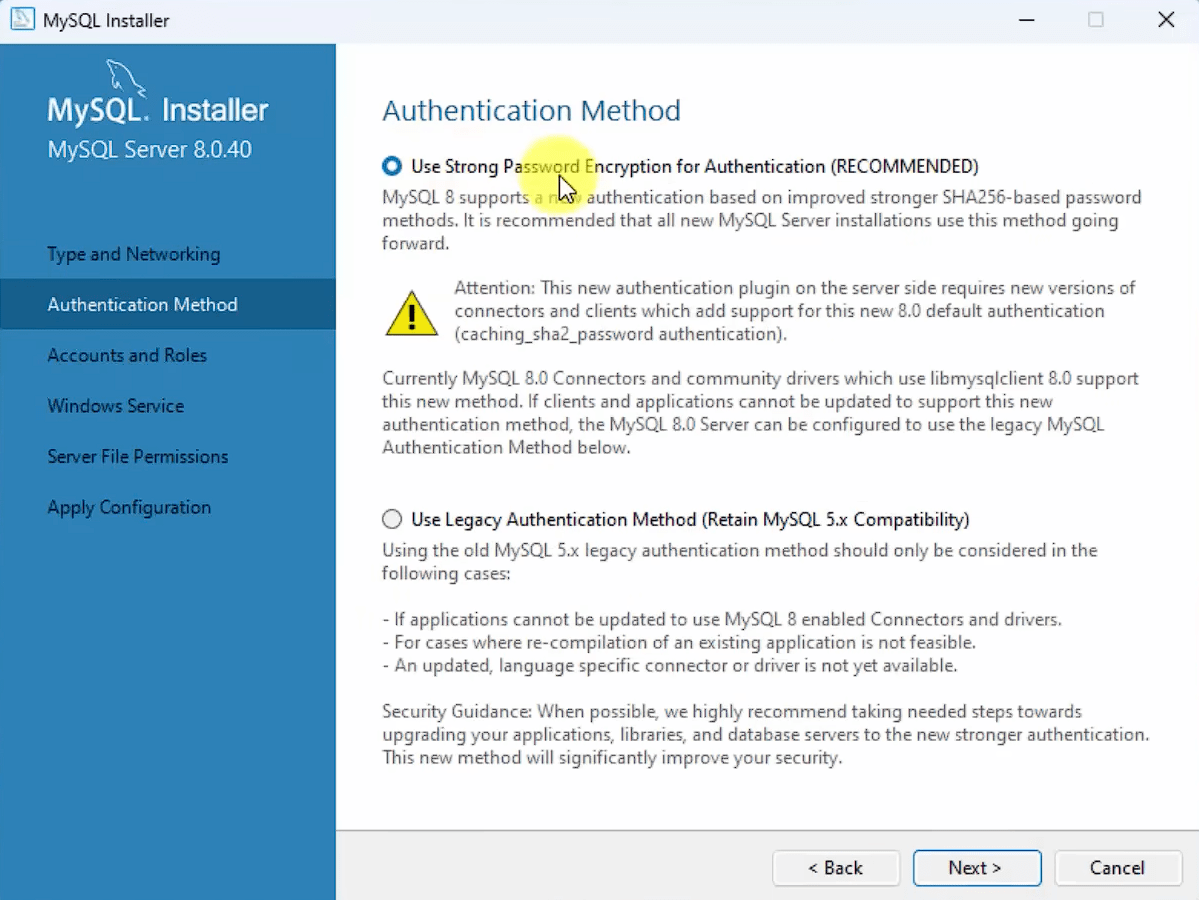
Select Use Strong Password Encryption and then click Next
7
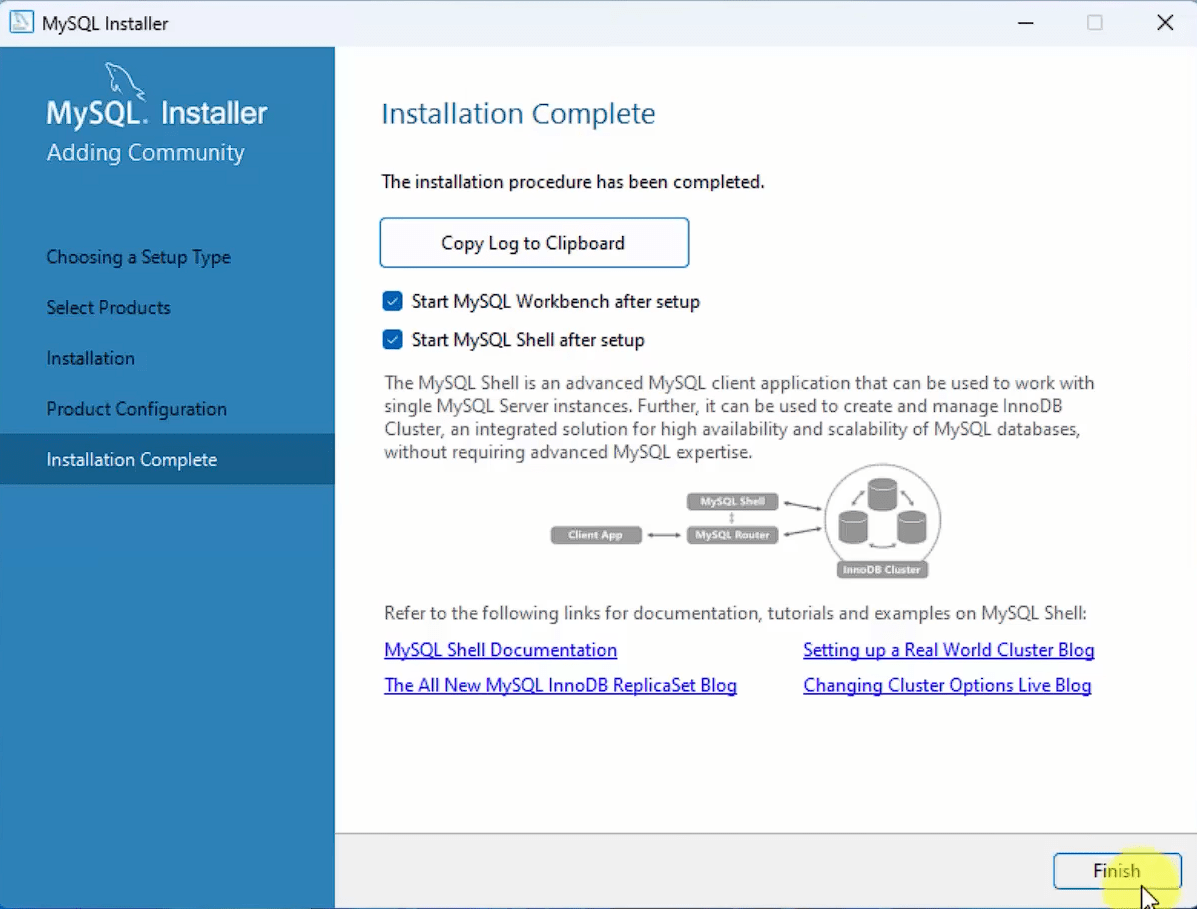
Complete with the rest of the settings and your Installation is complete
8
After installation completes:
This is how you install MySQL. Now we proceed with the next tasks.
Task 2: Connect to SQL Database Environment
Before managing banking data, we must first establish a connection with the SQL server environment.
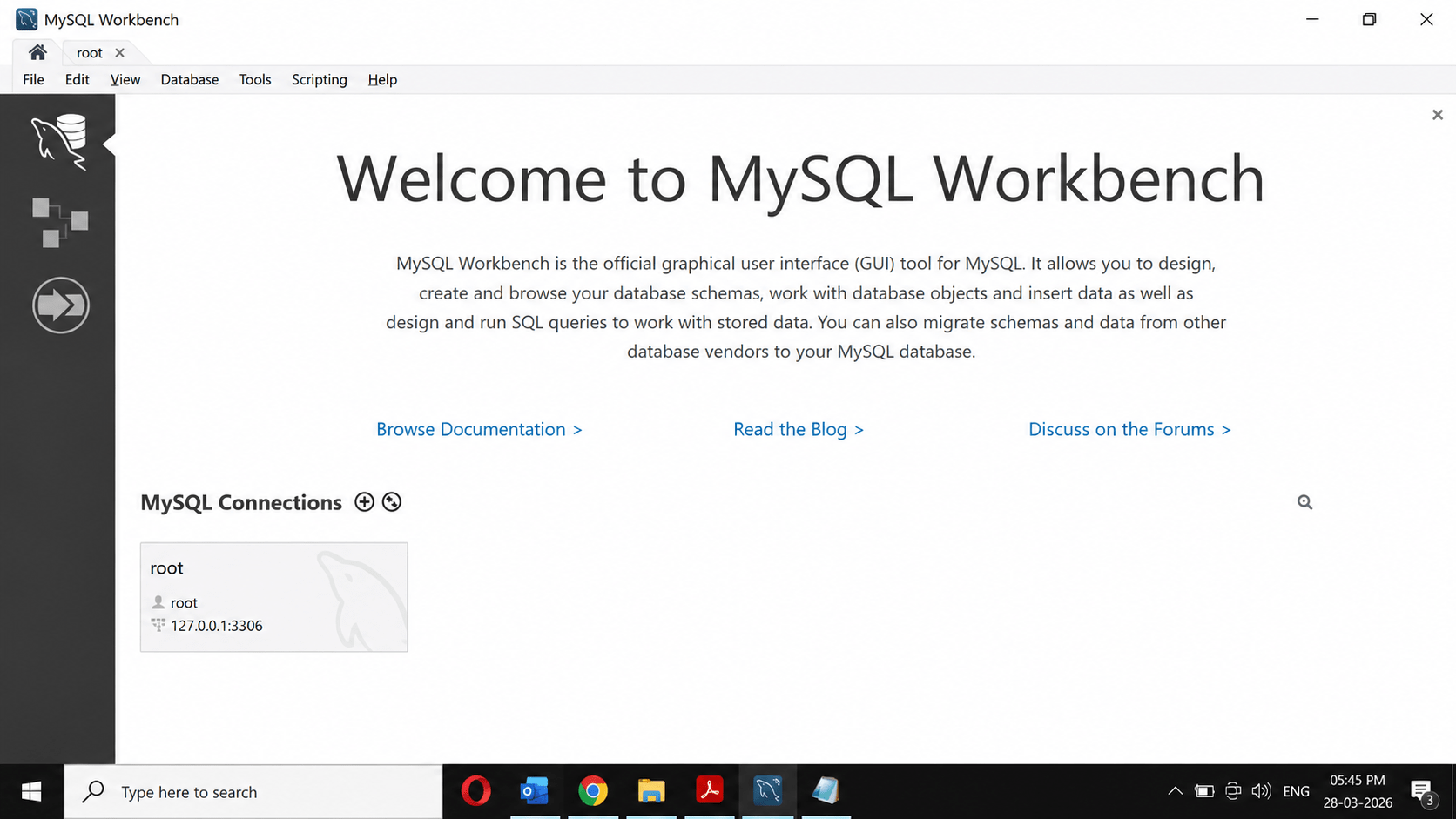
Open MySQL Workbench
1
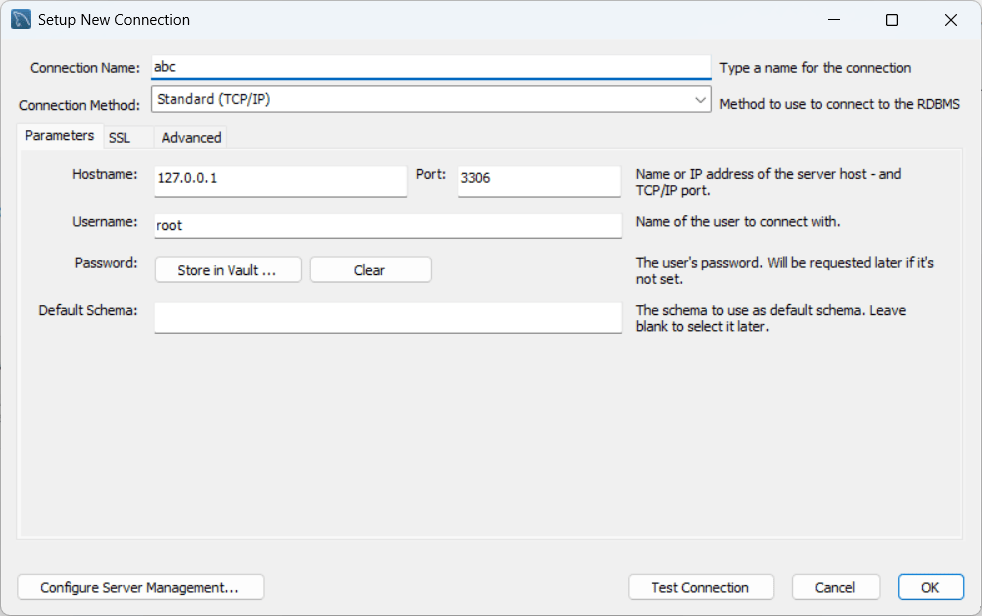
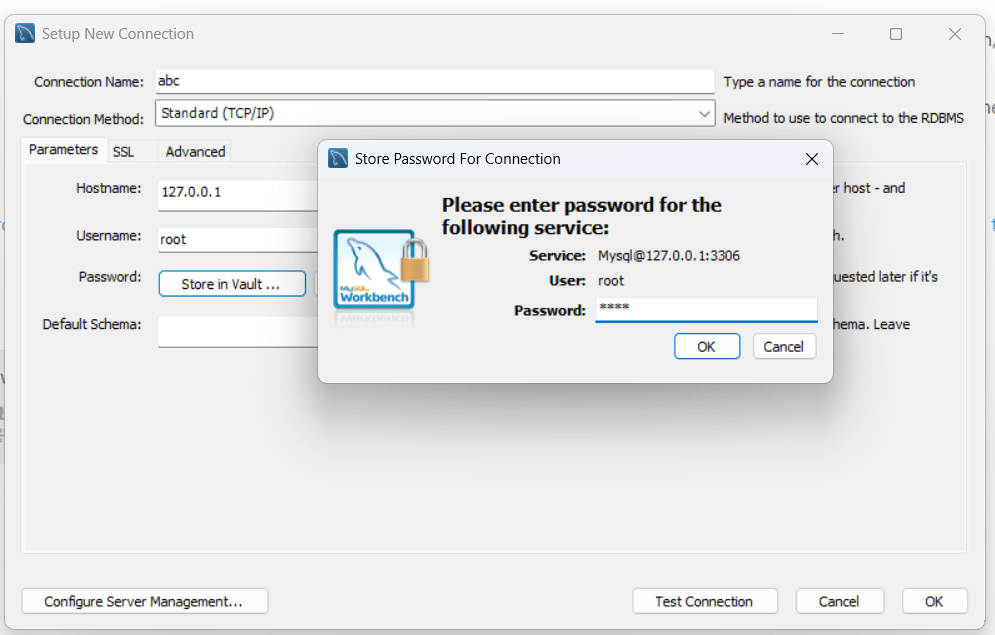
Click on + (New Connection) → Connect
2
Double-click the connection to open SQL Editor.
If the connection is successful, the SQL workspace will open.
Task 3: Create Database
Now let’s create a dedicated database for SwiftBank where all banking information such as customer details, account records, and transaction data will be stored in an organized and secure manner.
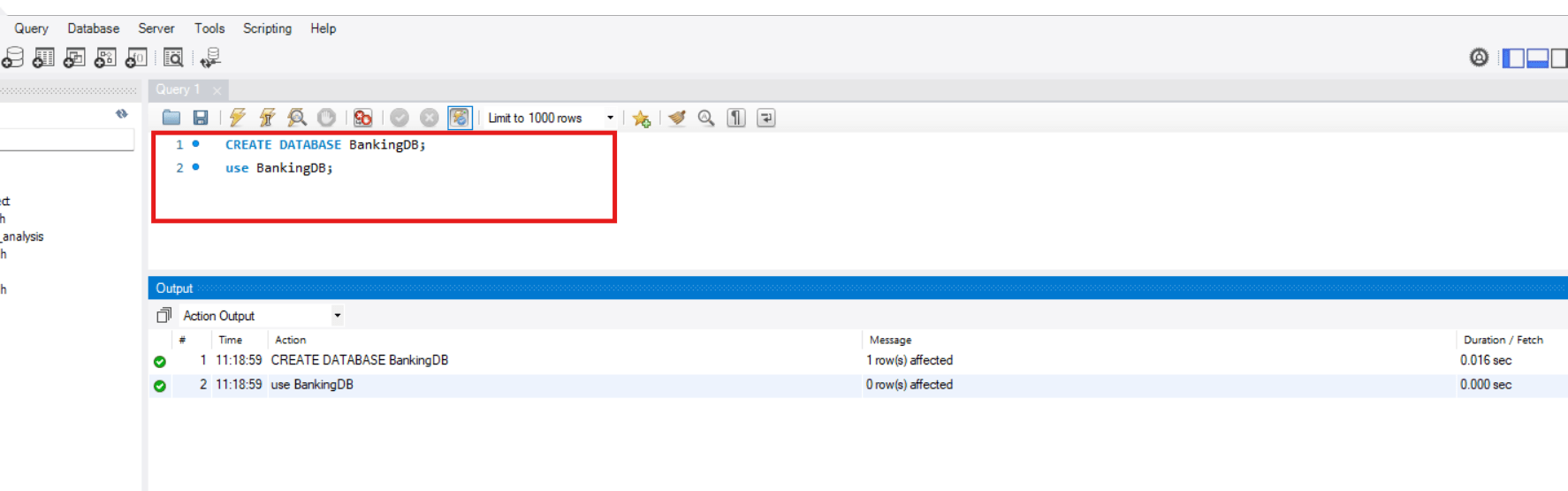
Create a new database named BankingDB.
1
Run the following command:
SHOW DATABASES;This command displays all available databases.
Now let’s create tables inside the BankingDB database to systematically store banking information such as customer details, account information, and transaction records.
Task 4: Create Banking Tables
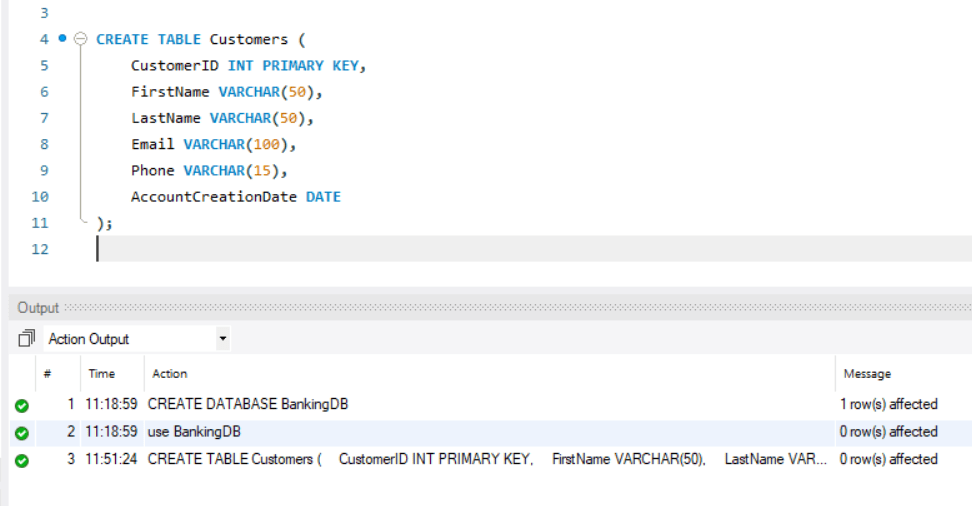
CREATE TABLE Customers (
    CustomerID INT PRIMARY KEY,
    FirstName VARCHAR(50),
    LastName VARCHAR(50),
    Email VARCHAR(100),
    Phone VARCHAR(15),
    AccountCreationDate DATE
);
This table stores customer details.
Create Customers Table
1
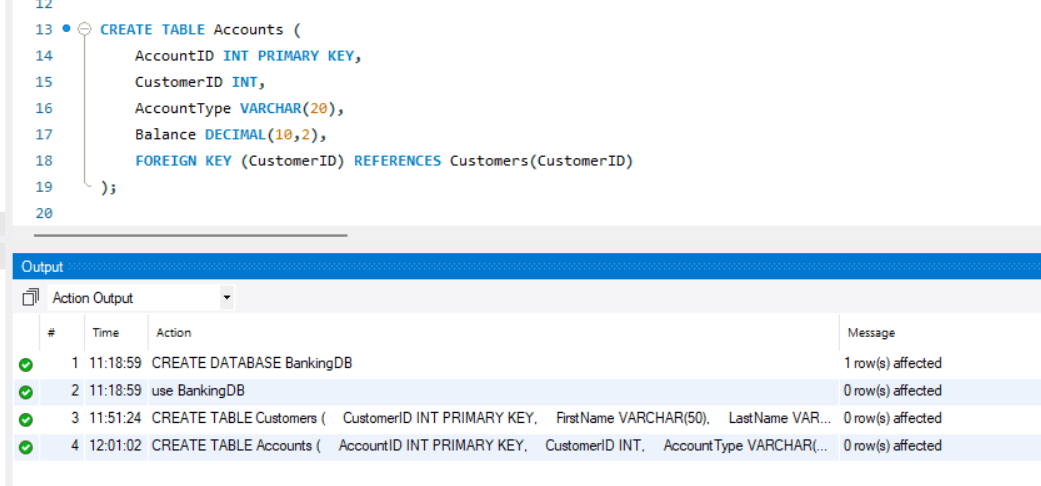
Create Accounts Table
2
CREATE TABLE Accounts (
    AccountID INT PRIMARY KEY,
    CustomerID INT,
    AccountType VARCHAR(20),
    Balance DECIMAL(10,2),
    FOREIGN KEY (CustomerID) REFERENCES Customers(CustomerID) );
This table stores bank account information.
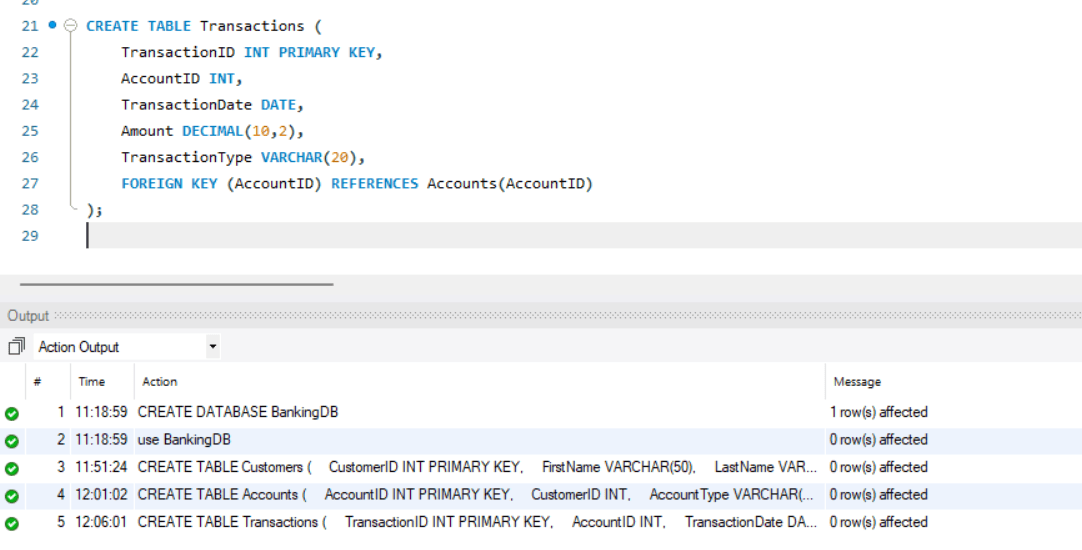
Create Transactions Table
3
CREATE TABLE Transactions (
    TransactionID INT PRIMARY KEY,
    AccountID INT,
    TransactionDate DATE,
    Amount DECIMAL(10,2),
    TransactionType VARCHAR(20),
    FOREIGN KEY (AccountID) REFERENCES Accounts(AccountID) );
This table stores transaction details.
Create Branches Table
4
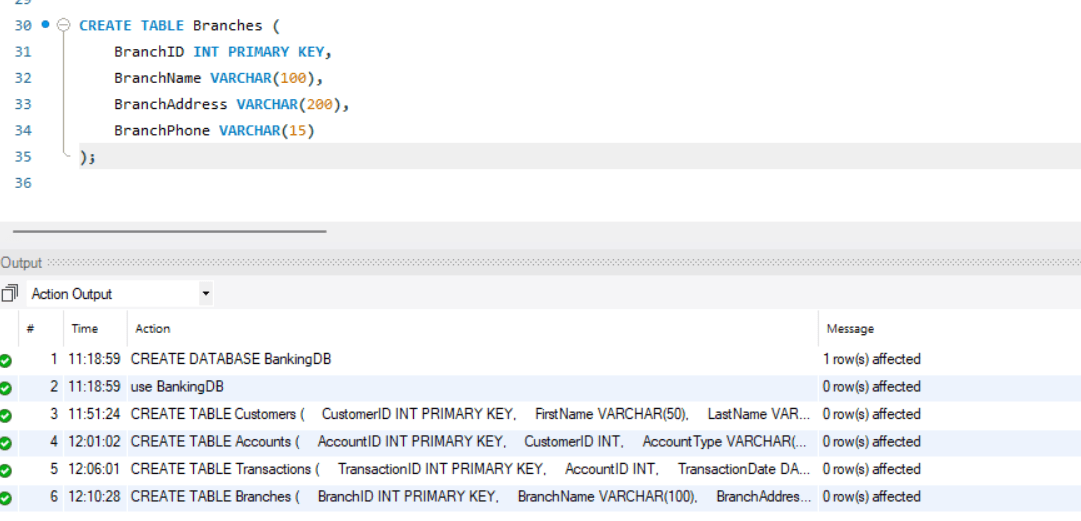
CREATE TABLE Branches (
	BranchID INT PRIMARY KEY,
    BranchName VARCHAR(100),
    BranchAddress VARCHAR(200),
    BranchPhone VARCHAR(15)
);
Create AccountBranches Table
5
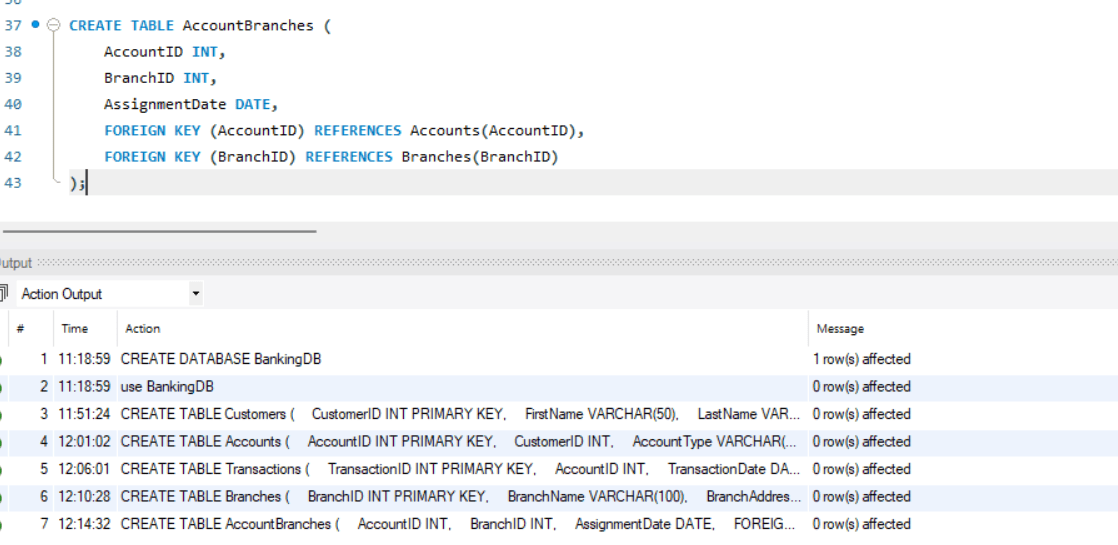
CREATE TABLE AccountBranches (
    AccountID INT,
    BranchID INT,
    AssignmentDate DATE,
    FOREIGN KEY (AccountID) REFERENCES Accounts(AccountID),
    FOREIGN KEY (BranchID) REFERENCES Branches(BranchID)
);
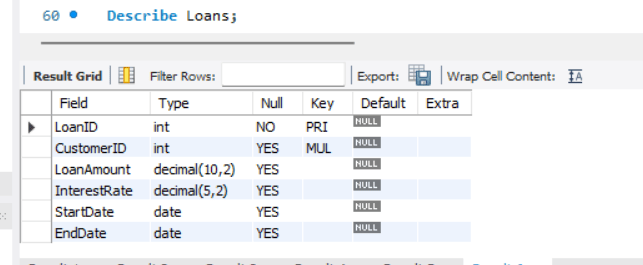
Create Loans Table
6
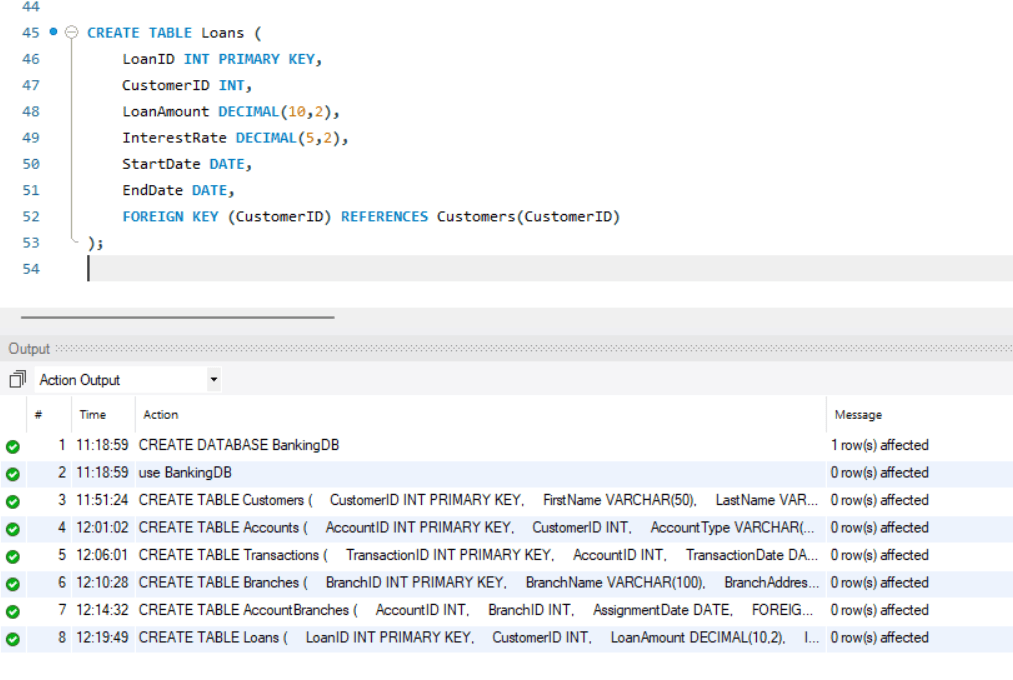
CREATE TABLE Loans (
    LoanID INT PRIMARY KEY,
    CustomerID INT,
    LoanAmount DECIMAL(10,2),
    InterestRate DECIMAL(5,2),
    StartDate DATE,
    EndDate DATE,
    FOREIGN KEY (CustomerID) REFERENCES Customers(CustomerID)
);
Task 5: Explore table structure using DESCRIBE
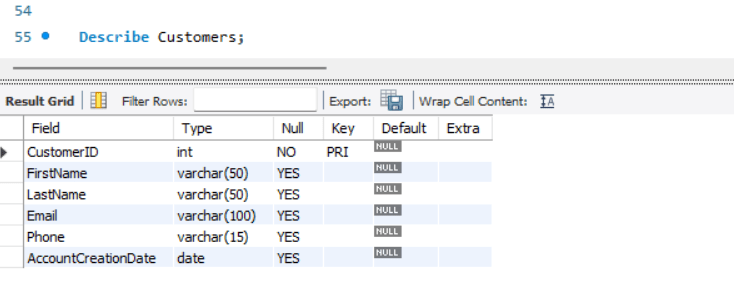
Before inserting or managing data, developers usually examine the structure of a table to understand how the data is organized. This helps ensure that the correct type of information is inserted into the appropriate columns.
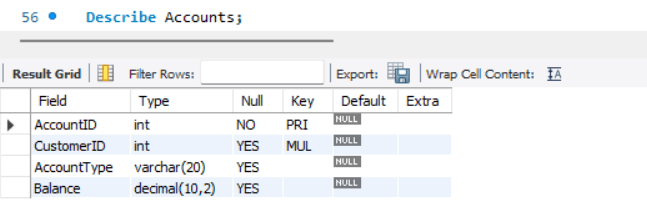
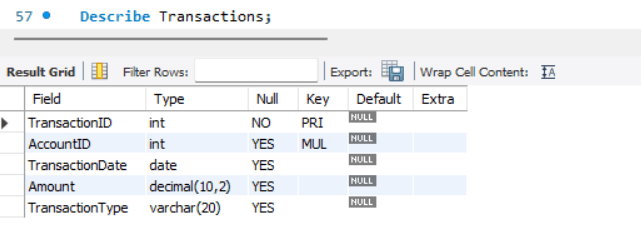
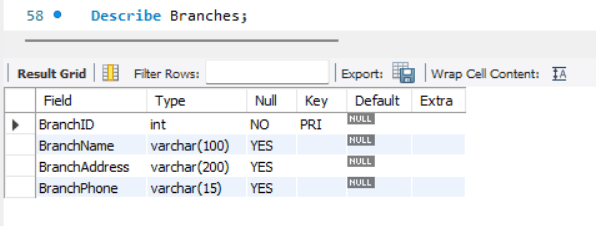
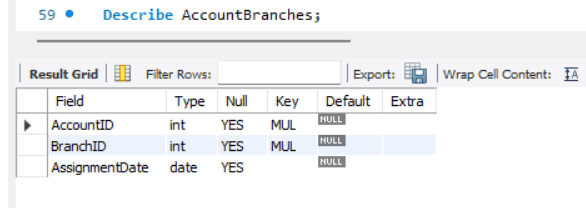
The DESCRIBE command is used to display the complete structure of a table, including:
Column names
Data types of each column
Primary or key information
Whether NULL values are allowed or not
Use the Describe query for each table in the database
1
A
B
C
D
E
F
Task 6: Identify Rows and Columns
Before working with database records, it is important to understand the basic structure of a table. Every table in a database is made up of rows and columns.
Understanding rows and columns helps developers organize, store, and retrieve data efficiently.
What is a Column?
A column represents a specific category or type of information stored in a table.
Each column has a unique name and defines what kind of data can be stored.
Example:
| CustomerID | CustomerName | City |
|---|---|---|
Here:
CustomerID is a columnCustomerName is a columnCity is a columnColumns define the structure and properties of the table.
What is a Row?
A row represents a single complete record inside the table.
Each row stores actual data related to one entity.
Example:
| CustomerID | CustomerName | City |
|---|---|---|
| 101 | Rahul Sharma | Mumbai |
In this example, the complete horizontal entry represents one row.
Rows store the actual records inside the database table.
Great job!
You have completed your lab on Set Up Banking Database & Explore Table Structure.
In this lab, you have: Installed and connected MySQL, created the BankingDB database and tables, explored table structures using DESCRIBE, understood rows and columns, and viewed banking records.
You are now ready to move to the next stage of SQL and database management.
Checkpoint
Git Push
git push origin branchNameNext-Lab Preparation
Module: Crafting SQL Databases (DDL)
1) Types of Database Relationships
2) Concept of Entity Relationship Model (ERD)
3) Normalization and Denormalization
4) Types of DDL Commands
5) Types of Constraints
By Content ITV