
Content ITV PRO
This is Itvedant Content department
FinCheck Advanced Web Inspection & Dynamic Element Validation
Business Scenario
After successfully learning basic Webpage Inspection inside the FinCheck Banking Portal, your manager now assigns you advanced inspection activities on Dynamic Banking Webpages.
Recently, QA Testers reported multiple inspection problems inside the FinCheck Transaction Dashboard :-
Transaction Rows Change after Filtering
Pagination Buttons Rebuild Dynamically
Dashboard Counters Update Automatically
Pre-Lab Preparation
Some Webpage Elements Disappear after Search
Testers Cannot Track Changing HTML Elements Properly
Before starting testing activities, your manager clearly says :-
“”A QA Tester must understand how Webpage Elements change dynamically during real application usage. “”
Your responsibility is to understand : -
How Dynamic Transaction Tables Behave
How Filters Update Webpage Records
How Pagination Changes Dynamically
How Testers Inspect Changing HTML Elements
How Hidden Elements Exist inside Webpage Structure
How DevTools Helps Testers Inspect Dynamic Webpages
Topic : HTML Basics
git pull origin branchNameGit Pull
Task 1: Understand Dynamic Webpage Behavior
Understand Dynamic Webpages
1
What are Dynamic Webpages?
A dynamic webpage is a webpage that changes automatically based on user activity.
Unlike static webpages, dynamic webpages update records, counters, tables, and filters without reloading the complete page.
Modern banking applications use dynamic webpages to display real-time customer and transaction information.
Types of Dynamic Changes
Search Updates
Transaction records update after user search.
Filter Updates
Only matching records display after filters are applied.
Pagination Updates
Page buttons change dynamically based on record count.
Counter Updates
Dashboard totals refresh automatically.
How Dynamic Webpages Work
User performs activity on webpage.
Application processes request.
Browser updates specific webpage sections dynamically.
HTML structure changes automatically inside browser DOM.
Real Life Example
Customer searches :-
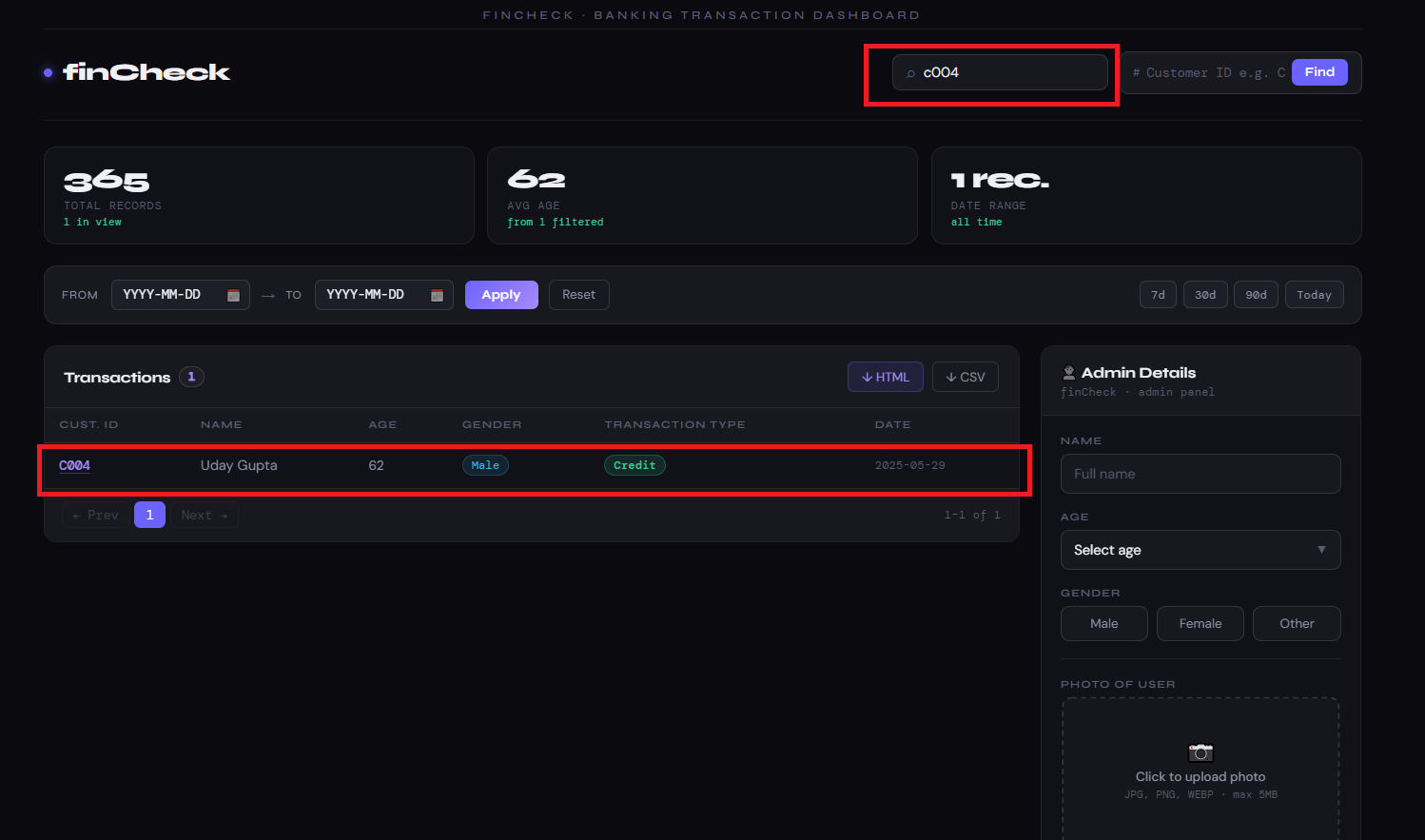
Customer ID = C004
The webpage updates transaction table dynamically and displays only matching records.
What is DOM?
DOM (Document Object Model) represents webpage structure inside browser.
Every webpage element becomes part of DOM structure.
QA testers inspect DOM to understand webpage behavior and identify elements properly.
Understand DOM Updates
2
Types of DOM Elements
Input Elements
Textbox fields for search or filters.
Button Elements
Search, Next, Previous, Download buttons.
Table Elements
Transaction rows and columns.
Hidden Elements
Invisible elements existing inside webpage structure.
How DOM Updates Work
When webpage changes dynamically :-
old HTML elements may disappear
new HTML elements may appear
attributes may change automatically
Real Life Example
Before Search :-
10 transaction rows visible
After Search :-
1 matching transaction row visible
DOM structure updates automatically.
Open FinCheck Dashboard
1
What is Transaction Table Inspection?
Transaction table inspection helps QA testers understand how banking records are displayed inside webpage tables.
Testers inspect rows , columns , headers , dynamic records updates
Task 2: Inspect Dynamic Transaction Rows
Click to view : finCheck
Activity
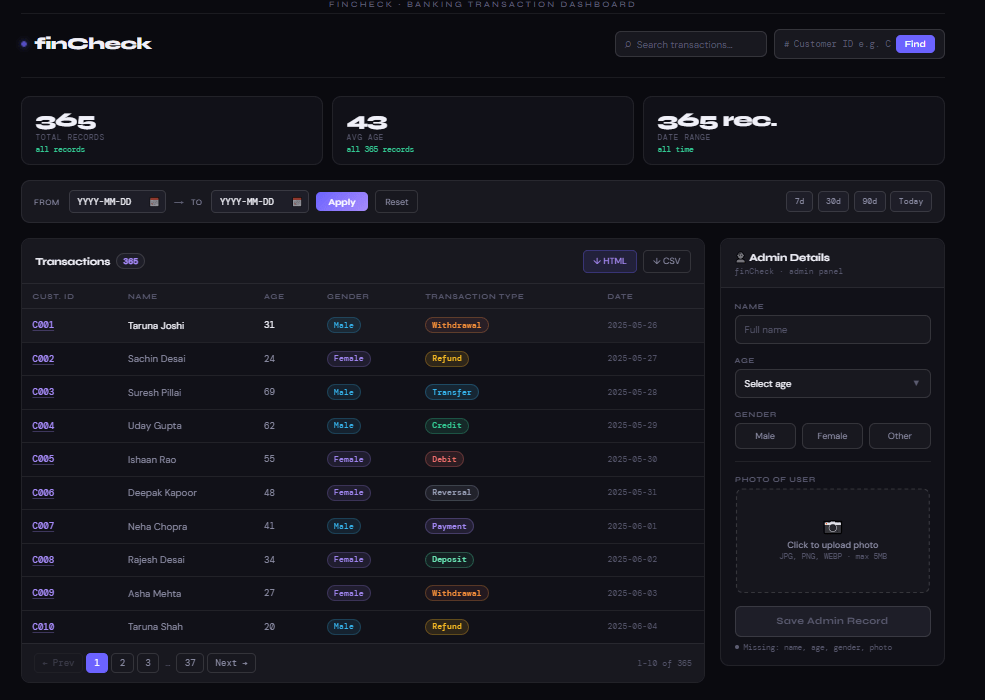
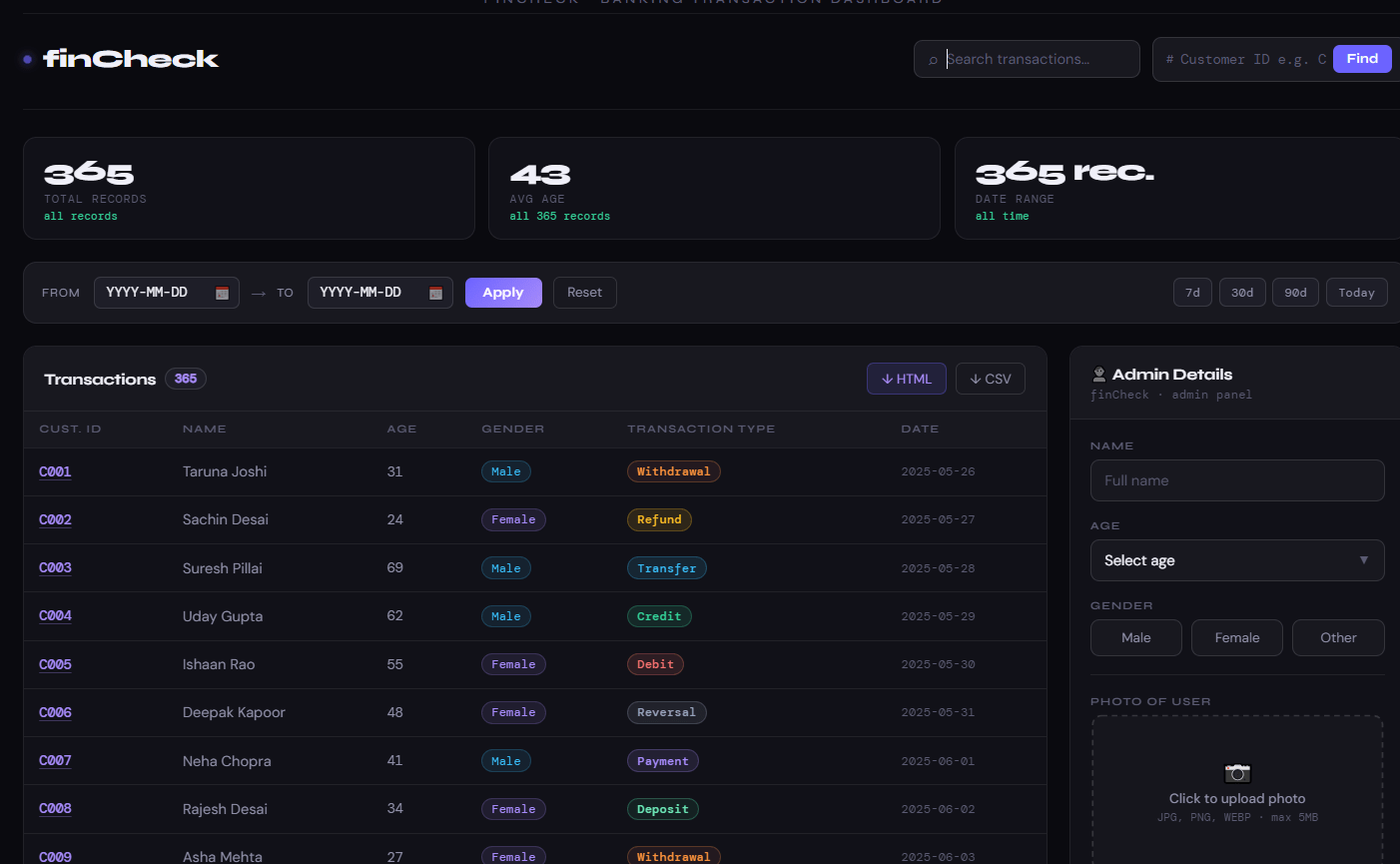
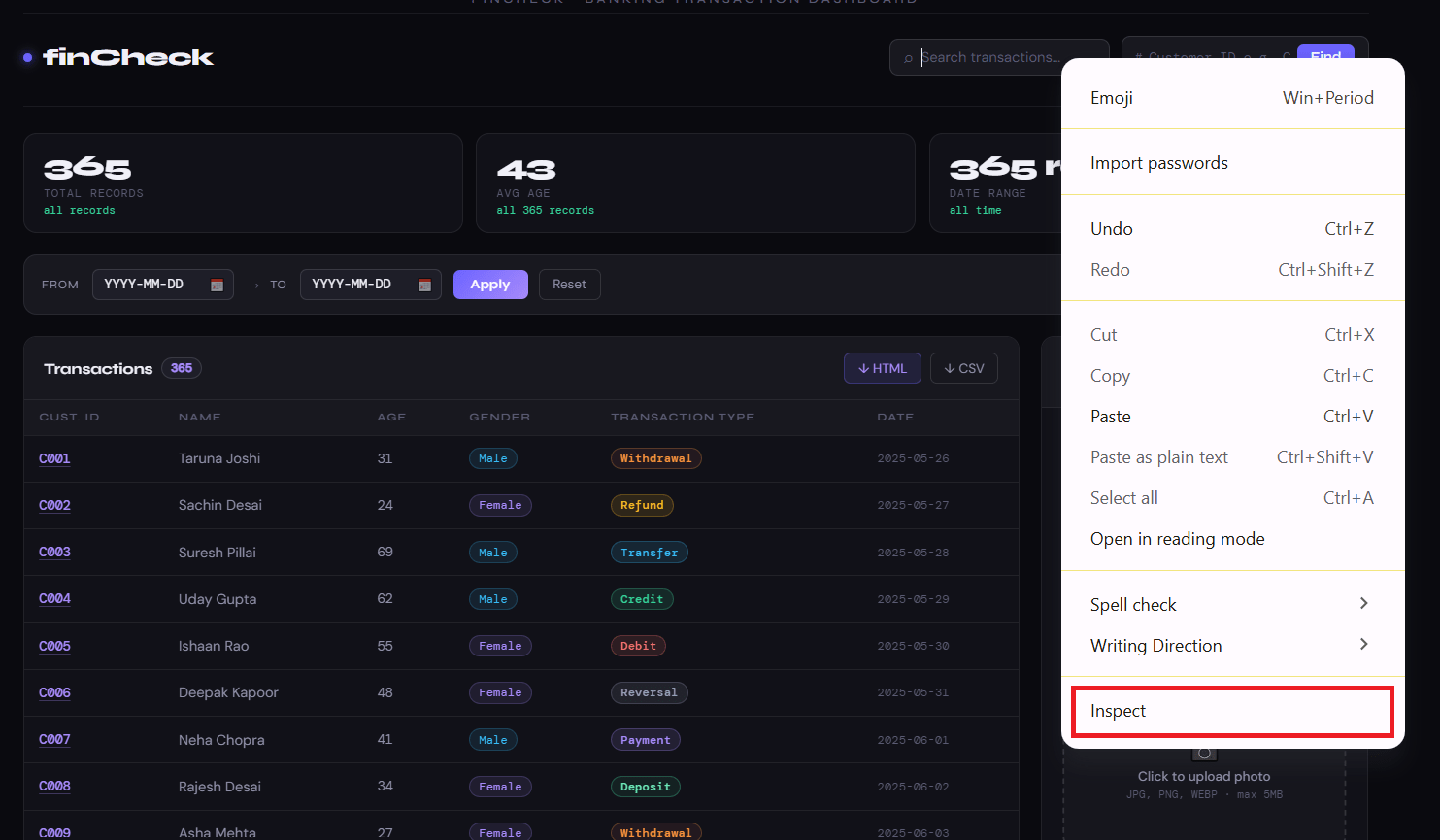
Open FinCheck transaction dashboard
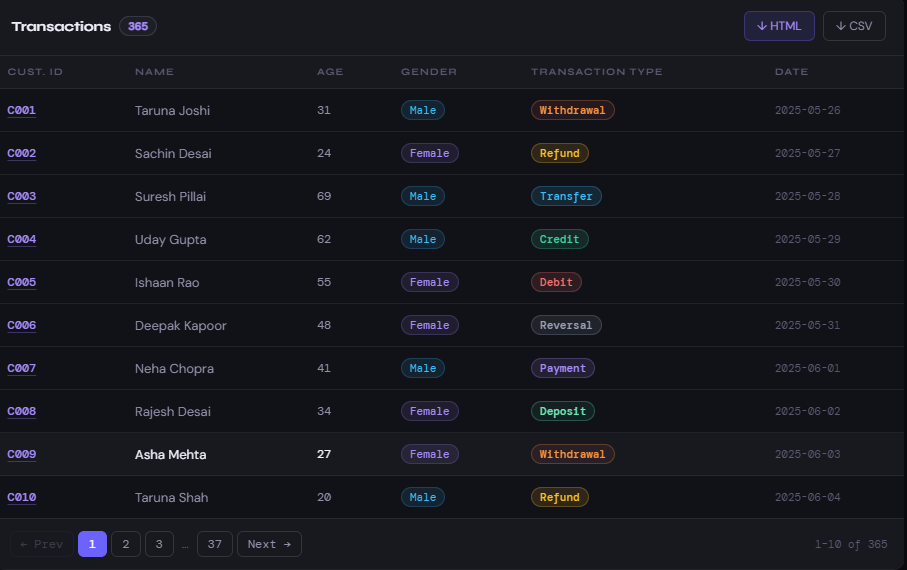
Observe transaction table
Observe multiple transaction rows displayed on webpage
Observe multiple transaction rows displayed on webpage
Transaction Table Representation
| txn_id | customer_id | txn_type | amount |
|---|---|---|---|
| TXN1001 | C001 | Debit | 2000 |
| TXN1002 | C004 | Credit | 5000 |
| TXN1003 | C007 | Debit | 1000 |
Inspect Transaction Table Using DevTools
2
What is Table Inspection?
Table inspection allows testers to view actual HTML structure of transaction records.
QA testers inspect tables to understand :-
table structure
row arrangement
dynamic row generation
Activity
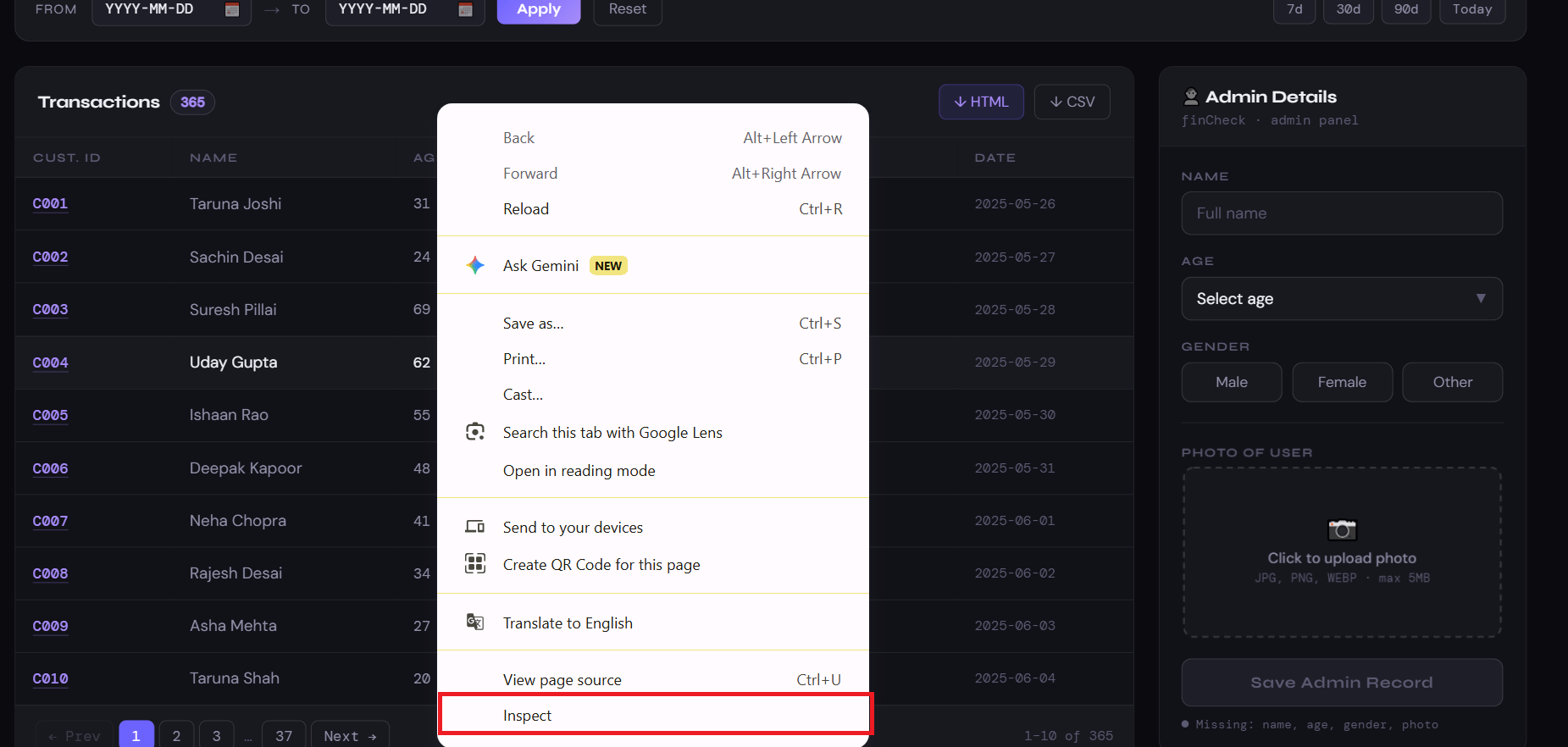
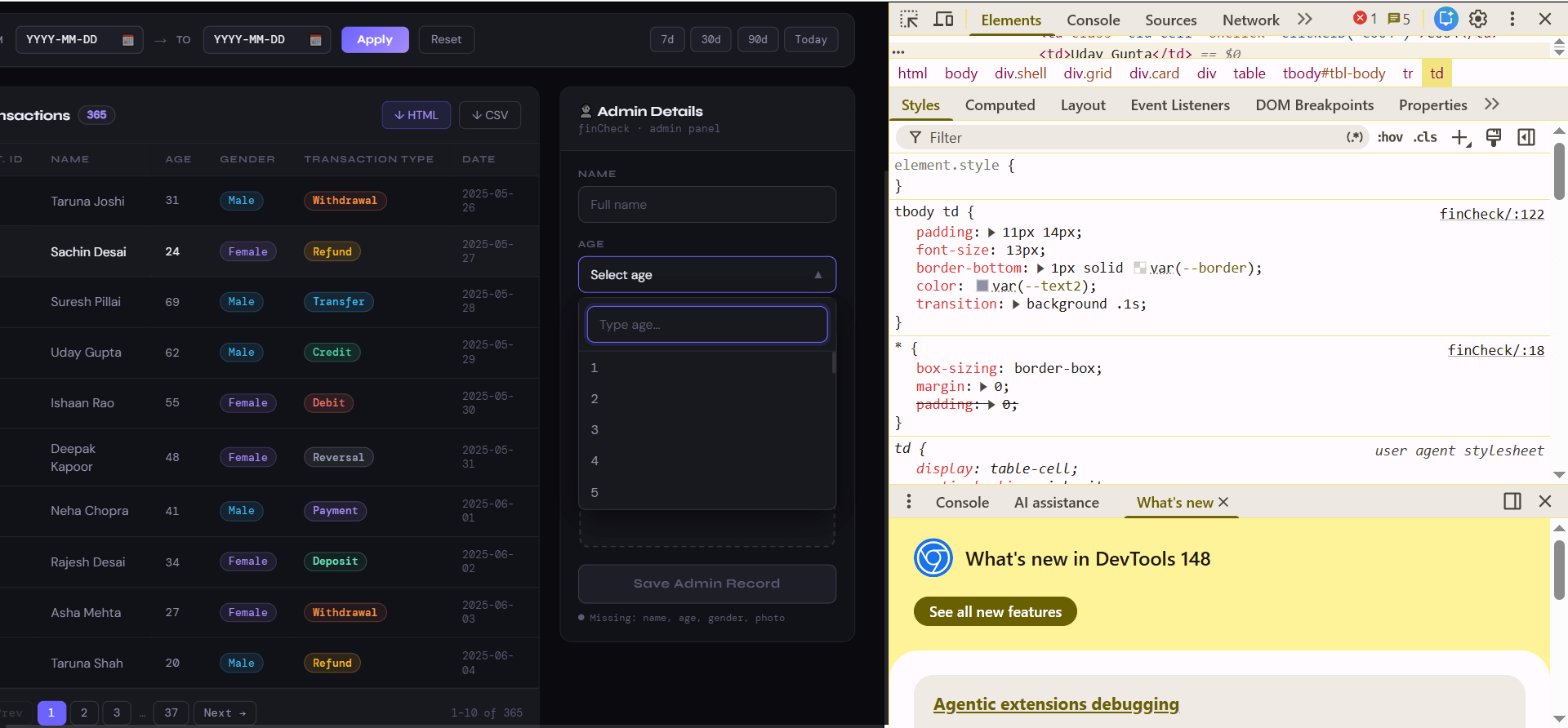
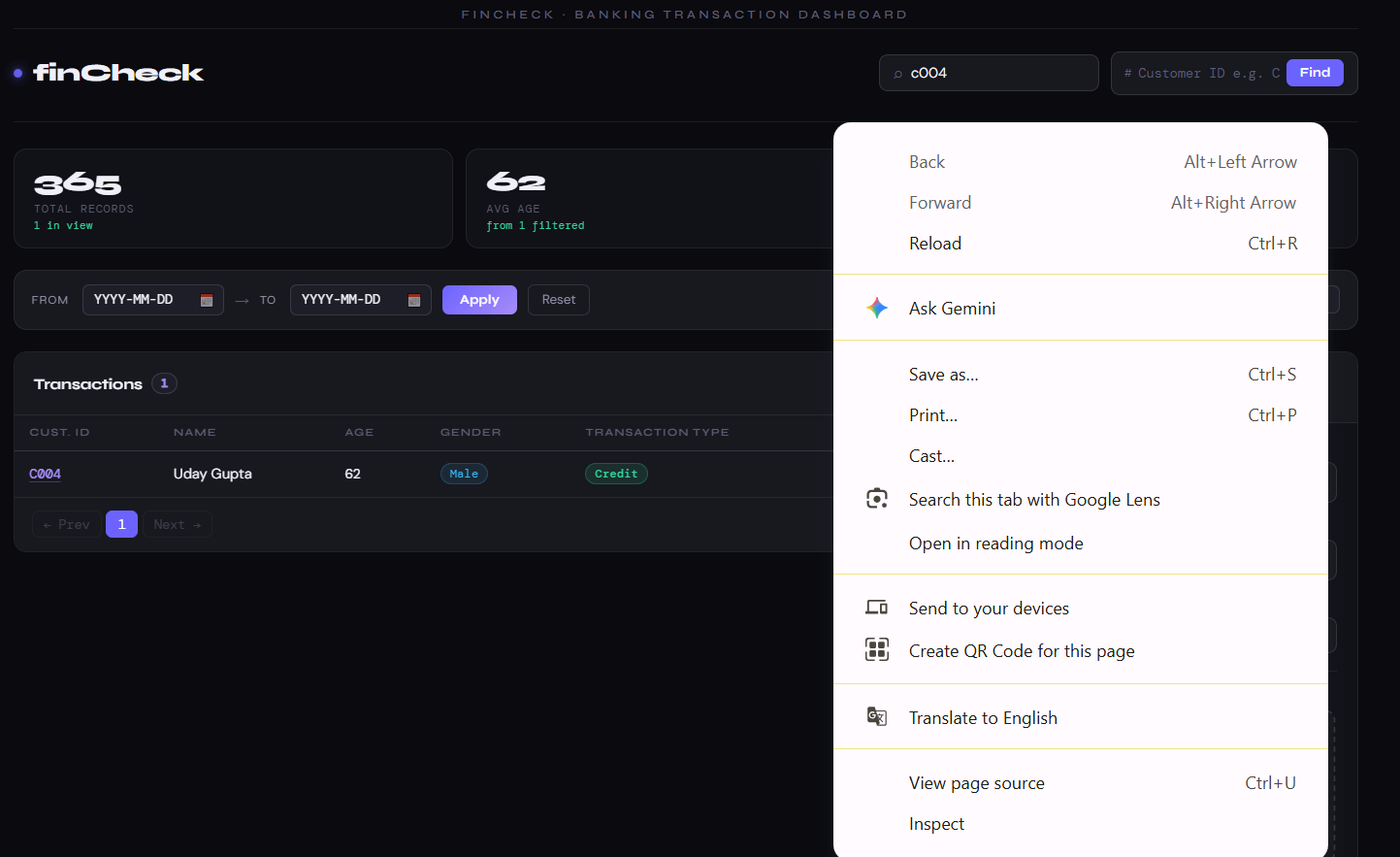
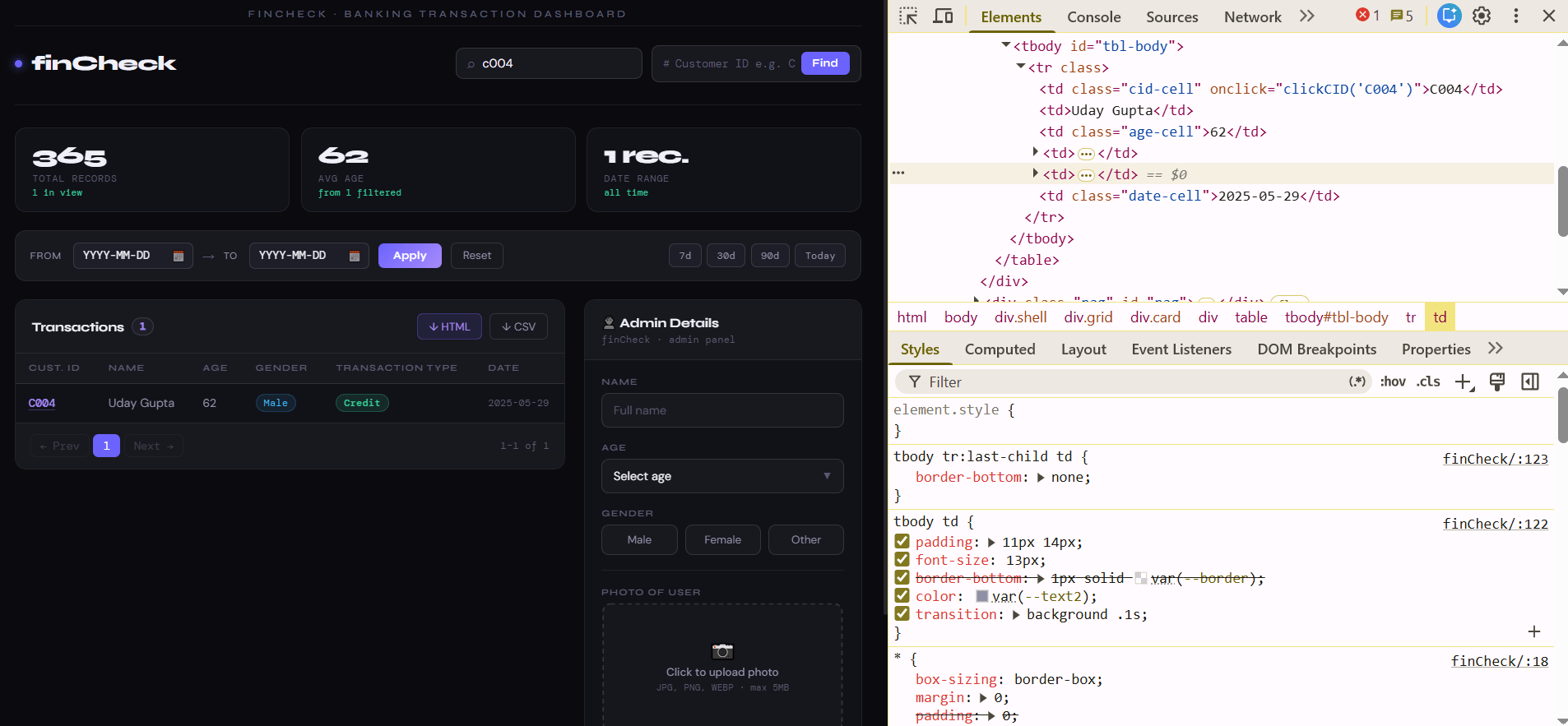
Right click transaction table
Browser opens DevTools
Observe highlighted HTML structure
Browser opens DevTools
Observe highlighted HTML structure
HTML Representation
<table id="txn-table">

<tr>
<th>txn_id</th>
<th>customer_id</th>
<th>txn_type</th>
<th>amount</th>
</tr>

<tr>
<td>TXN1001</td>
<td>C001</td>
<td>Debit</td>
<td>2000</td>
</tr>

</table>
Inspect Dynamic Row Changes
3
What are Dynamic Rows?
Dynamic rows are transaction records that change automatically after search, filtering, or pagination.
These rows are generated dynamically by application logic.
How Dynamic Rows Work
When user performs :-
Search
Filter
Pagination
old rows disappear and new matching rows appear automatically.
Activity
Search customer ID :- C004
Click Find button
Observe updated transaction table
Inspect updated HTML rows
Before Search:-
Transaction Table Representation
| txn_id | customer_id | txn_type | amount |
|---|---|---|---|
| TXN1001 | C001 | Debit | 2000 |
| TXN1002 | C004 | Credit | 5000 |
| TXN1003 | C007 | Debit | 1000 |
After Search:-
| txn_id | customer_id | txn_type | amount |
|---|---|---|---|
| TXN1002 | C001 | Debit | 2000 |
Task 2: Inspect Dynamic Transaction Rows
Open FinCheck Dashboard
1
What is Search Inspection?
Search inspection helps testers understand how webpage records change after user input.
Testers inspect must search textbox, Update records and Dynamic HTML changes.
Activity
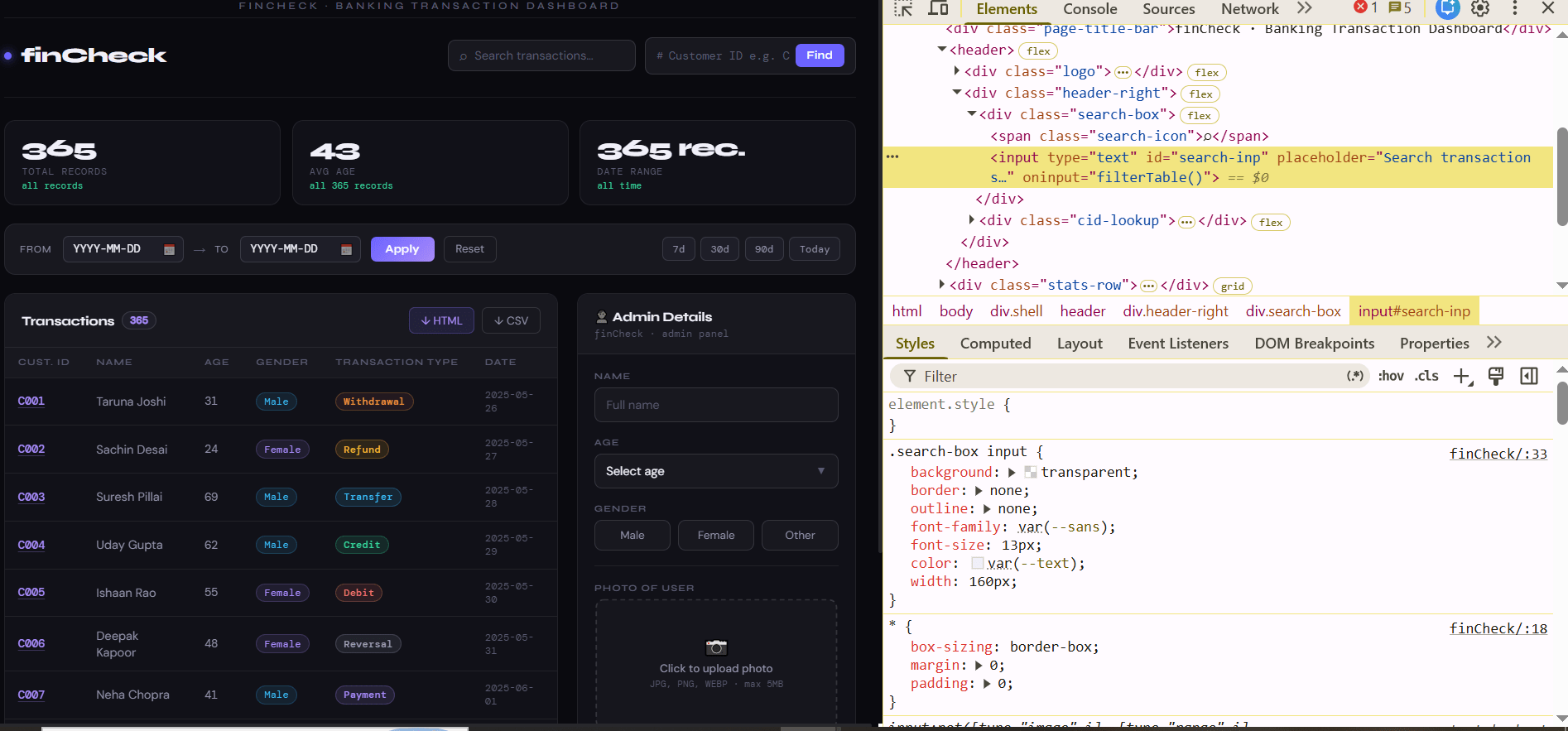
Right click search textbox
Click Inspect
Observe highlighted input element
HTML Representation
<input
type="text"
id="search-inp"
placeholder="Search transactions">
Inspect Filter Changes
2
What is Filter Inspection?
Filter inspection means observing how webpage data changes after filters are applied.
Filters help users view only matching transaction records.
Types of Filters
Credit Filter
Displays only credit transactions.
Debit Filter
Displays only debit transactions.
Date Filter
Displays transactions from selected dates.
How Filter Works
User applies filter.
System refreshes matching transaction records dynamically.
Old rows disappear and filtered rows appear automatically.
Activity
Right click search textbox
Click Inspect
Observe highlighted input element
Task 3: Code Editor Installation
Good work on completing the planning phase.
Now we will start development. Before that, make sure your system is ready with the required tools.
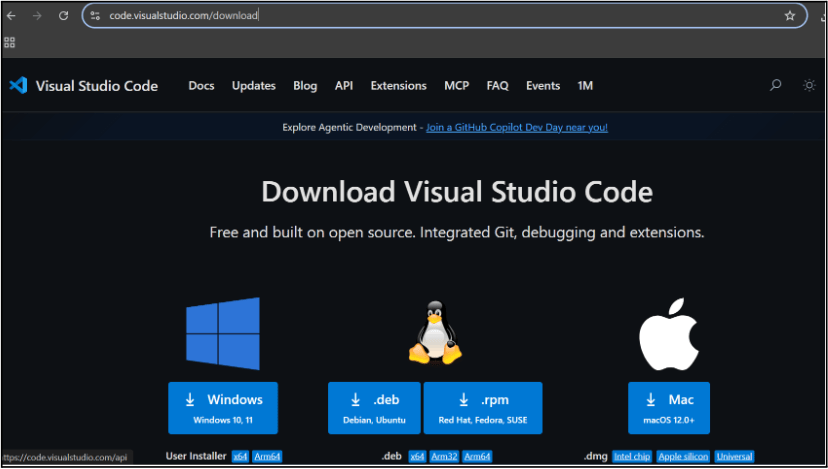
In this step we will install the VS code editor that will help to Write code efficiently,Organize files , Run and test your application
Go to the visual studio code official website
1
Click to download Homepage Wireframe : Homepage Wireframe
Choose your operating system(windows / Mac) and download the installation file.
Double click on the download app and Accept the agreement and click next
2
It is a long established fact that a reader will be distracted
b
Sub Steps
a
Double click on the download app and Accept the agreement and click next
public class MathSample {
    public static void main(String[] args) {
        int x = 10;
        int y = 20;
        int sum = x + y;

        System.out.println("The sum is: " + sum);
    }
}
public class MathSample {
public static void main(String[] args) {
int x = 10;
int y = 20;
int sum = x + y;
System.out.println("The sum is: " + sum);
}
}
public class MathSample {
public static void main(String[] args) {
int x = 10;
int y = 20;
int sum = x + y;
System.out.println("The sum is: " + sum);
}
}
Great job!
You have successfully completed your first lab on BiteBox Project Onboarding.
In this lab, you have: Understood the BRD, Created a wireframe, Set up your development environment, Organised your project structure, Run your first program
You are now ready to move to the next stage of development
Checkpoint
Next-Lab Preparation
Git Push
git push origin branchNameTopic : Working with a Text and Listin HTML
1) Power of HTML text tags
2) Customizing your style with CSS
3) Listing it right using HTML
4) HTML Link up , attributes of tag, block vs inline elements
Text box Width : 887
Business Scenario, Pre-lab Preparation, Next-lab Preparation, Task, Activity, Checkpoint : 90%.
Steps : 1,2,3 [Sub Steps - a,b,c]
Normal Text, Topic Name : 80%
Subtopic : 70%
Code Box font Size : 16px
By Content ITV