






Content ITV PRO
This is Itvedant Content department
Setting up Configuration Management for ContentSphere Platform
Business Scenario
Manager:
We have successfully automated the ContentSphere infrastructure using AWS CloudFormation. However, we also need an efficient way to manage the complete infrastructure lifecycle, including updates, modifications, and resource cleanup.
DevOps Engineer:
To achieve this, we can use AWS CloudFormation along with the AWS CDK. CloudFormation provisions the infrastructure, while AWS CDK allows us to define infrastructure using programming languages.
Manager:
How will this improve our infrastructure management?
DevOps Engineer:
It enables automated deployments, simplifies infrastructure updates, supports version control, and makes it easy to create, modify, and delete AWS resources.
Manager:
What is our implementation plan?
DevOps Engineer:
We will create AWS CDK applications, synthesize CloudFormation templates, deploy infrastructure, and manage updates and resource deletion through the infrastructure lifecycle.
DevOps Engineer to Team:
Team, we will build AWS CDK projects, deploy the ContentSphere infrastructure, perform stack updates, monitor deployment status, and safely destroy resources when they are no longer needed.
Team:
Understood. We will manage the complete ContentSphere infrastructure lifecycle using AWS CloudFormation and AWS CDK to ensure automated, consistent, and maintainable cloud deployments.
Pre-Lab Preparation
One Ubuntu EC2 instance is available as Ansible Control Node.
One or more Ubuntu EC2 instances are available as Managed Nodes.
AWS Security Group allows SSH access on Port 22.
AWS CLI is configured.
Internet connectivity is available.
Basic Linux command knowledge is available.
Task 1: Verify Server Connectivity
1
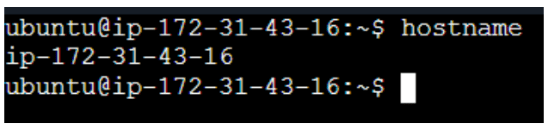
Verify access to the Control Node.
hostname
Task 2: Install Ansible
1
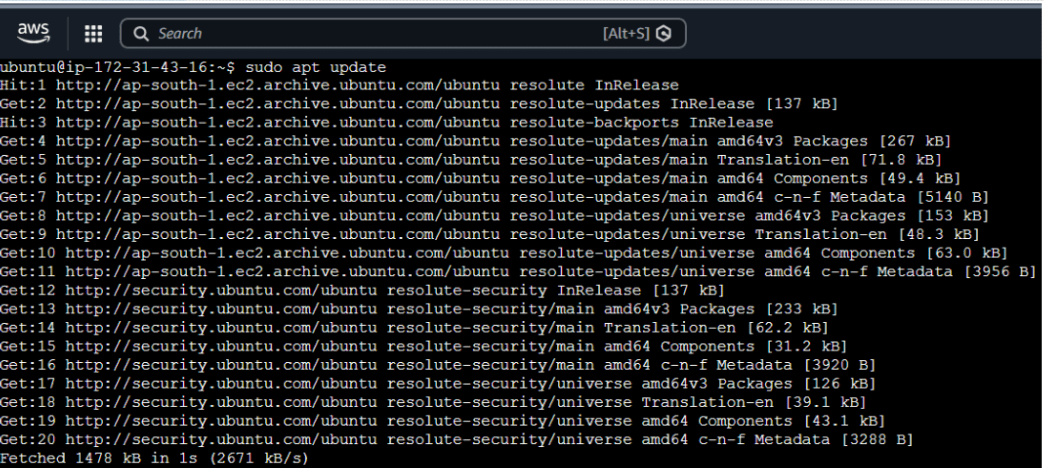
Update package repository
sudo apt update
3
2
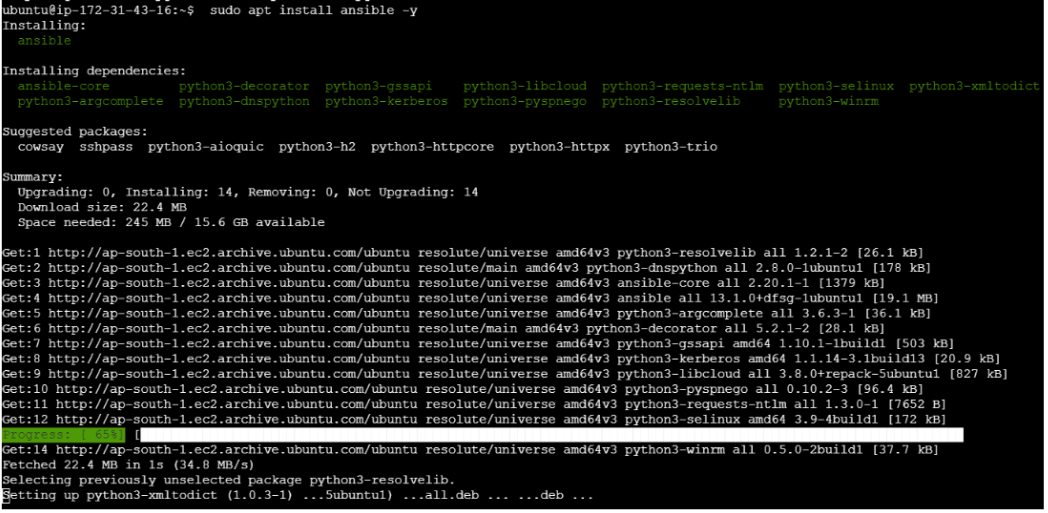
Install Ansible
sudo apt install ansible -y
2
2
Verify installation
ansible --version
Task 3: Configure Passwordless SSH
1
2
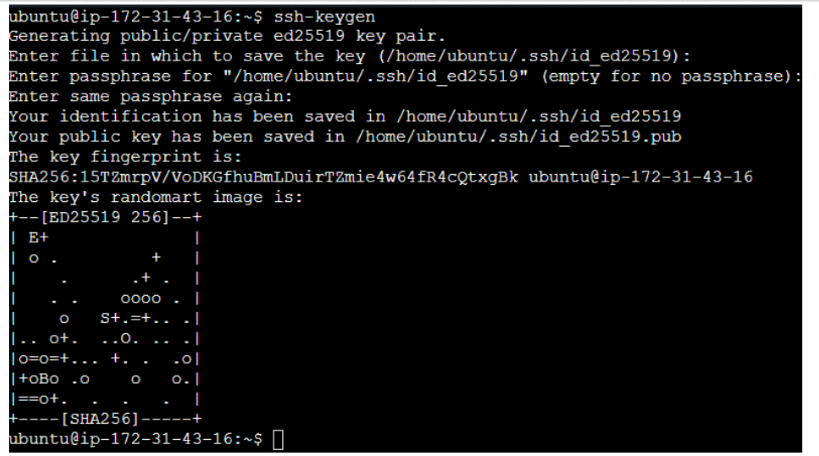
Generate SSH Key
ssh-keygen
2
2
Copy SSH Key to Managed Node
ssh-copy-id ubuntu@<managed-node-ip>
3
2
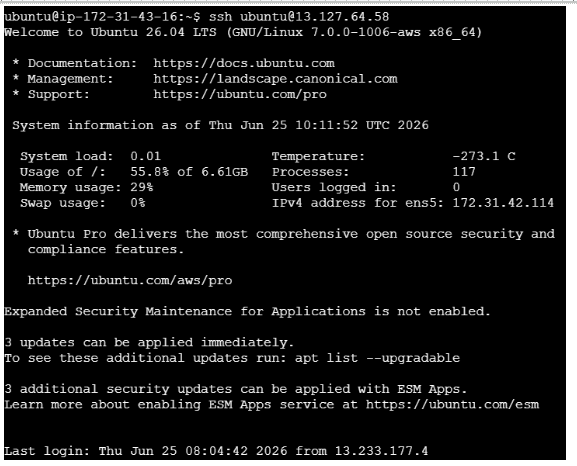
Verify SSH Login
ssh ubuntu@<managed-node-ip>Task 4: Configure Inventory
1
2
1
2
1
2
1
2
Create inventory file
mkdir ansible-lab
cd ansible-lab
vi inventory
2
2
2
2
Add Managed Node details [webservers]
<managed-node-ip>
3
2
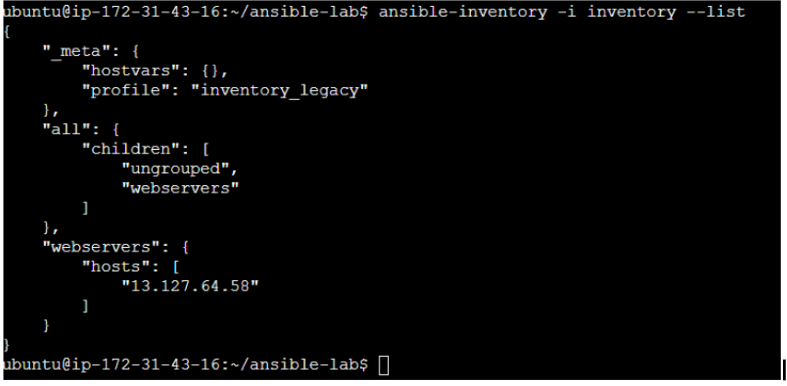
Verify inventory
ansible-inventory -i inventory --listTask 5: Verify Connectivity Using Ansible
1
2
Ping Managed Nodes
ansible all -i inventory -m ping2
2
2
2
Verify hostname remotely
ansible all -i inventory -m command -a "hostname"3
2
Verify uptime remotely.
ansible all -i inventory -m command -a "uptime"Pre-Lab Preparation
View food items and menus
Add items to cart
Place orders online
Topic : Weaving the world of Web
1) Navigating the world of Web
2) Building Blocks of Website,
3) Tag Titans: Fundamental Web Construct.
git pull origin branchNameGit Pull
Task 1: Understanding BRD
Before you start building anything, you need to clearly understand what the client actually wants.So, let’s begin by understanding the BRD (Business Requirement Document) shared by the client.
BRD Full Form is Business Requirement Details.BRD like a plan for building a house. This plan helps the builder understand what to build.In the same way,BRD tells developers what the client wants to build
Click to download BRD : BiteBox_BRD.pdf
Activity
After going through BRD list down the Core Features and Web Pages in the tabulated Format as shown Below.
| Col 1 | Col 2 | Col 3 |
|---|---|---|
| Row 1 | ||
| Row 2 | ||
| Row 3 |
Formula
Profit = Revenue - Cost
Task 2: Create WireFrame
Now that you understand the requirements, don’t jump into coding yet. Before development, we always visualize the layout.
Now lets create a simple wireframe for the homepage.
A wireframe is like a layout plan of a house. Before building, you decide where rooms, doors, and windows will be placed.Similarly, a wireframe helps you plan where elements like headers, images, and buttons will appear on a webpage—before adding design or colours.
Task 3: Code Editor Installation
Good work on completing the planning phase.
Now we will start development. Before that, make sure your system is ready with the required tools.
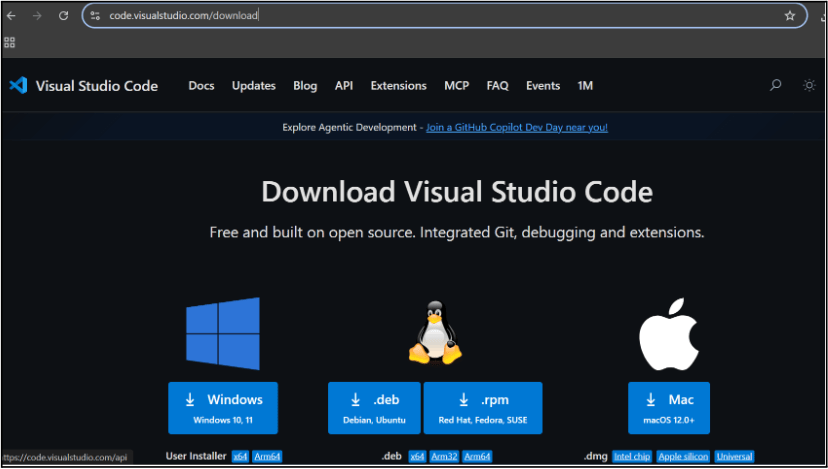
In this step we will install the VS code editor that will help to Write code efficiently,Organize files , Run and test your application
Go to the visual studio code official website
1
Click to download Homepage Wireframe : Homepage Wireframe
Choose your operating system(windows / Mac) and download the installation file.
Double click on the download app and Accept the agreement and click next
2
It is a long established fact that a reader will be distracted
b
Sub Steps
a
Double click on the download app and Accept the agreement and click next
public class MathSample {
    public static void main(String[] args) {
        int x = 10;
        int y = 20;
        int sum = x + y;

        System.out.println("The sum is: " + sum);
    }
}
public class MathSample {
public static void main(String[] args) {
int x = 10;
int y = 20;
int sum = x + y;
System.out.println("The sum is: " + sum);
}
}
public class MathSample {
public static void main(String[] args) {
int x = 10;
int y = 20;
int sum = x + y;
System.out.println("The sum is: " + sum);
}
}
Great job!
You have successfully completed your first lab on BiteBox Project Onboarding.
In this lab, you have: Understood the BRD, Created a wireframe, Set up your development environment, Organised your project structure, Run your first program
You are now ready to move to the next stage of development
Checkpoint
Next-Lab Preparation
Git Push
git push origin branchNameTopic : Working with a Text and Listin HTML
1) Power of HTML text tags
2) Customizing your style with CSS
3) Listing it right using HTML
4) HTML Link up , attributes of tag, block vs inline elements
Text box Width : 887
Business Scenario, Pre-lab Preparation, Next-lab Preparation, Task, Activity, Checkpoint : 90%.
Steps : 1,2,3 [Sub Steps - a,b,c]
Normal Text, Topic Name : 80%
Subtopic : 70%
Code Box font Size : 16px
By Content ITV