Content ITV PRO
This is Itvedant Content department
Explore the setup and installation of Kali Linux in a simulated environment
Business Scenario
Welcome!
You are a cybersecurity trainee at RedCore Cyber Labs, assigned to set up a secure testing environment for ethical hacking. Your task is to install a virtual machine using VMware Workstation or Oracle VirtualBox and deploy Kali Linux. By completing the installation and exploring its tools, you create a safe lab environment to practice cybersecurity techniques without affecting real systems.
Pre-Lab Preparation
Topic : Linux & Kali Linux Environment
1) Introduction to Kali Linux and Installation using VirtualBox/VMware.
2) Understanding the Kali Linux environment.
3) Linux file system structure.
Task 1: Configure a virtual environment using VMware workstation / VirtualBox
1
Install VMware Workstation
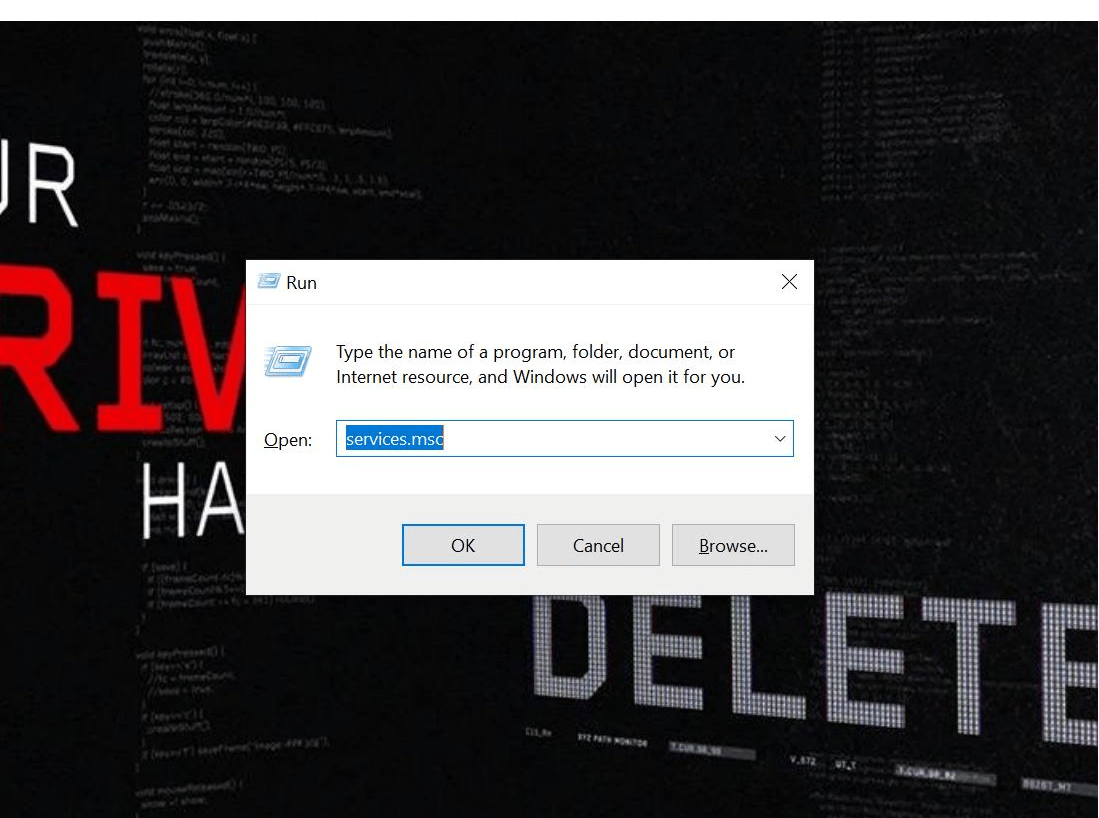
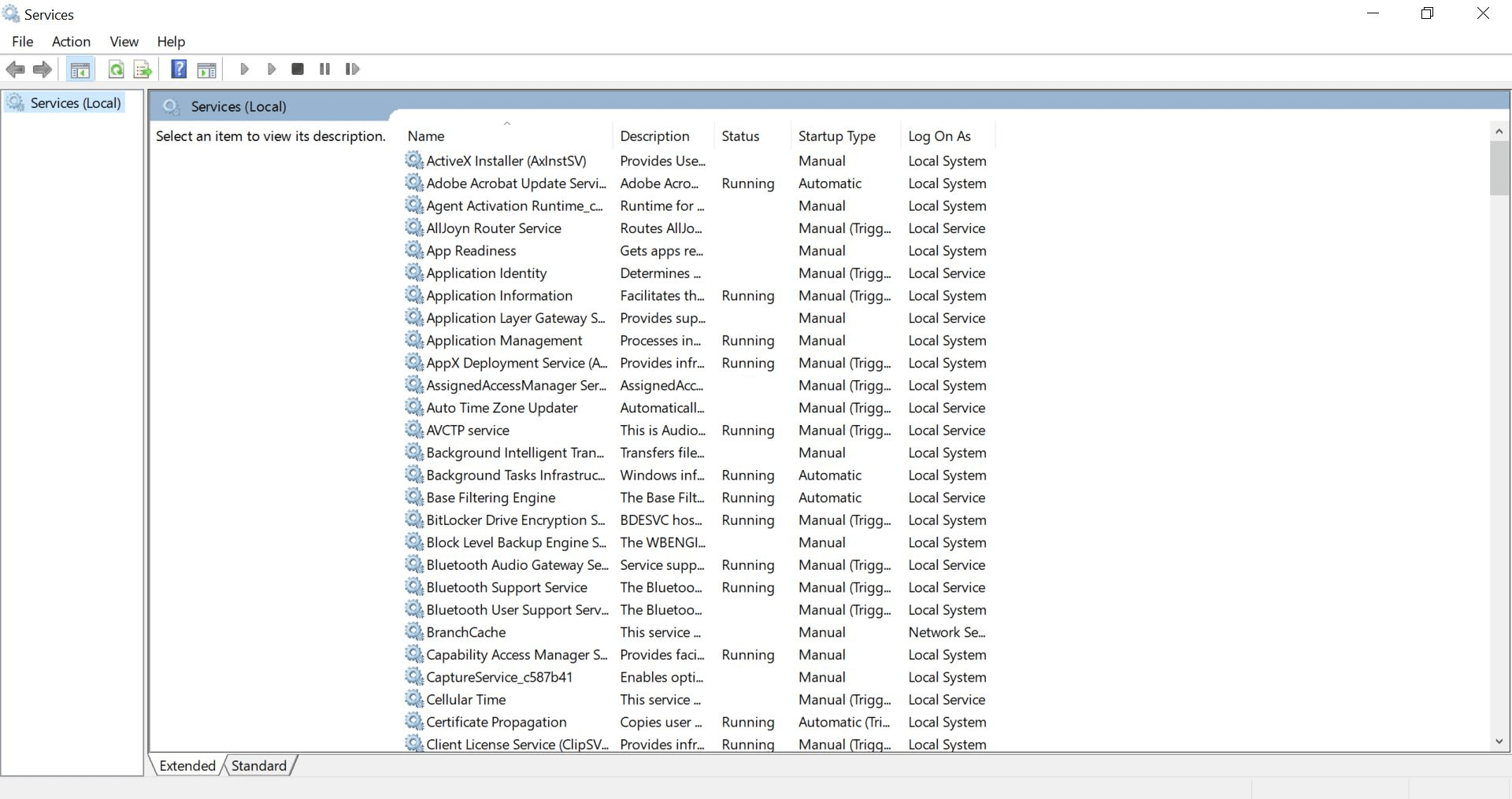
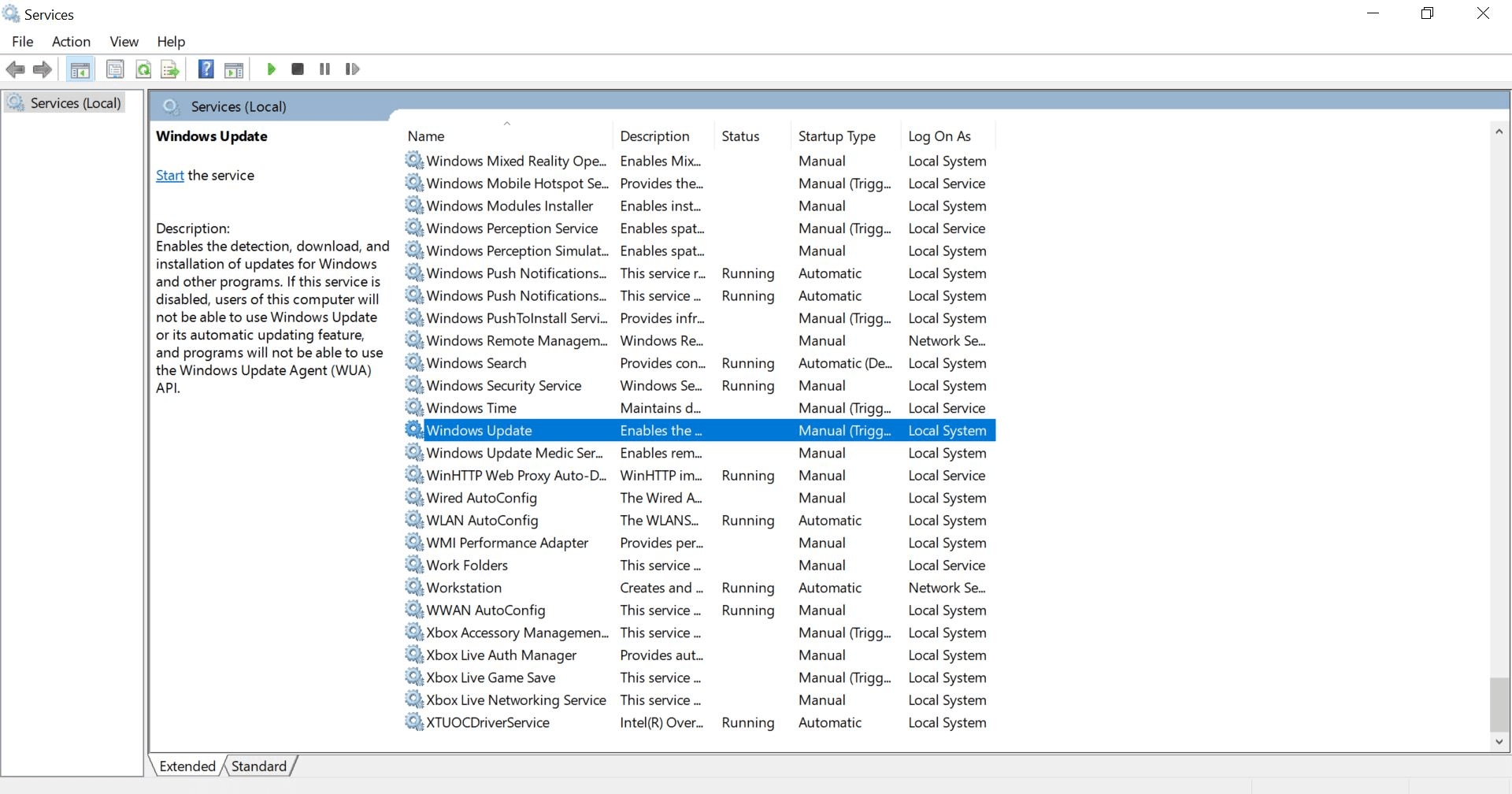
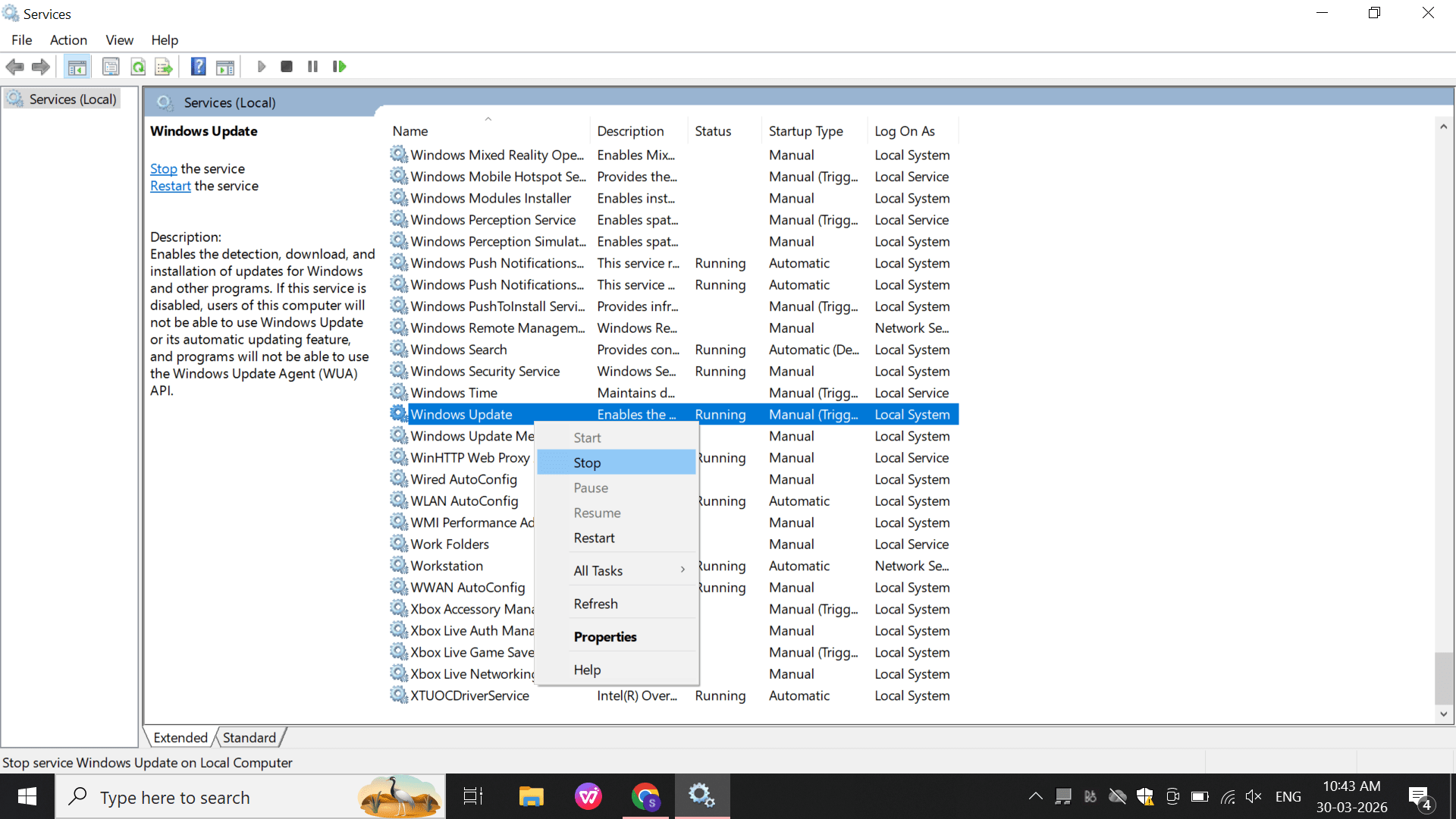
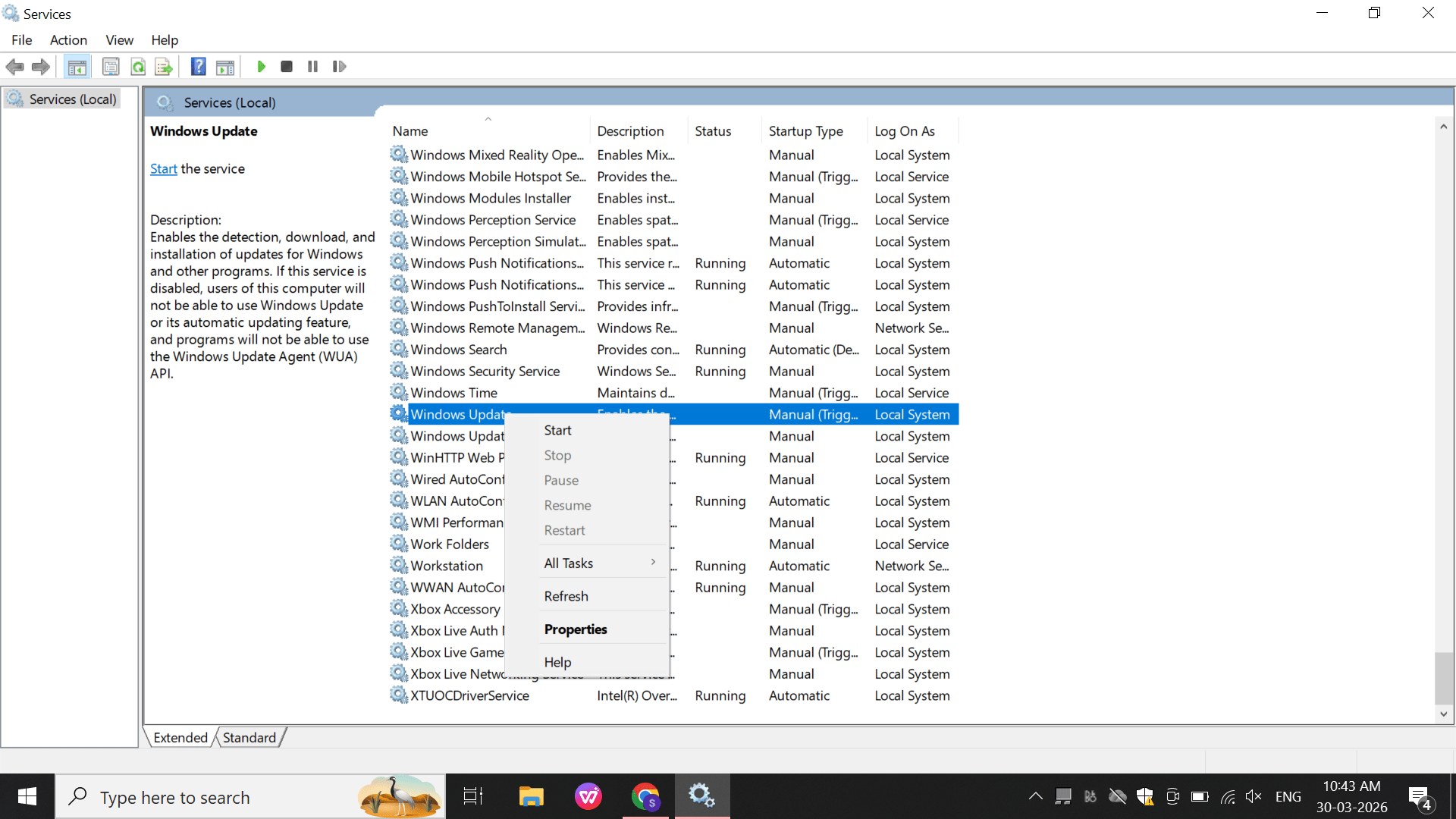
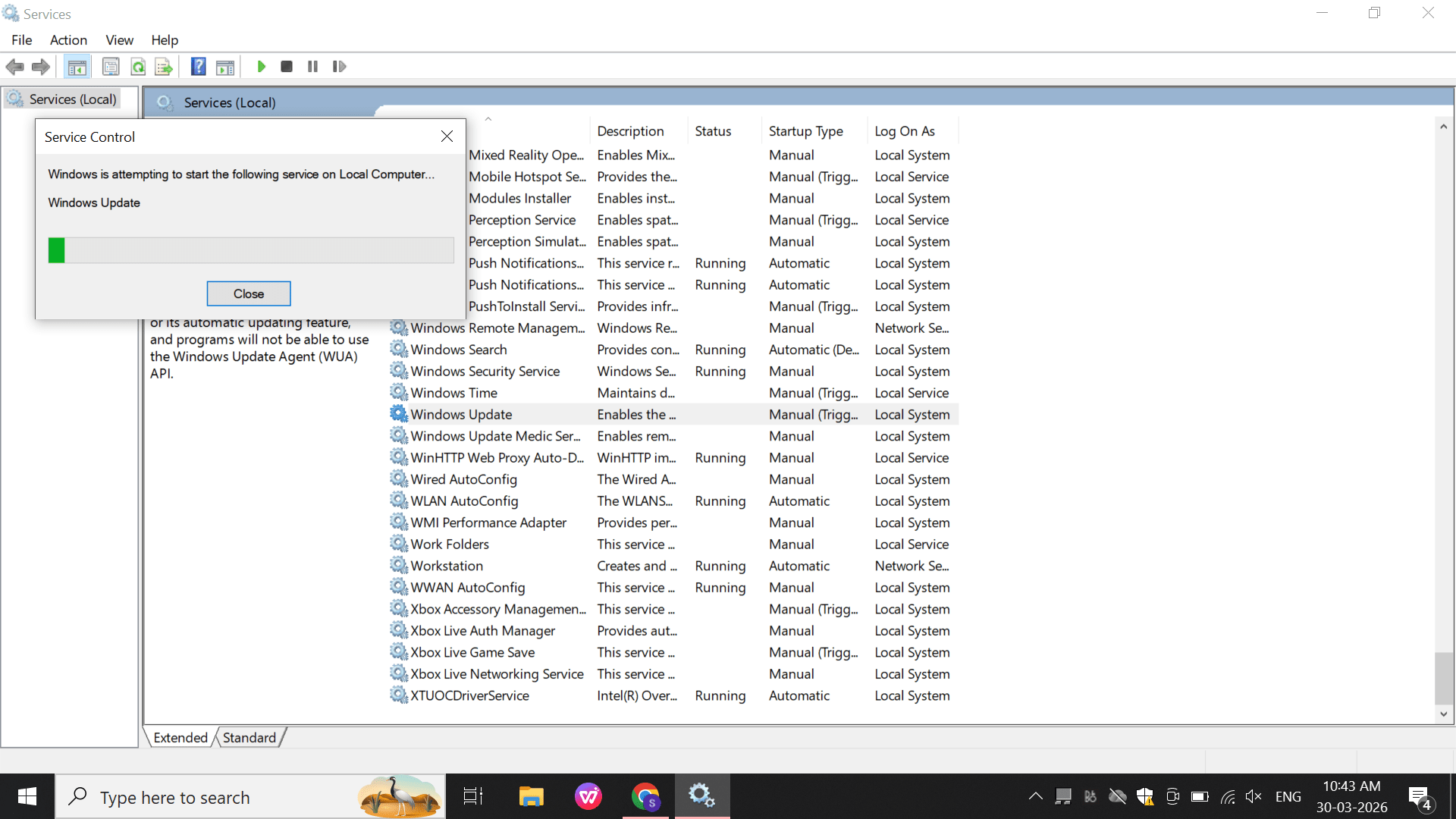
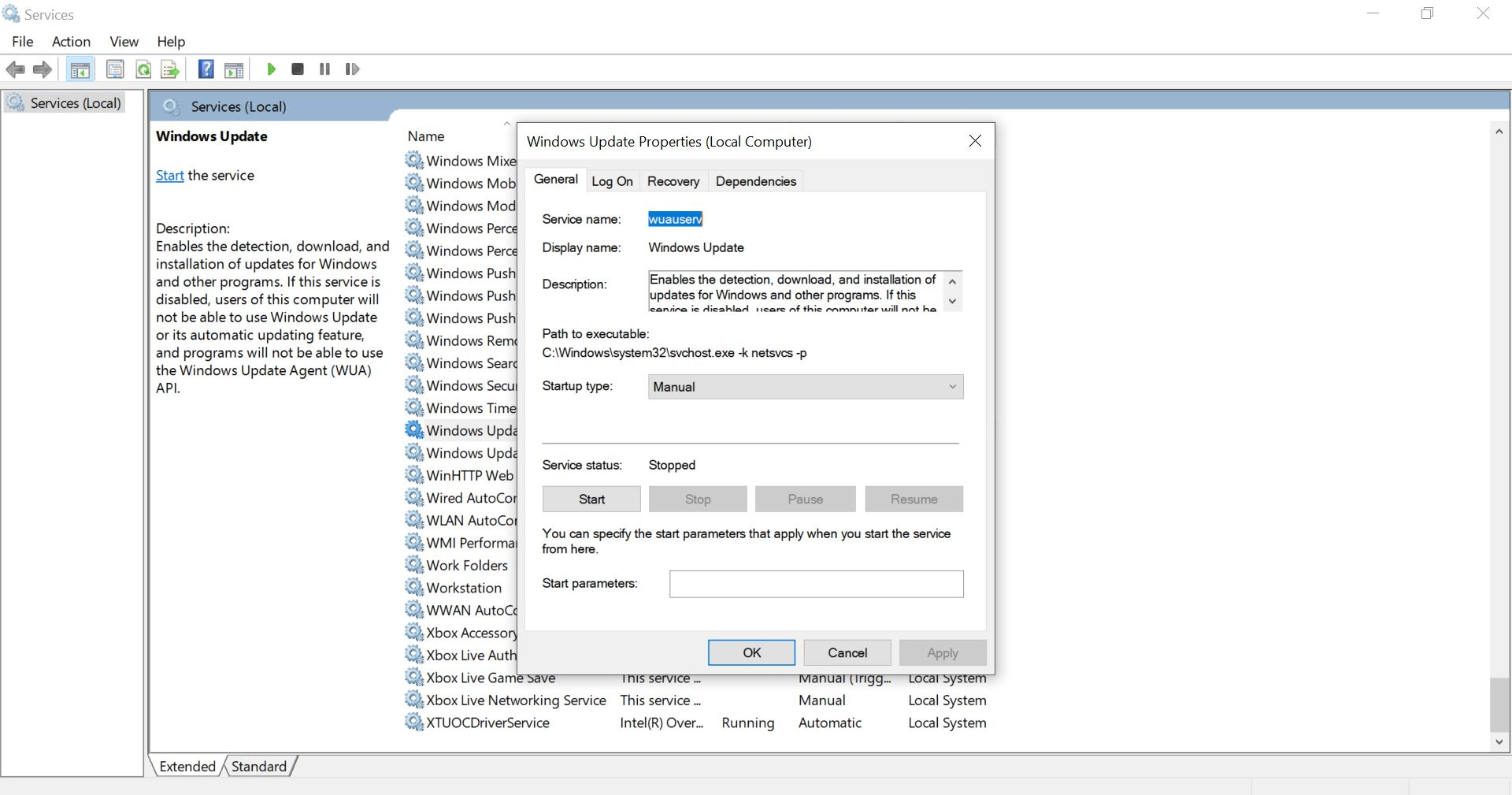
Select a service (e.g., Windows Update)
b
Perform:
Stop
Start
Check the property also
2
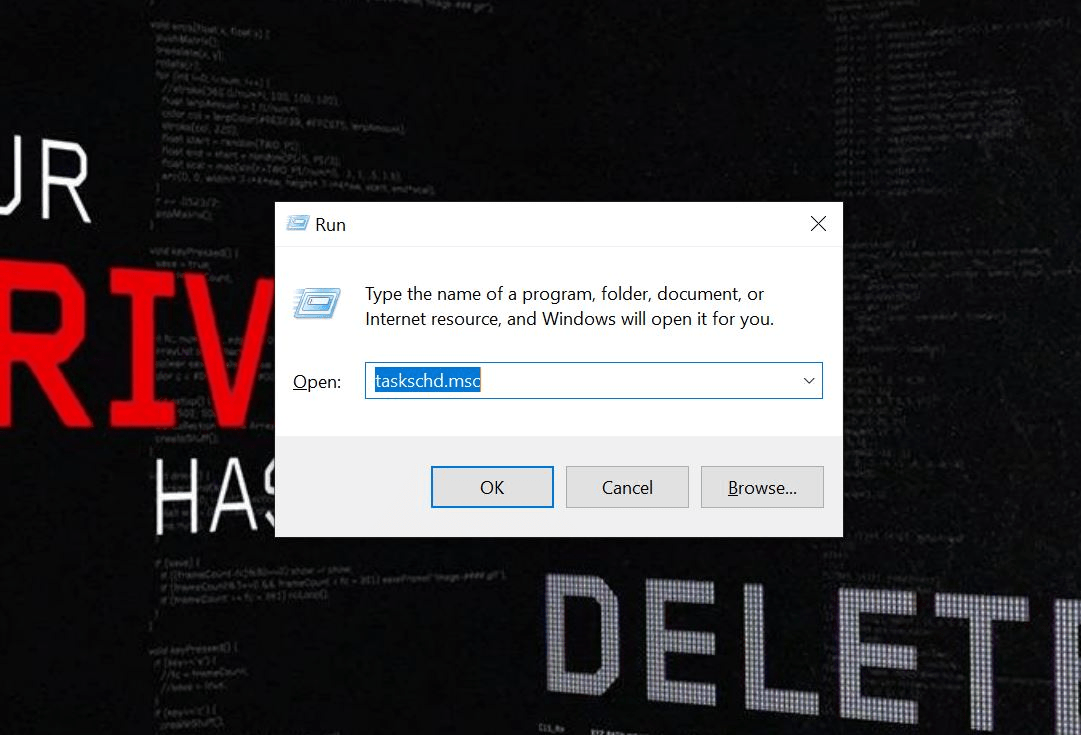
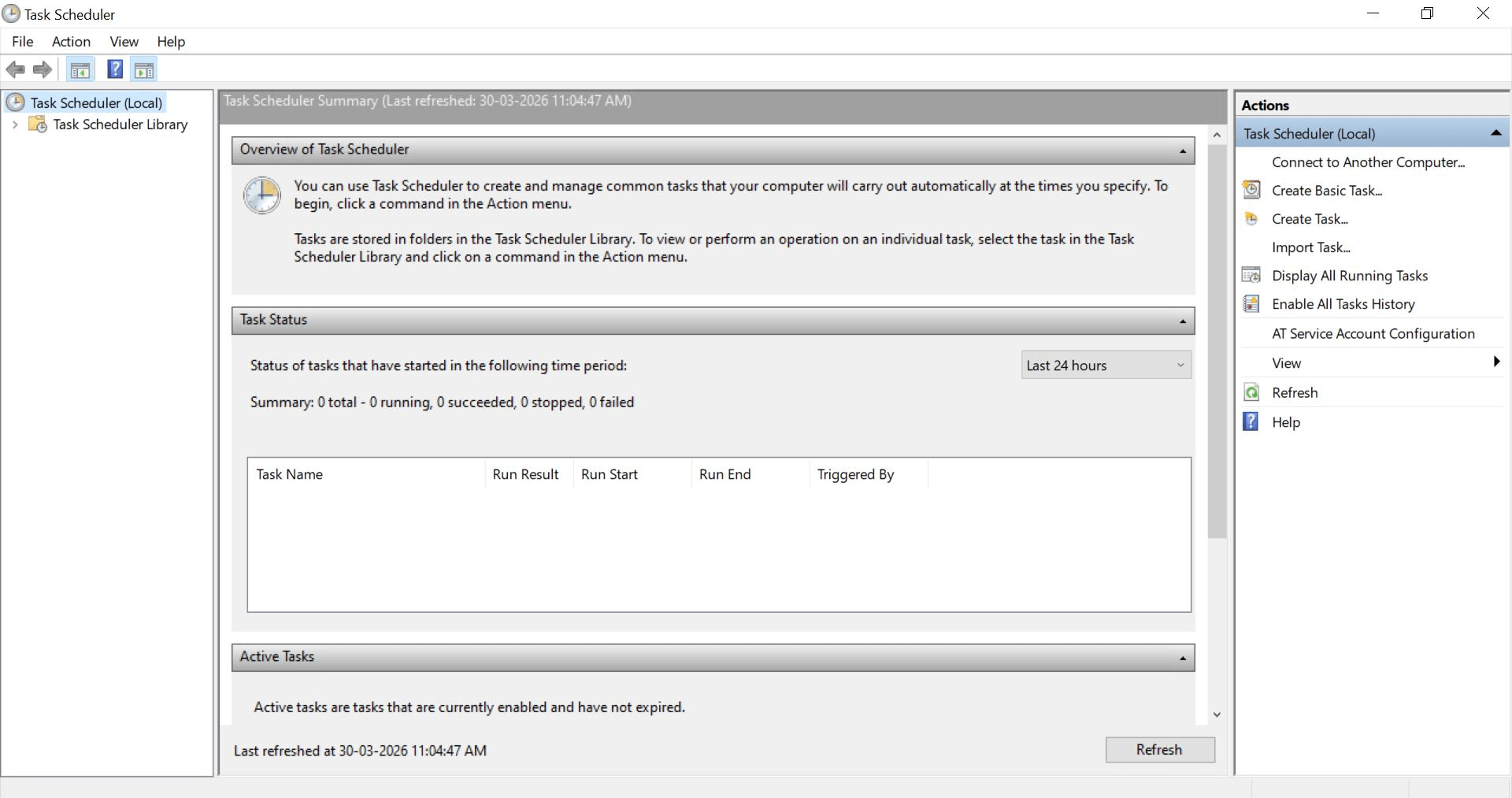
Task Scheduler (Scheduled Tasks)
Perform:
Open: taskschd.msc
a
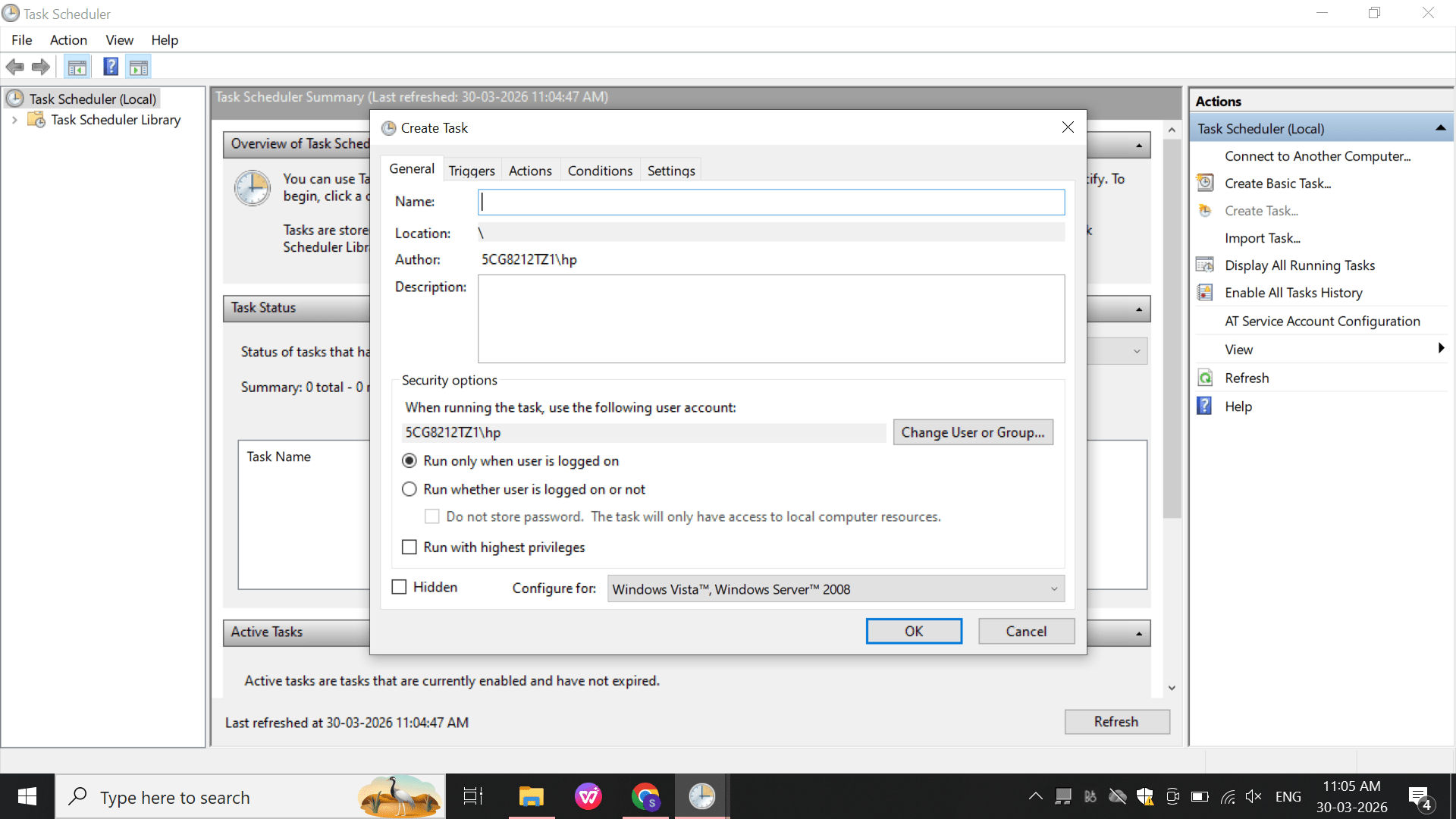
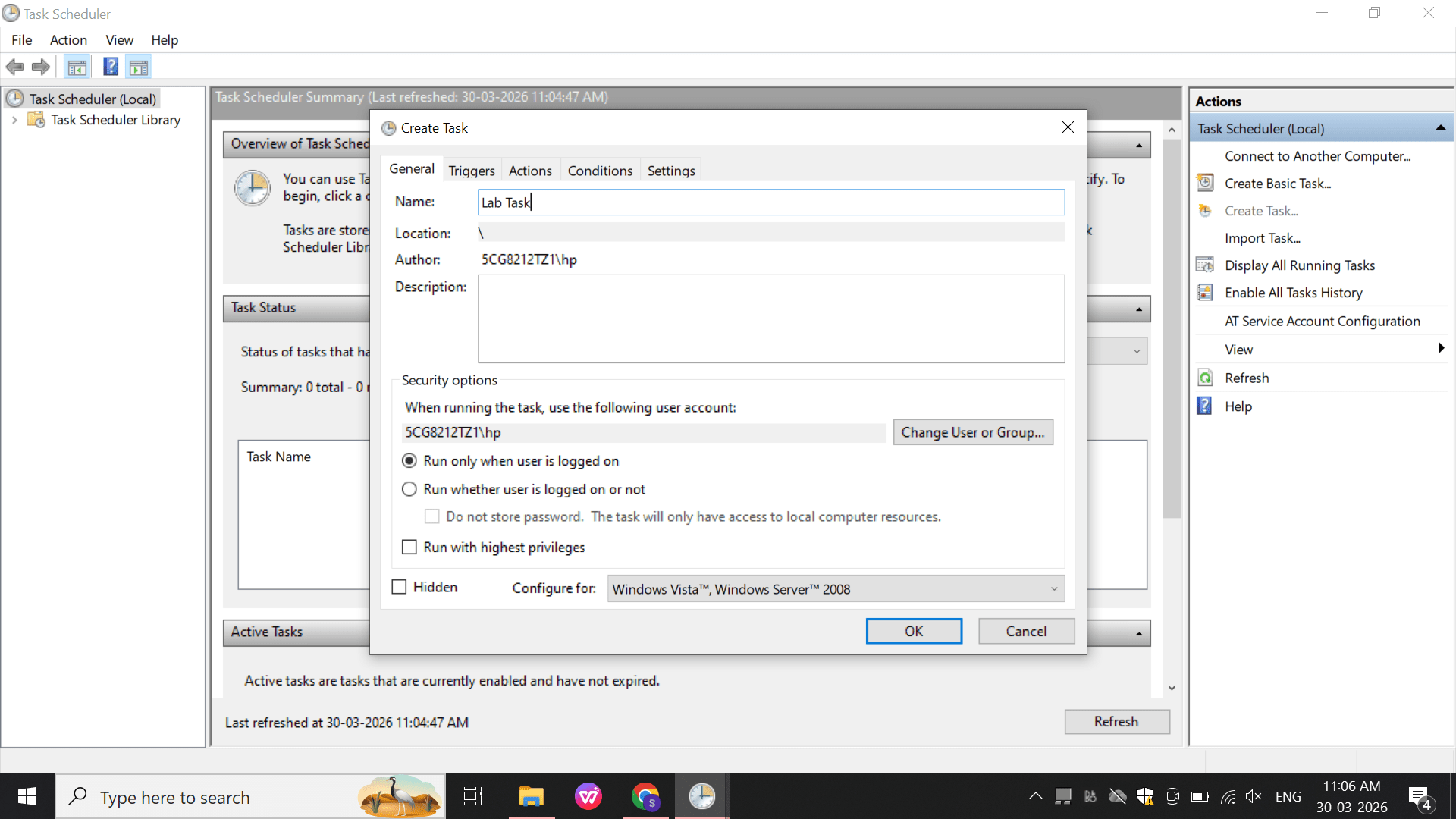
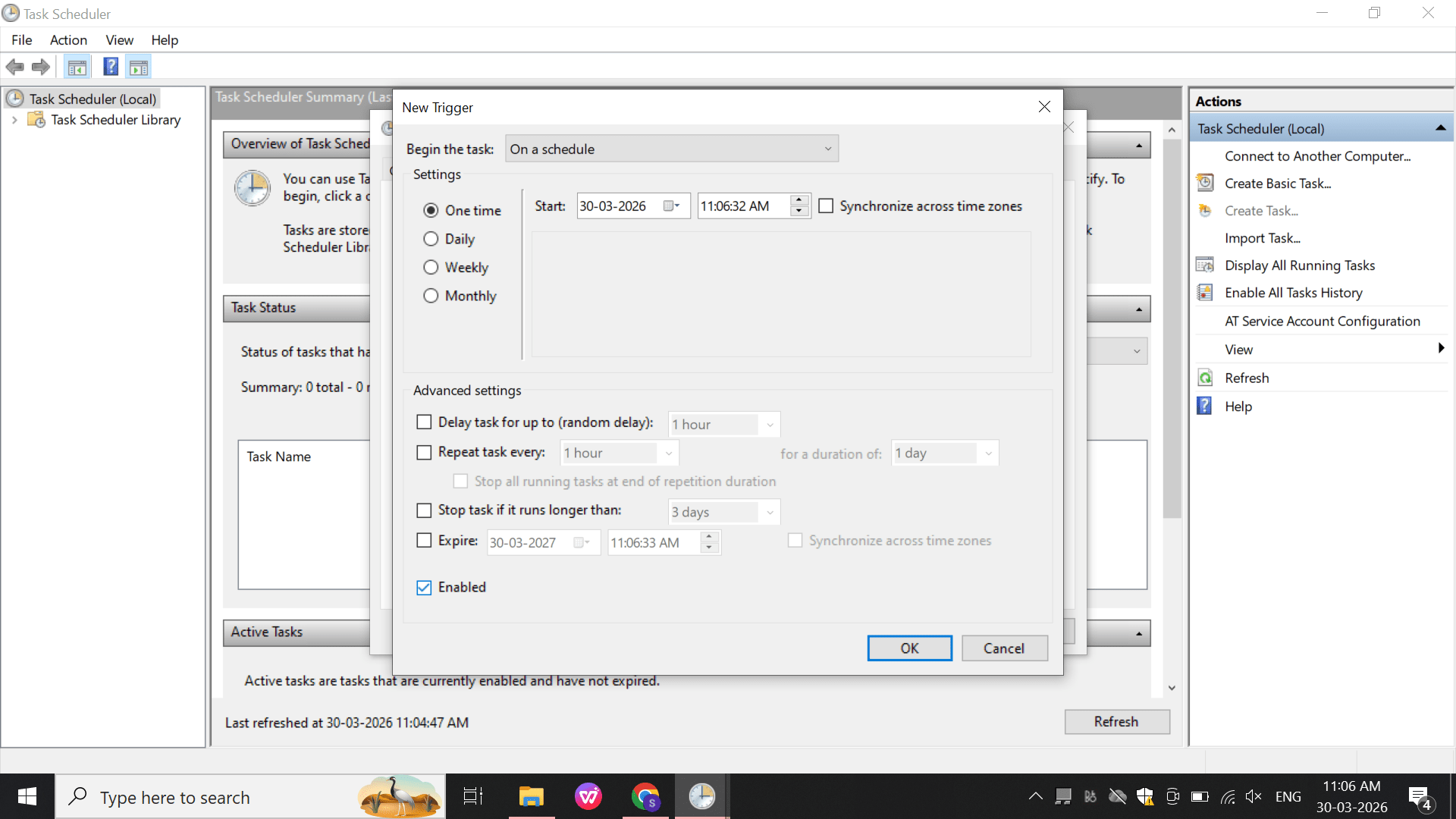
Create a basic task:
b
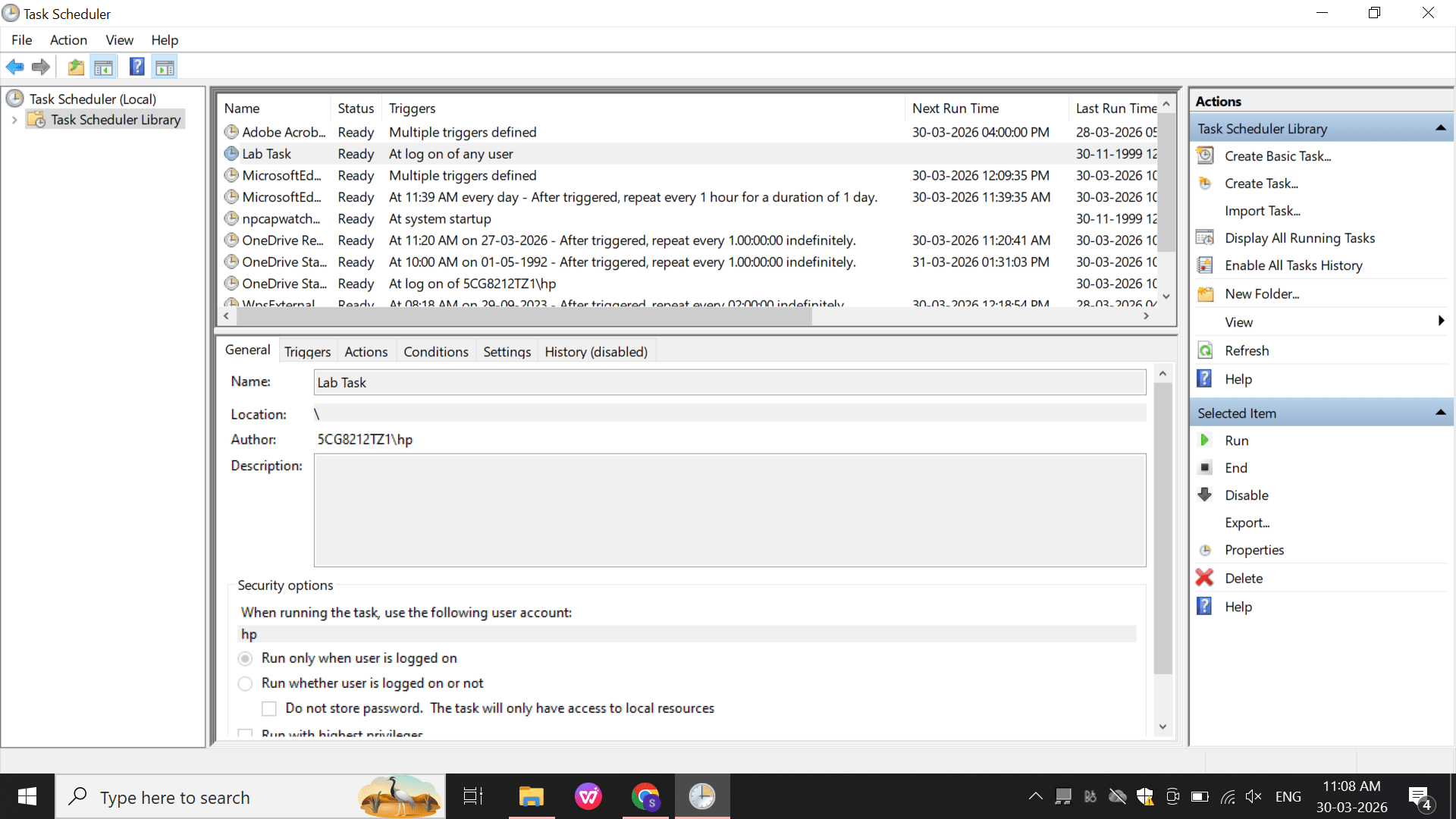
Name: LabTask
c
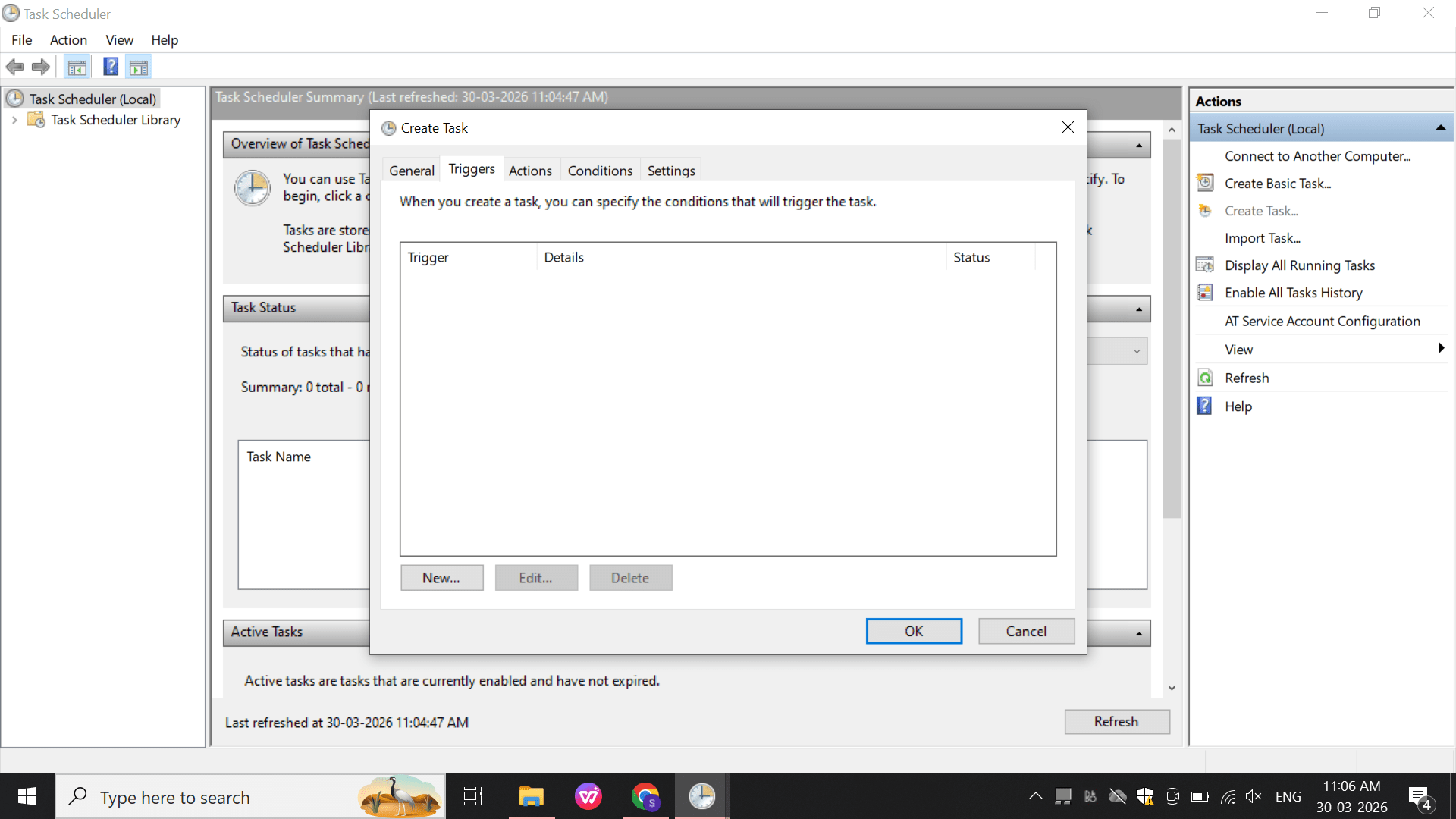
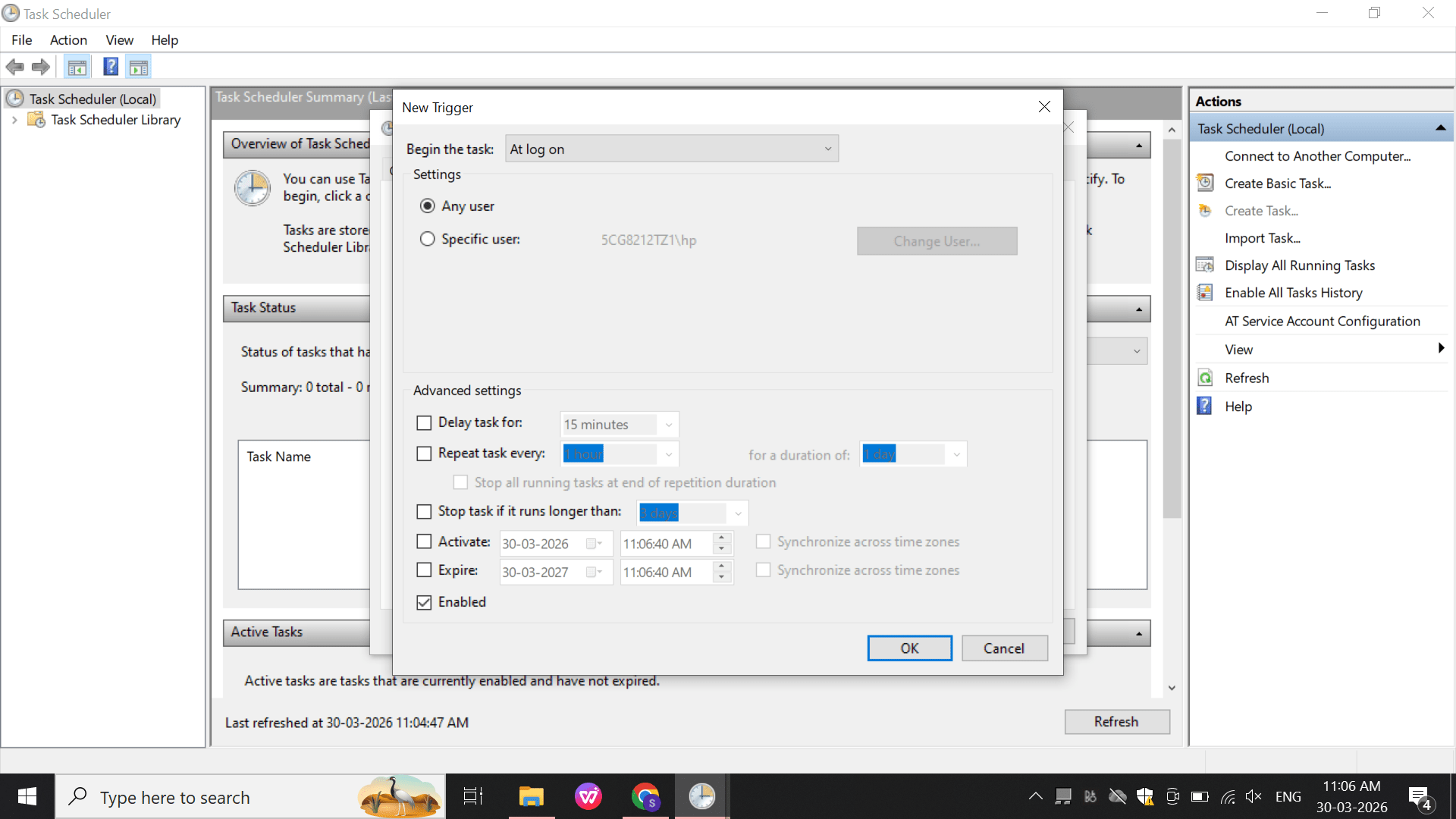
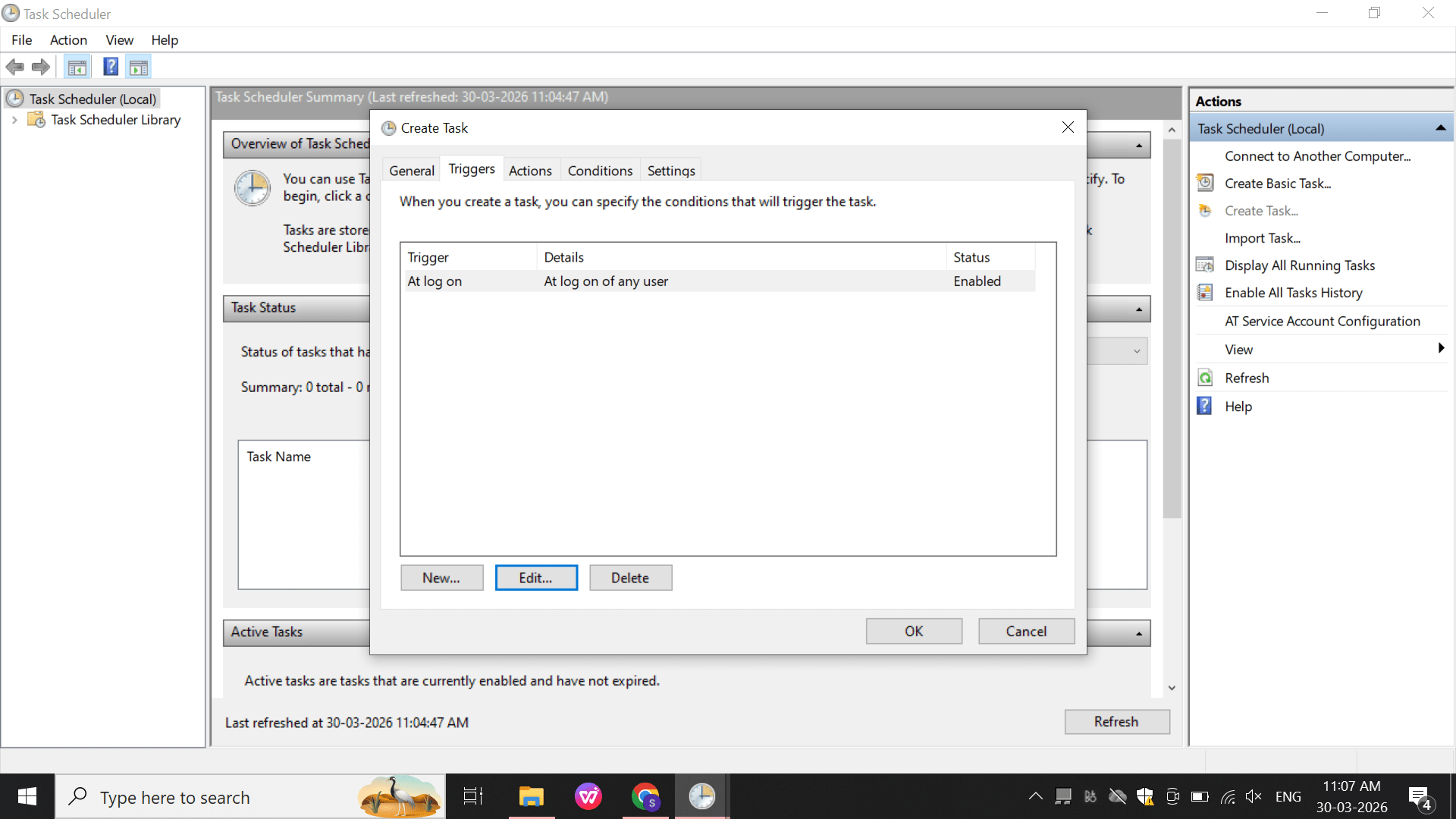
Trigger: At Logon
d
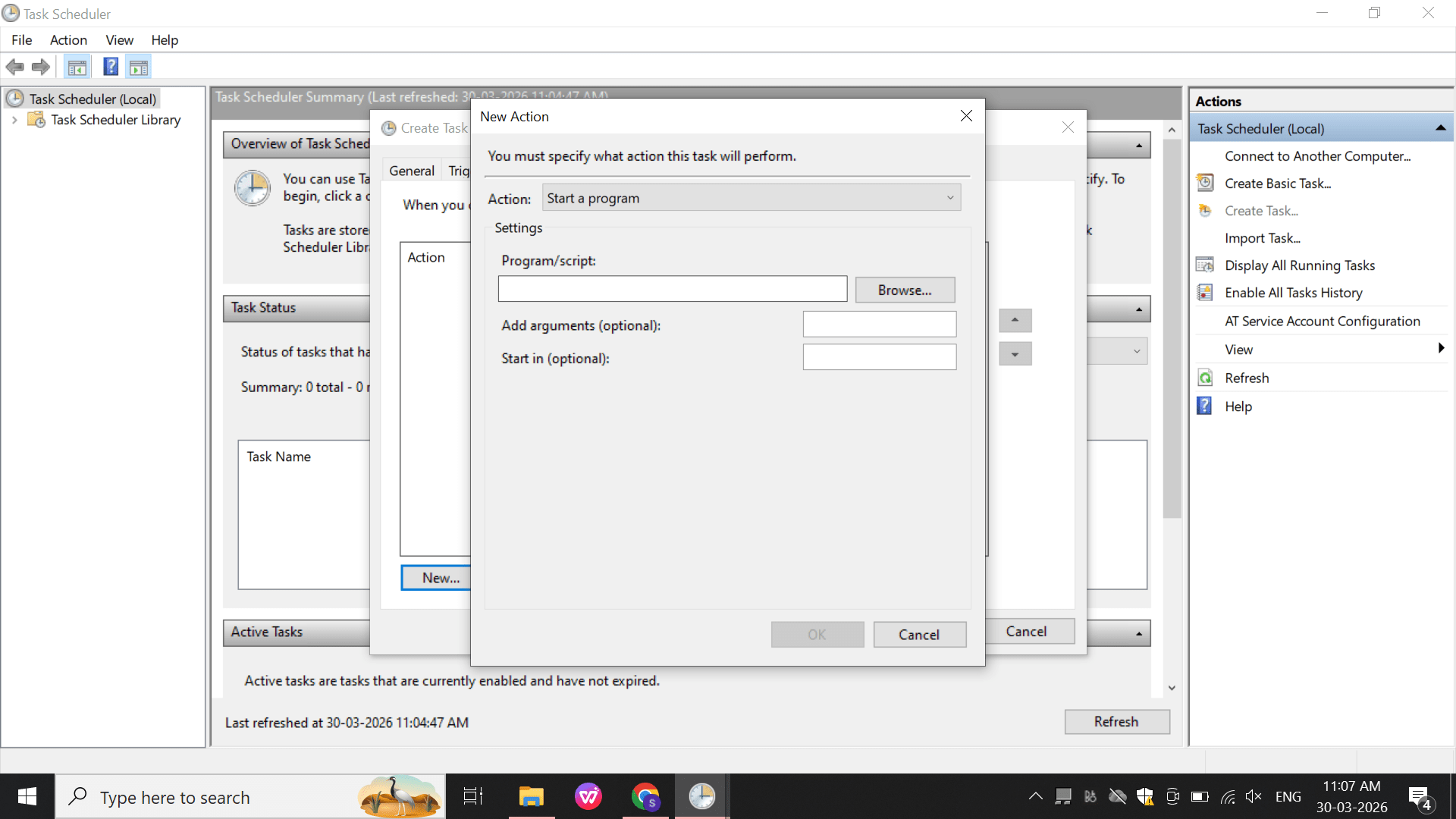
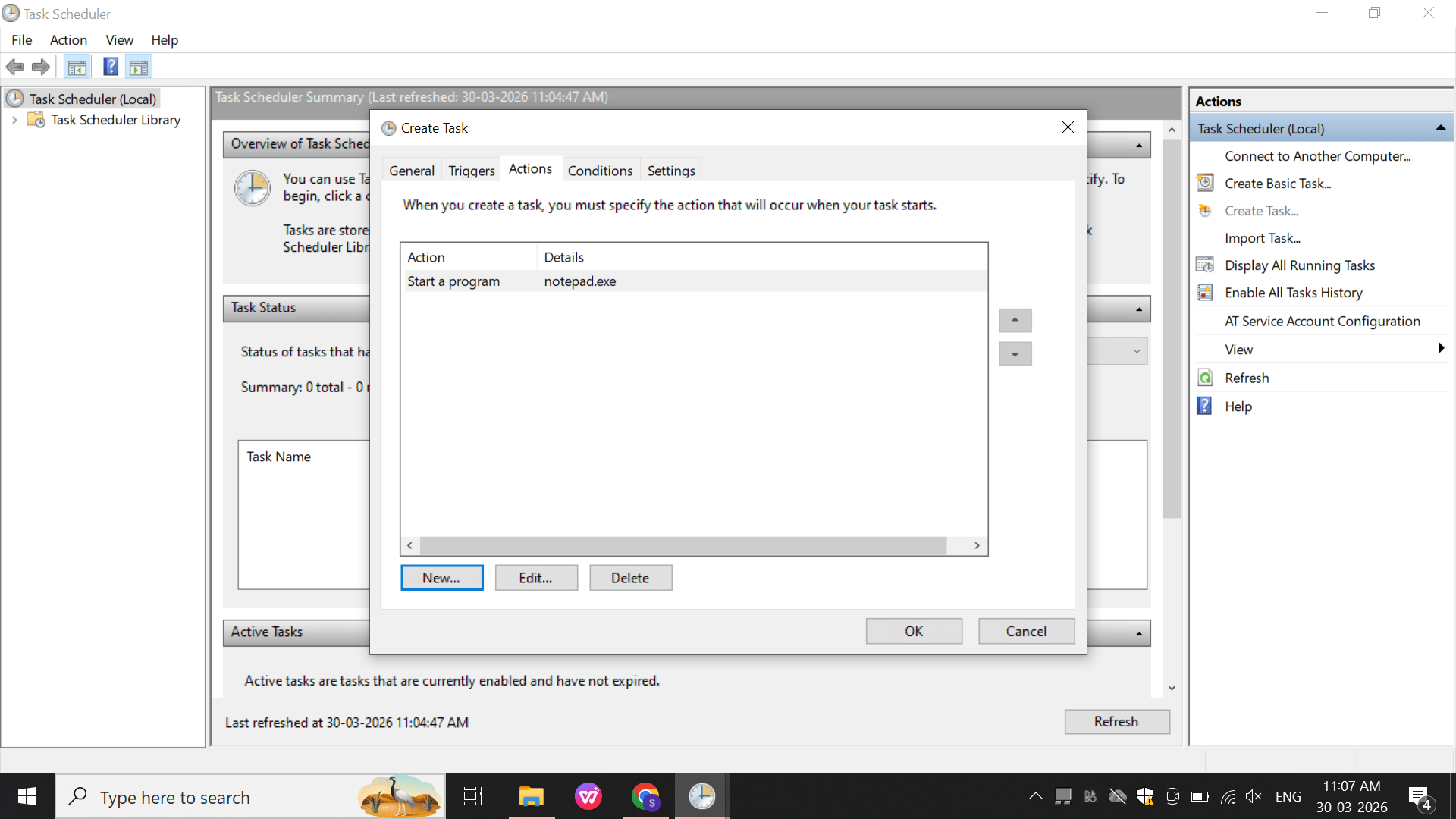
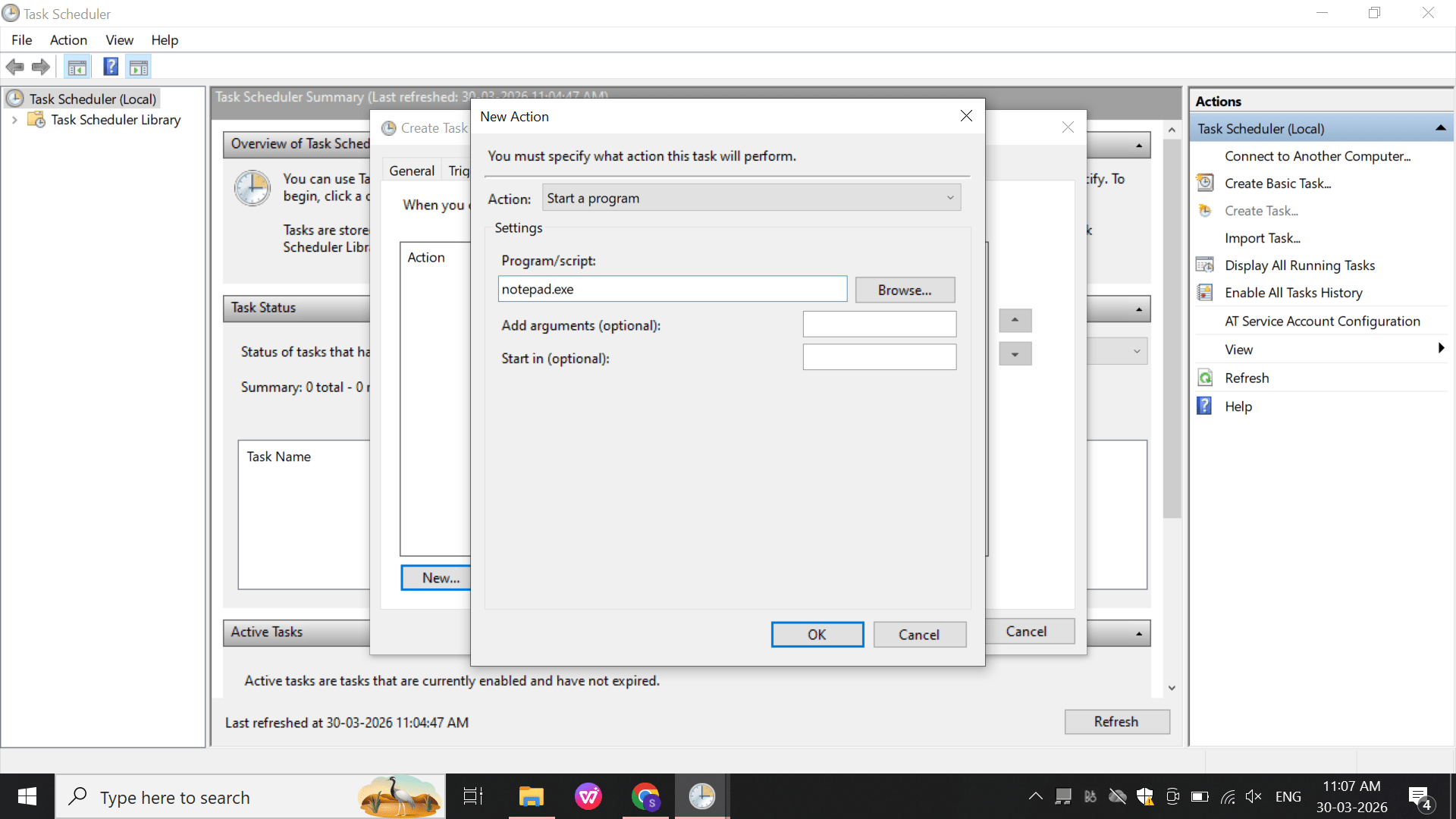
Action: Start Program
e
Click OK to save the action.
3
Windows Registry (Persistence Check)
Perform:
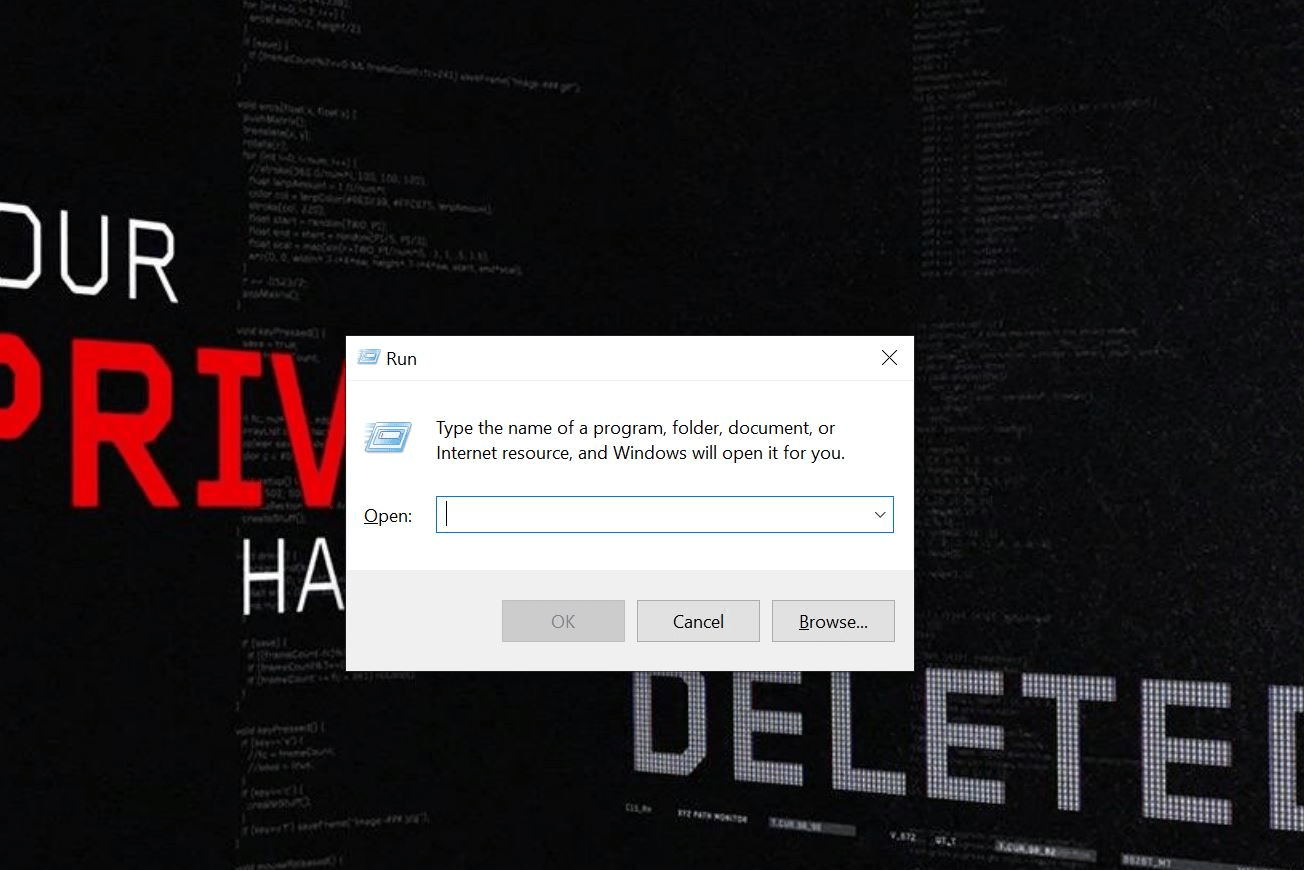
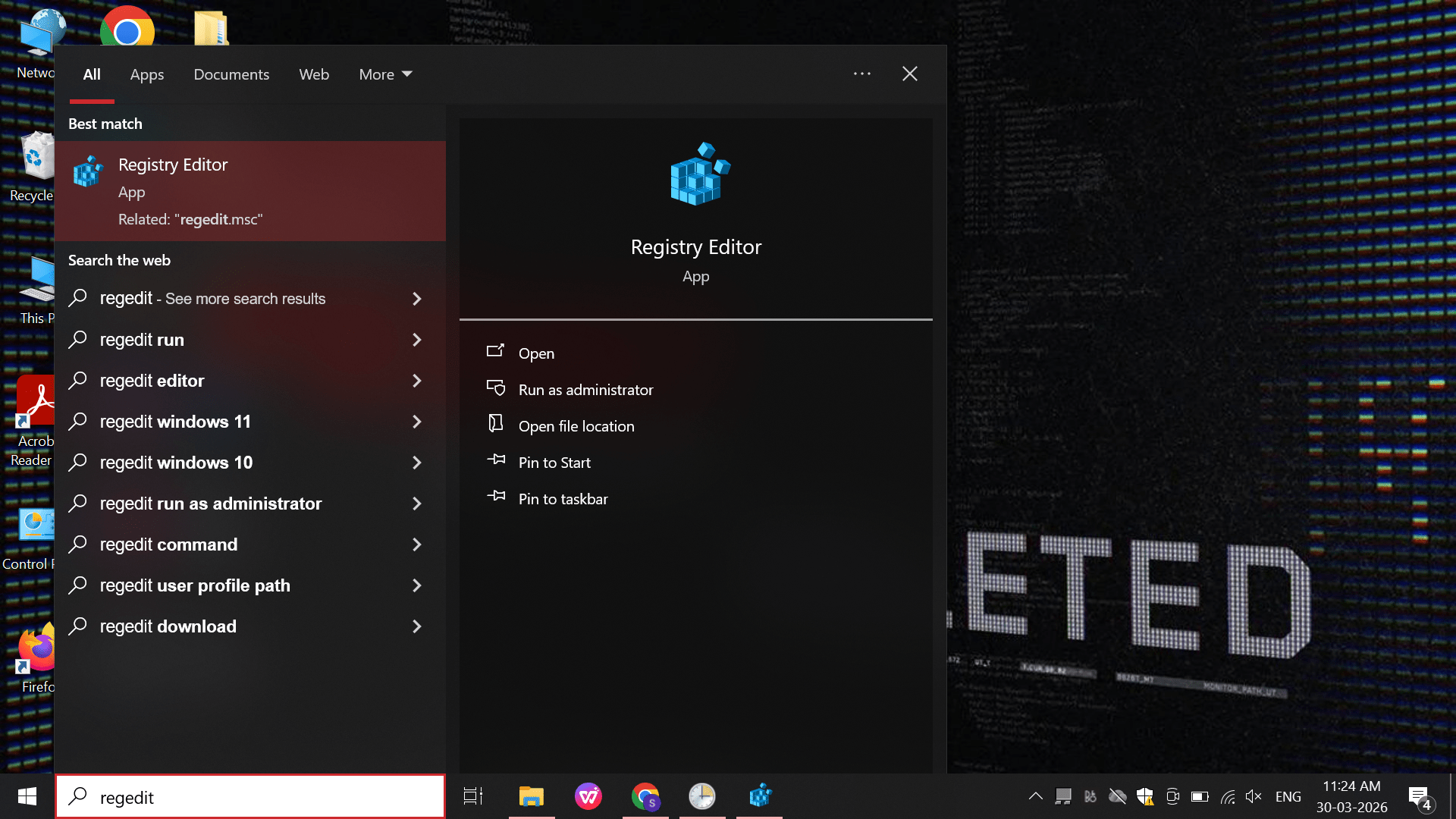
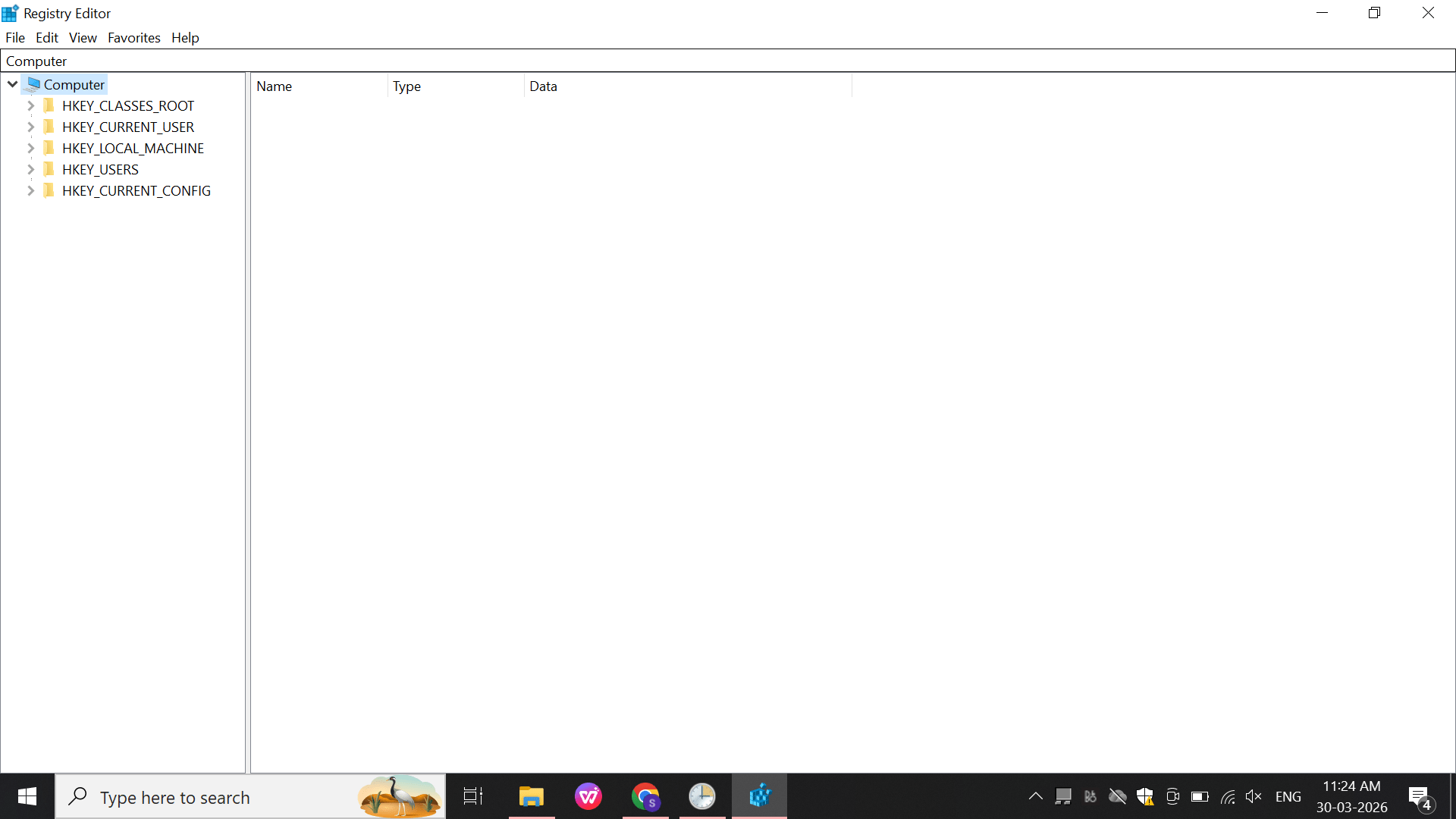
Open: regedit
a
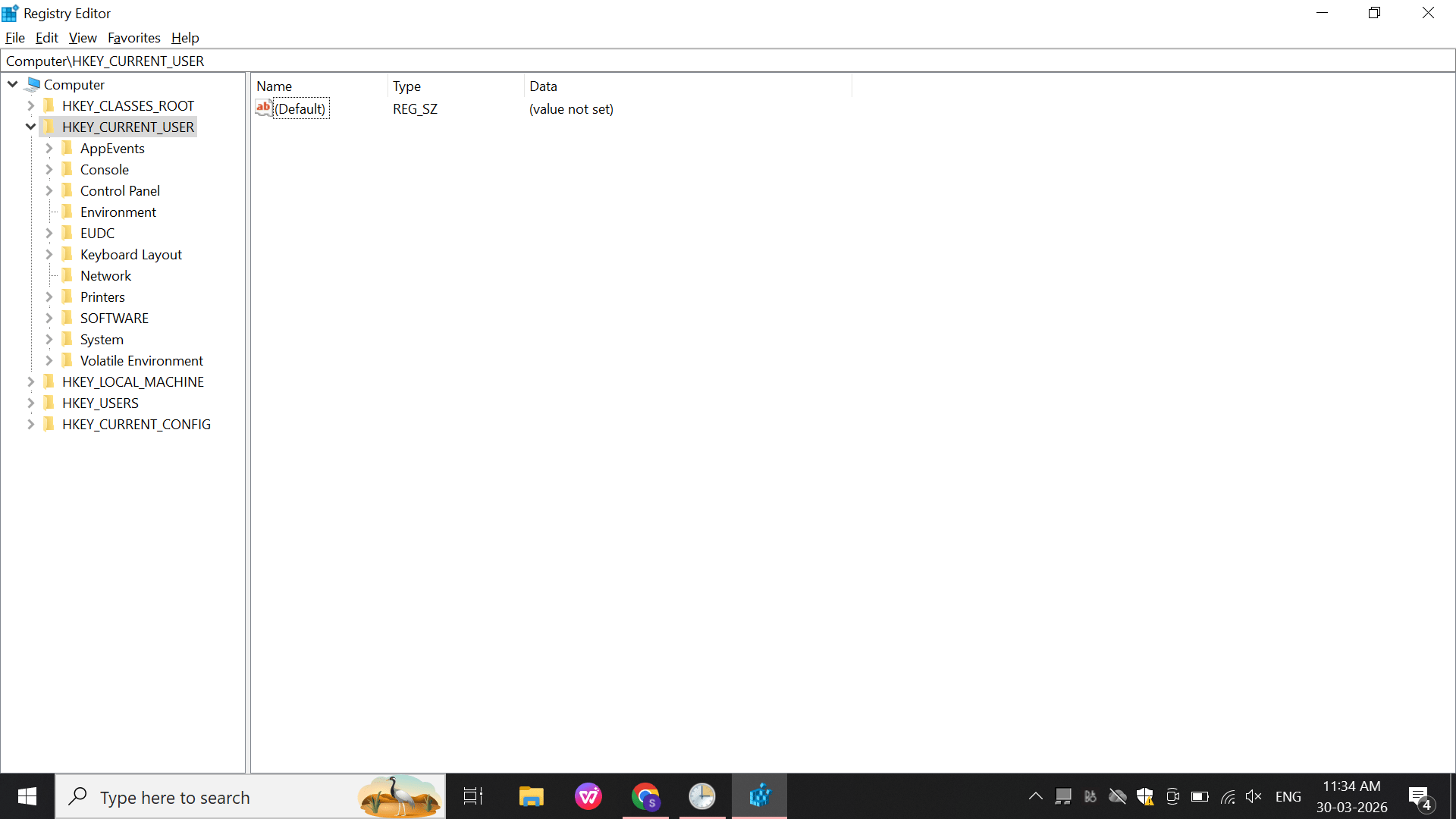
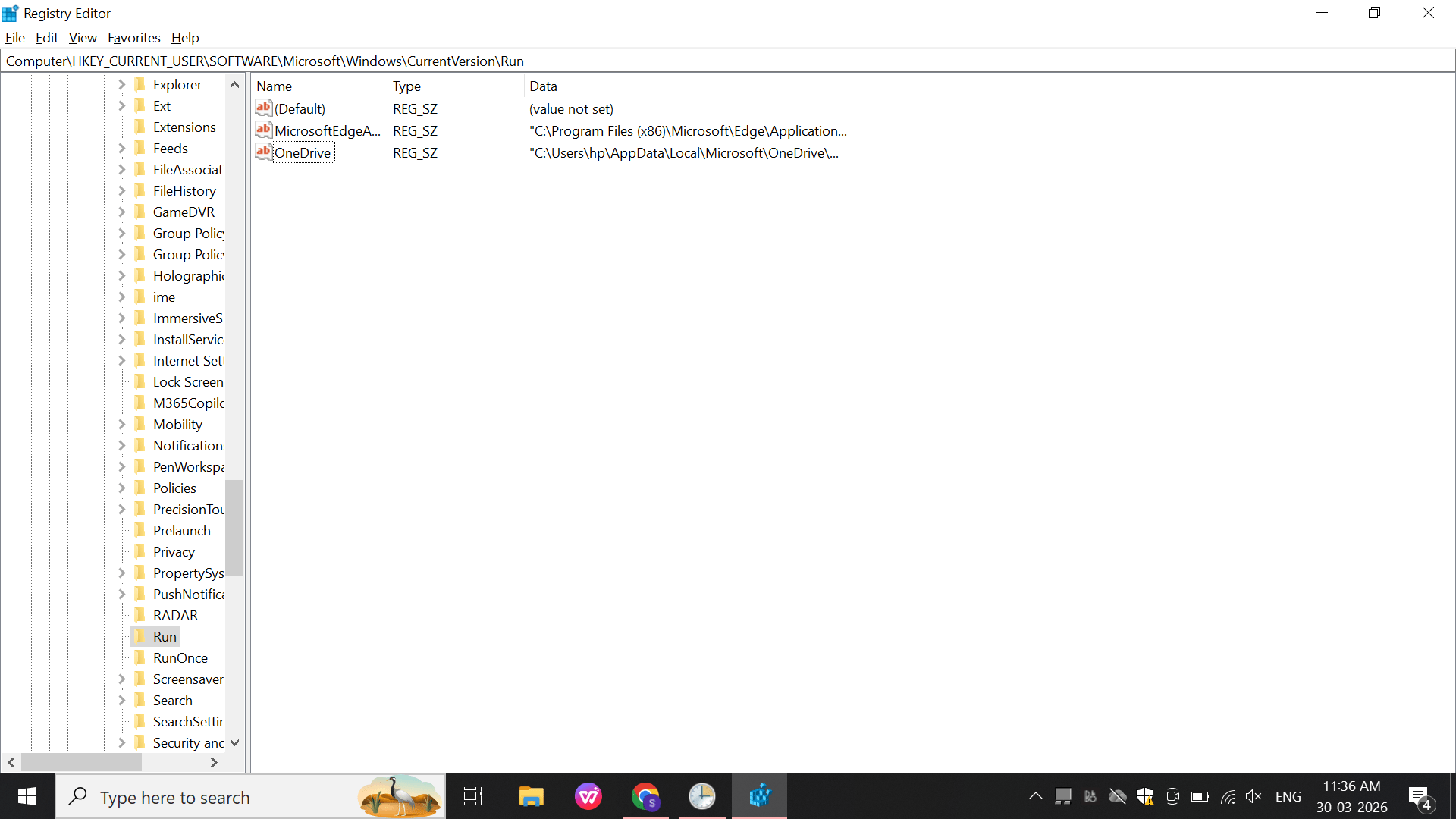
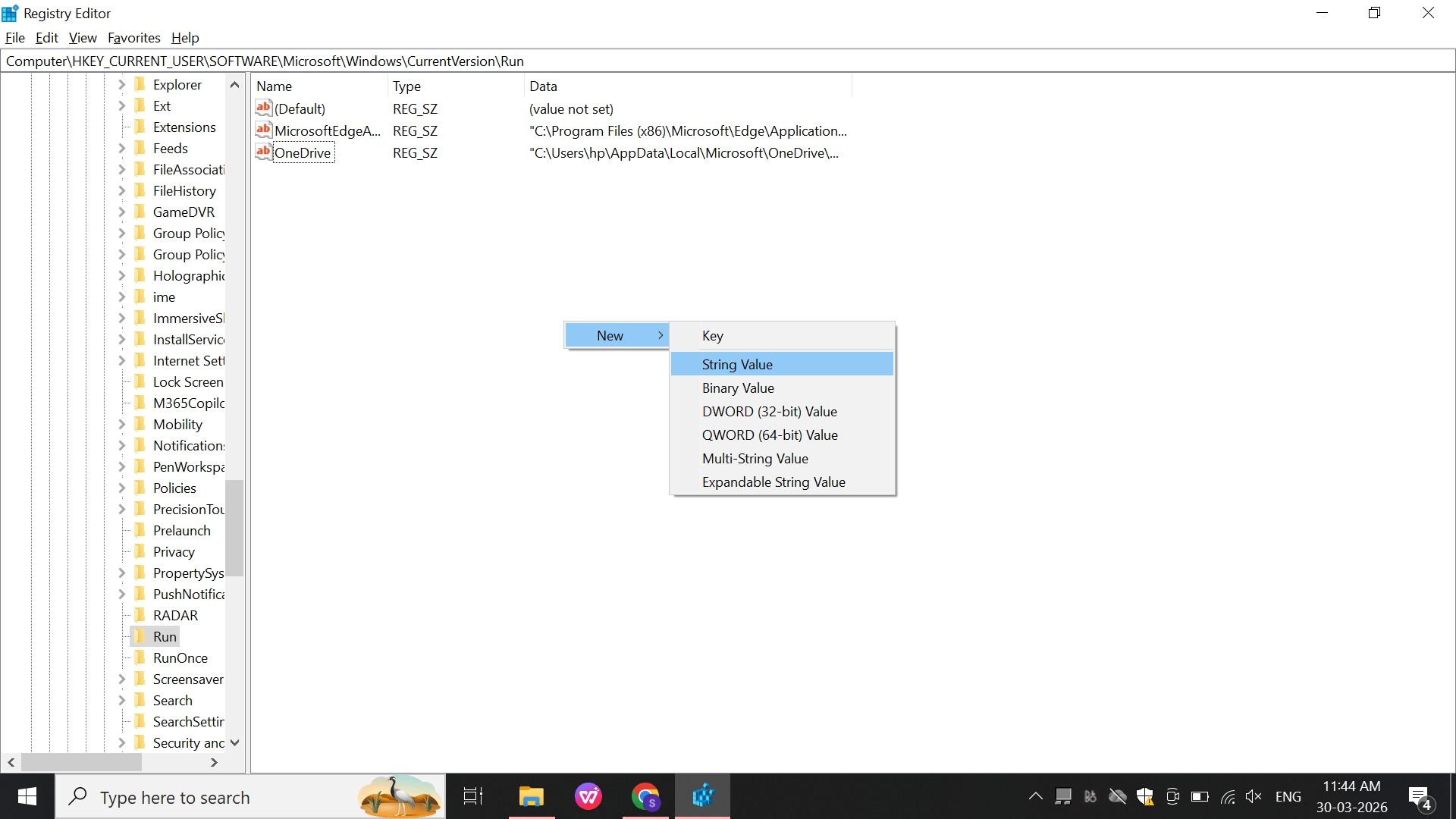
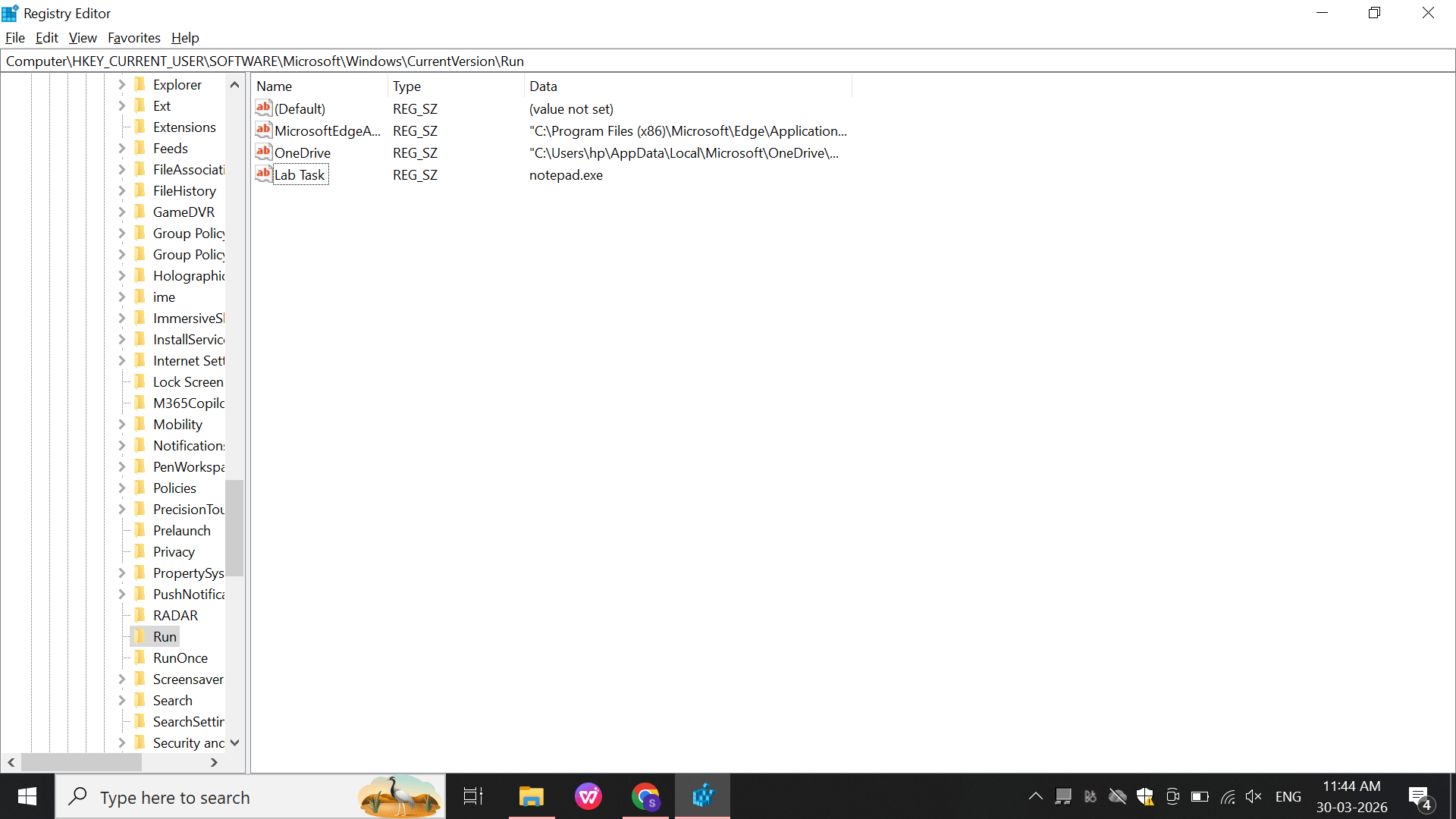
Navigate: HKEY_CURRENT_USER\Software\Microsoft\Windows\CurrentVersion\Run
b
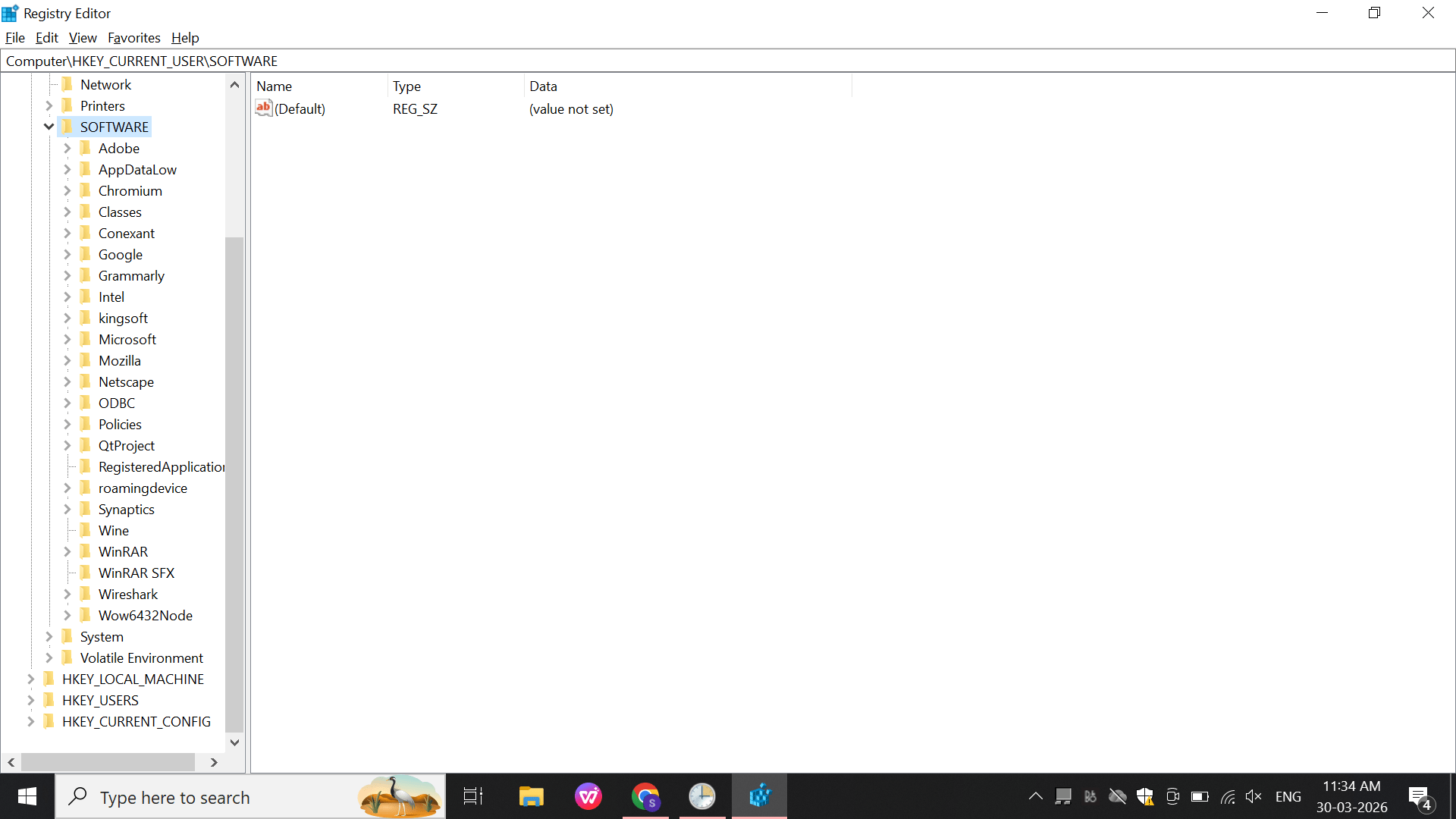
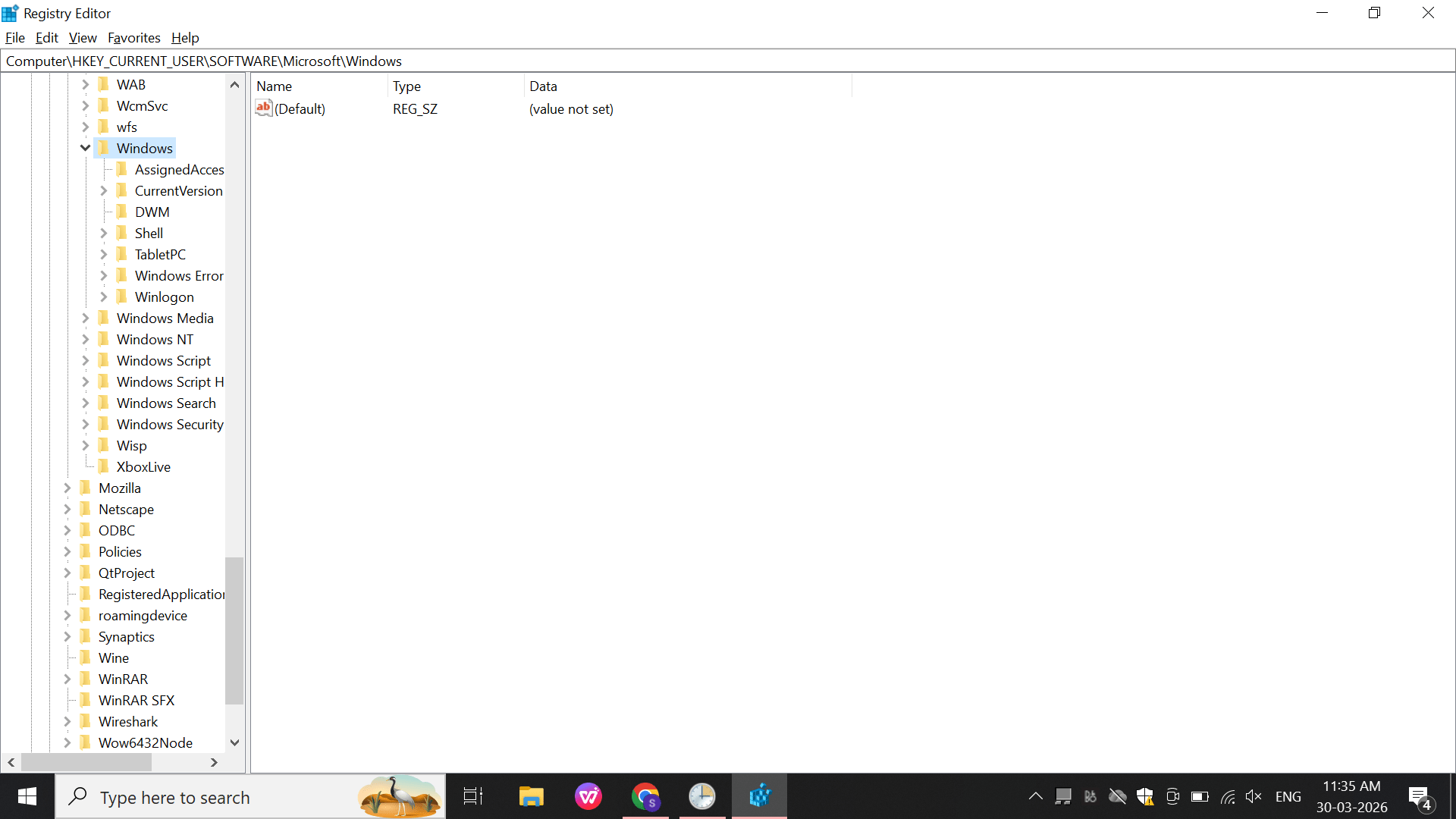
Navigate to the Software folder.
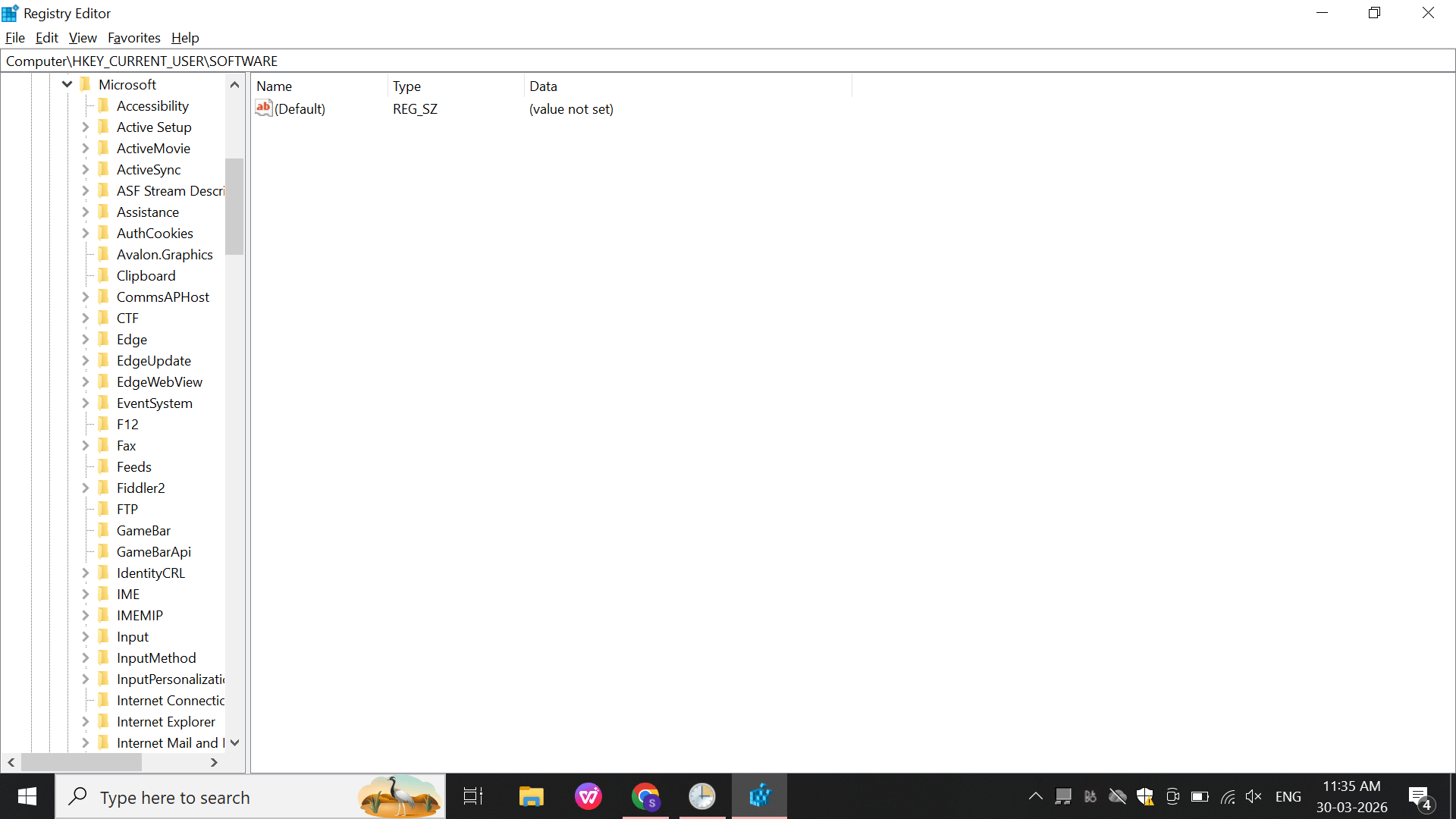
Open Microsoft\Windows
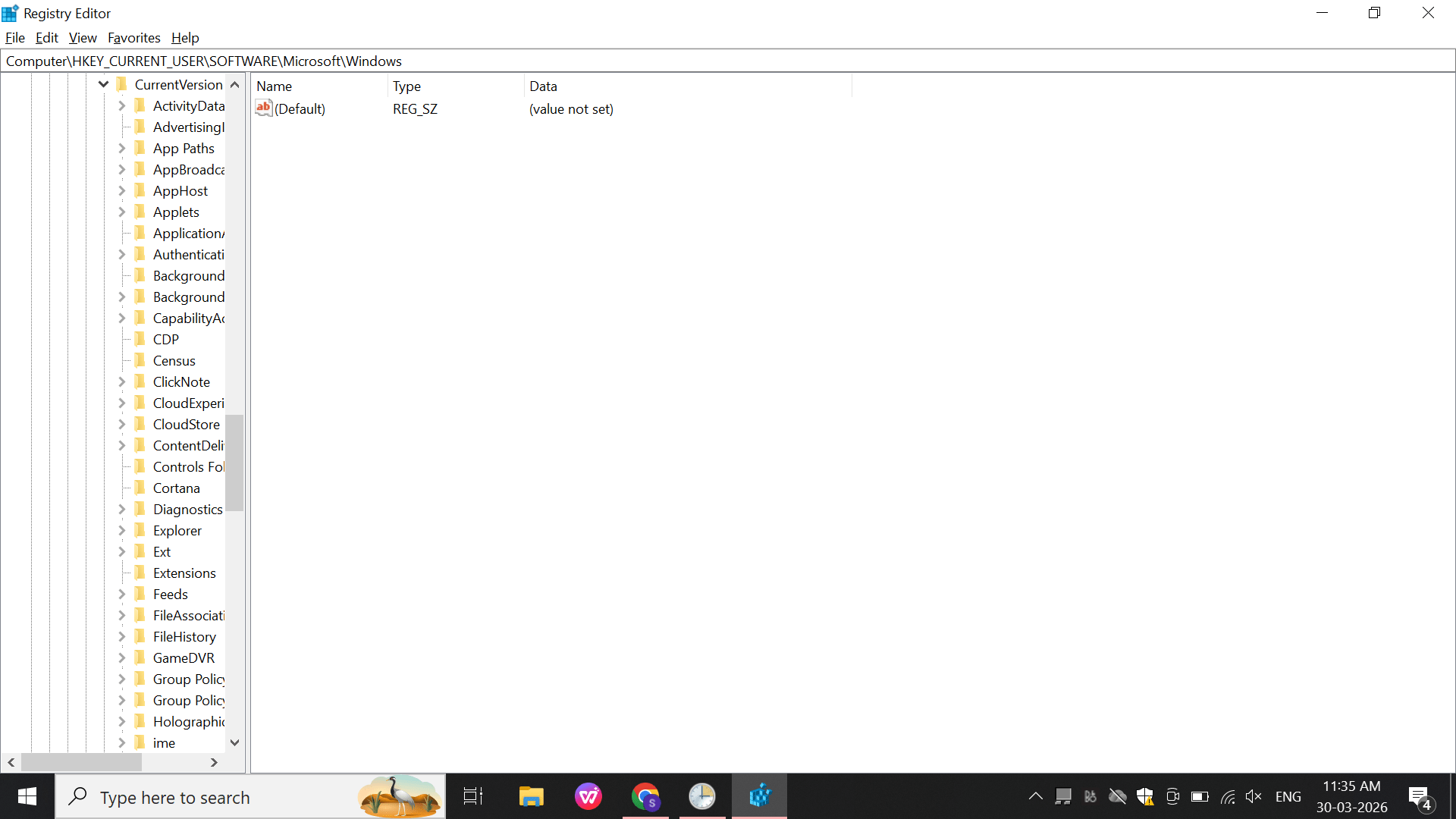
Open Windows\CurrentVersion.
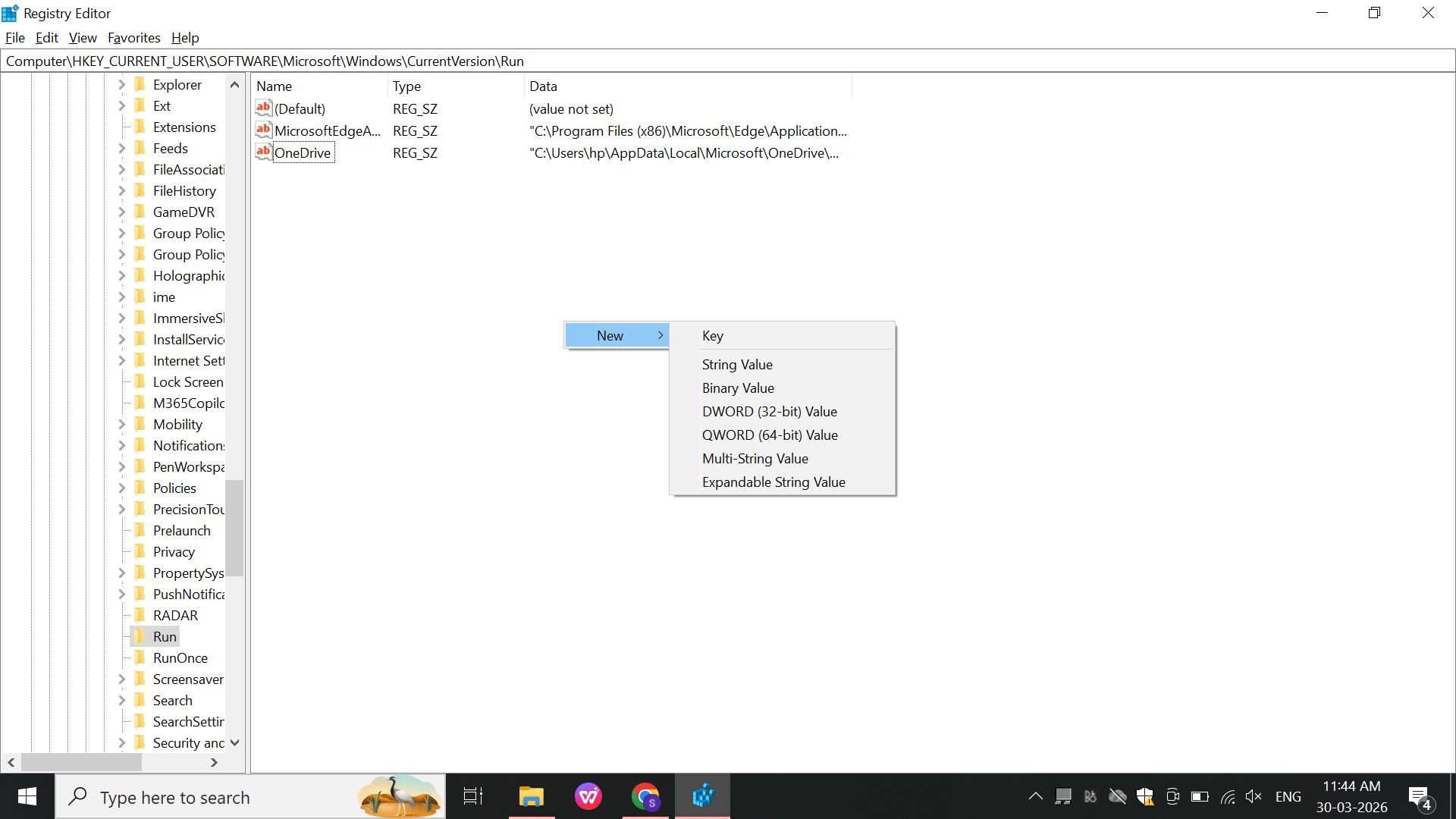
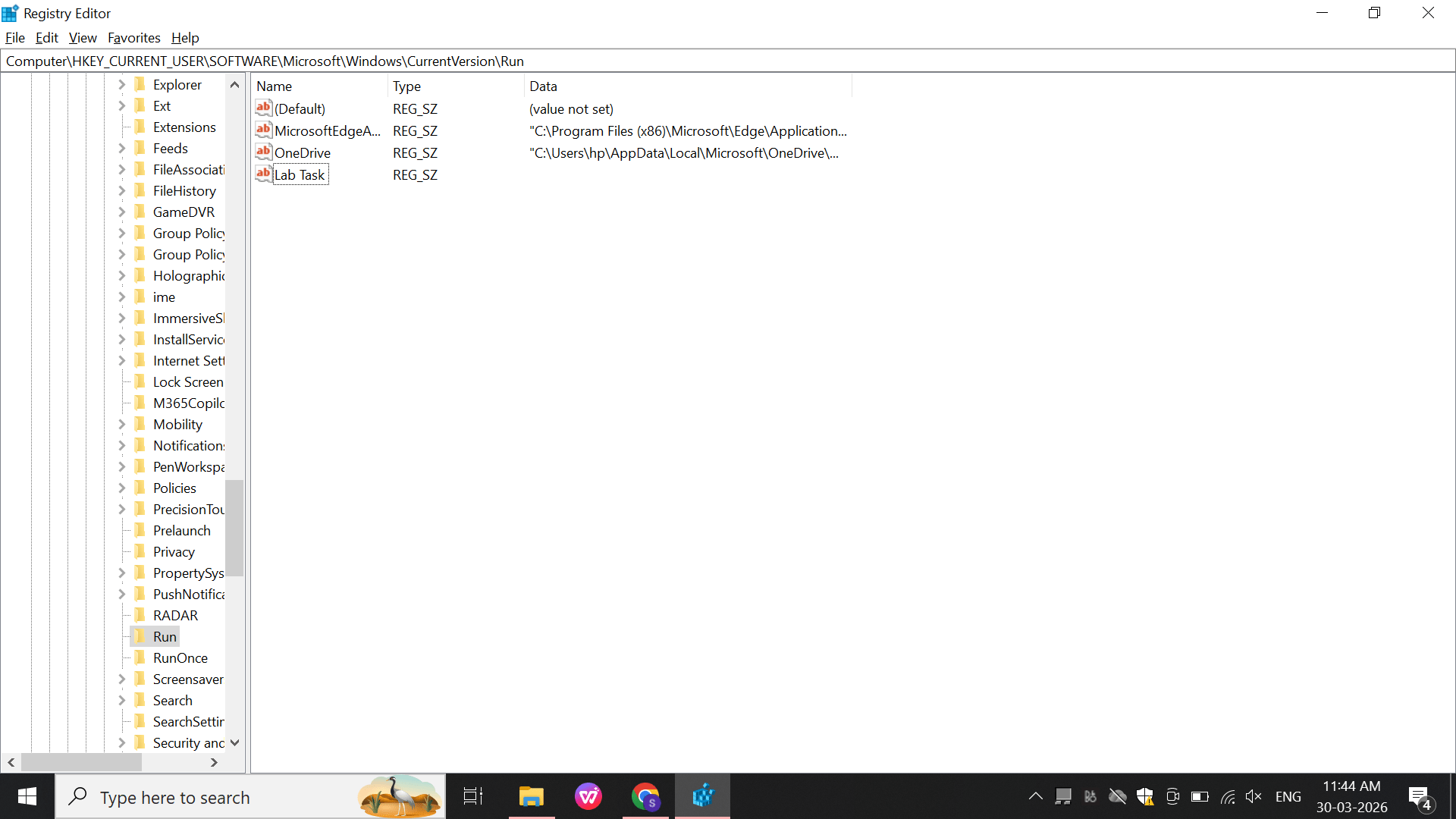
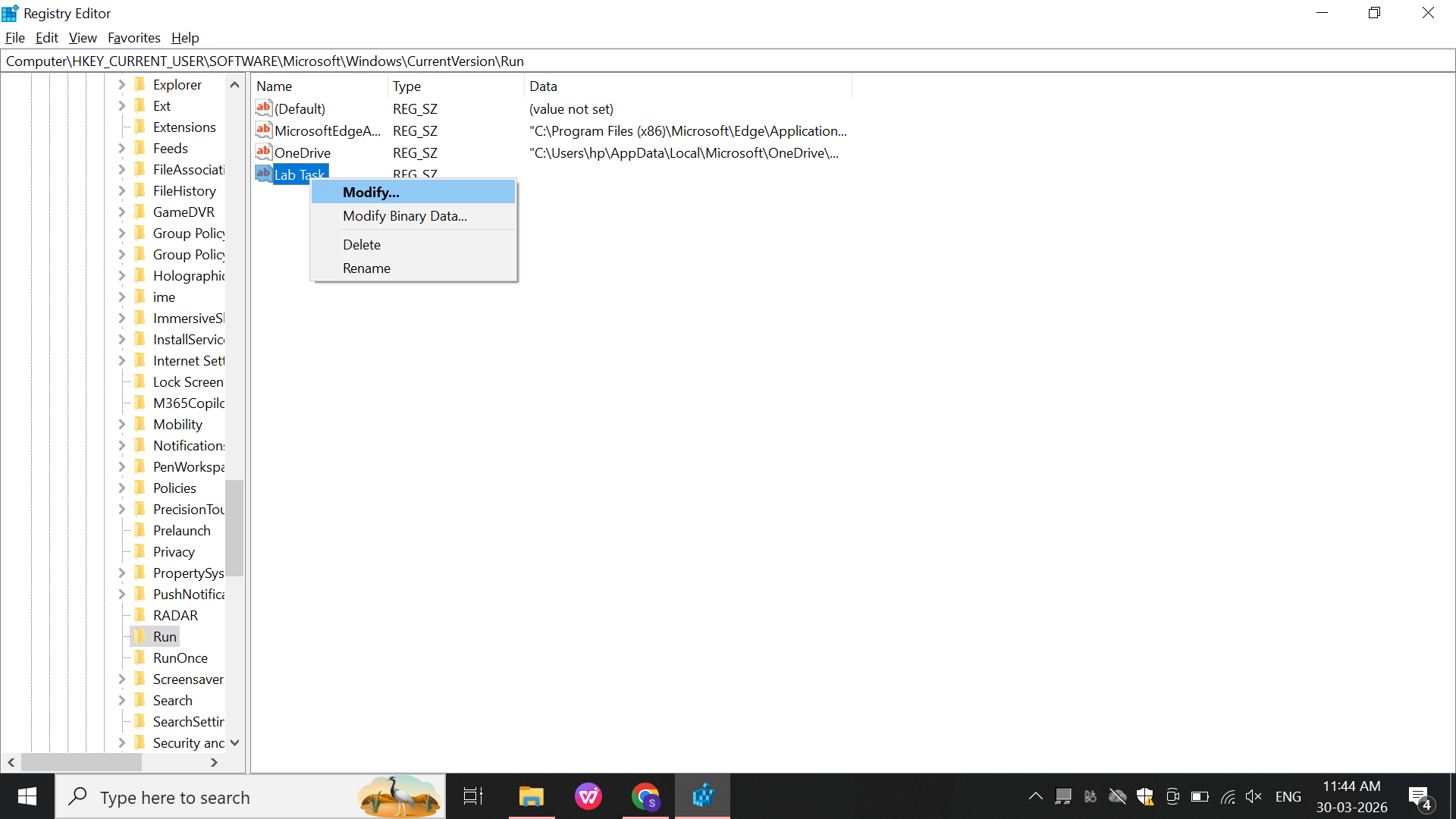
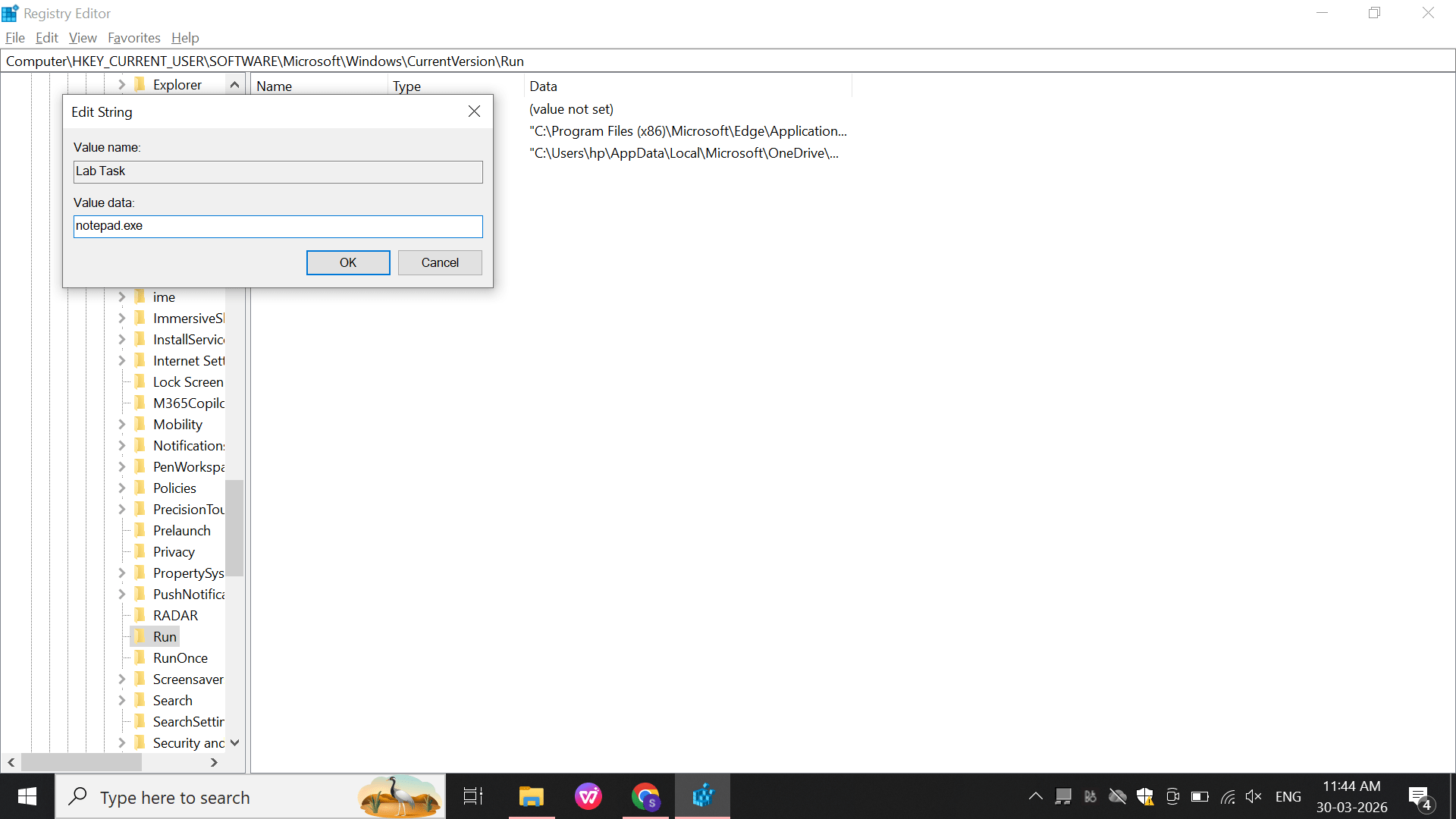
Create:
Name: TestRun
Value: notepad.exe
c
Select the Run registry key.
→ String Value.Result:
Startup persistence mechanism created
4
Event Logs (Event Viewer Analysis)
Perform:
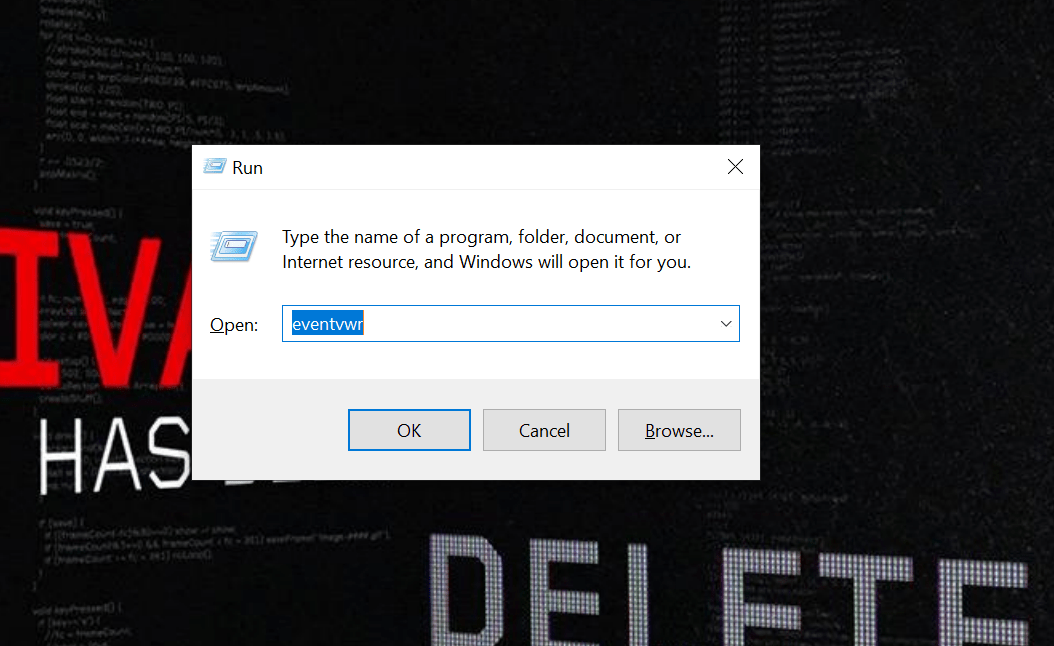
Open: eventvwr
a
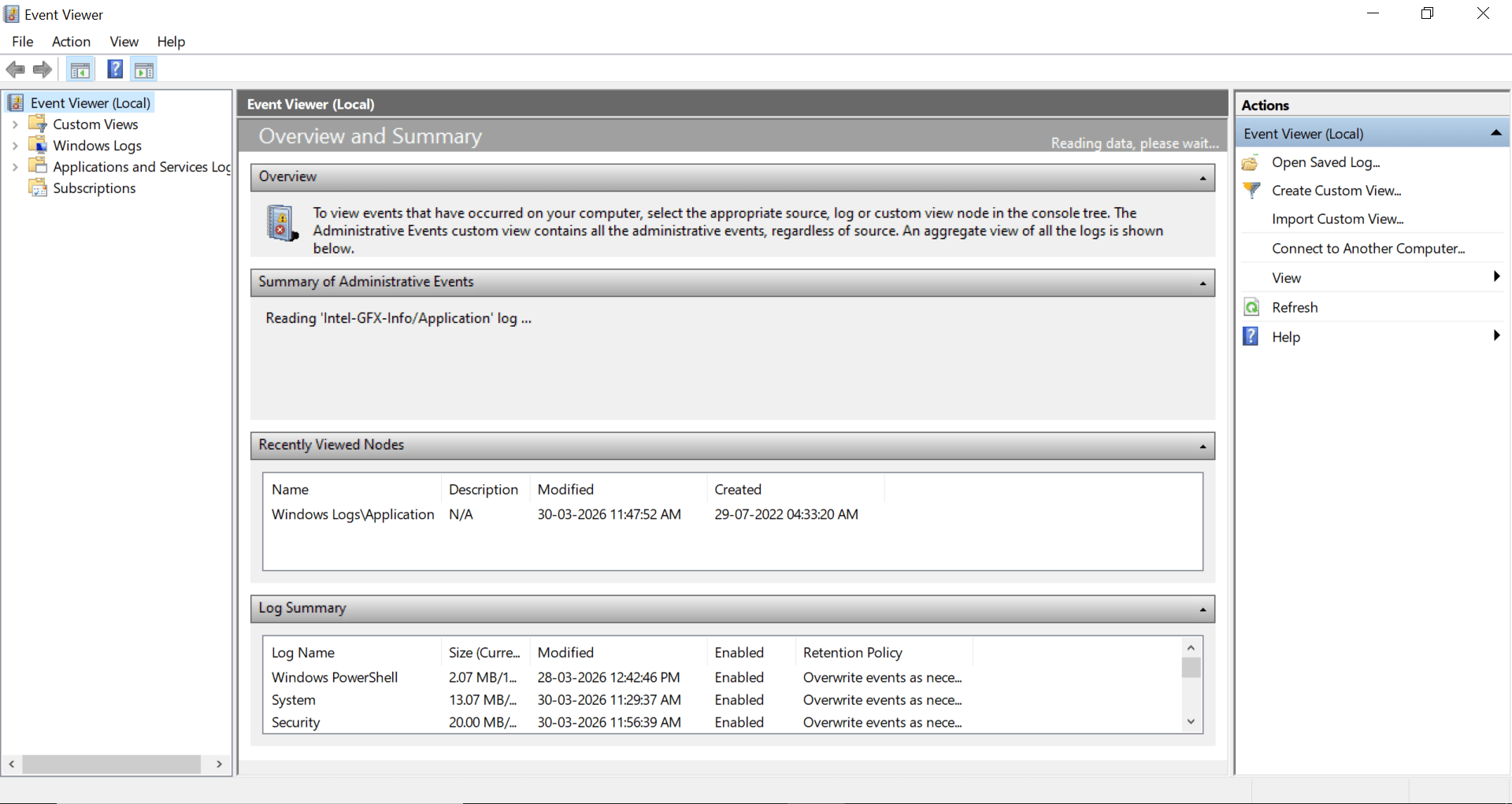
Navigate: Windows logs
b
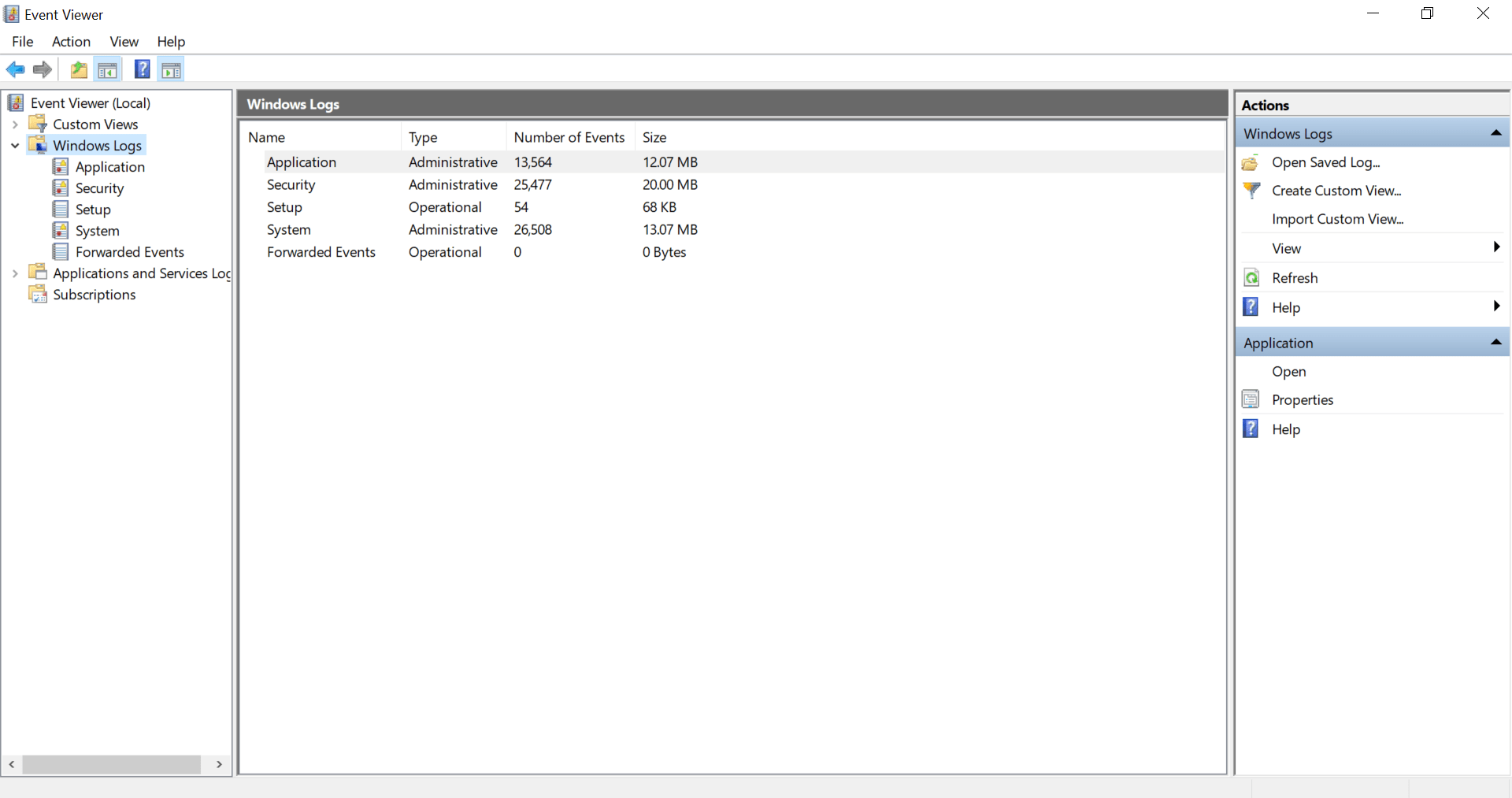
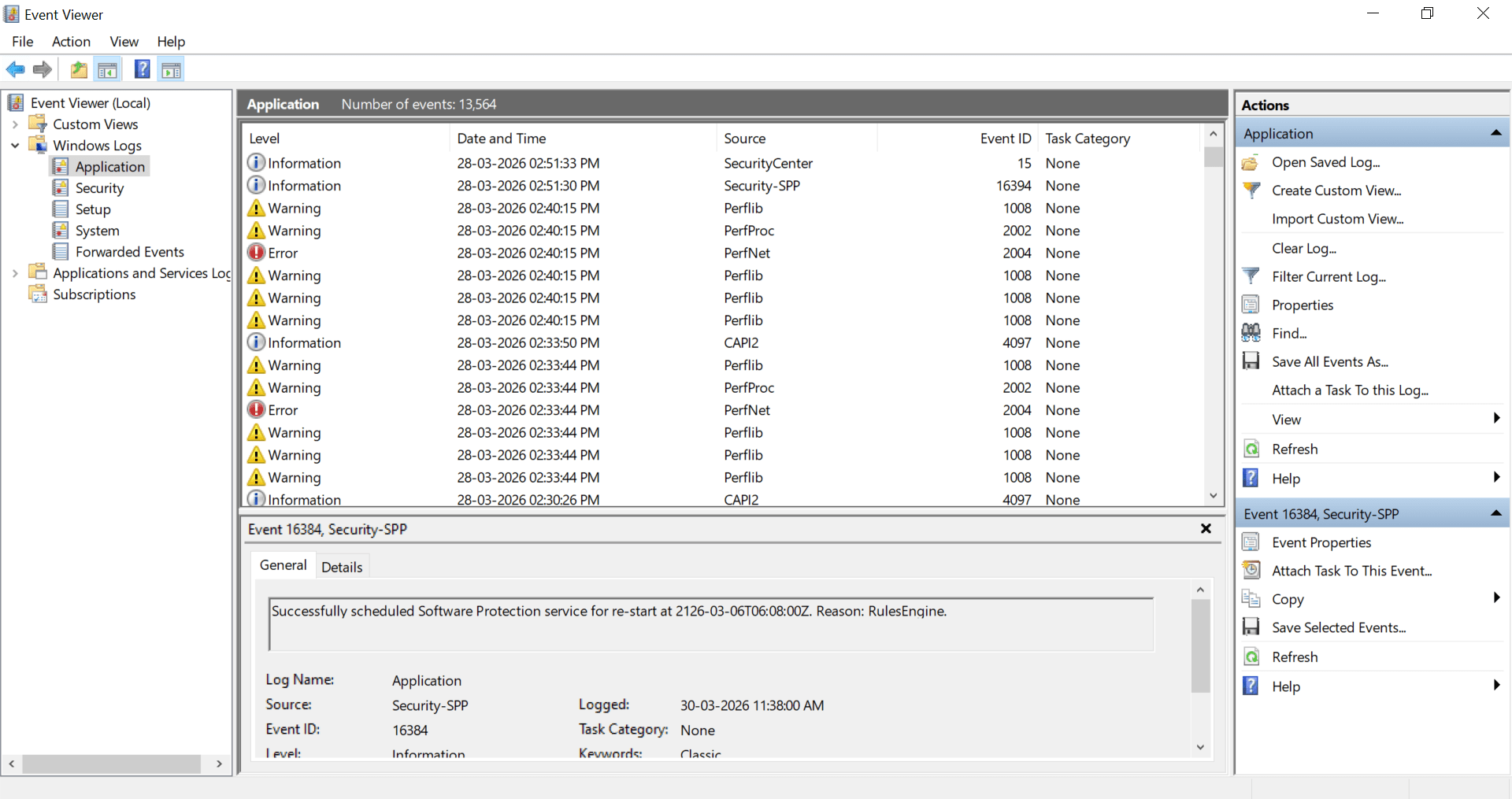
This is the Windows Event Viewer showing logs under Windows Logs → Application.
It displays events like Information, Warning, and Error with details such as date, source, and Event ID.
The bottom pane shows detailed information for a selected event (Event ID 16384 – Security-SPP service).
Now go to Application
Great job!
You have successfully completed your lab on Advanced Windows Tasks and System Security Monitoring.
In this lab, you have: Managed and controlled Windows background services, Automated tasks using Task Scheduler, Created and analyzed Registry persistence mechanisms, Investigated Event Viewer logs, and monitored important Windows security operations.
You are now ready to move to the next stage of Windows administration and security management.
Checkpoint
Next-Lab Preparation
Topic : Linux & Kali Linux Environment
1) Introduction to Kali Linux and Installation using VirtualBox/VMware
2) Understanding the Kali Linux environment
3) Linux file system structure
By Content ITV