Website Setup & Design

Business Scenario
Welcome back.

As a Digital Marketing Executive, you’ve already planned the website structure in the previous lab.
Now it’s time to bring that plan to life inside WordPress.
This is where most beginners make mistakes —
they jump into design without a plan and end up with a messy website.
But you’re not just building a website…
you’re building a marketing asset that should attract, engage, and convert users.
Pre-Lab Preparation
In this lab, you will learn how to:
-
Set up your website properly
-
Apply a clean and professional design
-
Structure pages and navigation
-
Make your website ready for users
Think of this step as turning your blueprint into a real restaurant setup —
where everything is arranged perfectly before customers walk in.
Topic : Website Design Basic
1) Wordpress Setup
2) Themes Installation
3) Plugins Installation
4) Templates Inserting
5) Pages Creation
6 ) Menu Setup
7) Site Name, tagline, icon setup
Task 1: Set up Spice Garden WordPress; implement basic design
You are now working on the Savannah Restaurant website, and your WordPress is ready.
Let’s execute the setup step-by-step.
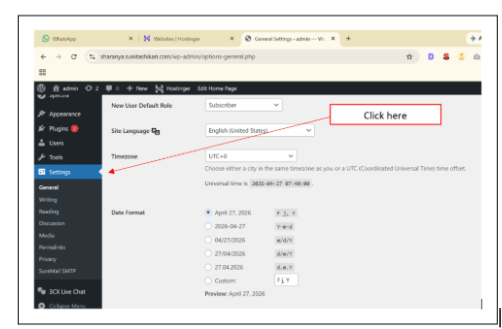
Go to WordPress Dashboard → Settings
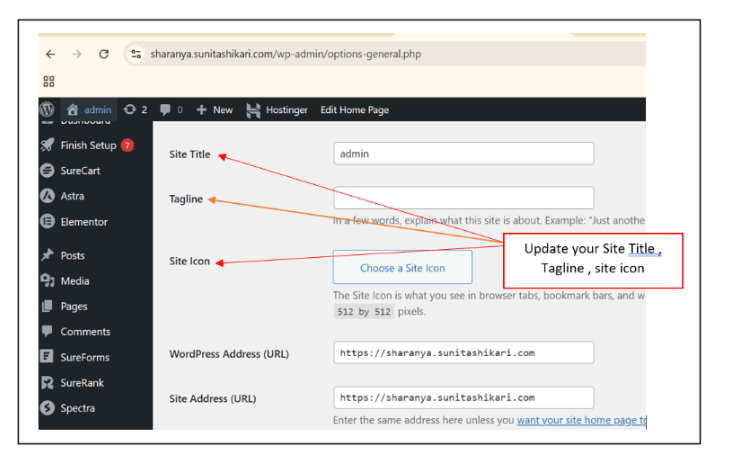
- Set Site Name: Savannah Restaurant
- Add Tagline: “Delicious Food, Memorable Experience”
- Upload Site Icon (Favicon)
This builds your brand identity from the start.
Configure Basic Website Settings
1
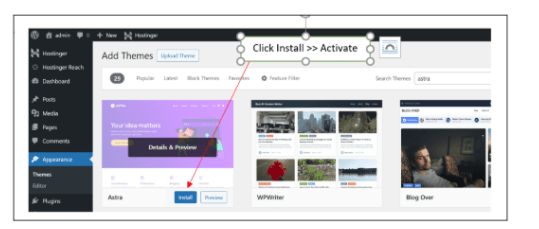
Install & Activate Theme
2
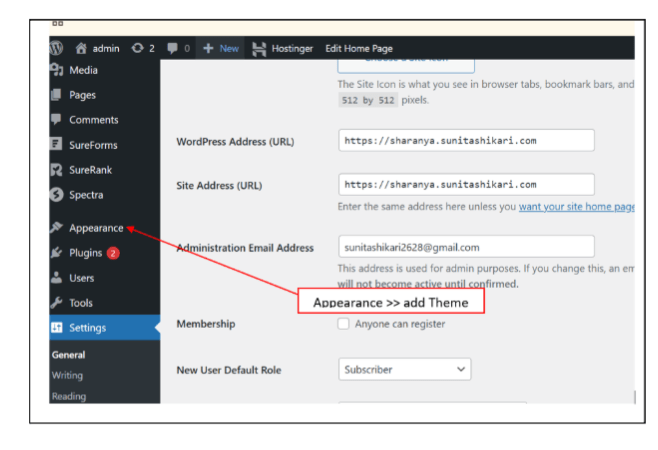
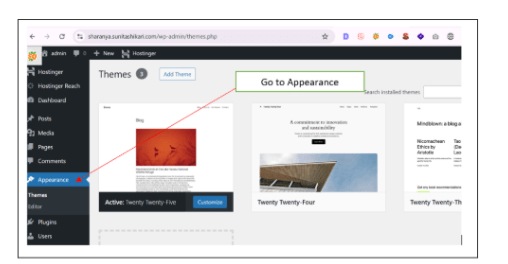
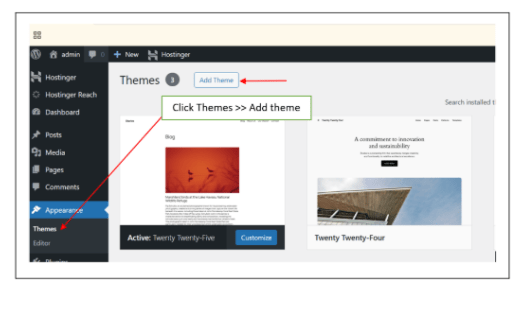
Go to Appearance → Themes
-
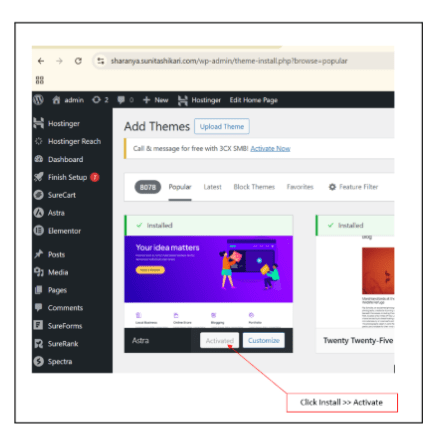
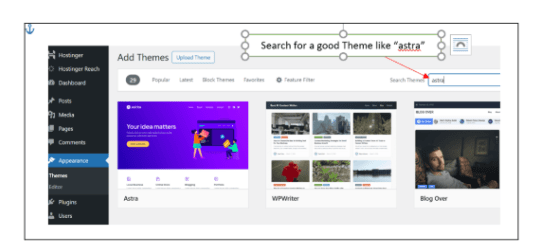
Choose a clean restaurant-friendly theme (e.g., Astra, Neve)
-
Install and Activate
Theme controls the overall look and layout of your website.
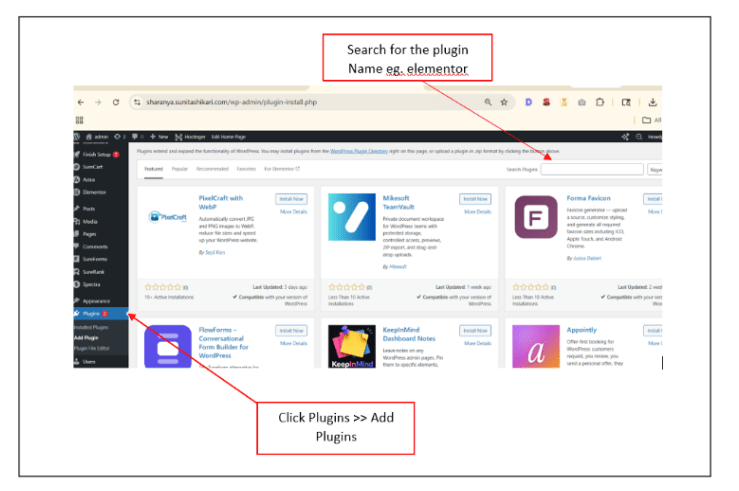
Install Essential Plugins
3
Go to Plugins → Add New
Install basic plugins such as:
- Page Builder (Elementor or similar)
- Contact Form plugin
- SEO plugin
Plugins add functionality to your website.
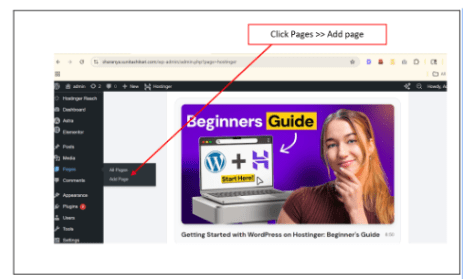
Create Website Pages
4
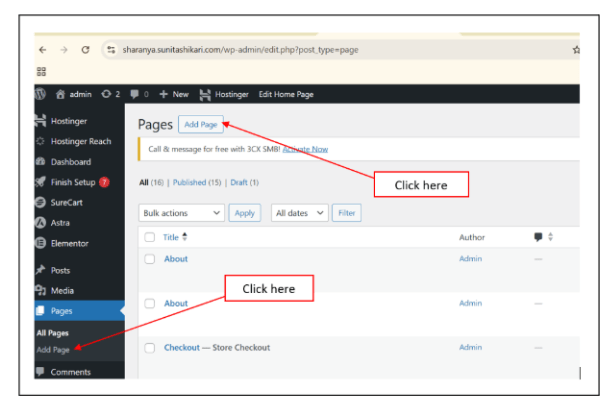
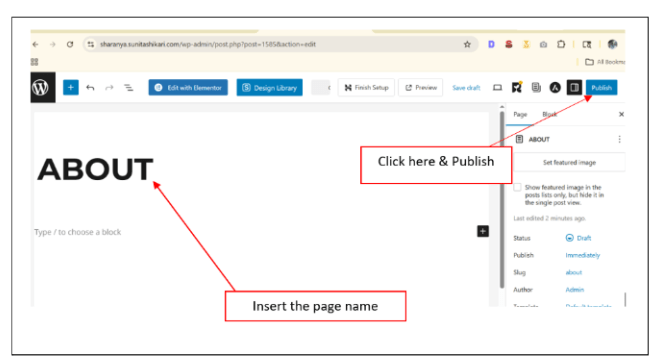
Go to Pages → Add New
Create pages planned earlier:
- Home
- About
- Menu
- Reservation
- Contact
These are the core pages of your website.
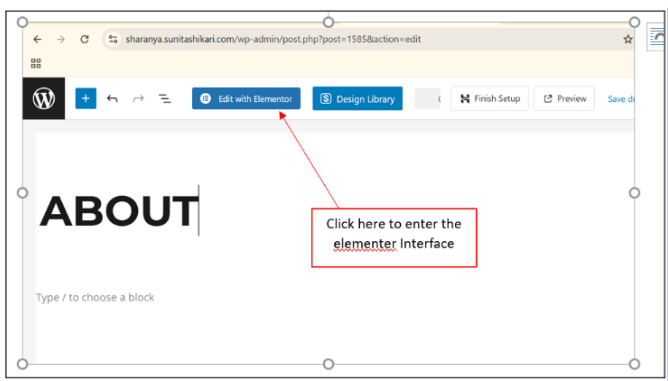
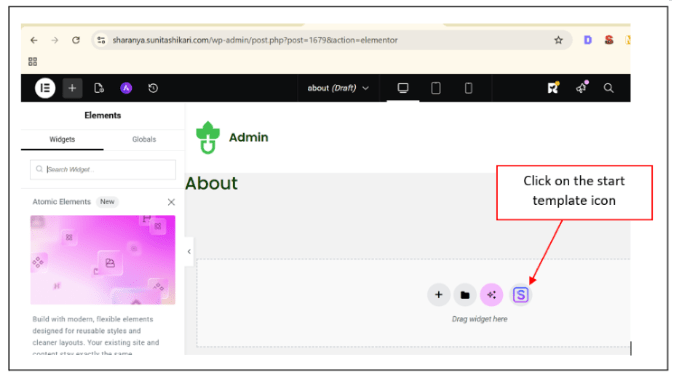
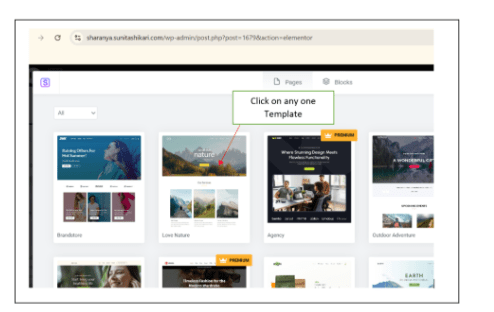
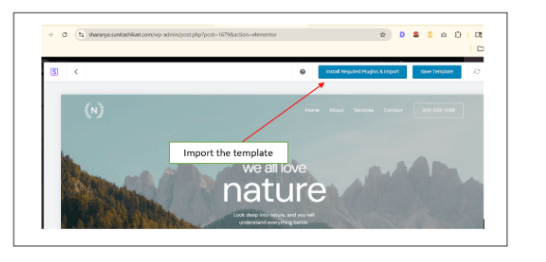
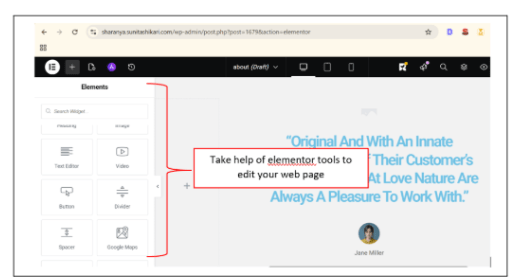
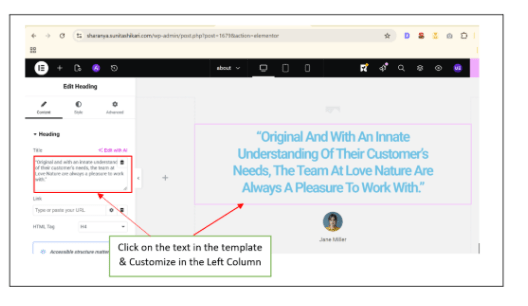
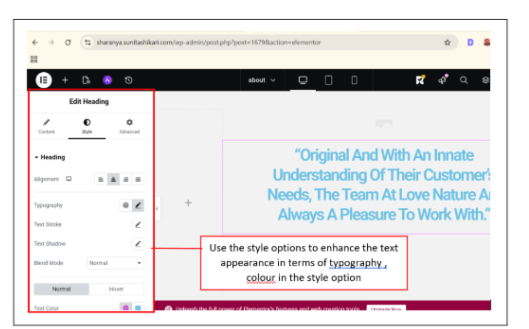
Design Pages Using Template / Builder
5
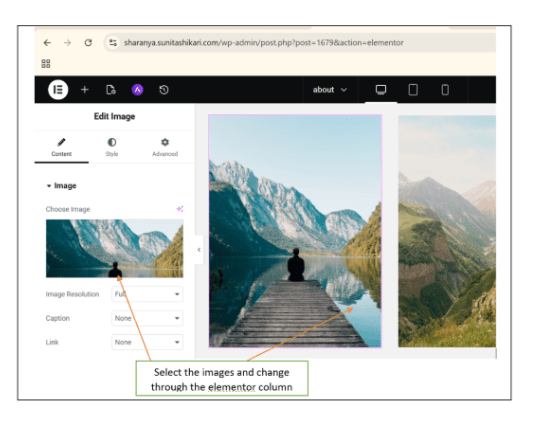
Edit pages using your builder:
-
Add sections (Hero, Menu, About, etc.)
-
Insert images and text
-
Add CTA buttons (e.g., “Book Now”)
Focus on clarity, not complexity.
Setup Navigation Menu
6
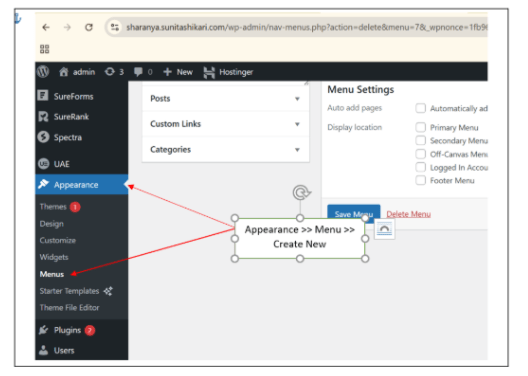
Go to Appearance → Menus
-
Create Main Menu
-
Add all pages
-
Arrange in logical order:
Home → About → Menu → Reservation → Contact
Navigation should be simple and user-friendly.
Final Check (User Experience)
7
Before finishing, ask:
-
Is everything easy to find?
-
Does the website look clean?
-
Are CTAs clearly visible?
Always think like a user, not just a creator.
Activity
Setup Basic Website Details
1
-
Add Site Name & Tagline
-
Upload Site Icon
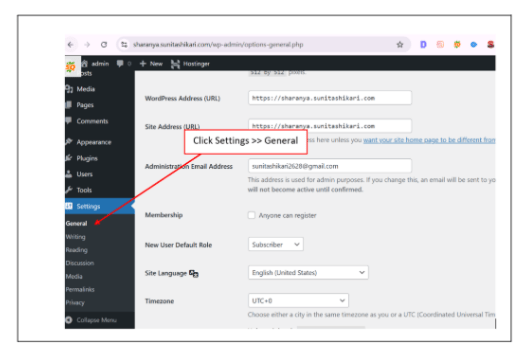
Now it’s your turn to implement the same process.
You are working on the Spice Garden Restaurant website.
Install Theme
2
- Choose and activate a suitable theme
Install Required Plugins
3
-
Page builder - Elementor
-
Theme Template - Starter Templates
-
Contact form - WP Forms
-
SEO plugin - Yoast SEO
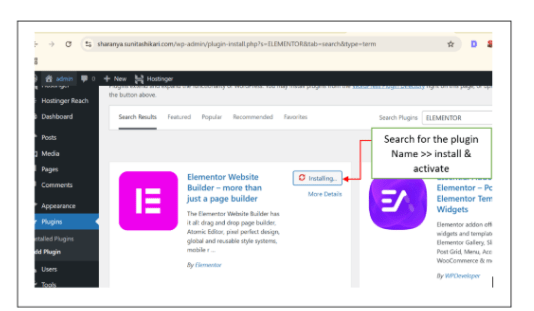
Same way install the other plugin like Wp forms & Yoast seo
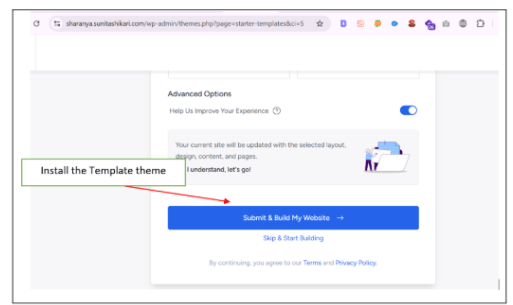
Insert Template (If Available)
4
-
Import a restaurant template OR start from scratch
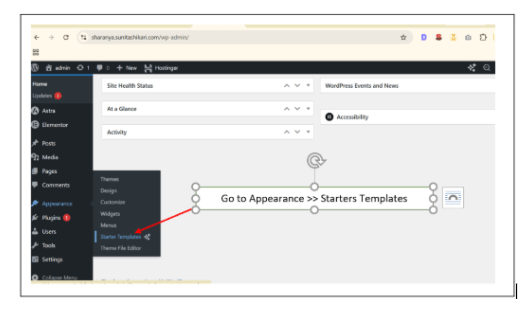
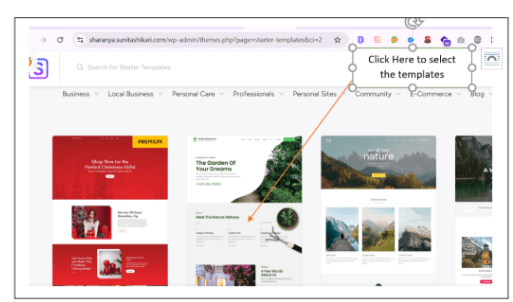
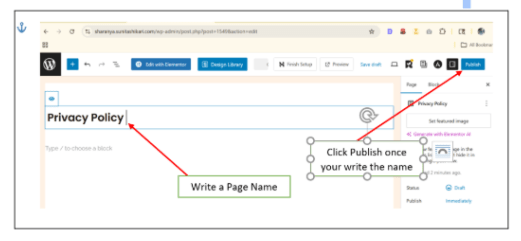
For creating extra pages that are not present in the starter template plugin theme - Create Pages manually.
5
-
Create all planned pages:
(Home, About, Menu, Contact, etc.)
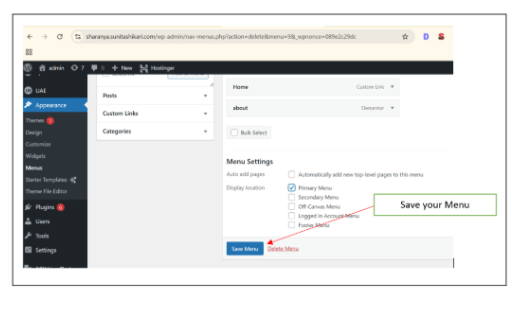
Setup Navigation Menu
6
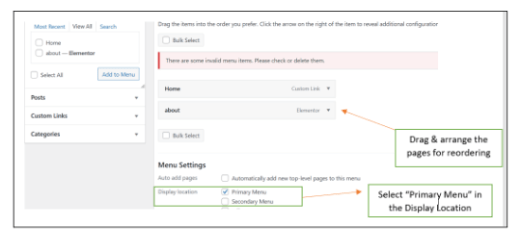
- Add pages to menu
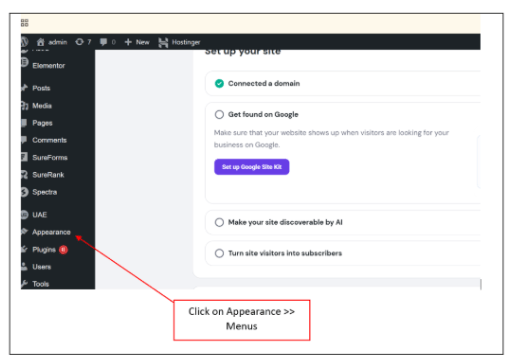
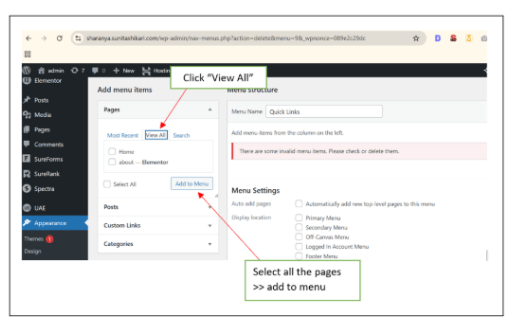
- Arrange properly
Congratulations!
You have successfully completed Website Structure & Pages
What You Learned :
- How to set up a WordPress website professionally
- How to apply themes and plugins effectively
- How to convert your planned structure into actual pages
- How to design clean, user-friendly web pages
- How to create navigation that improves user experience
Checkpoint
Next-Lab Preparation
Topic : Advanced Website Designing
1) Home Page Design
2) About Page Design
3) Header & Footer Design
4) Contact Form Setup
5) Mobile Friendly Website
6) Speed Optimization
7) Website Security & Blogs Creation