Food Cards & UI Components

Business Scenario
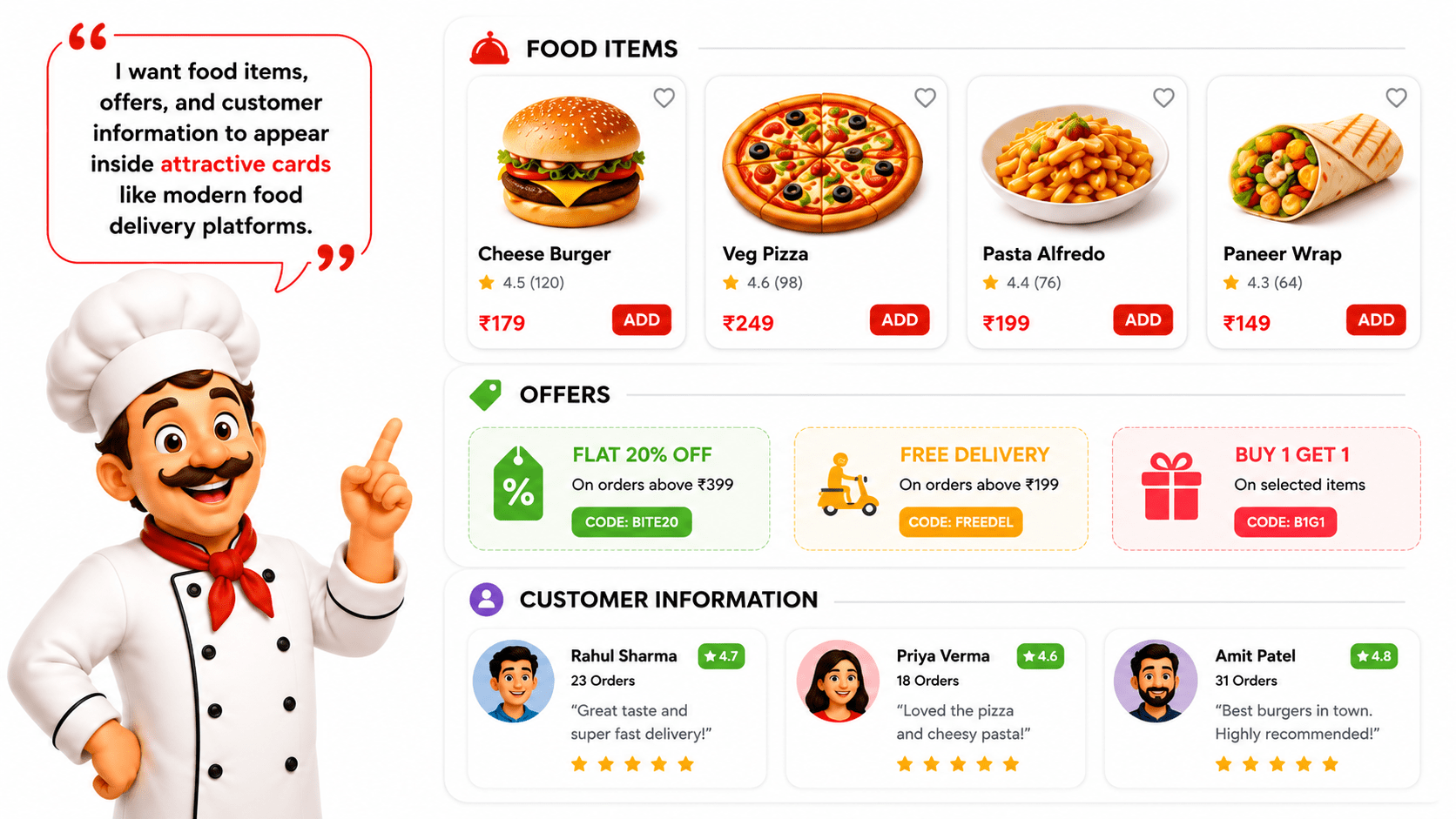
The BiteBox website now has a professional color scheme and typography. However, the content still appears crowded because everything is displayed directly on the page without any visual grouping.


The restaurant owner wants food items, offers, and customer information to appear inside attractive cards similar to those used on modern food delivery platforms.
Pre-Lab Preparation
git pull origin branchName
Git Pull
As a Frontend Developer, your task is to build reusable UI components using CSS classes and the Box Model.
Module: CSS Foundations and Text Styling
1) Getting Started With CSS
2) CSS Selectors and Text Styling
Task 1: Create the First Food Card
Open index.html - Locate the first featured food item
1
 <h2>Today's Featured Dishes</h2>

            <p>Pizza</p>

            <p>Burger</p>

            <p>Pasta</p>
Existing html
Update the html as follows
2
<h2>Today's Featured Dishes</h2>
<h3>Veg Pizza</h3>
<p>Cheesy Italian Pizza</p>
<p>₹299</p>


<h3>Veg Burger</h3>
<p>Cheese Burger</p>
<p>₹199</p>


<h3>Veg Pasta</h3>
<p>White Sauce Pasta</p>
<p>₹249</p>
Task 2: Link CSS with HTML
<!DOCTYPE html>
<html lang="en">

<head>
    <meta charset="UTF-8">
    <meta name="viewport" content="width=device-width,
    initial-scale=1.0">
    <title>BiteBox</title>
    <link rel="stylesheet" href="css/style.css">
</head>
Open index.html - Inside the <head> section, add the following code.
1
Repeat the same step in: about.html ,menu.htm ,contact.html
Task 3: Style the Body
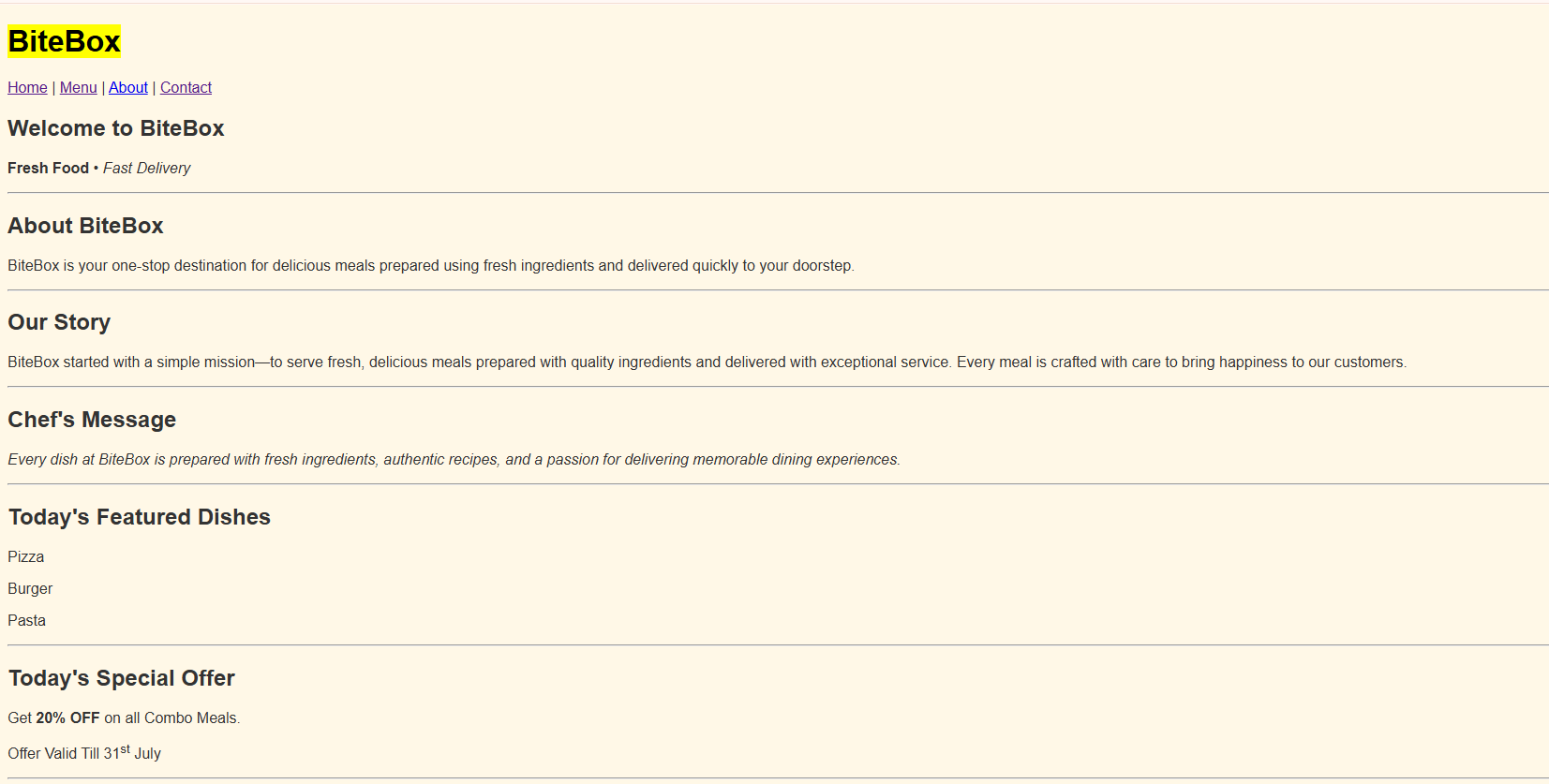
Open style.css and add the following CSS rule.
1
body{

    background-color: #FFF8E7;

    font-family: Arial, sans-serif;

    color: #333333;

}
Check the output
2
Task 4: Style the headings
h1{
    color: #E67E22;
    text-align: center;
    font-size: 40px;
}

h2{
    color: #E67E22;
    text-align: center;
}

h3{
    color: #8B4513;
}
Inside style.css, add the following styles.
1
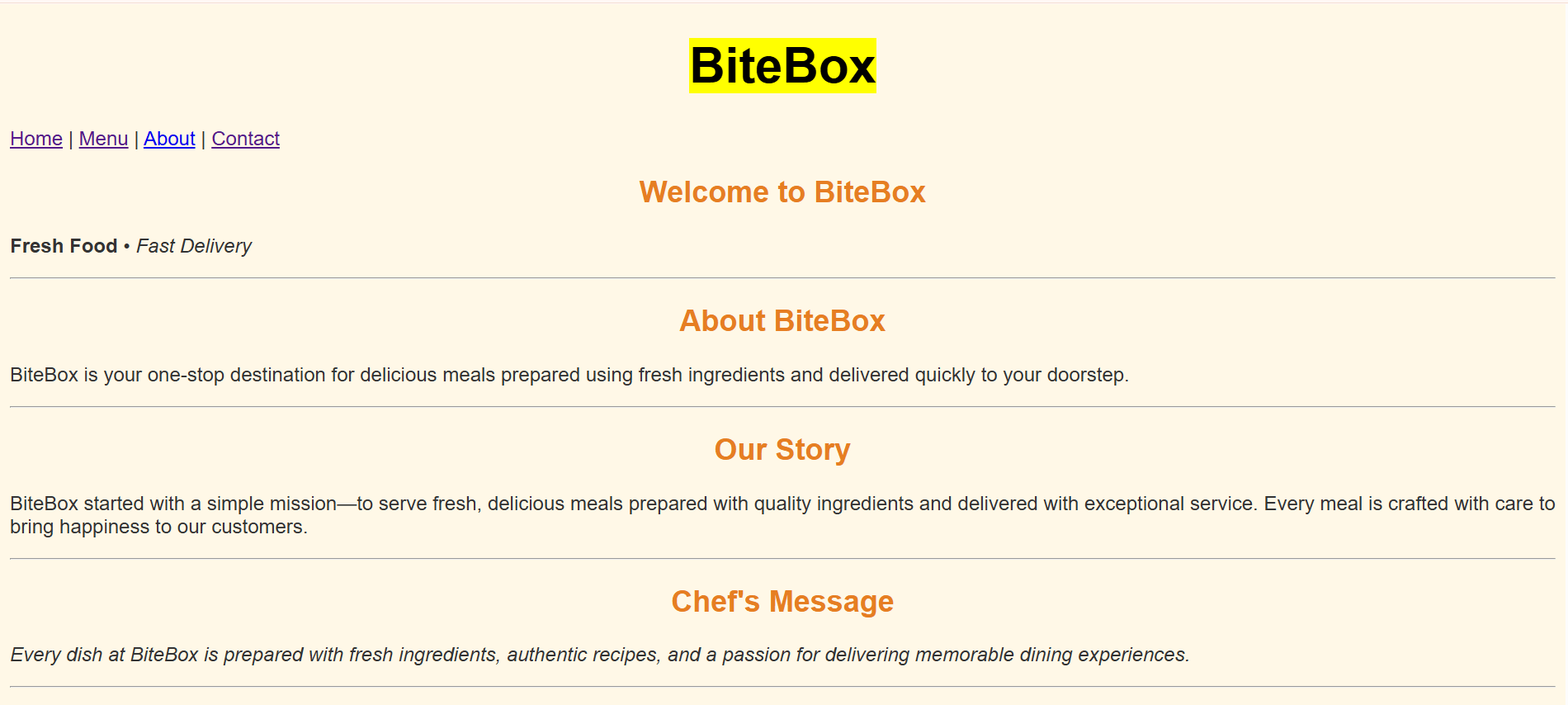
Check the output
2
Task 5: Style Paragraphs
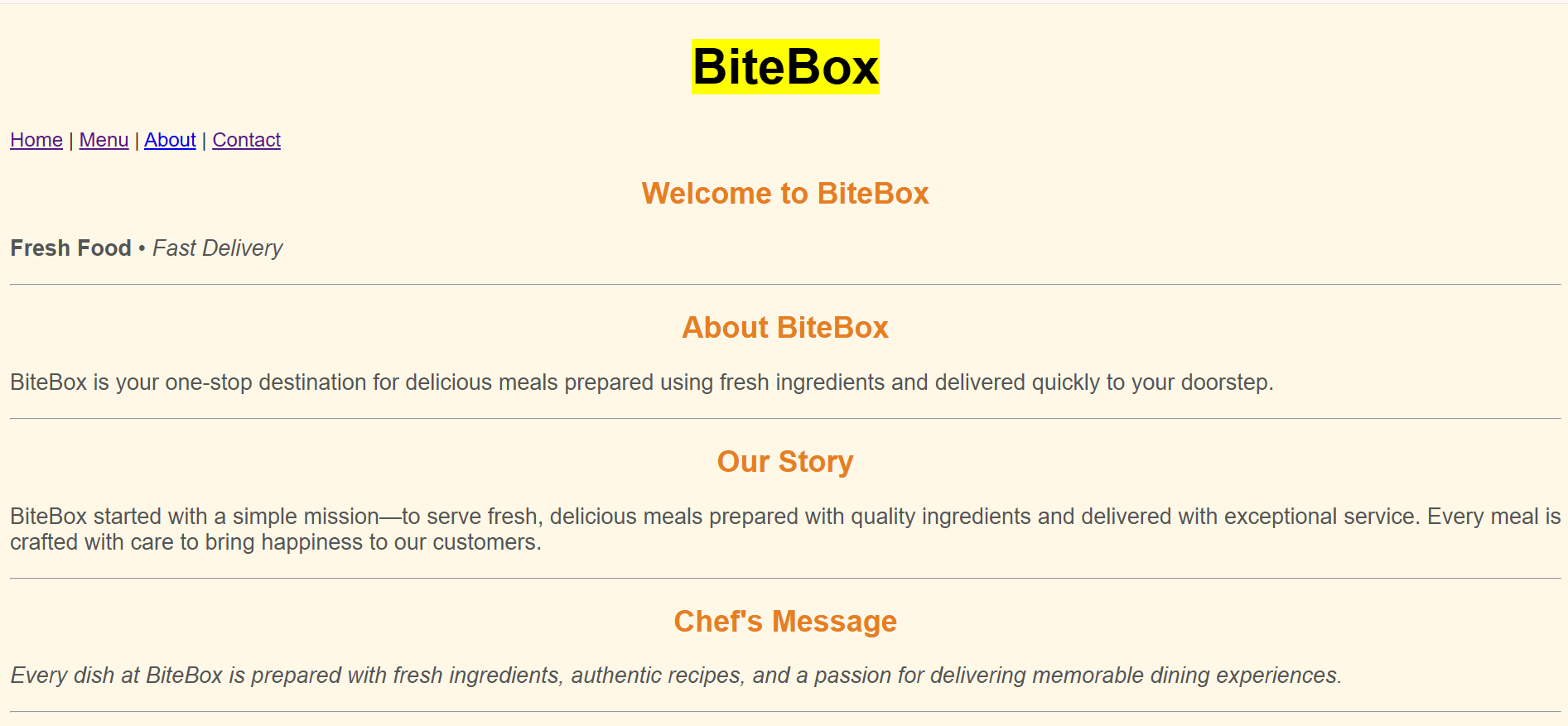
p{

    font-size:18px;

    text-align:justify;

    color:#555555;

}
Add the following CSS rule.
1
Check the output
2
Task 6: Style Navigation Links
a{

    color:#E67E22;

    text-decoration:none;

    font-weight:bold;

}
Add the following CSS rule.
1
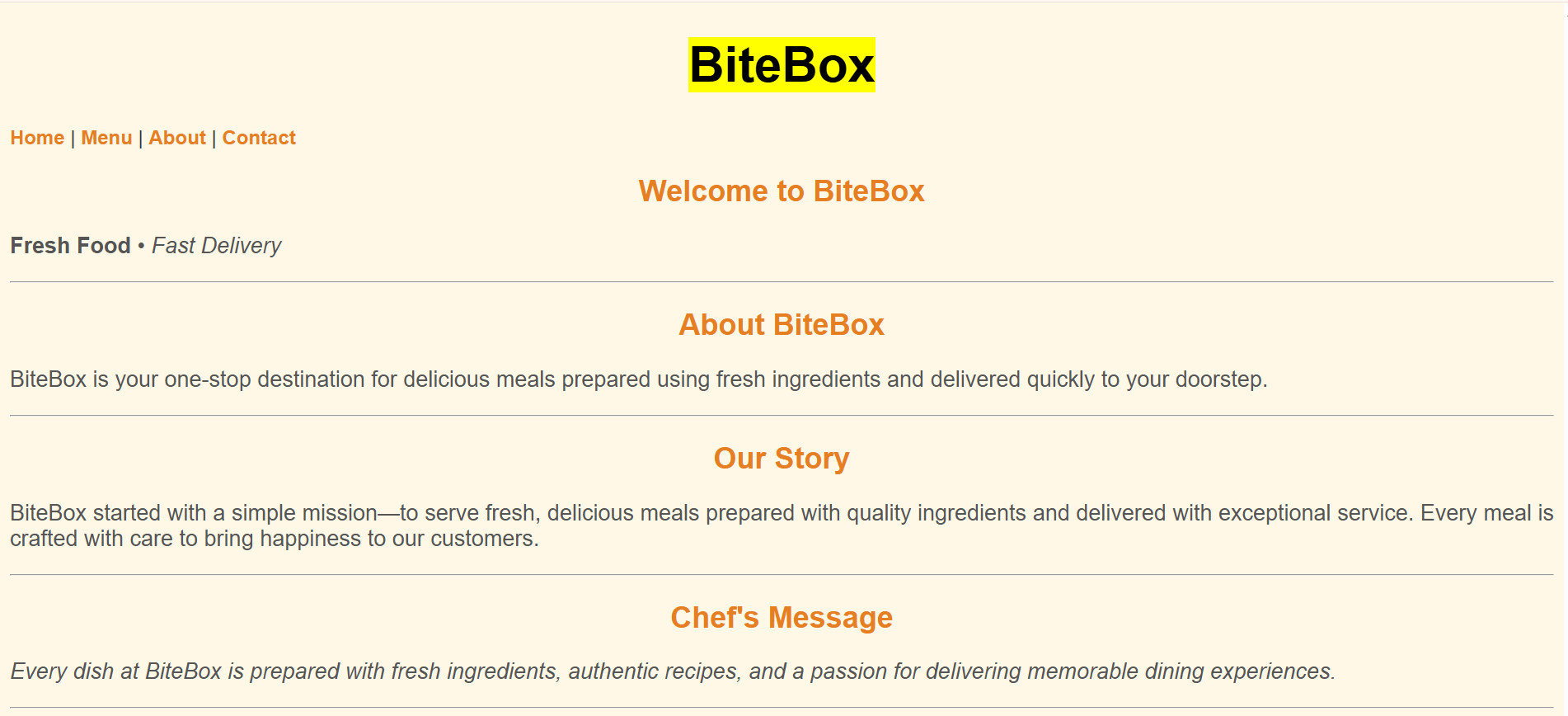
Check the output
2
*
Complete Solution
Style.css
body{
    background-color: #FFF8E7;
    font-family: Arial, sans-serif;
    color: #333333;
}
h1{
    color: #E67E22;
    text-align: center;
    font-size: 40px;
}
h2{
    color: #E67E22;
    text-align: center;
}
p{
    font-size:18px;
    text-align:justify;
    color:#555555;
}
a{
color:#E67E22;
text-decoration:none;
font-weight:bold;
}
Great job!
You successfully enhanced the BiteBox website with attractive styling.
Checkpoint
Git Push
git push origin branchNameNext-Lab Preparation
Module: CSS Foundations and Text Styling
1) Getting Started With CSS
2) CSS Selectors and Text Styling