Vulnerability Scanning with Nessus Essentials

Business Scenario
Welcome!
Today is your first day in SecureLearn Technologies Pvt. Ltd at our company.
You have been assigned to scan the company’s SecureMart server using Nessus Essentials.
Your task is to identify vulnerabilities, review scan results, and understand their severity.


Pre-Lab Preparation
Topic : Vulnerability Scanning and Assessment Tools
1) Vulnerability scanning using Nessus/OpenVAS
2) Basic exploitation methods
Task 1: Install Nessus, activate the Essentials license, and scan Metasploitable2 for vulnerabilities.
Get an activation code
1
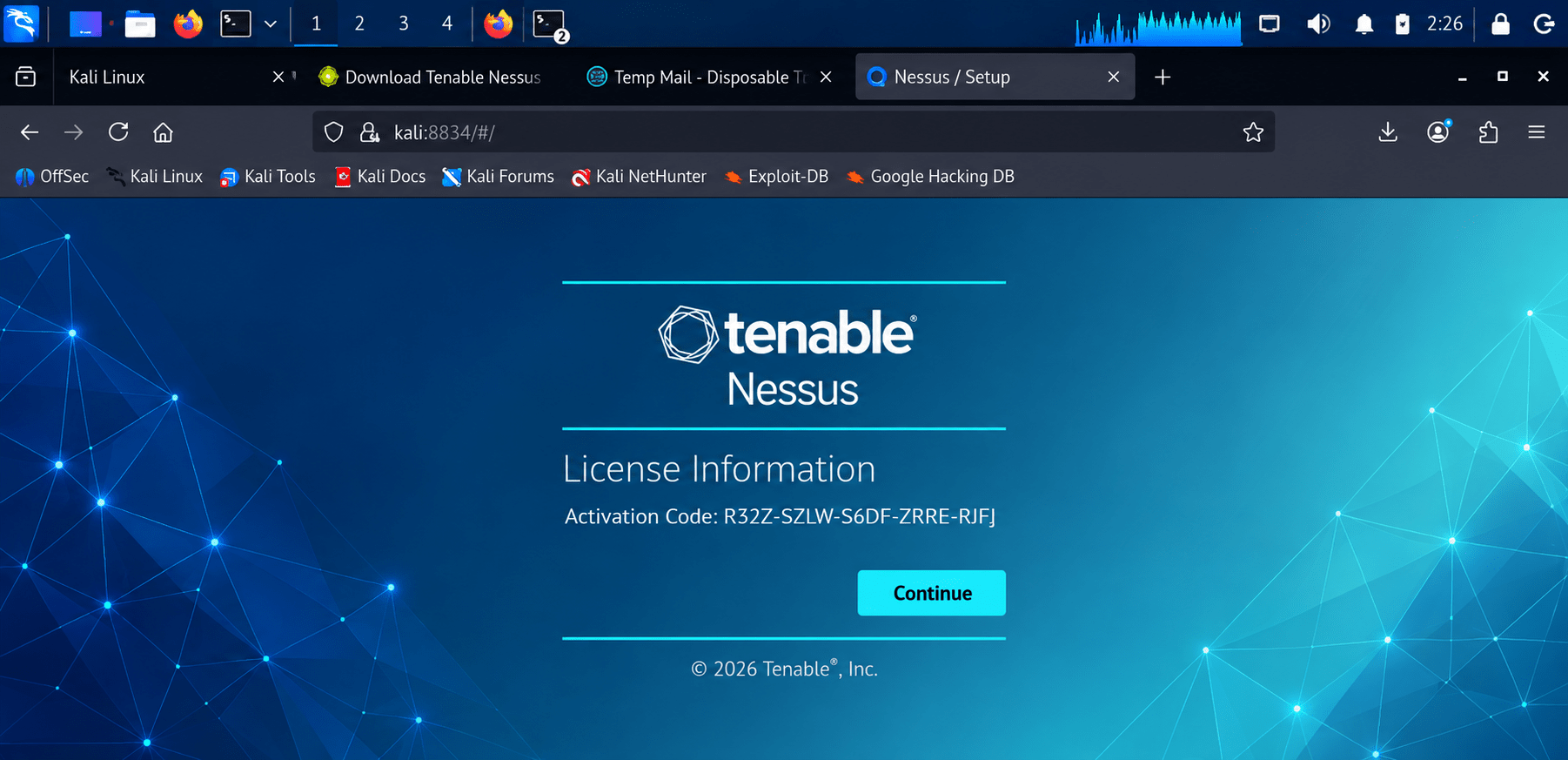
Nessus prompts you to register with an email (use a disposable/temp mail if you don't want to use your own). Tenable emails you an activation code. Enter it on the License Information screen and click Continue.
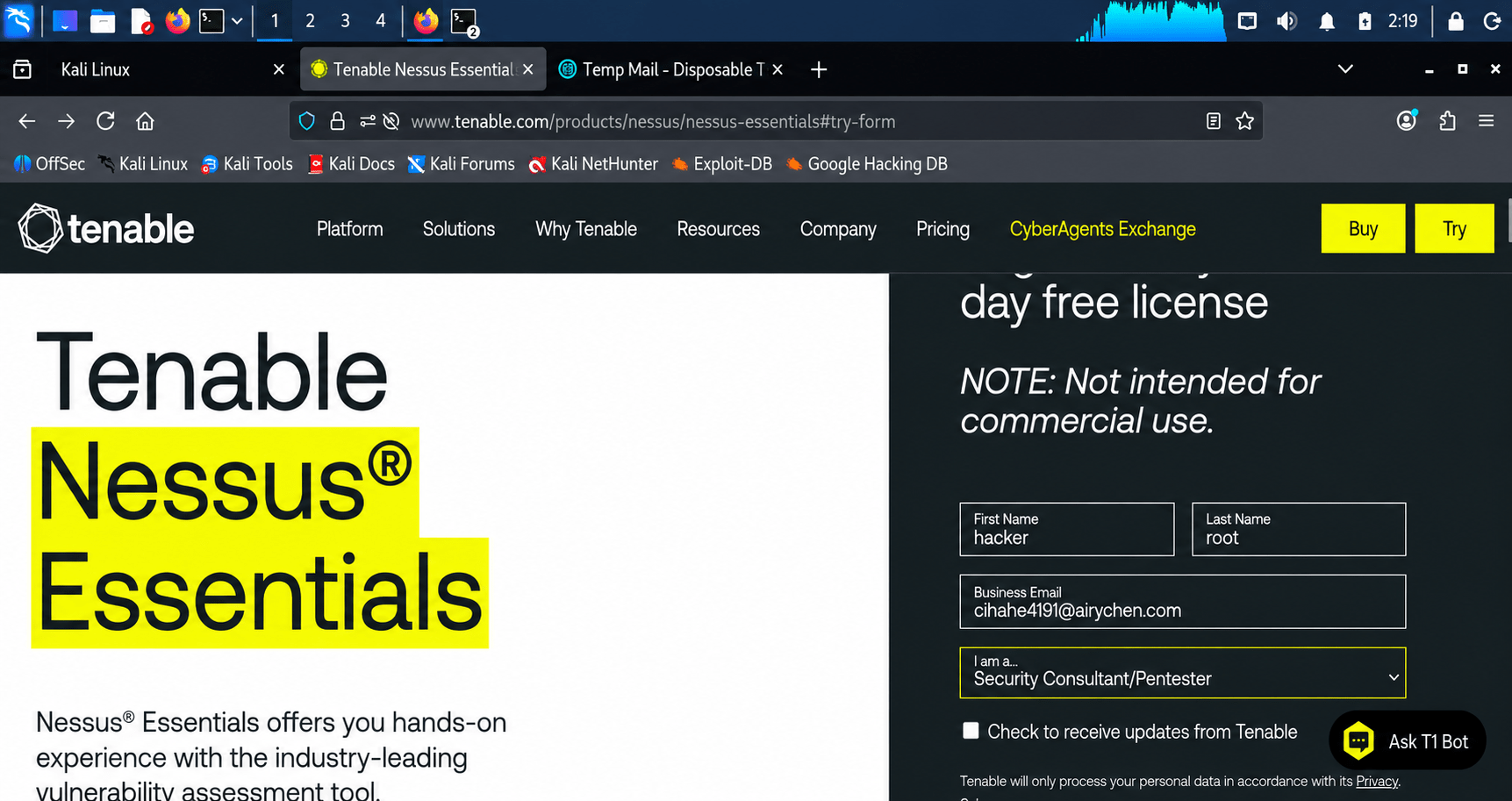
Register for Nessus Essentials
2
Click Try → go to the Nessus Essentials page → fill the registration form:
-
First Name / Last Name
-
Business Email (a temp/disposable mail works fine for lab use)
-
"I am a..." → select your role (e.g. Security Consultant/Pentester)
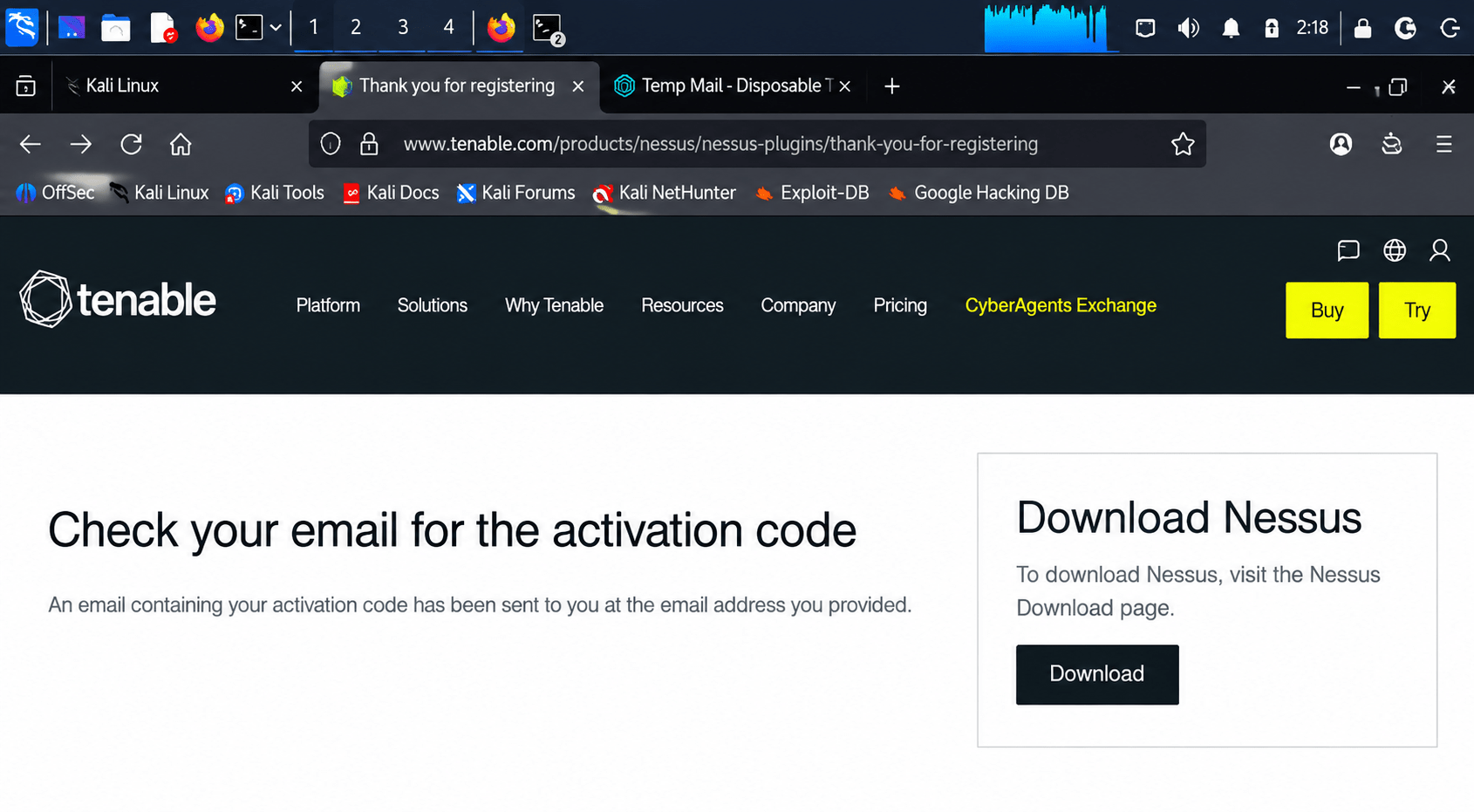
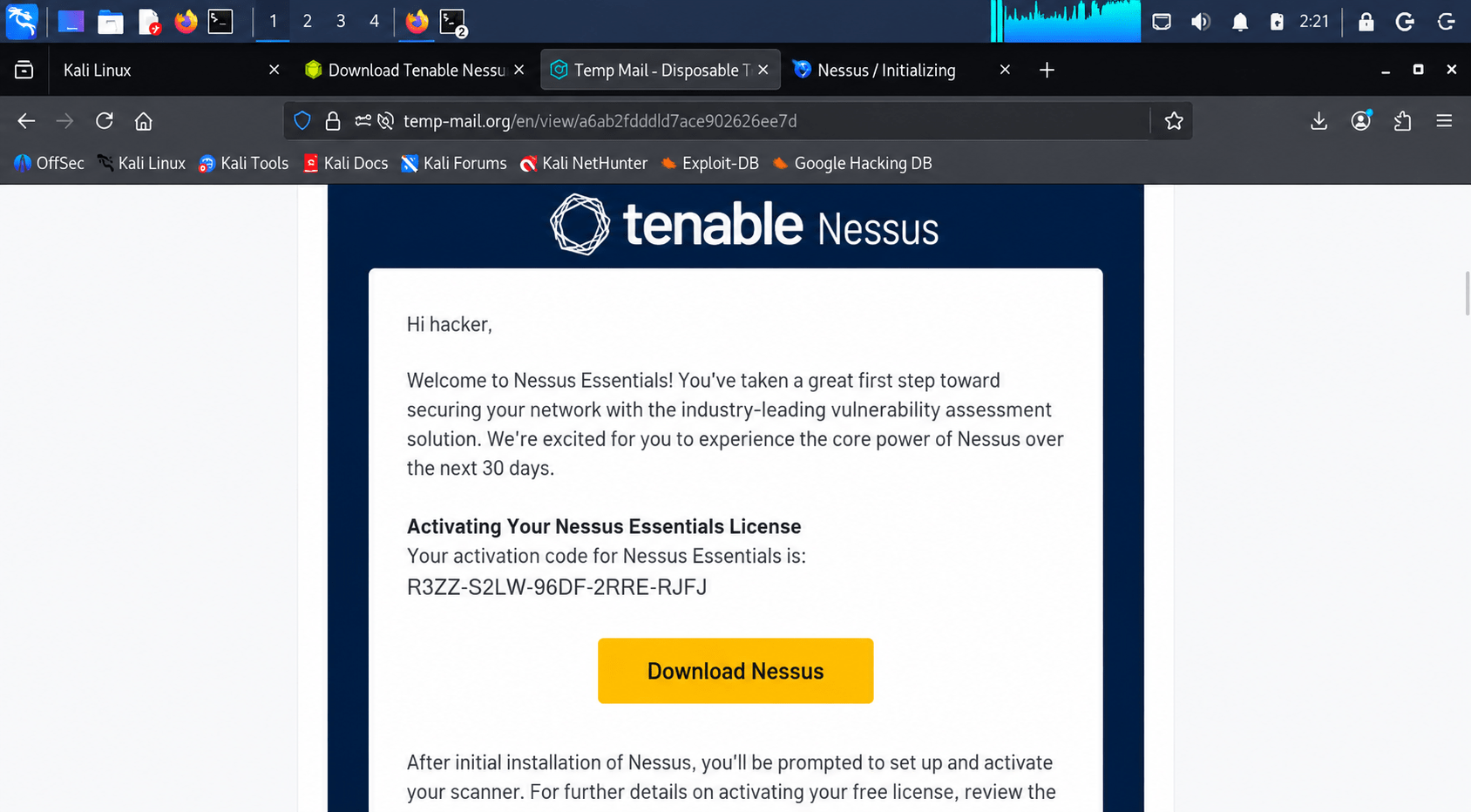
Download the installer
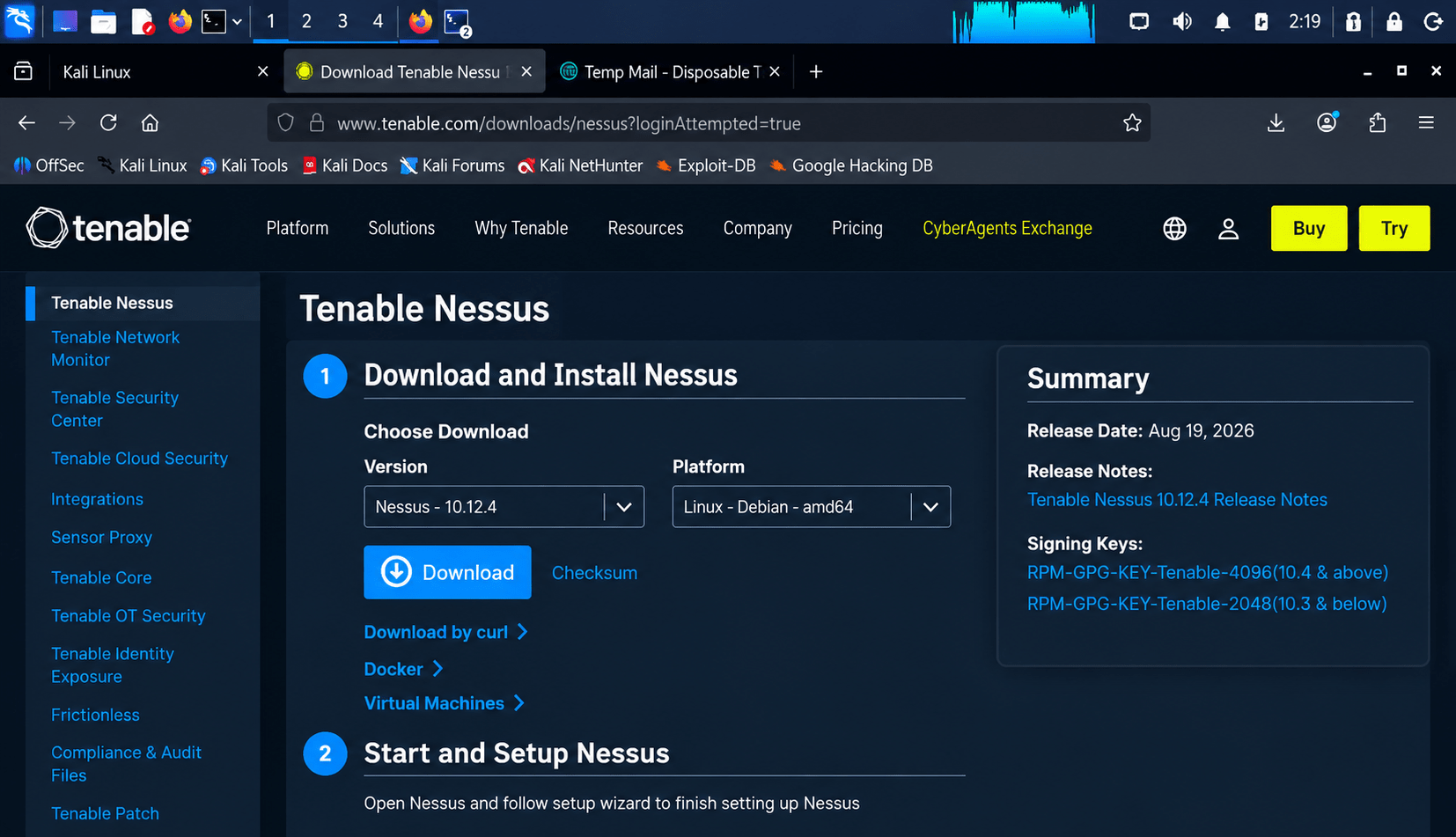
3
Back on the download page, click Download for the .deb package matching your platform (e.g. Nessus-10.12.4-debian10_amd64.deb). It downloads to ~/Downloads.
Install the package
4
Open a terminal:
cd Downloads
chmod 777 Nessus-10.12.4-debian10_amd64.deb
dpkg --install Nessus-10.12.4-debian10_amd64.deb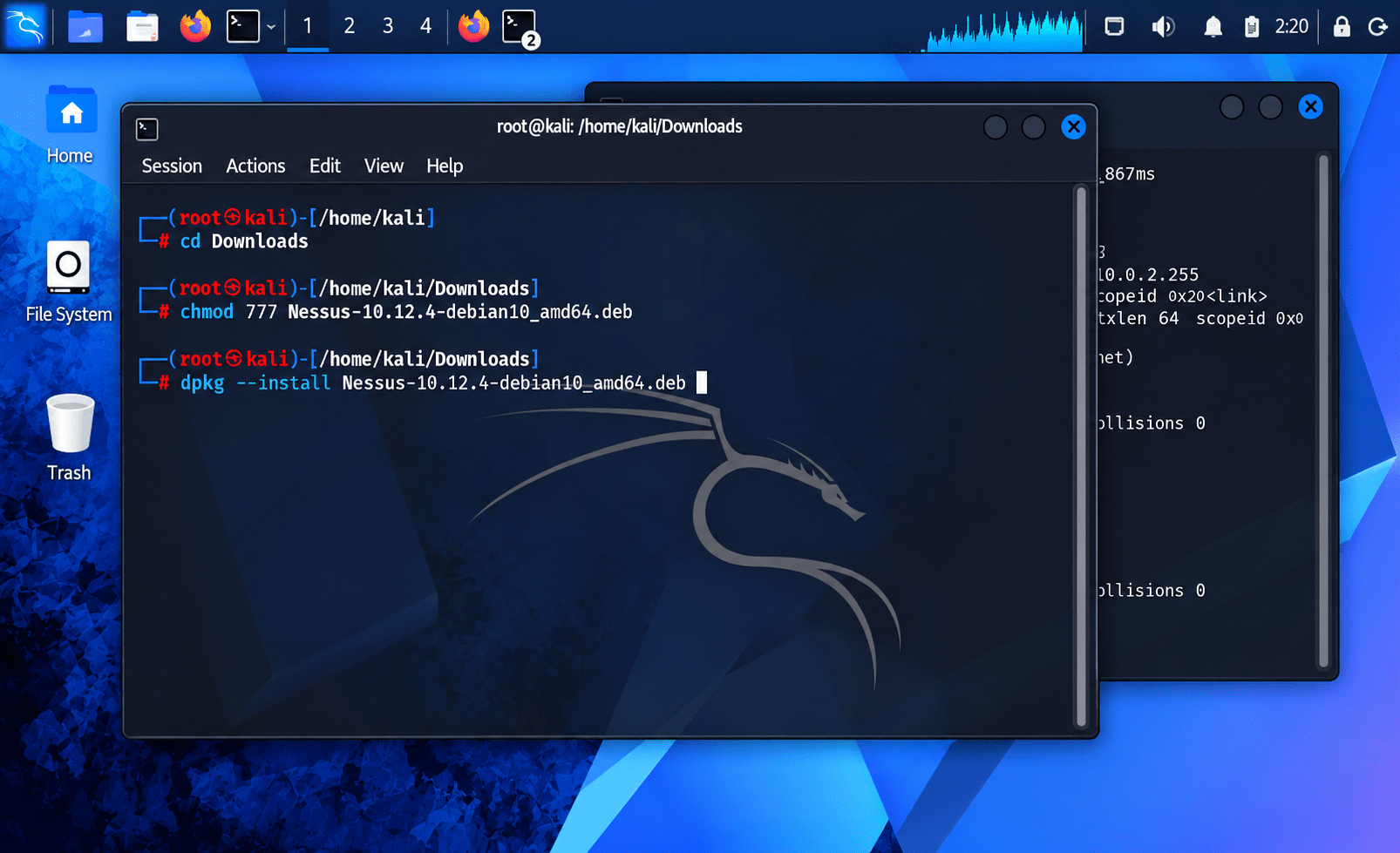
Start the Nessus service
5
/bin/systemctl start nessusd.service/bin/systemctl start nessusd.service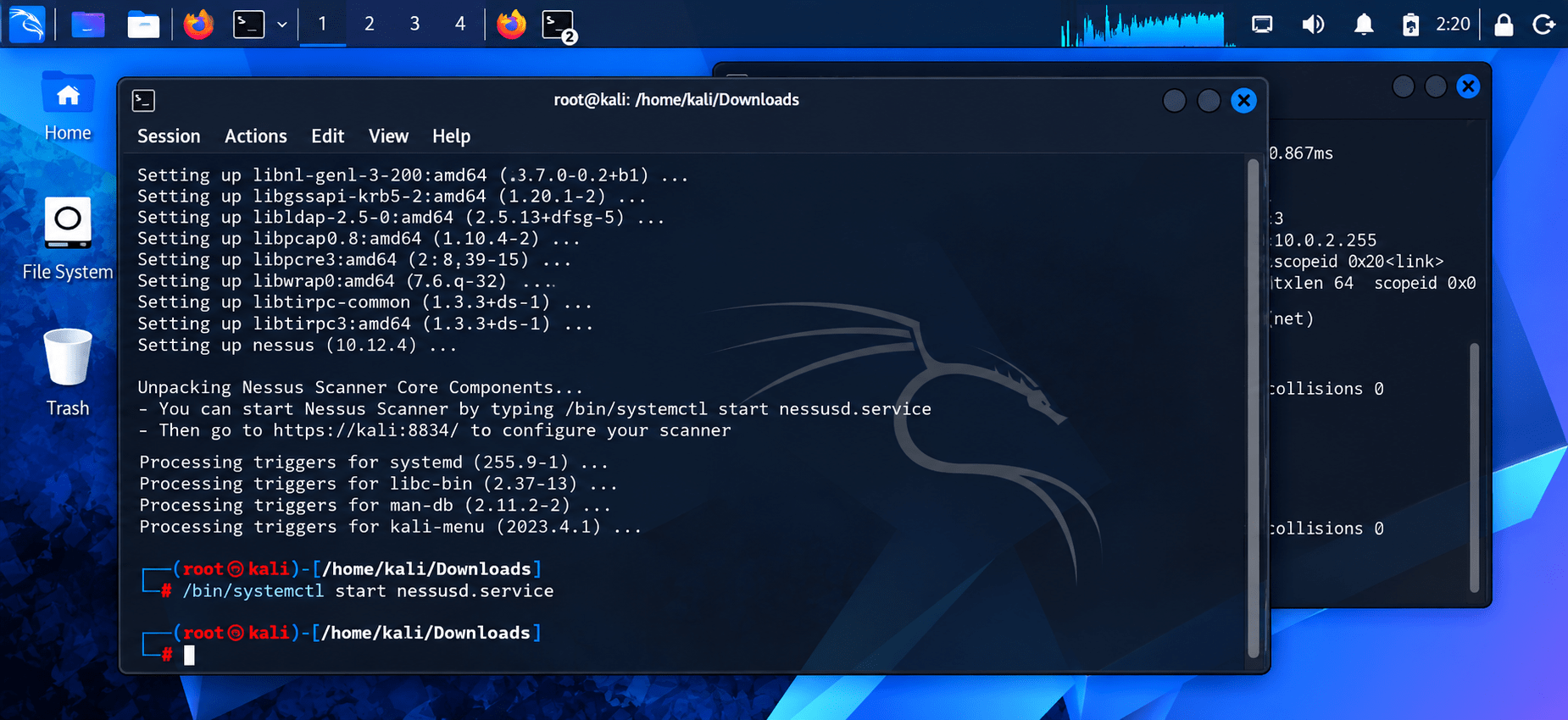
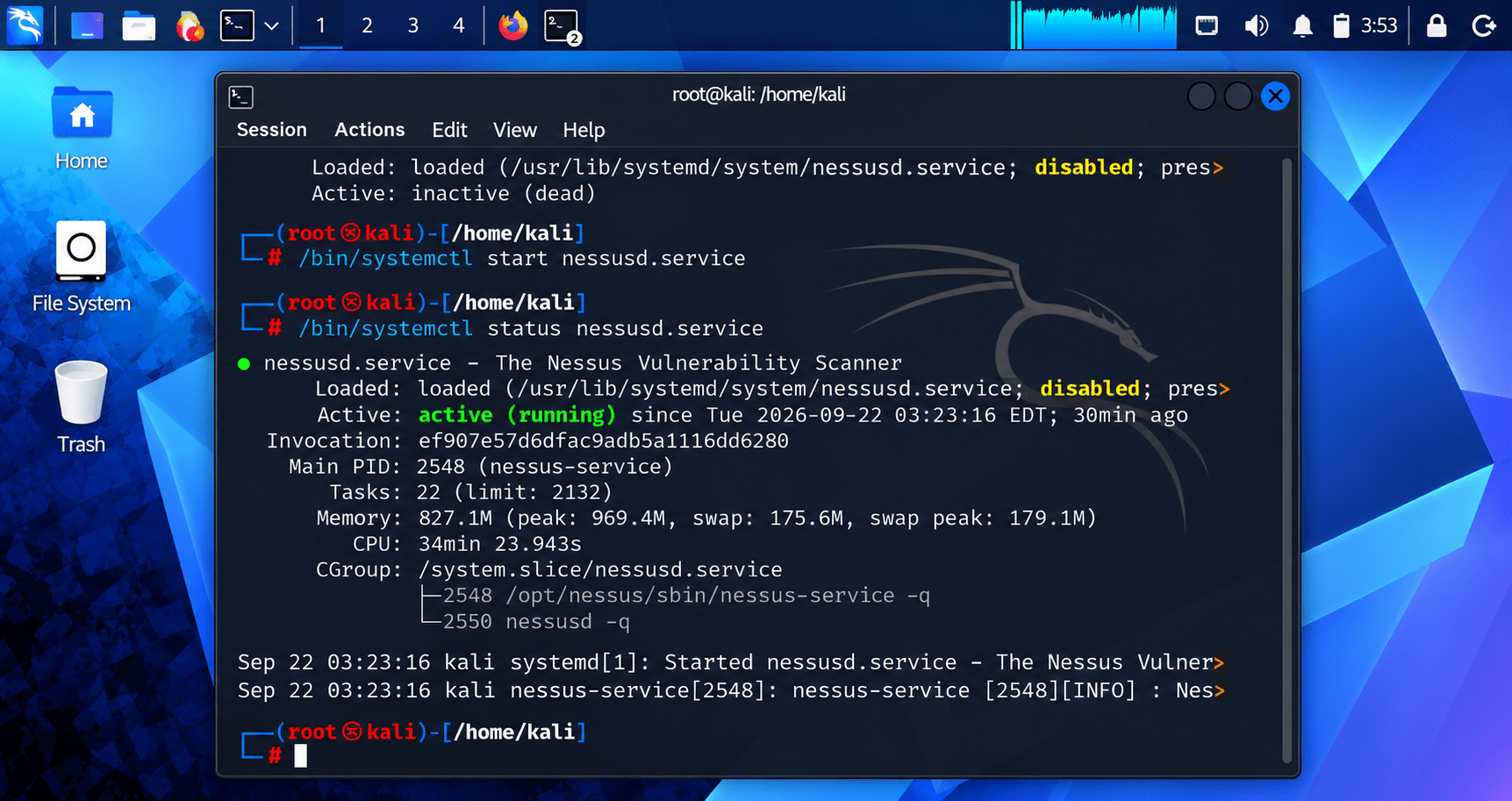
No output means it started successfully (verify with systemctl status nessusd.service if you want confirmation).
Open the setup wizard
6
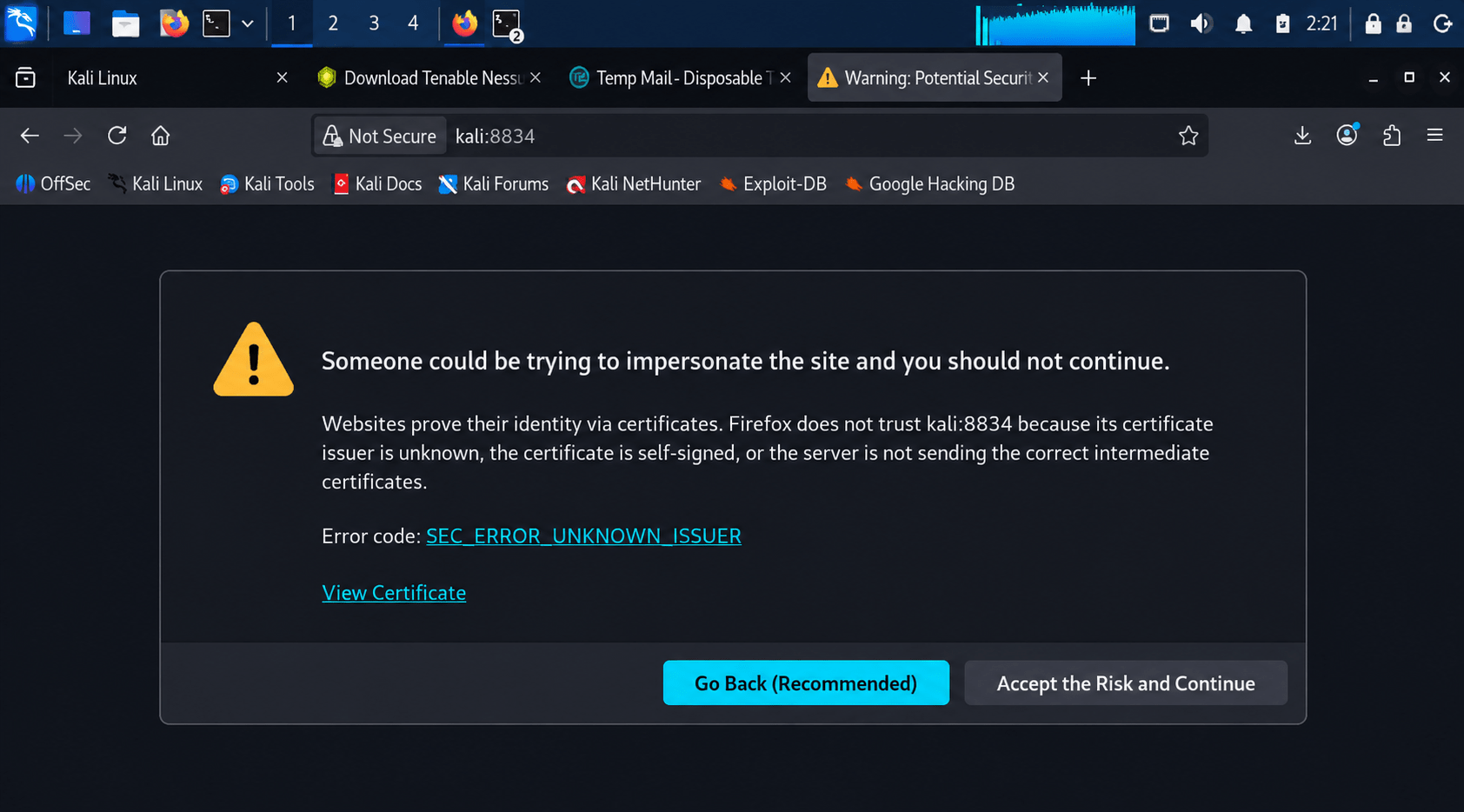
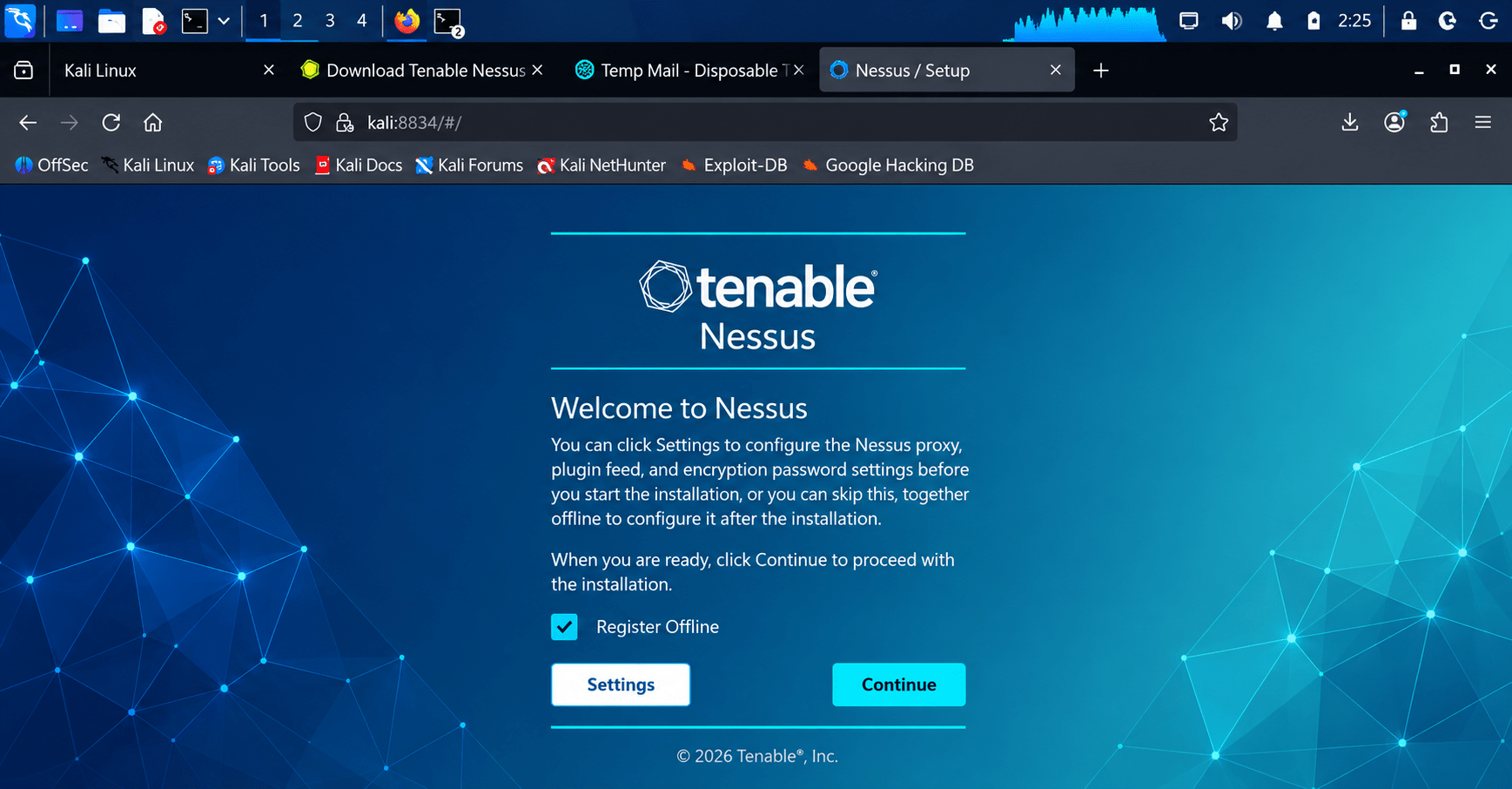
Go to https://kali:8834/ (or https://<your-IP>:8834/) in a browser — this picks up from the Welcome to Nessus screen I walked you through earlier, where you'll paste in the activation code from Step 3.
Open the Nessus web UI
7
Go to https://kali:8834/ (or https://<IP>:8834/) in a browser. Wait for Initializing to finish — it loads the setup wizard.
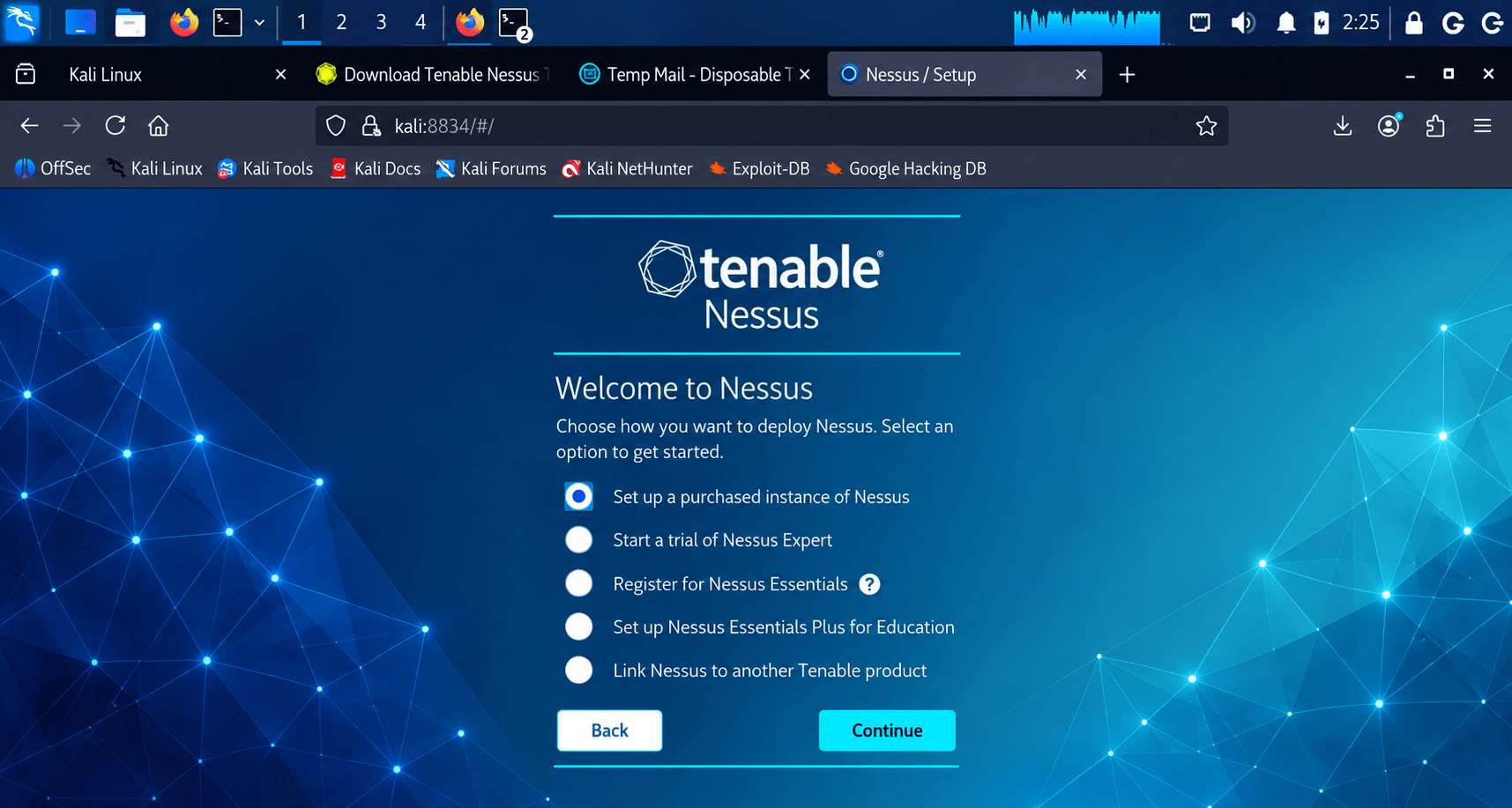
Choose deployment type
8
On the "Welcome to Nessus" screen, select Register for Nessus Essentials (the free tier — up to 5 IPs, 30-day trial-style license, good for lab/training use). Click Continue.
Create an admin account
9
Set a username and password and enter license for the Nessus web UI when prompted.
Wait for plugin compilation
10
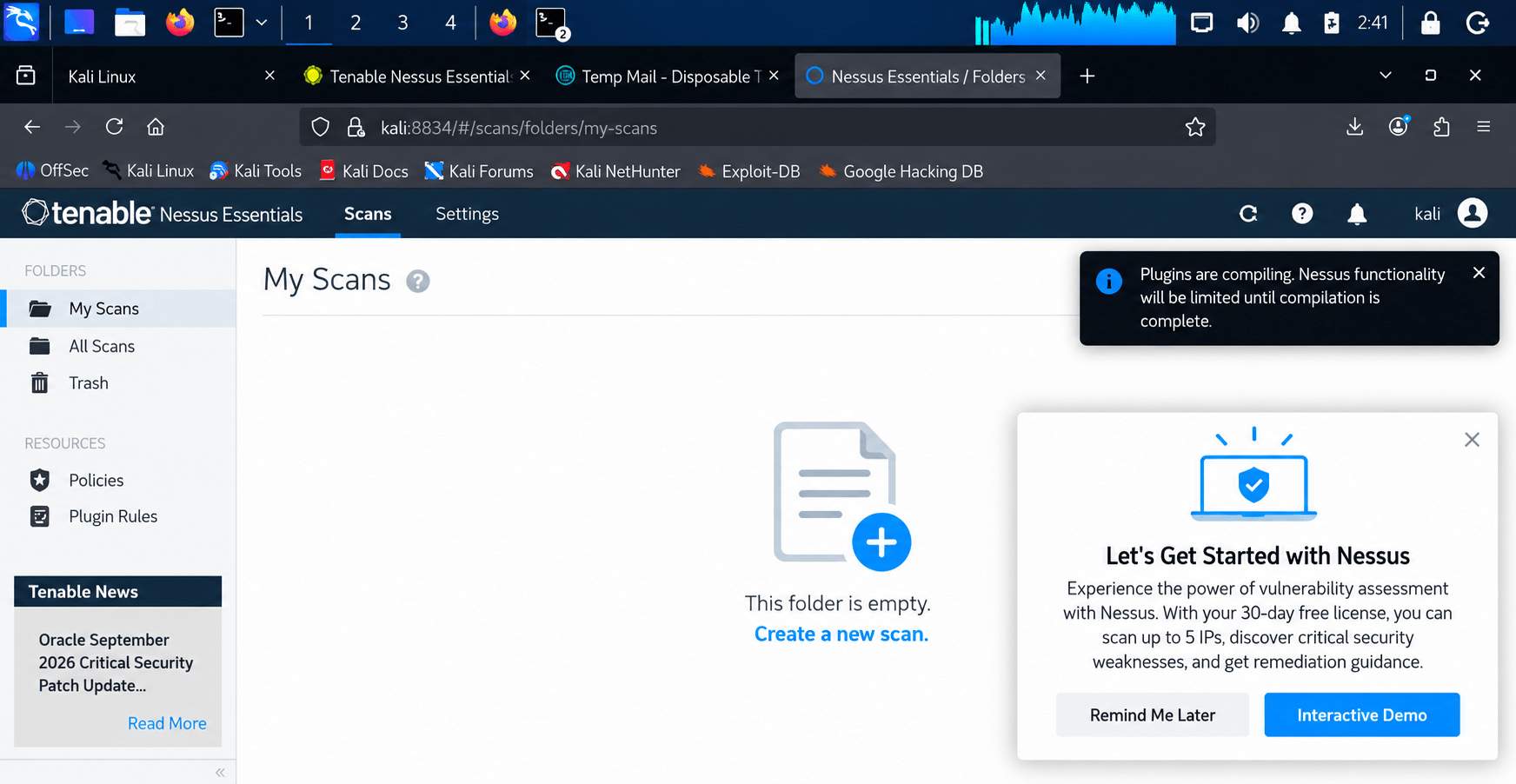
After setup, Nessus downloads and compiles its vulnerability plugins ("Plugins are compiling..."). This can take 20–40+ minutes depending on connection speed — this is normal, not a bug.
Create a new scan
11
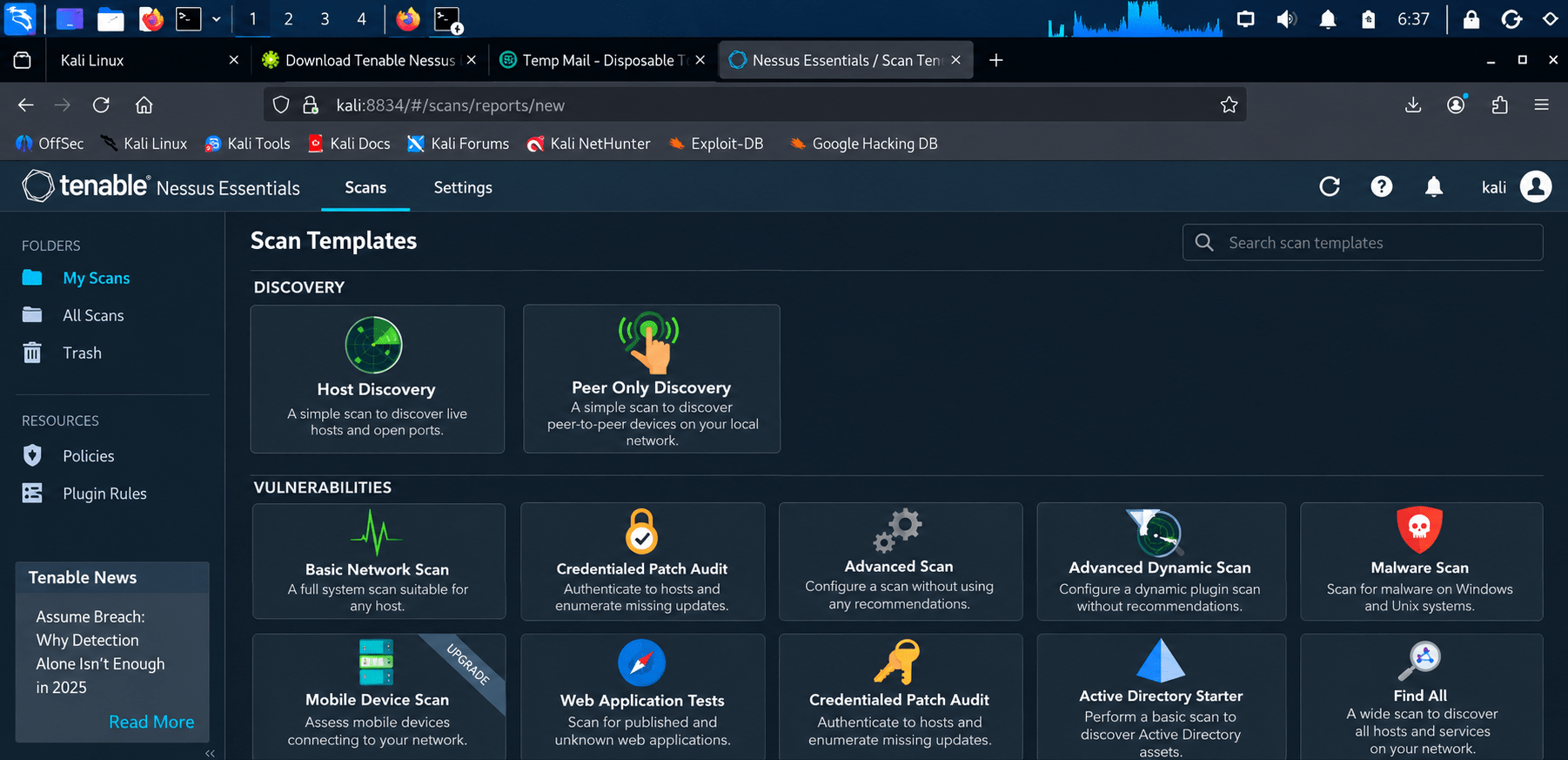
Go to My Scans → New Scan. Under Vulnerabilities, pick Advanced Scan.
Configure the scan
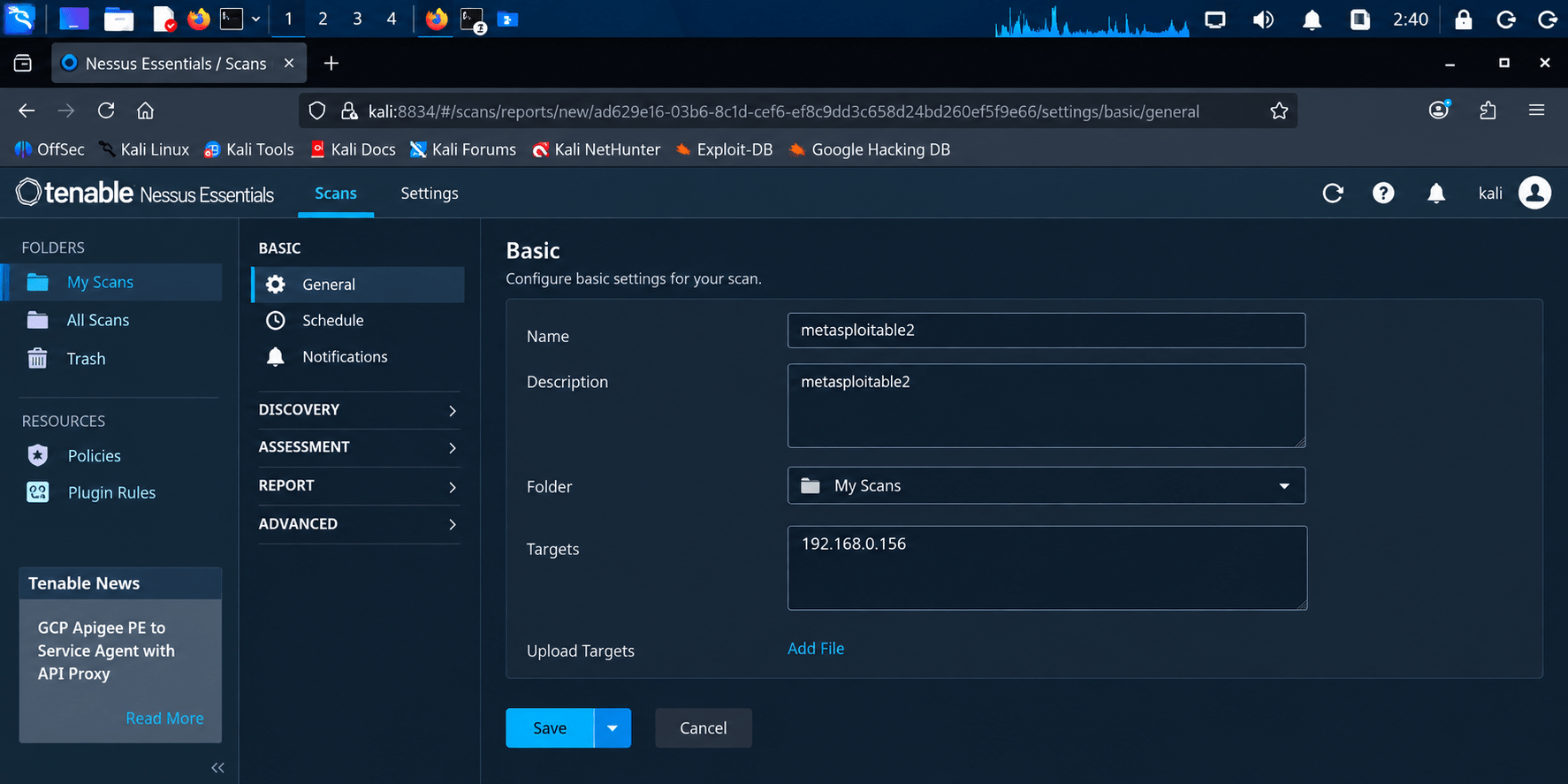
12
-
Description: e.g. metasploitable2
-
Folder: My Scans
-
Targets: IP of your target VM (e.g. 192.168.0.156) Click Save.
Monitor progress
13
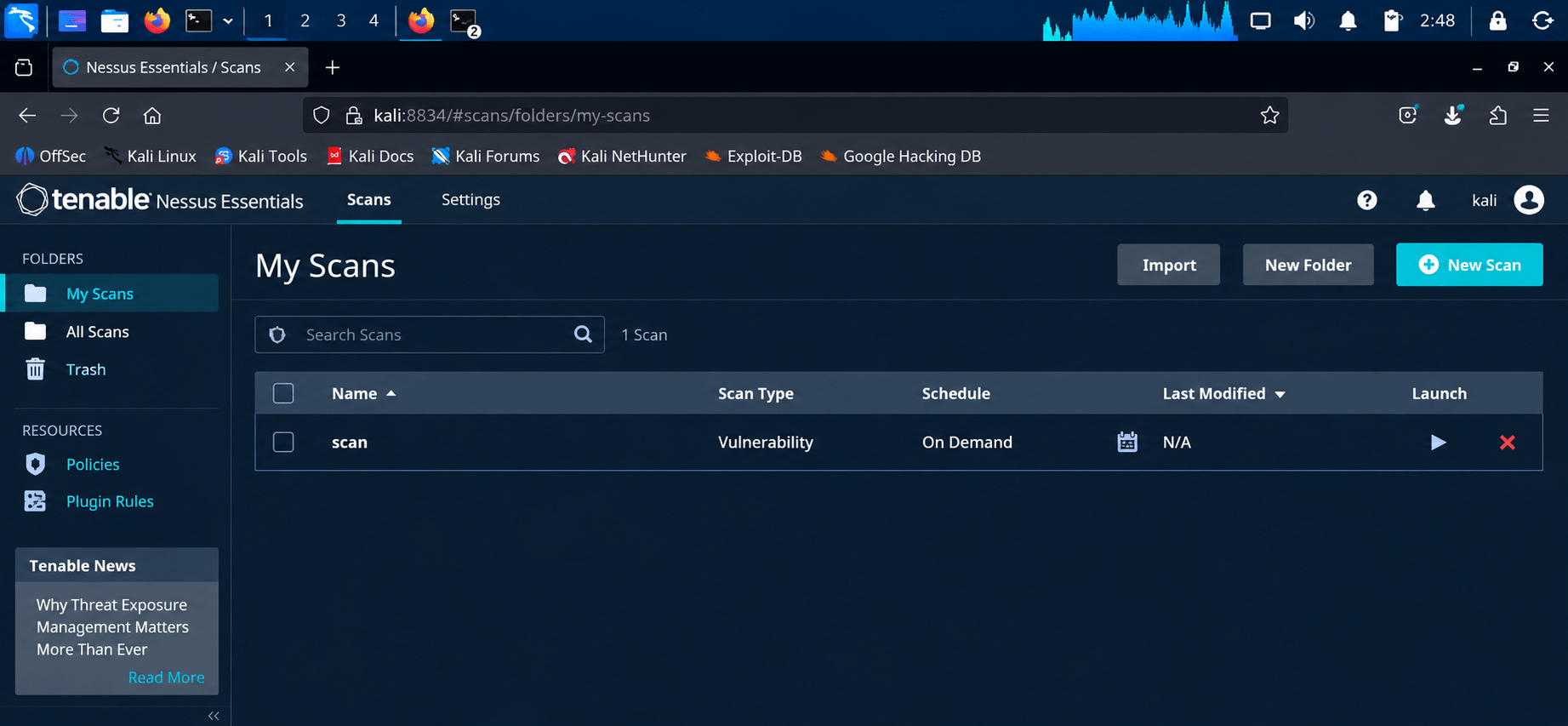
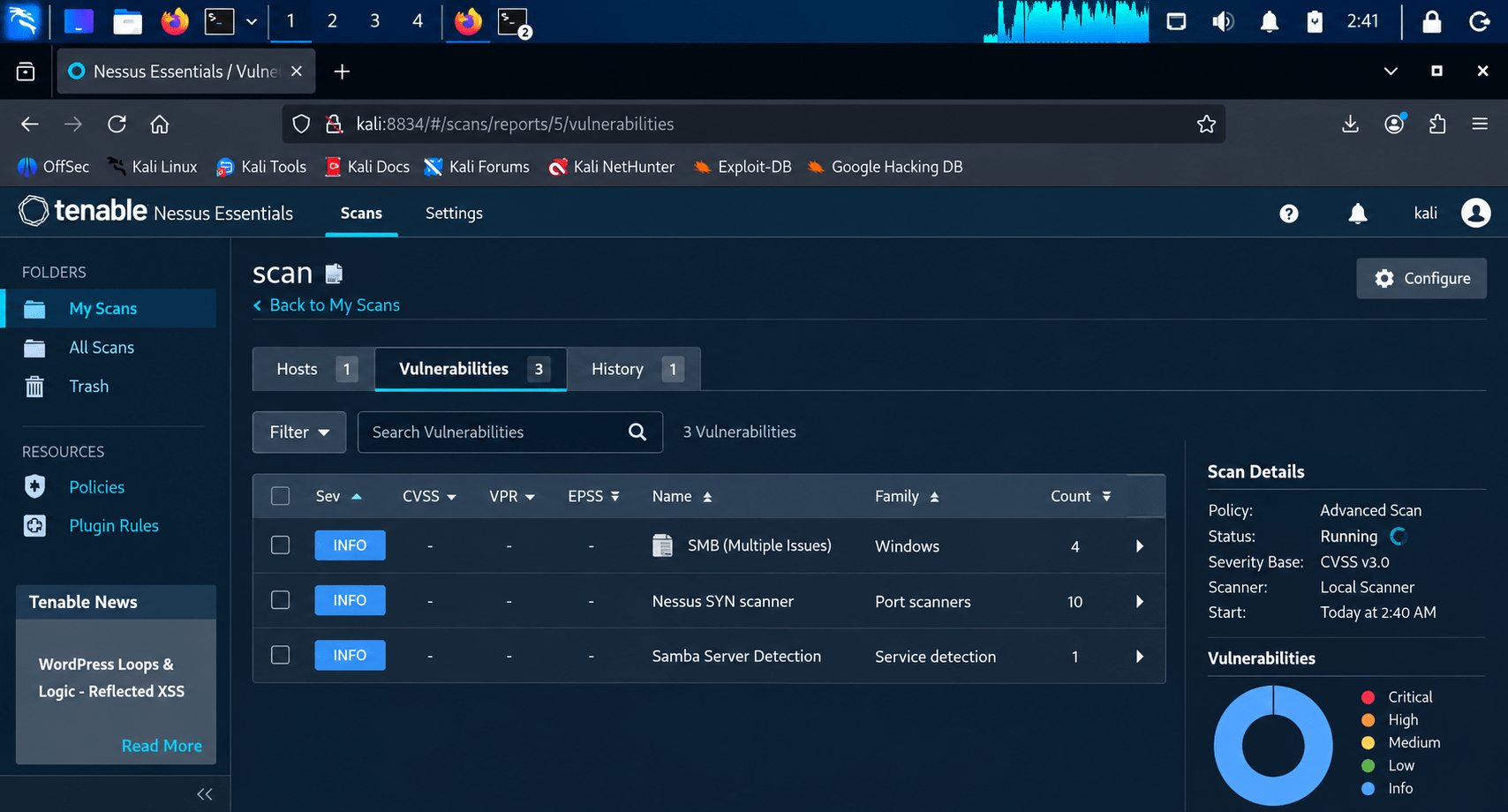
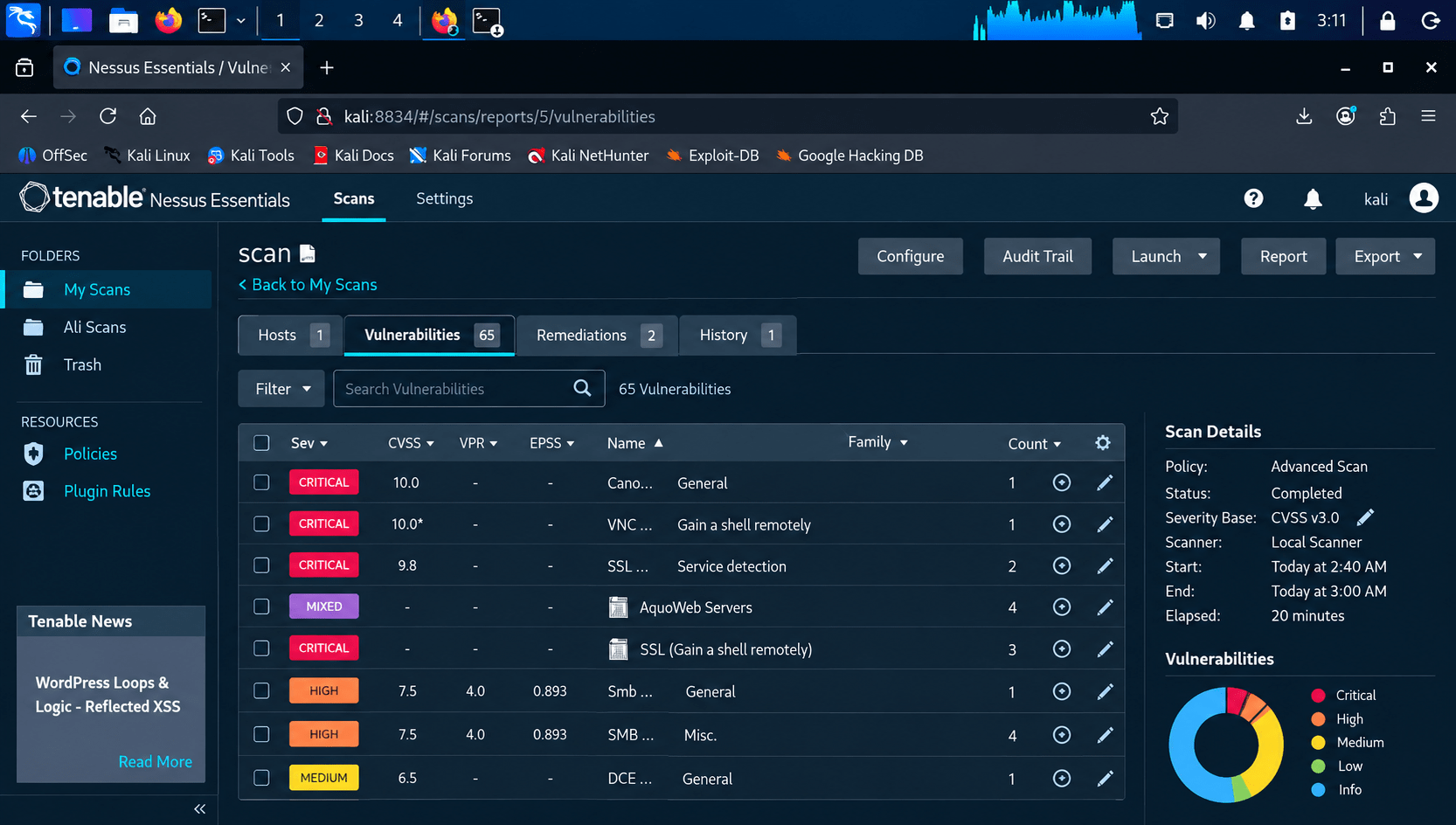
Click into the scan to watch it run. Status moves from Pending → Running → Completed. A scan against Metasploitable2 (deliberately vulnerable) typically takes 15–20 minutes and turns up dozens of findings.
Review results
14
Once completed, check the Hosts, Vulnerabilities, and Remediations tabs:
-
Vulnerabilities tab lists findings sorted by severity (Critical/High/Medium/Low/Info) with CVSS scores.
-
Click any finding (e.g. "Samba Badlock Vulnerability") to see the Description, Solution, and CVSS/Risk details.
-
Remediations tab summarizes the fixes with the biggest impact.
Great job!
You have successfully completed your Vulnerability Scanning with Nessus Essentials lab.
In this lab, you have: Set up Nessus Essentials, Scanned a target system, Identified vulnerabilities, Reviewed scan results
You are now ready to move to the next stage of vulnerability assessment and remediation.
Checkpoint
Next-Lab Preparation
Topic : Vulnerability Scanning and Assessment Tools
1) Vulnerability scanning using Nessus/OpenVAS
2) Basic exploitation methods