Selenium WebDriver Basics


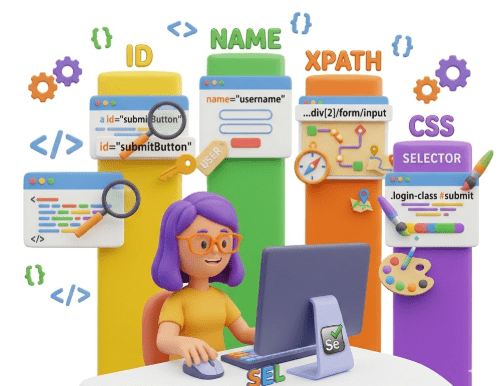
Locators – ID, Name, XPath, CSS

Learning Outcome
4
Apply common actions such as click, sendKeys, clear, and getText
3
Write simple automation scripts to interact with web elements
2
Locate web elements using ID, Name, XPath, and CSS selectors
1
Understand the basic concepts and functionality of Selenium WebDriver
5
Handle element properties and states to build reliable automation scripts
Recall

1. Click buttons, links, checkboxes, and radio buttons.
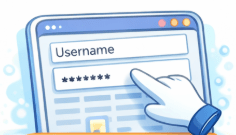
2. Enter text into input fields or text areas.
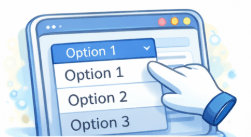
3. Select options from dropdown menus, checkboxes, or radio buttons.

4. Read text, labels, messages, or notifications displayed on the page.
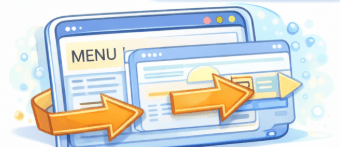
5.Navigate between pages using links, menus, or buttons
In manual testing, we interact with web elements of software applications by performing actions just like an end user would:

In automation testing,
We cannot interact with web elements manually. To automate actions, we must precisely locate each web element on the web page.
Selenium locators are the key concept for this. They allow us to identify and access elements so that automated scripts can perform actions like click, type, select, or read text reliably.
Mastering locators is essential for building robust and maintainable automation tests.
Imagine a huge office building with thousands of rooms.
Web page = office building

Each room represents a web element.buttons, text boxes, links, checkboxes.
They need the exact room number, floor, and directions.
Web elements = rooms
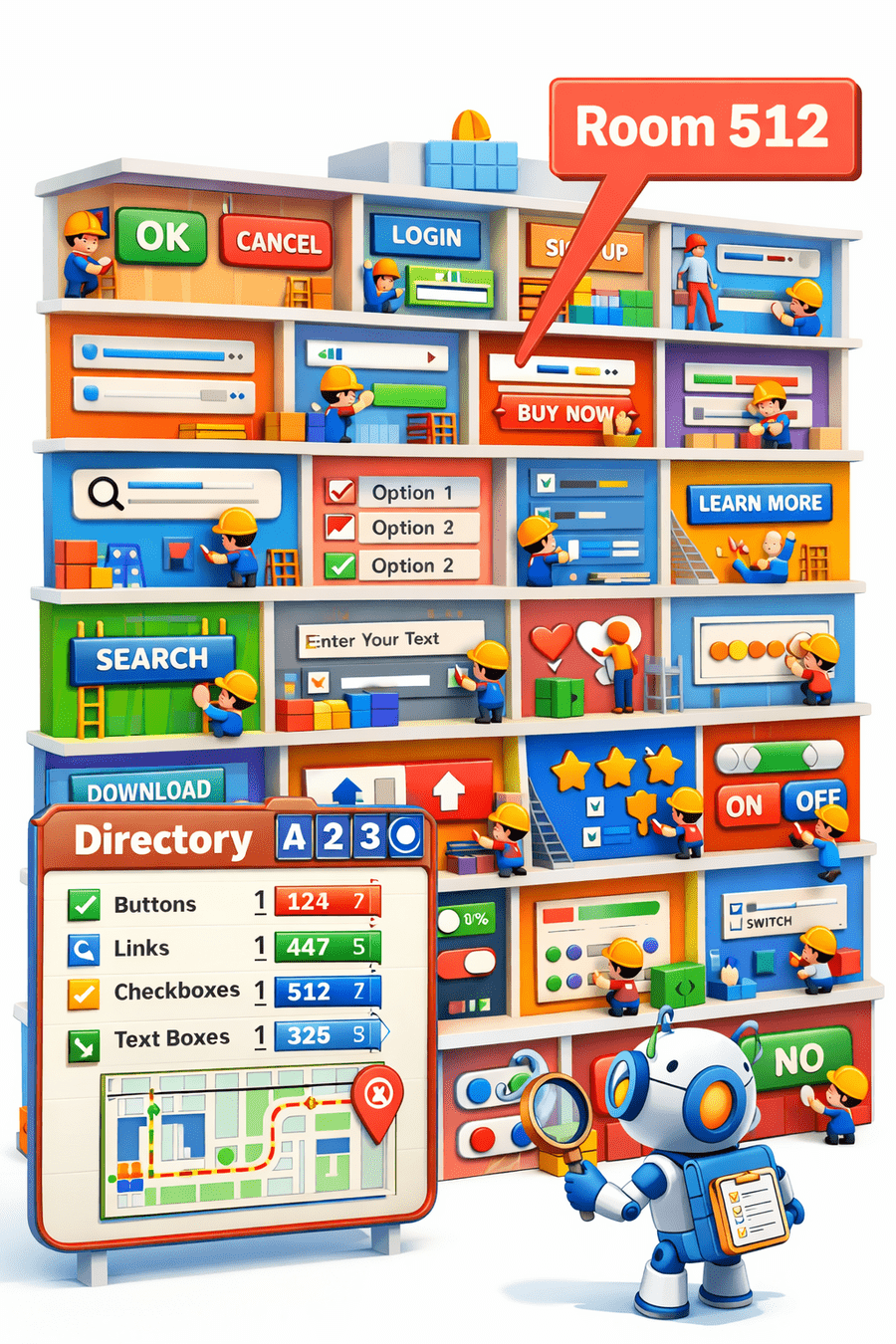
If a visitor (automation script) wants to reach a specific room, just knowing the building is not enough.
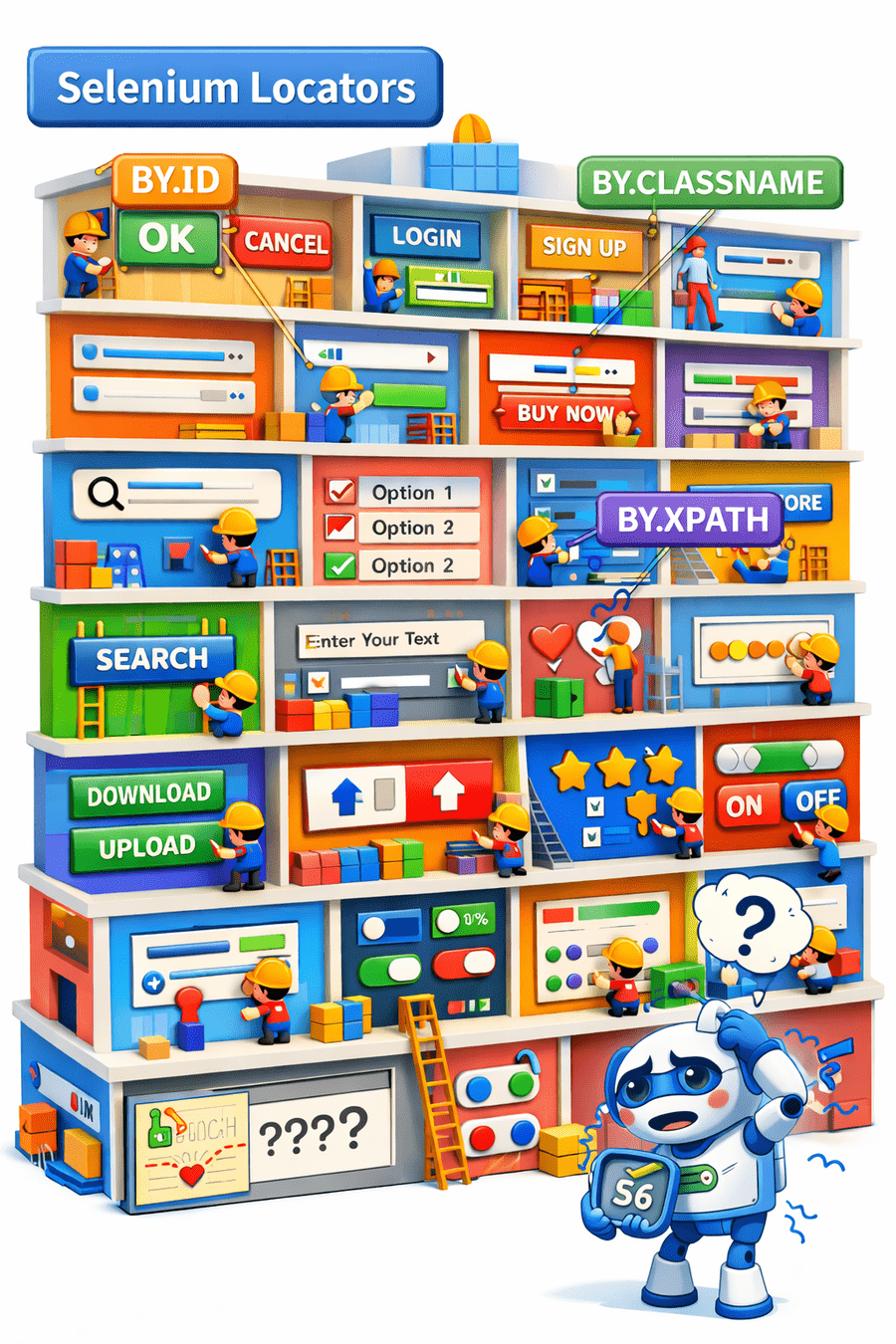
Without locators, the script is like a visitor wandering aimlessly, unable to perform any meaningful action.
Selenium locators serve this purpose—they act as the precise coordinates that guide the script to the exact element.
Selenium locators = room numbers / addresses
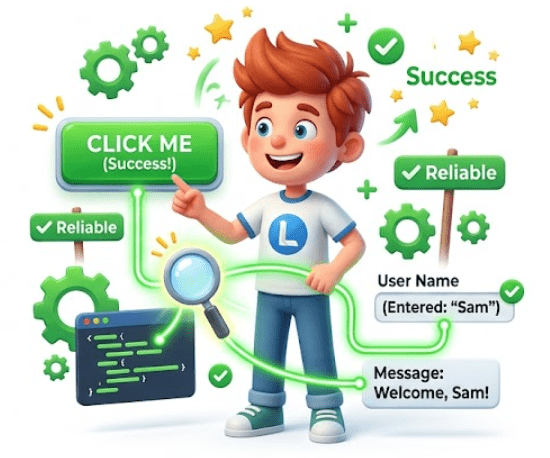
With locators, the script can interact efficiently, click buttons, type text, and read information—just like a visitor reaching the right office without confusion.
Automation script = visitor navigating to the room
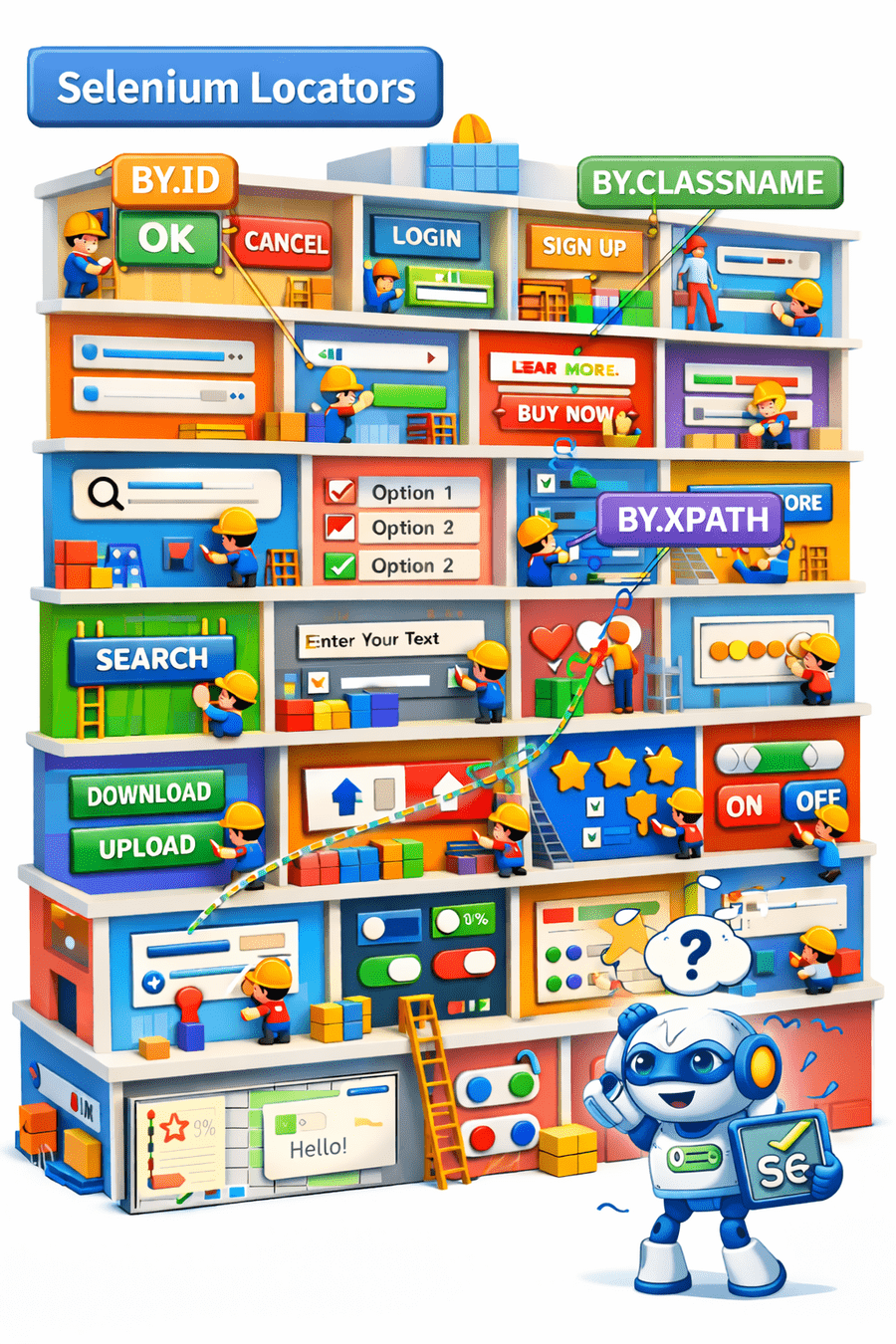

Why Do We Need Selenium Locators?

Automation scripts cannot see the page visually like humans.
To interact with elements (buttons, text boxes, links), scripts need their exact location.
Locators act as the address to find web elements on a page.

Using locators ensures that scripts can:
Click buttons and links accurately
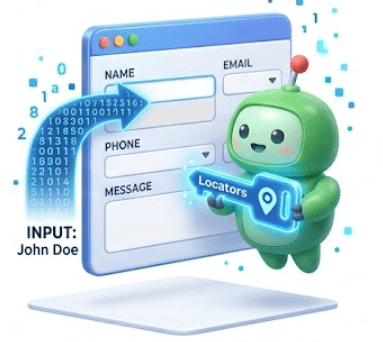
Enter text in input fields

Read labels, messages, and other content
Without locators → scripts fail;
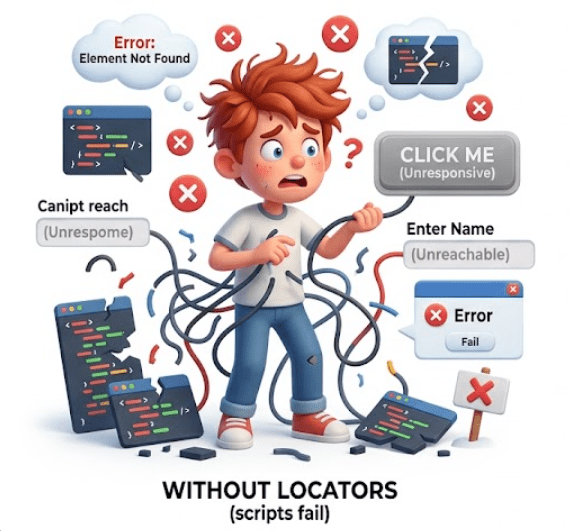
with locators → scripts are reliable and maintainable

What are Selenium Locators?
Selenium locators are strategies used to uniquely identify and locate web elements on a web page, enabling automation scripts to interact with them accurately and efficiently.
They act as a bridge between the automation script and the web elements, allowing actions such as clicking, typing, selecting, and retrieving data.
List of Selenium Locators
Selenium provides the following types of locators to identify web elements:

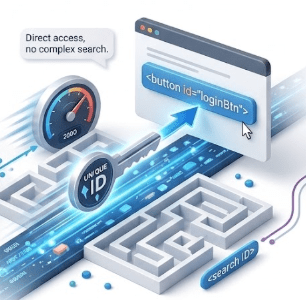
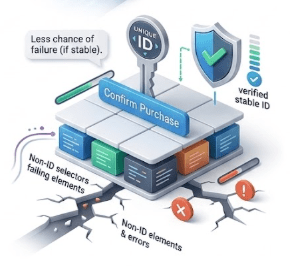
The ID locator is used to find a web element using its id attribute in HTML.
Since IDs are unique for each element (in most cases), this is the most preferred and fastest locator in Selenium.

Why Use ID Locator?
Unique – Each element usually has a unique ID

ID Locator
-
Fast – Direct access, no complex search
-
Reliable – Less chance of failure (if ID is stable)
-
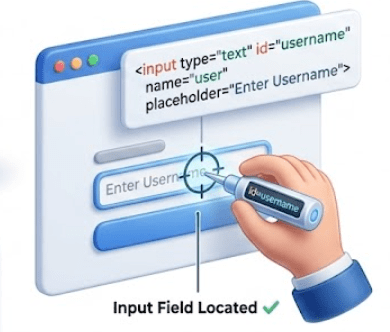
Example 1 : Locating Username Field
<input type="text" id="username" name="user" placeholder="Enter Username">
-
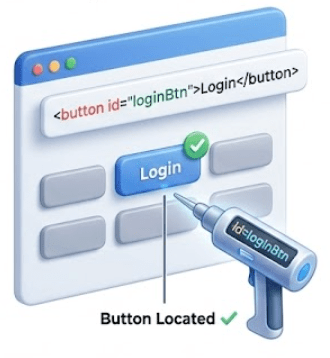
Example 2 : Locating button
<button id="loginBtn">Login</button>

Name Locator
The Name locator identifies web elements using the name attribute defined in HTML.
It is commonly used in forms where input fields like username, password, search boxes, etc., are assigned a name.
Why Use Name Locator?
-
Easy to use and understand
-
Works well when name is unique
Note
-
May not be reliable if multiple elements share the same name
-
Selenium will always pick the first one
Example
To locate Elements from Form.
<form>
<input type="text" name="username" placeholder="Enter Username">
<input type="password" name="password" placeholder="Enter Password">
<input type="text" name="username" placeholder="Re-enter Username">
<button name="loginBtn">Login</button>
</form>
ClassName Locator

The ClassName locator identifies web elements using their HTML class attribute.
In HTML, a class is often used to group elements with similar styling or behavior.
Multiple elements can share the same class.
Selenium uses the class name to find and return elements in the DOM.
Example
<form>
<input type="text" class="input-field" name="username" placeholder="Enter Username">
<input type="password" class="input-field" name="password" placeholder="Enter Password">
<button class="btn-login">Login</button>
<button class="btn-login">Cancel</button>
</form>
When to Use ClassName Locator ?

When ID or Name is not available
When dealing with multiple elements of the same type
Iterating over lists, tables, or repeated fields
Limitations
Cannot handle multiple class names with spaces directly
<input type="text" class="input-field form-control">
→ Must use CSS Selector or XPath instead.
May select the wrong element if the class is shared widely
Not suitable for unique element interactions
Limitations
NOTE
Best applied when you need to work with multiple similar elements rather than interact with a single unique element.
TagName Locator

The TagName locator identifies web elements using their HTML tag name such as input, button, a, div, span, etc.
Unlike ID or Name locators, TagName does not guarantee uniqueness, so its use requires careful consideration.
Selects first matching element only.

<form>
<input type="text" id="username" placeholder="Enter Username">
<input type="password" id="password" placeholder="Enter Password">
<button type="submit">Login</button>
<a href="#">Forgot Password?</a>
</form>
Example
Only the first <input> is selected. If there are multiple inputs
NOTE
LinkText Locator
The LinkText locator is used to identify hyperlink (<a>) elements using the exact visible text of the link.
Unlike ID or Name locators, TagName does not guarantee uniqueness, so its use requires careful consideration.
How It Works

Selenium searches the DOM for an <a> tag where the visible text exactly matches the string you provide.
If no exact match is found → NoSuchElementException is thrown.
Example
<a href="home.html">Home</a>
<a href="about.html">About Us</a>
<a href="contact.html">Contact</a>
PartialLinkTextLocator
The PartialLinkText locator is similar to LinkText but uses part of the visible text to identify a hyperlink.
Example
<a href="services.html">Our Services</a>
<a href="products.html">Our Products</a>
<a href="contact.html">Contact Us</a>
Services" matches “Our Services”
Useful when text may change slightly or is long

CssSelector Locator
cascading style sheet are used to create webpages in a stylish way hence can be effective medium to locate various web elements

These days webpages are design dynamically ,so its challenging to get unique id ,name ,classname to locate element.
cssSelector can be alternative & faster way compared to another locator
Types of CSS Selectors
Free and Open Source
1. By ID
#elementId
Free and Open Source
5. By Partial Attribute Match
-
Starts with: [attribute^='value']
-
Ends with: [attribute$='value']
-
Contains: [attribute*='value']
Free and Open Source
Free and Open Source
Free and Open Source
4. By Attribute
3. By Tag and Class
2. By Class
tagName[attribute='value']
tagName.className
.className
Example XML:
XPath (short for XML Path Language) is a query language used to navigate and select elements or attributes in an XML (or HTML) document.
It’s widely used in web scraping, automation tools like Selenium, and XML parsing.
XPath works like a path to locate nodes in a document structure.
<bookstore>
<book>
<title>Harry Potter</title>
<price>29.99</price>
</book>
</bookstore>
Example XPath:
/bookstore/book/title
Types of xpath
Absolute xpath
Relative xpath

Text
XPath Locator
Begins from the root of the HTML document and specifies the complete path to the element.
It’s not as flexible and can break if the page structure changes.
It is a direct way to find webelement as it starts with single forward slash[/].It can select webelement from root node.
/html/body/div[1]/div/div[3]/div[2]/div[2]/form/div[2]/input
If there are any changes made in absolute path the xpath get Fail
Absolute xpath
Example
Disadvantage
It Starts from a specific element and navigates through the DOM hierarchy to locate the desired element.
It’s more flexible and resilient to changes in the page structure.
It starts from double forward slash[//] which mean it can search webelement from anywhere on webpage starts in between HTML DOM Structure concise in size.
//*[@id="txtPassword"]
Absolute xpath
Example
Relative XPath Starts from a specific element and navigates through the DOM hierarchy to locate the desired element.
It’s more flexible and resilient to changes in the page structure.
It starts from double forward slash[//] which mean it can search webelement from anywhere on webpage starts in between HTML DOM Structure concise in size.
//*[@id="txtPassword"]
Common XPath Locator Strategies

//input[@id='email']
1. By Attribute
//tagname[@attribute='value']
Relative Xpath
Example
Example
//div[contains(@class,'header')]
Free and Open Source
Free and Open Source
2. By Text
//tagname[text()='Login']
3. By Contains
//tagname[contains(@attribute,'value')]
4. By Starts-with
//input[starts-with(@name,'user')]
Example
5. Using AND / OR
Free and Open Source
Free and Open Source
//input[@type='text' and @name='username']
6. Using Index
(//input[@type='text'])[1]
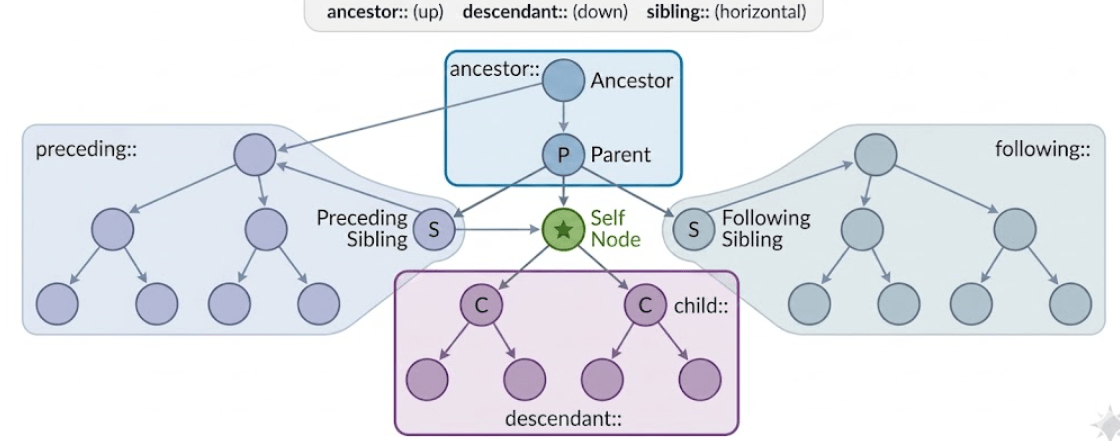
By using Xpath axes we can navigate throughout the DOM page like top to bottom and bottom to top and we can find any elements on the web page even though we don’t have the attribute .
Following are terminologies.
Xpath Axes
Self node :-from which node from the DOM we are starting is called self node. Or element. i. e main node
Ancestor :- Parent of Parent is Ancestor(Grand)
Parent
child
Descendent---child of child
Siblings –elements from same parent
Preceding sibling—-- nodes come before
following siblings —--after nodes
Relative Locators Or User Friendly Locators
User friendly locators or its also called as Relative locators .

Following are the Relative locators:
So we can find element by ReleativeLocator class having method with(By.TagName()) followed by above locators.(or methods)



below()
toLeftOf()
toRightOf
above()
near()
Summary
4
Accurate locators ensure stable automation scripts
3
Each element must be uniquely identified
2
Core concept for interacting with web pages
1
Technique to identify web elements in automation
Quiz
Which locator allows navigation through the DOM structure using paths?
A.ID
B.Name
C.XPath
D.Class Name

Quiz-Answer
Which locator allows navigation through the DOM structure using paths?
A.ID
B.Name
D.Class Name
C.XPath
