Travel Test Maven Integration & Dependency Management

Business Scenario
Welcome!
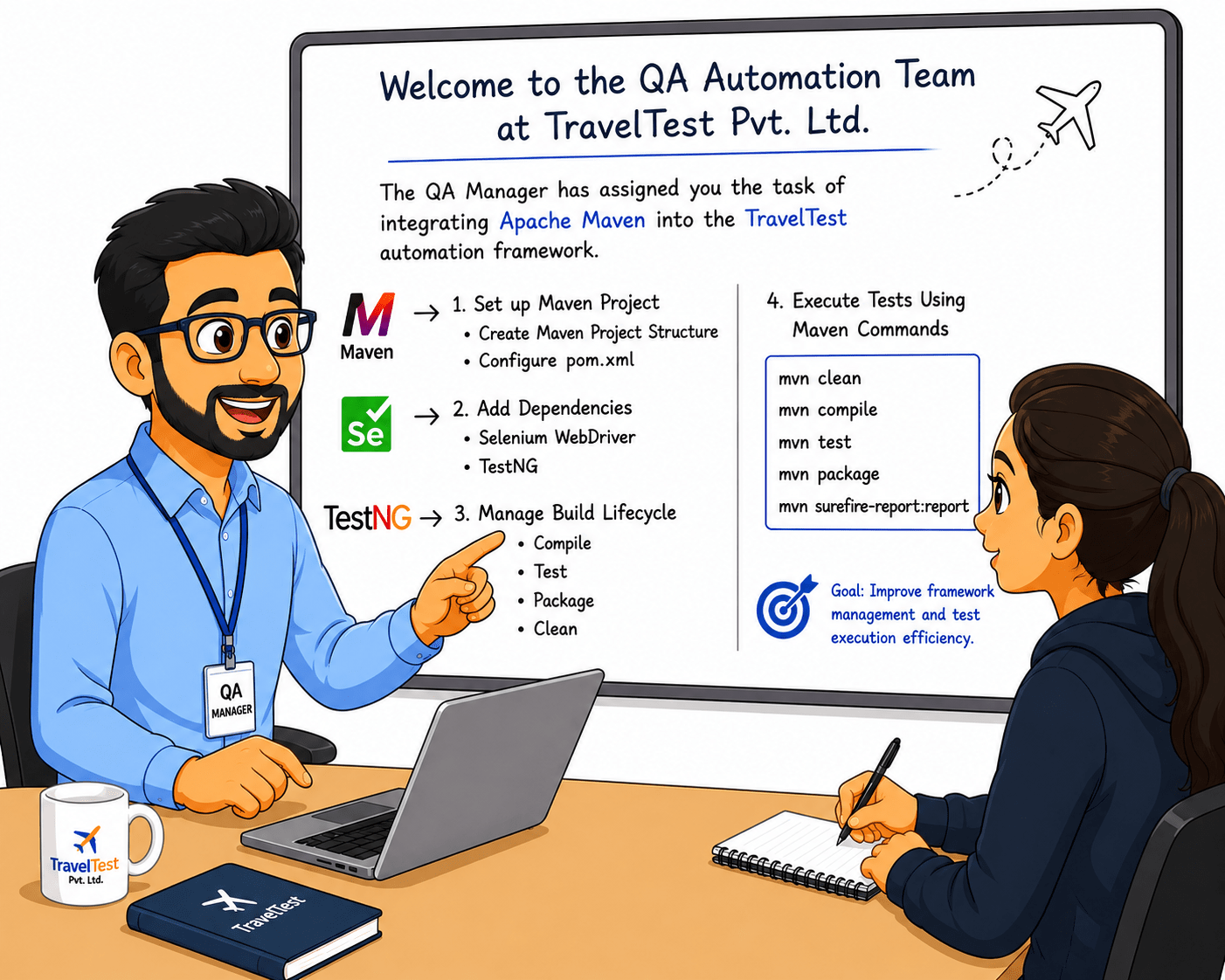
Welcome to the QA Automation Team at TravelTest Pvt. Ltd.
The QA Manager has assigned you the task of integrating Apache Maven into the TravelTest automation framework.
In this lab, you will set up a Maven project, add Selenium and TestNG dependencies.

Pre-Lab Preparation
Topic: Maven Setup
1)Project Structure
2)POM.xml Configuration
git pull origin branchNameGit Pull

Manage the build lifecycle and execute automated test cases using Maven commands to improve framework management and test execution efficiency.
Task 1: Setup Maven project
Launch Eclipse IDE or IntelliJ IDEA.
1
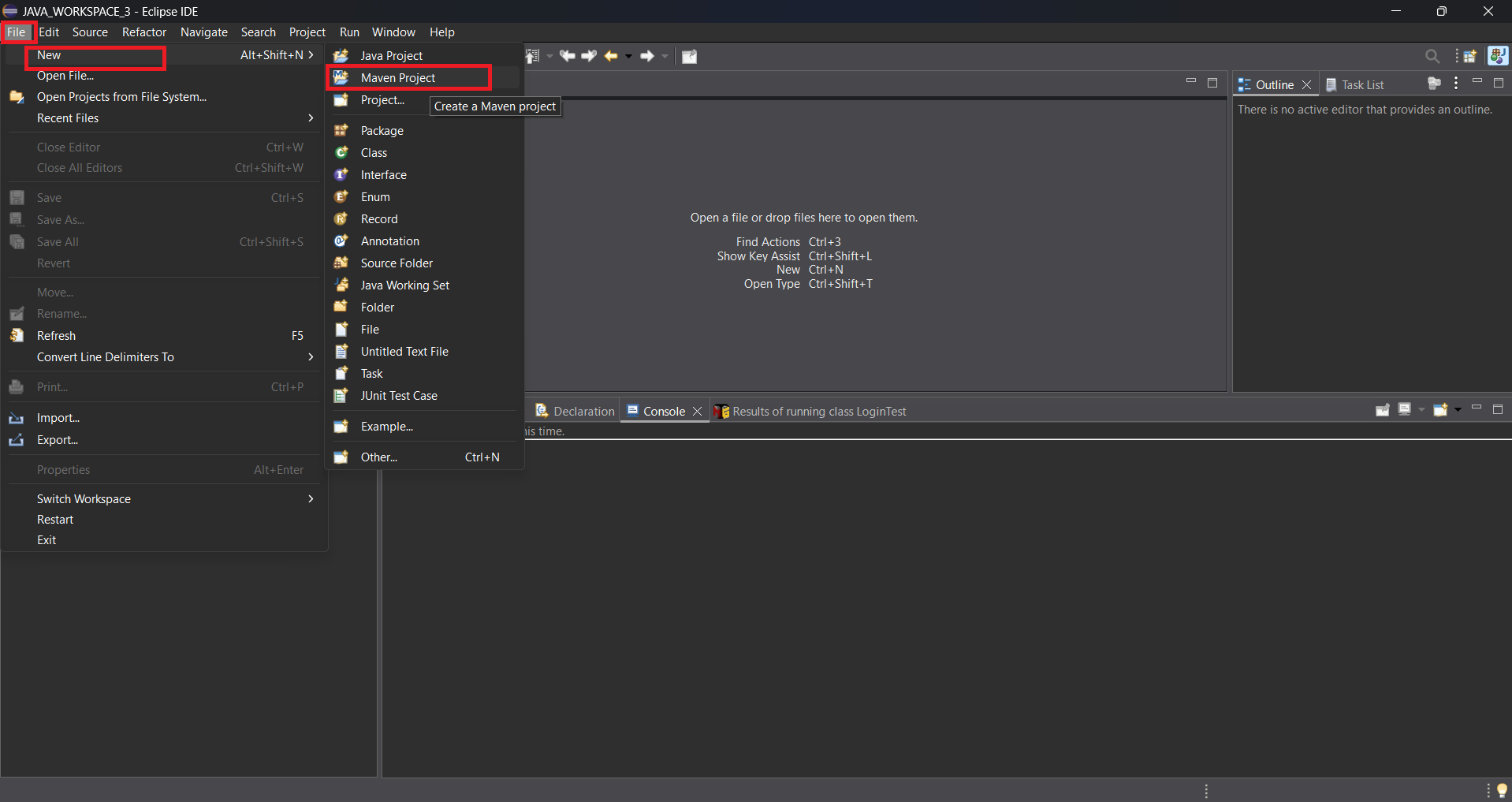
To create a new Maven project in Eclipse, open the File menu, select New, and choose Maven Project.
2
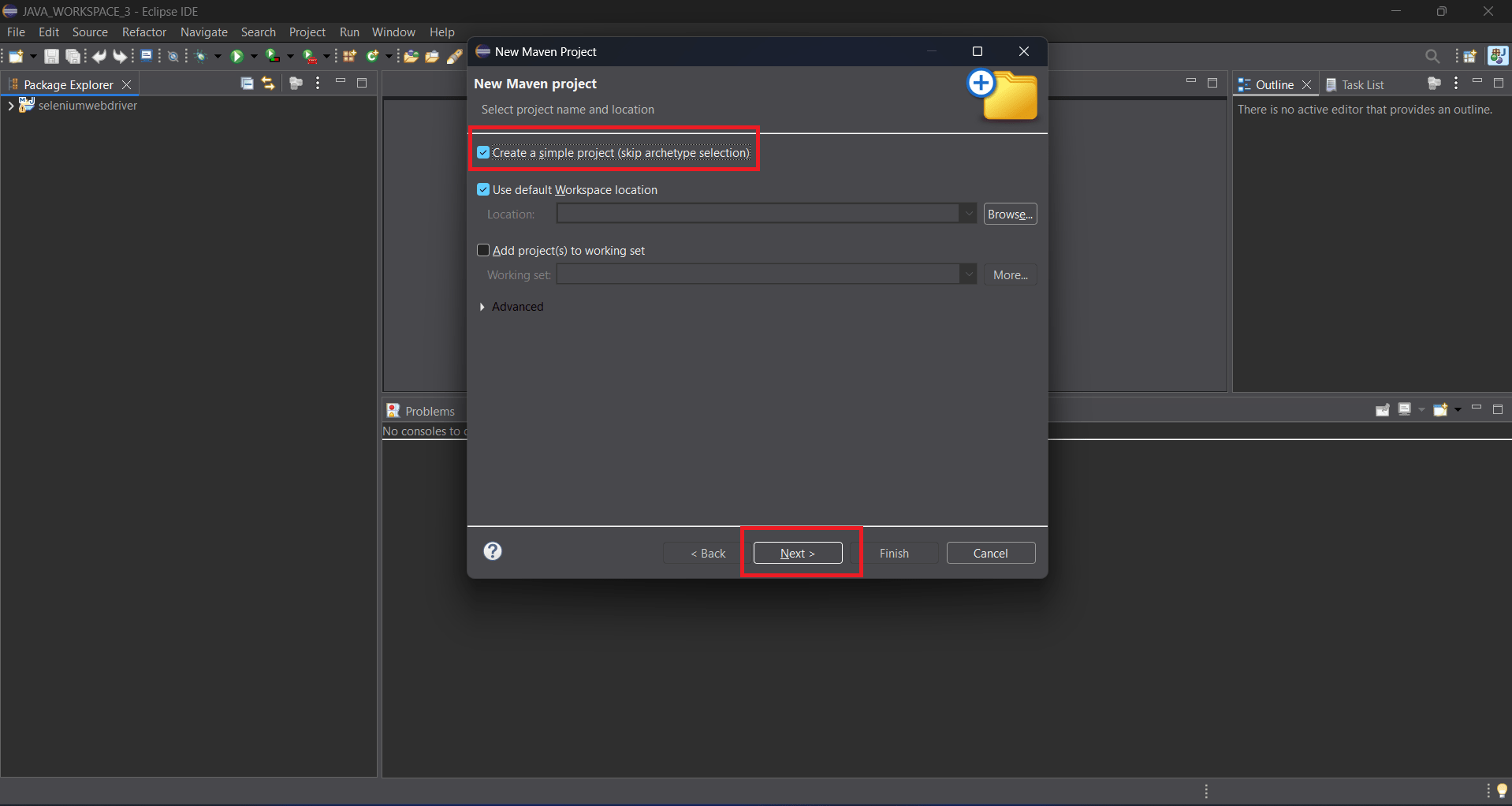
Select Create a simple project (skip archetype selection) and click Next to proceed with creating a basic Maven project.
3
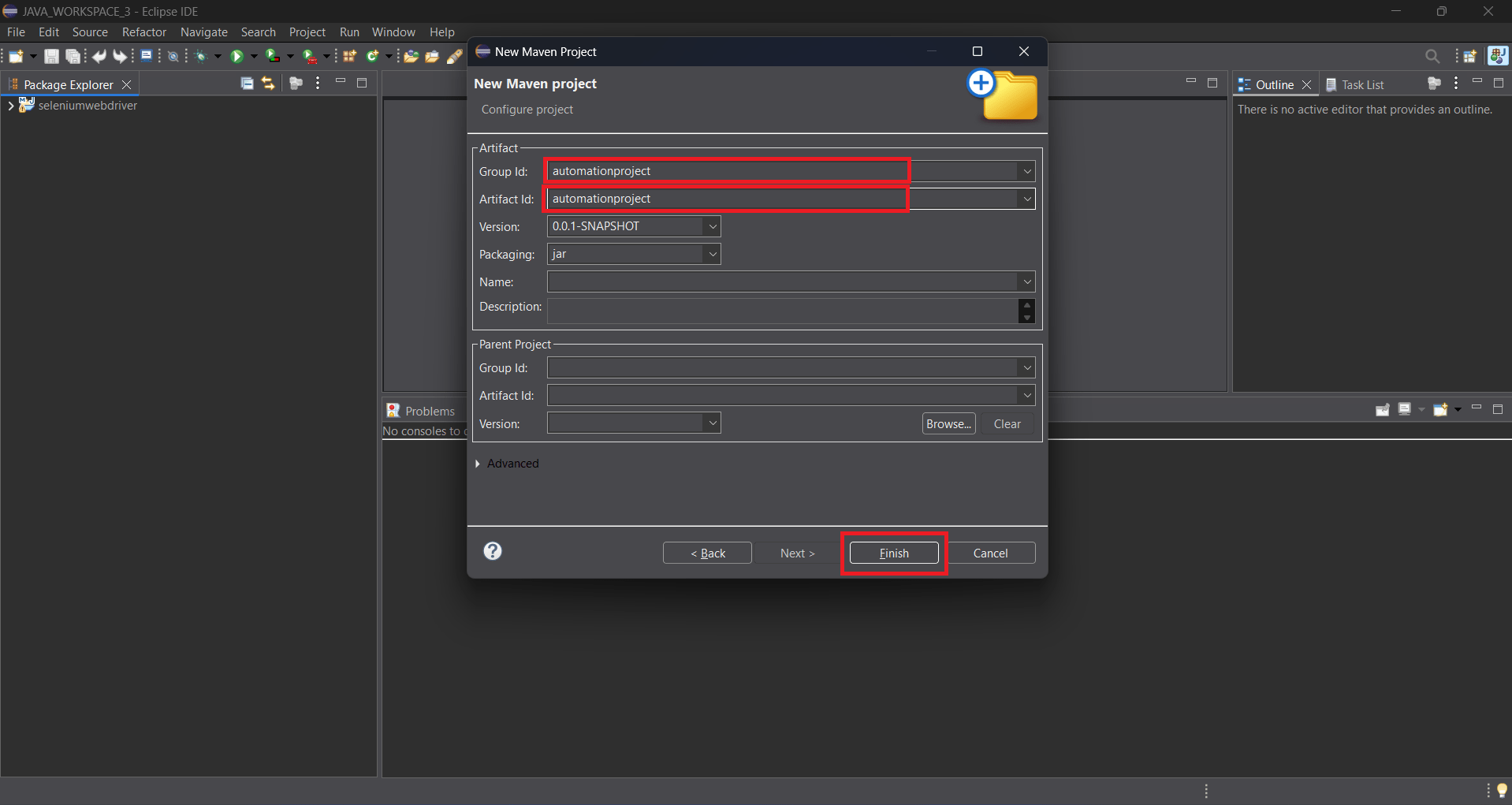
Enter the Group ID and Artefact ID as your project name (e.g., automationproject) and click Finish to create the Maven project.
4
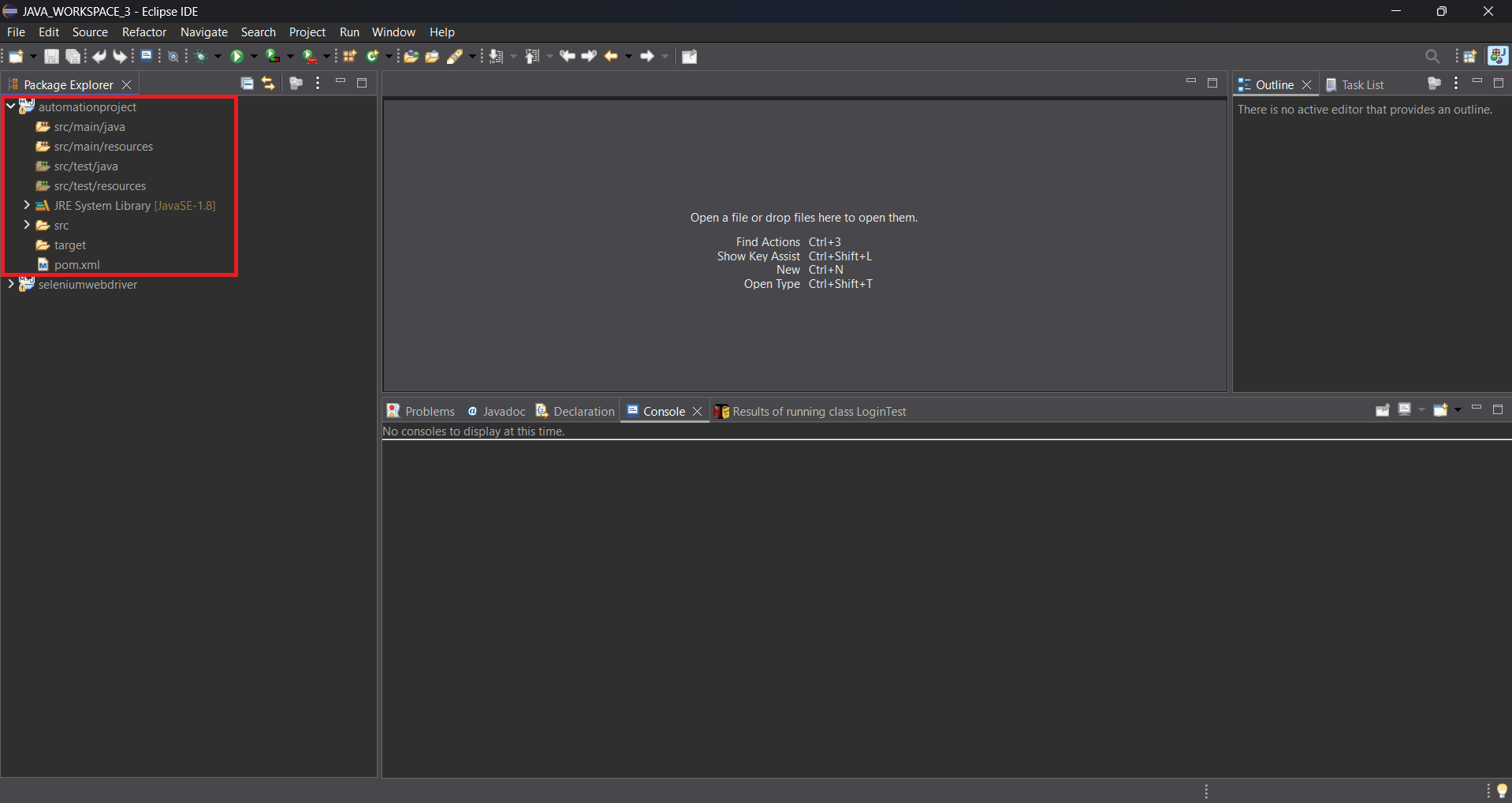
The Maven project has been created successfully, and the standard Maven project structure with the pom.xml file is now available in the Package Explorer.
5
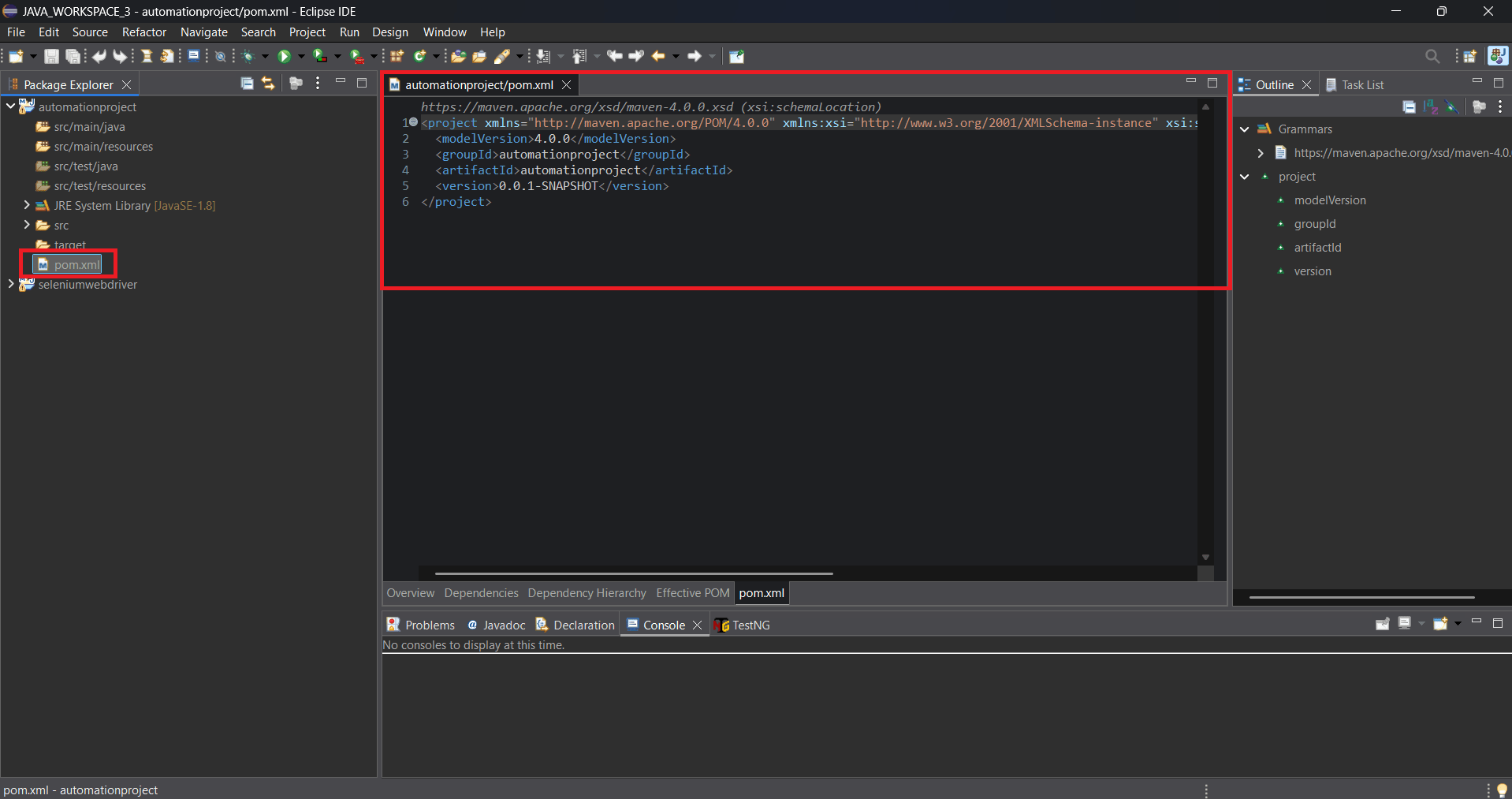
Open the pom.xml file from the project directory.
6
Save the Project
7
-
Save all files using:
-
Ctrl + S
-
Update Maven Project
8
-
Right-click project → Maven → Update Project.
Verify Build Success
9
-
Check that Maven downloads the required files successfully without errors.
Run Maven Validation Command
10
-
Open a terminal in the project folder and execute:
mvn validate -
Verify BUILD SUCCESS message is displayed.
Open Maven Project
1
-
Open the TravelTestMaven project in Eclipse IDE or IntelliJ IDEA.
Task 2: Add dependencies
Open pom.xml File
2
-
Locate and open:
pom.xml
Add Dependencies Section
3
-
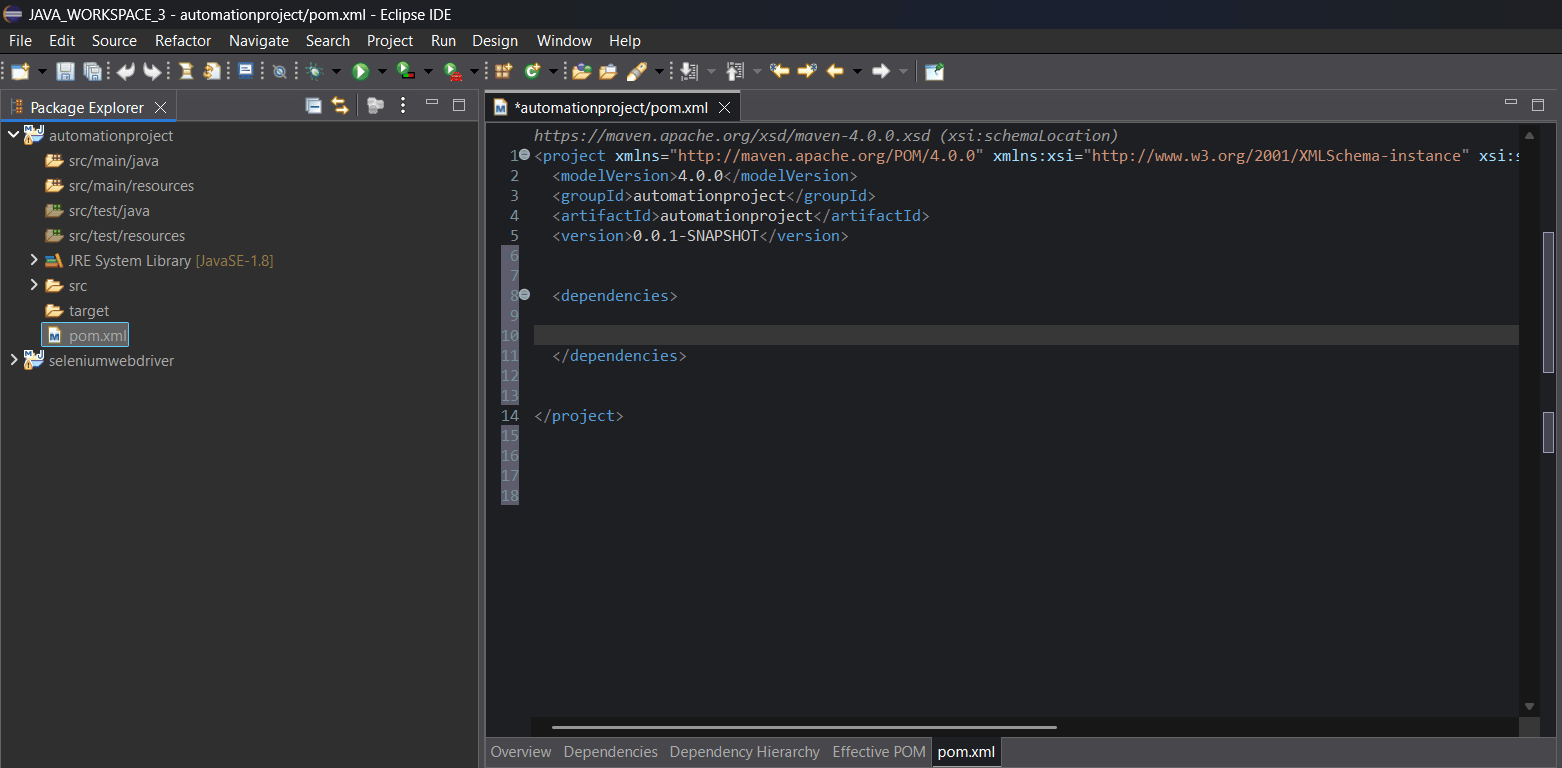
Inside the pom.xml file, add:
<dependencies>
</dependencies>
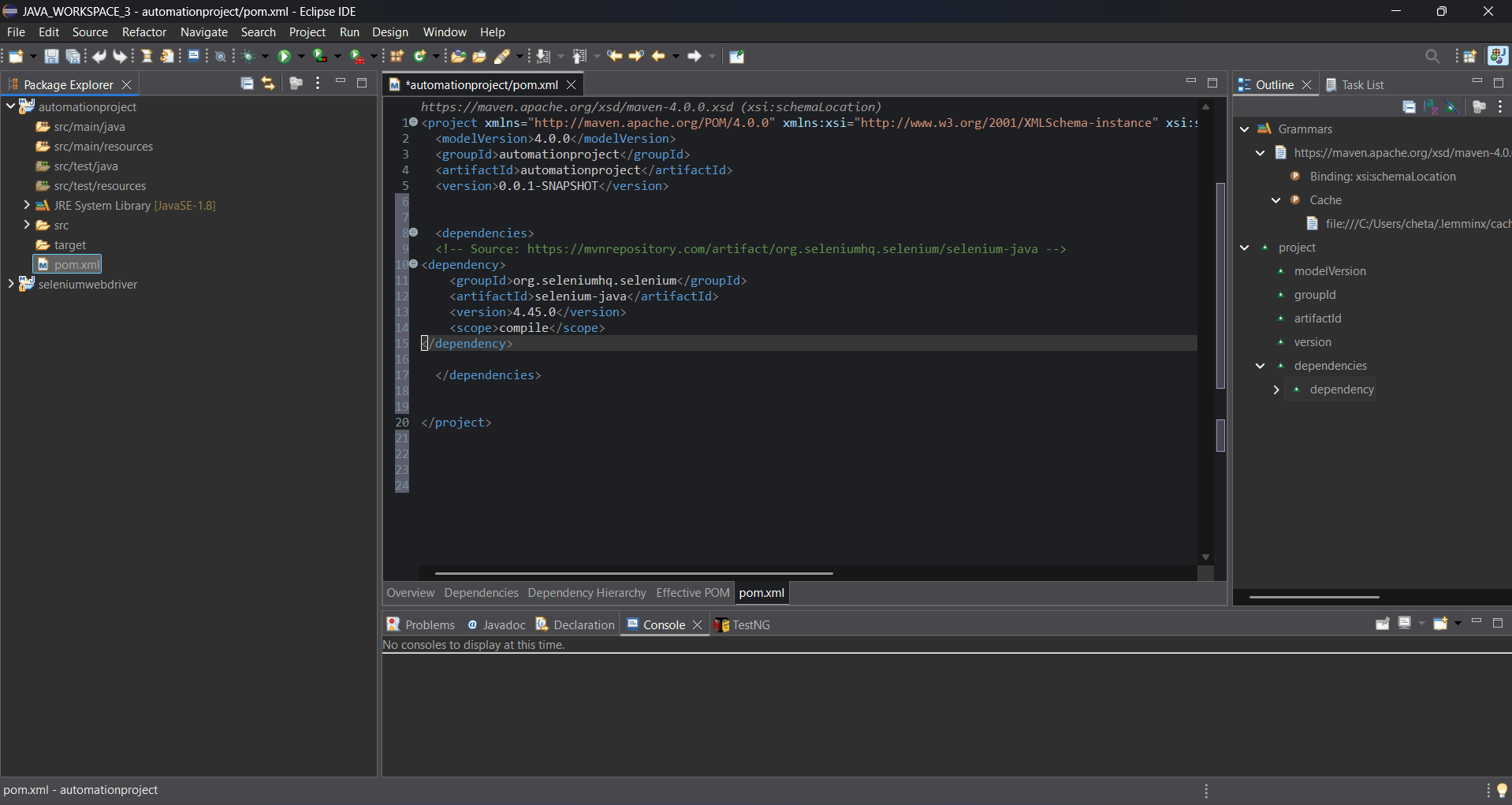
Add Selenium Dependency
4
<dependency>
<groupId>org.seleniumhq.selenium</groupId>
<artifactId>selenium-java</artifactId>
<version>4.45.0</version>
<scope>compile</scope>
</dependency>
Save pom.xml File
5
-
Save the file using:
Ctrl + S
Update Maven Project
6
-
Right-click the project:
Maven → Update Project
Verify Dependency Download
7
-
Check that the Maven Dependencies folder is created and the required JAR files are downloaded successfully.
Validate Project Build
8
-
Open a terminal and run:
mvn clean install -
Verify the message:
BUILD SUCCESS
Open Maven Project
1
-
Open the TravelTestMaven project in Eclipse IDE or IntelliJ IDEA.
Task 3: Manage build lifecycle
Open Terminal
2
-
Open terminal or command prompt in the project directory.
Validate Project
3
-
Run the validation command: mvn validate
-
Verify: BUILD SUCCESS
Compile Project
4
-
Execute compile phase:
mvn compile -
Verify Java source files compile successfully.
Run Test Phase
5
-
Execute test phase:
mvn test -
Verify that automated test cases execute successfully.
Package Project
6
-
Create project build package:
mvn package -
Verify the .jar file is generated inside the target folder.
Install Project
7
-
Install project into local Maven repository:mvn install
-
Verify:BUILD SUCCESS
Clean Project
8
-
Remove previous build files:mvn clean
-
Verify that the target folder is deleted.
Observe Maven Lifecycle Execution
9
-
Understand that Maven executes phases sequentially:
validate → compile → test → package → install
Verify Build Artifacts
10
-
Check generated reports and build files inside:target/
Task 4: Run tests using Maven
Open Maven Project
1
-
Launch Eclipse IDE or IntelliJ IDEA and Open the TravelTestMaven project.
Verify Test Classes
2
-
Ensure test classes are available inside: src/test/java
Example:
LoginTest.java
SearchFlightTest.java
Open pom.xml File
3
-
Verify TestNG dependency is added:
<dependency>
<groupId>org.testng</groupId>
<artifactId>testng</artifactId>
<version>7.10.2</version>
<scope>test</scope>
</dependency>
Save and Update Maven Project
4
-
Save the project using: Ctrl + S
-
Right-click project: Maven → Update Project
Open pom.xml File
5
-
Verify TestNG dependency is added:
<dependency>
<groupId>org.testng</groupId>
<artifactId>testng</artifactId>
<version>7.10.2</version>
<scope>test</scope>
</dependency>
-
Import Seleni
-
Right-click on the project.
-
Select New → File.
-
Enter file name as testng.xml.
-
Click Finish.
-
um WebDriver and TestNG annotation packages.
Configure Test Suite in XML File
3
-
Add suite and test details inside the XML file.
Example:
<!DOCTYPE suite SYSTEM "https://testng.org/testng-1.0.dtd">

<suite name="TravelTestSuite">
   <test name="TravelTestCases">
       <classes>
           <class name="testcases.LoginTest"/>
           <class name="testcases.SearchFlightTest"/>
       </classes>
   </test>
</suite>
Save the XML File
4
-
Press Ctrl + S to save the testng.xml file.
-
Verify that the file is available in the project directory.
<!DOCTYPE suite SYSTEM "https://testng.org/testng-1.0.dtd">

<suite name="TravelTestSuite">
   <test name="TravelTestCases">
       <classes>
           <class name="testcases.LoginTest"/>
           <class name="testcases.SearchFlightTest"/>
       </classes>
   </test>
</suite>
Run the Test Suite
5
-
Right-click on testng.xml.
-
Select Run As → TestNG Suite.
Observe Test Execution
6
-
Check the Console window for execution details.
-
Verify that all test classes execute sequentially.
Verify Test Results
7
-
Open the TestNG results tab.
-
Confirm that all test cases show PASSED status.
Open Existing TestNG Class
1
-
Open the previously created TestNG class in the TravelTest project.
-
Identify multiple test methods for execution.
Task 4: Manage test priorities
Create Multiple Test Methods
2
-
Create different test cases, such as login, search for a flight, and logout.
Example:
@Test
public void loginTest() {
   System.out.println("Login Test Executed");
}

@Test
public void searchFlightTest() {
   System.out.println("Search Flight Test Executed");
}

@Test
public void logoutTest() {
   System.out.println("Logout Test Executed");
}
Assign Priorities to Test Cases
3
-
Add the priority attribute inside the @Test annotation.
-
Assign lower numbers for higher execution priority.
Example:
@Test
public void loginTest() {
   System.out.println("Login Test Executed");
}

@Test
public void searchFlightTest() {
   System.out.println("Search Flight Test Executed");
}

@Test
public void logoutTest() {
   System.out.println("Logout Test Executed");
}
@Test(priority = 1)
public void loginTest() {
System.out.println("Login Test Executed");
}
@Test(priority = 2)
public void searchFlightTest() {
System.out.println("Search Flight Test Executed");
}
@Test(priority = 3)
public void logoutTest() {
System.out.println("Logout Test Executed");
}
Save the Test Class
4
-
Press Ctrl + S to save the updated test class.
@Test(priority = 1)
public void loginTest() {
   System.out.println("Login Test Executed");
}

@Test(priority = 2)
public void searchFlightTest() {
   System.out.println("Search Flight Test Executed");
}

@Test(priority = 3)
public void logoutTest() {
   System.out.println("Logout Test Executed");
}
Execute the Test Class
5
-
Right-click on the class file.
-
Select Run As → TestNG Test.
Observe Execution Order
6
-
Check the Console output.
-
Verify that test cases execute according to assigned priorities.
Verify Test Results
7
-
Open the TestNG results tab.
-
Confirm that all test cases execute successfully with PASSED status.
View TestNG Report
8
-
Refresh the project after execution.
-
Open the test-output folder.
-
Open index.html to verify prioritized test execution details.
Great job!
You have successfully completed the FinCheck Data Extraction & Comparison Techniques session.
Learned how to extract datasets from databases, compare expected vs actual data, identify mismatches, and document discrepancies for accurate financial data validation.
Checkpoint
Great job!
You have successfully completed your lab on “TravelTest TestNG Framework Setup” where you have learned how to configure the TestNG framework in a Selenium project, create test cases using annotations, execute test suites through XML files, and manage test execution priorities. You also gained practical knowledge of organizing automated test execution and generating TestNG reports for the TravelTest application.
.
Checkpoint
Next-Lab Preparation
Git Push
git push origin branchNameTopic:
1)Project Structure
2)POM.xml Configuration